> For the complete documentation index, see [llms.txt](https://fusionauth.io/docs/llms.txt)
# Add an OpenID Connect with Discord IdP
Learn how to set up user log in using Discord as an OpenID Connect Identity Provider.
# Add an OpenID Connect with Discord IdP
Once you have completed this configuration you may enable an OpenID Connect Login with Discord button for one or more FusionAuth Applications. See [Discord - OAuth2](https://docs.discord.com/developers/topics/oauth2/) for an additional reference.
Here's a diagram of the login flow between:
* the user
* your application
* FusionAuth and
* a remote identity provider
```mermaid
sequenceDiagram
participant User as User/Browser
participant App
participant FusionAuth
participant IdentityProvider as Provider
User ->> App : View Initial Page
Click Login
App ->> User : Displays Login Page
Including Link To 'Login With Provider'
User ->> App : Clicks On 'Login With Provider'
App ->> User : Redirect To Provider Authorization URL
User ->> IdentityProvider : Enters Credentials
IdentityProvider ->> IdentityProvider : Validate Credentials
IdentityProvider ->> User : Redirect to App With Authorization Code
User ->> App : Requests Page, Has Authorization Code
App ->> FusionAuth : Calls Complete Login
With Code And Redirect URI
FusionAuth ->> IdentityProvider : Exchanges Code And
Redirect URI For Provider Token
IdentityProvider ->> FusionAuth : Returns Provider Token
FusionAuth ->> FusionAuth : Stores Provivider Token, Calls Lambda, Creates User And Registrations (If Needed), Generates FusionAuth Tokens
FusionAuth ->> App : Return FusionAuth Tokens
App ->> App : Create Session Or
Otherwise Log User In
Note over User, IdentityProvider: User Is Logged In And App Can Proceed
Delivering Data And Functionality
```
Although this looks complex, the user only sees a few screens, such as the FusionAuth login screen, the provider login screen, and your application.
## Register a Discord OAuth2 Application
First, log in to [Discord](https://discord.com/developers/applications/). Then, navigate to [https://discord.com/developers/applications/](https://discord.com/developers/applications/) and create a new application.
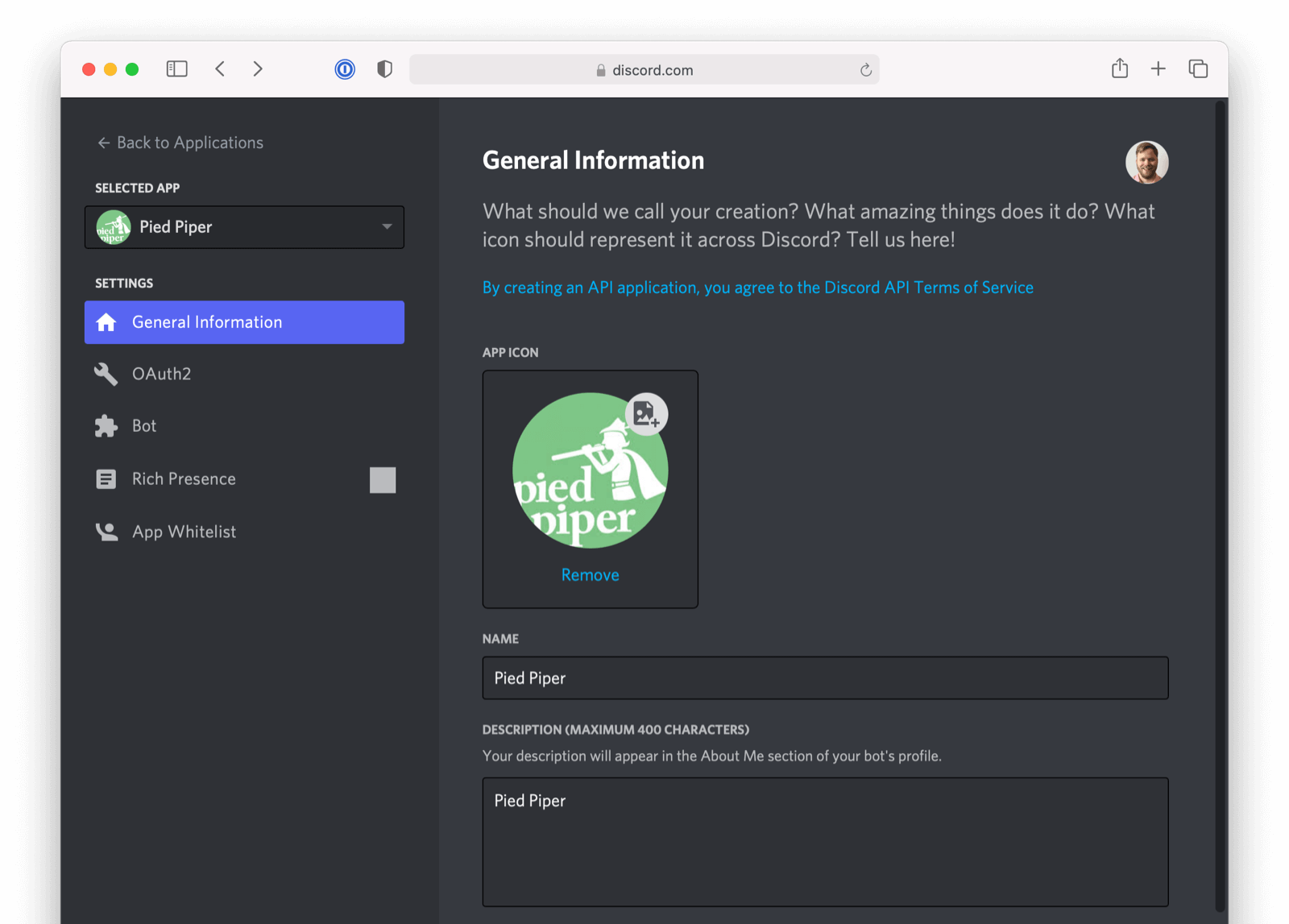
Finally, configure OAuth2 for your Discord app by opening Selected App -> Settings -> OAuth2 in the navigation pane on the left side of the screen.
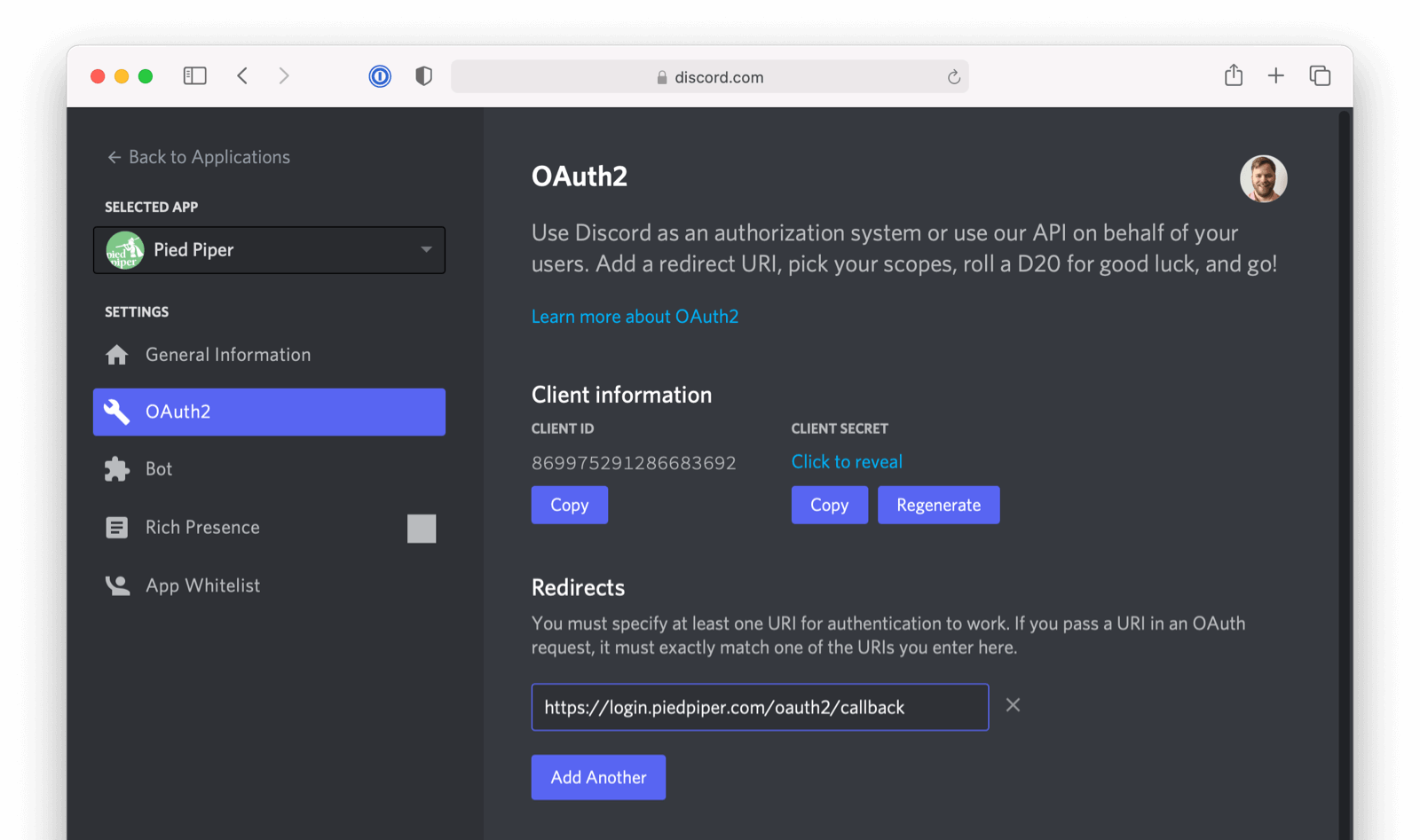
To configure the callback URL for your application, add `/oauth2/callback` to the URL for your instance of FusionAuth. In the screenshot, FusionAuth is running at `https://login.piedpiper.com` so the redirect URL is `https://login.piedpiper.com/oauth2/callback`.
Note the `CLIENT ID` and the `CLIENT SECRET` after the application is created. You'll use these to configure the **Client Id** and **Client secret** values for your FusionAuth OpenID Connected Identity Provider.
## Configure a New FusionAuth OpenID Connect Identity Provider
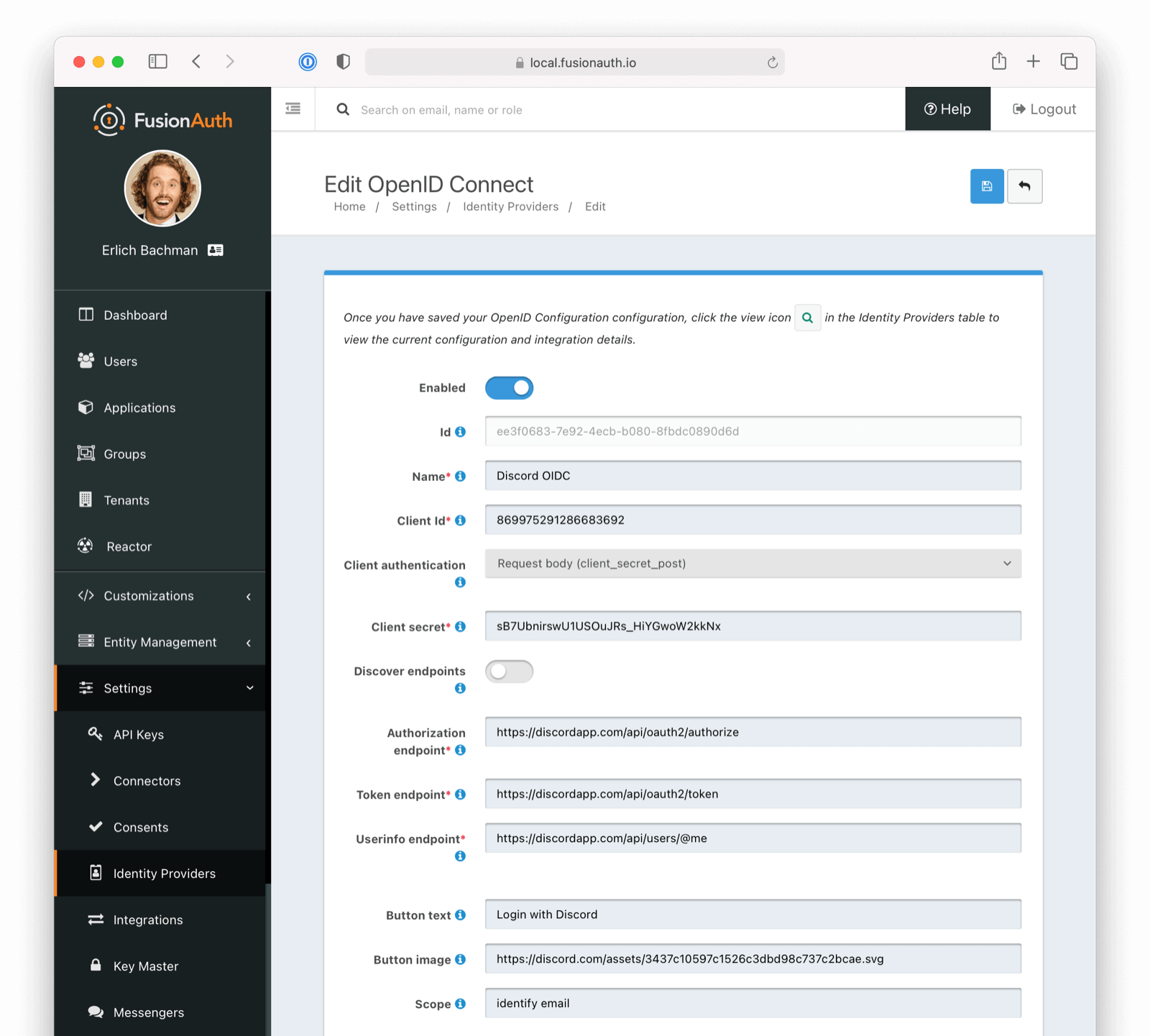
To create a Discord Identity Provider, open FusionAuth, navigate to Settings -> Identity Providers , and click Add OpenID Connect .
On the `Add OpenID Connect` screen fill out the required fields:
* **Client Id** and **Client secret** use the `CLIENT ID` and `CLIENT SECRET` values that you noted earlier.
* **Redirect URL** is generated for you and is based on the URL for the instance FusionAuth. The value must match the redirect URL for your Discord application that you configured previously.
Next, disable the **Discover endpoints** field as Discord doesn't implement a well-known configuration endpoint. Instead, add the endpoints manually. The values for the fields are:
* `Authorization endpoint` - `https://discord.com/api/oauth2/authorize`
* `Token endpoint` - `https://discord.com/api/oauth2/token`
* `Userinfo endpoint` - `https://discord.com/api/users/@me`
In the **Scope** field for your application specify the scopes `identify` and `email`. Also, set **Client authentication method** to `Request body (client_secret_post)`, as Discord expects the `client_secret` in the request body of the authentication request.
Discord doesn't use the standard email identity claims. Open the Options tab and update the **Unique Id Claim** field to `id` and the **Email verified claim** field to `verified`.
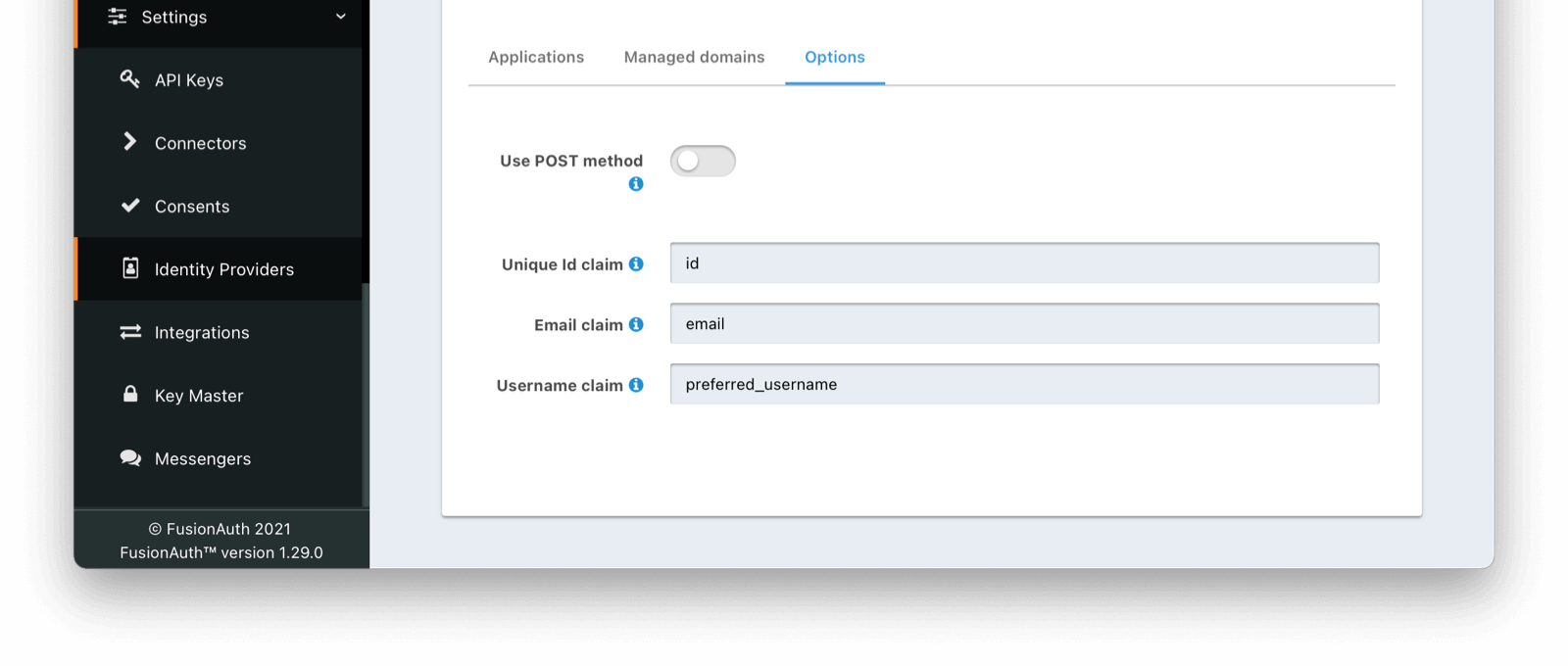
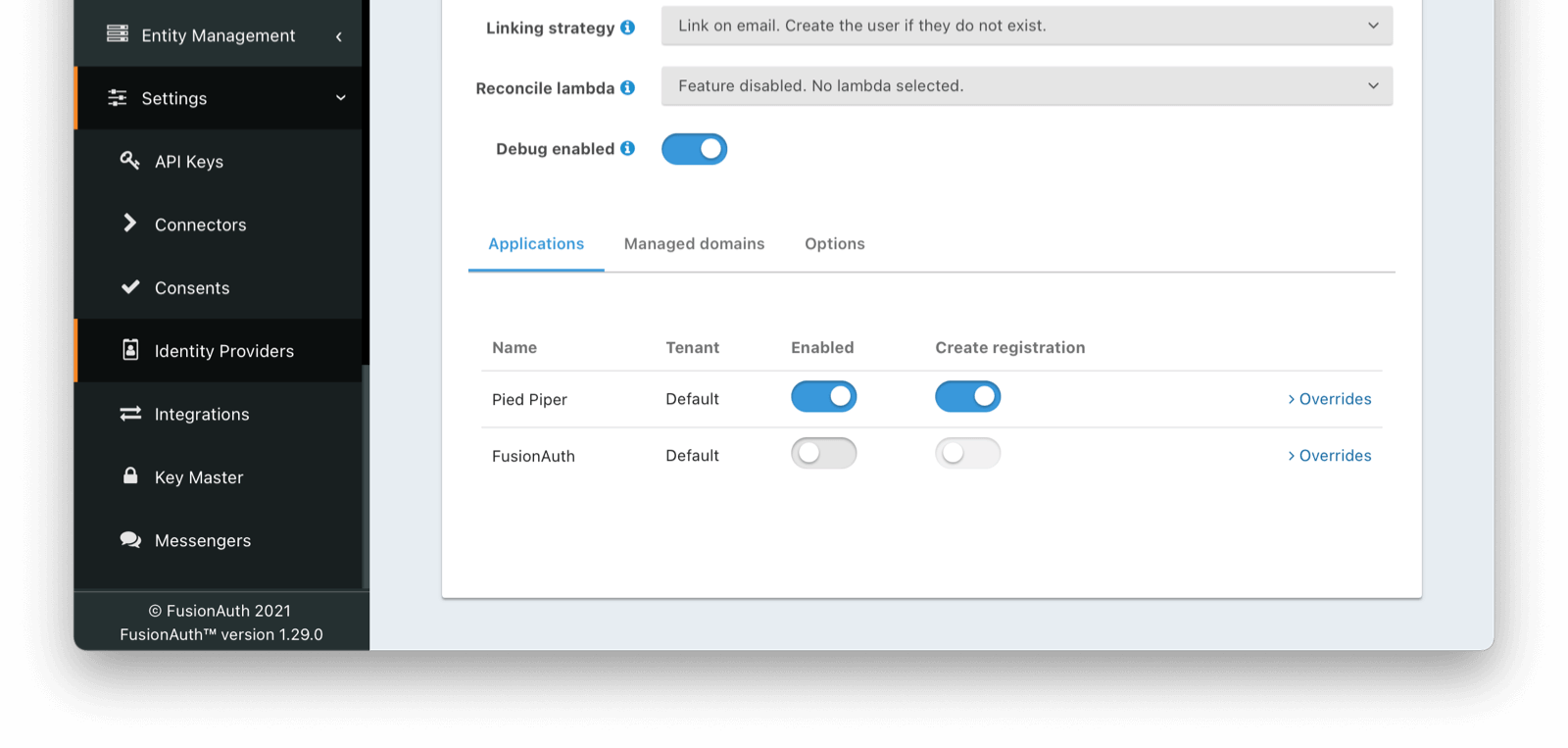
The Applications tab at the bottom of the screenshot below shows that the identity provider is enabled for the `Pied Piper` application. In addition, **Create registration** is also enabled.
The Discord implementation of OpenID Connect doesn't currently follow the full specification. You can optionally populate additional data for the user profile, such as the Discord username and avatar URL, by enabling an **Reconcile lambda**. See [the lambda documentation](https://fusionauth.io/docs/extend/code/lambdas/reconcile/openid-connect-response-reconcile.md) for more information.
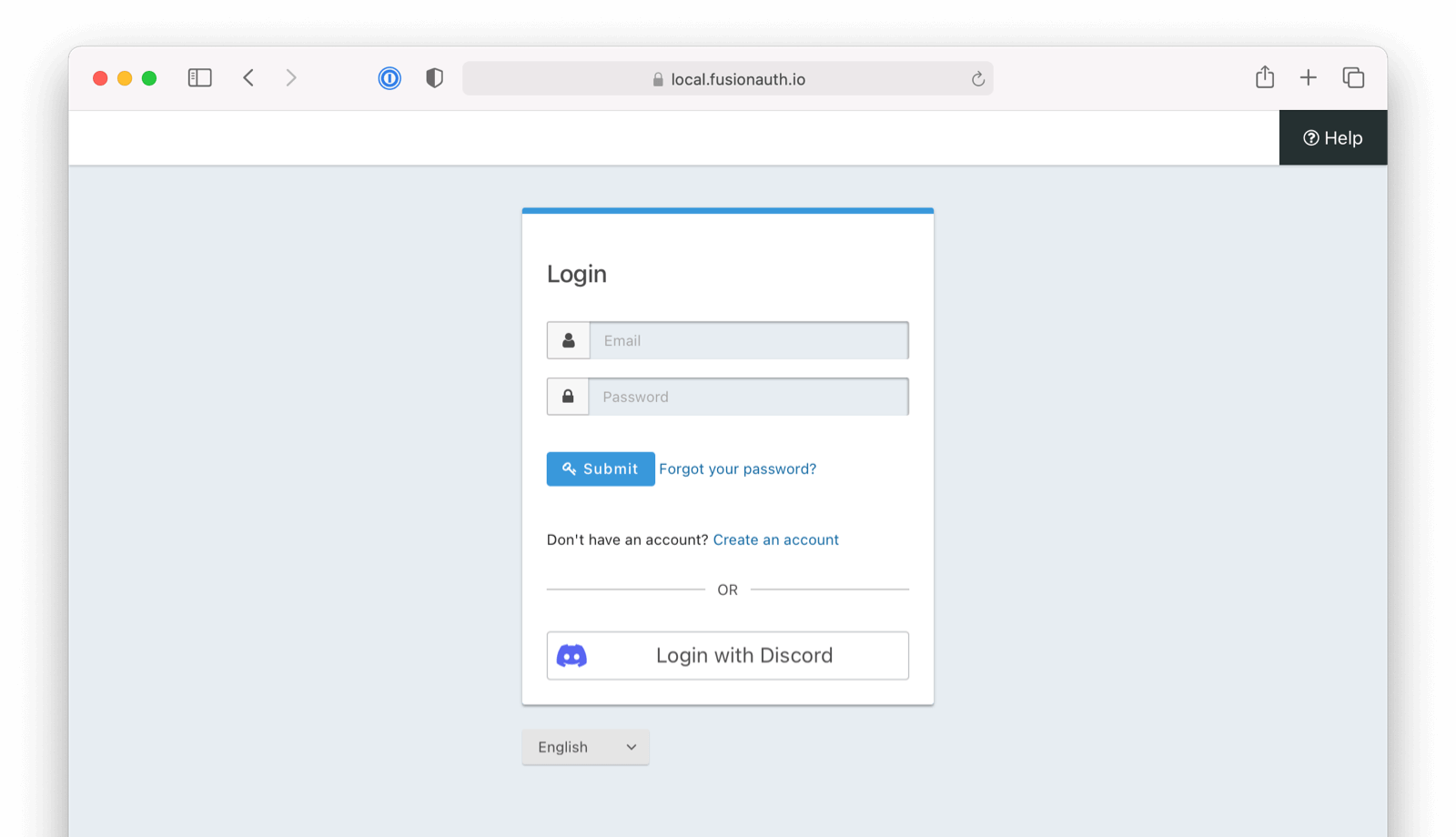
That's it, now the Login with Discord button will show up on the login page of our `PiedPiper` application.
The following image shows the upper portion of the discord Identity Provider configuration:
And here is an image with the lower portion of the discord Identity Provider configuration: