# Customize One-Time Passwords

Customize the one-time password experience in your application.

> For the index of this section of the site, see [llms.txt](https://fusionauth.io/docs/llms.txt)

This page provides information about how you can customize your magic link and code experience to best meet the needs of your application.

## One Time Code Customization

You can modify the lifetime of the code and one-time code delivered to users. By default it is 180 seconds; change this in the tenant settings:

![The tenant settings to customize the passwordless code lifetime.](https://fusionauth.io/img/docs/screenshots/passwordless-tenant-duration.png)

You can also change the types of the generated code and one-time code. For example, you may want your code to be only alphanumeric characters and one-time code to be numeric digits.

You may change your code length or generation strategy for security or user experience reasons. You may have requirements that specify a certain code length. For instance, for a code delivered by text message, having a user enter a six digit alphanumeric code is lot easier than a 64 byte string.

You have the following options for the code generation strategy:

*   alphabetic characters
*   alphanumeric characters
*   bytes
*   digits

Consult the [Tenant API documentation](https://fusionauth.io/docs/apis/tenants.md) for length limits, which vary based on the strategy.

![The tenant settings to customize the passwordless code generation strategy.](https://fusionauth.io/img/docs/screenshots/passwordless-tenant-generation.png)

## Templates

If you use FusionAuth to send one-time passwords using email or a [Messenger](https://fusionauth.io/docs/customize/email-and-messages/messengers.md), you must specify a template. For more information about these templates, see the [email and Messenger template reference](https://fusionauth.io/docs/customize/email-and-messages.md).

### Email Template Customization

Tip

You must configure SMTP for your Tenant before you can send one-time passwords via email. To configure SMTP, navigate to Tenants -> Edit -> Email .

1.  Navigate to Customizations -> Email Templates .
    
    ![The email templates page.](https://fusionauth.io/img/docs/screenshots/passwordless-email-templates-list.png)
    
2.  Click **Add** to create a new email template.
    
    ![Modifying the one-time password login email template.](https://fusionauth.io/img/docs/screenshots/passwordless-email-template-edit.png)
    
    Specify both HTML and plaintext templates to ensure compatibility with all email clients. When customizing, you can use any [Apache FreeMarker built-ins](https://freemarker.apache.org/docs/ref_builtins.html) within the template and in the subject. The following example templates provide a good starting point that you can build upon with your own branding:
    
    ### HTML
    
    ```json
    [#setting url_escaping_charset="UTF-8"]
    You have requested to log into FusionAuth using this email address. If you do not recognize this request please ignore this email.
    
    [#if oneTimeCode??]
    <p>
      Login code: ${oneTimeCode}
    </p>
    [#else]
    <p>
      [#-- The optional 'state' map provided on the Start Passwordless API call is exposed in the template as 'state' --]
      [#assign url = "${baseUrl}/oauth2/passwordless/${code}?tenantId=${user.tenantId}" /]
      [#list state!{} as key, value][#if key != "tenantId" && value??][#assign url = url + "&" + key?url + "=" + value?url/][/#if][/#list]
      <a href="${url?html}">${url?html}</a>
    </p>
    [/#if]
    - FusionAuth Admin
    ```
    
    ### Plaintext
    
    ```json
    [#setting url_escaping_charset="UTF-8"]
    You have requested to log into FusionAuth using this email address. If you do not recognize this request please ignore this email.
    
    [#if oneTimeCode??]
    <p>
      Login code: ${oneTimeCode}
    </p>
    [#else]
    [#-- The optional 'state' map provided on the Start Passwordless API call is exposed in the template as 'state' --]
    [#assign url = "${baseUrl}/oauth2/passwordless/${code}?tenantId=${user.tenantId}" /]
    [#list state!{} as key, value][#if key != "tenantId" && value??][#assign url = url + "&" + key?url + "=" + value?url/][/#if][/#list]
    
    ${url}
    
    [/#if]
    - FusionAuth Admin
    ```
    
    Localize the email template
    
    You can optionally localize your email templates to customize the template language for a given locale.
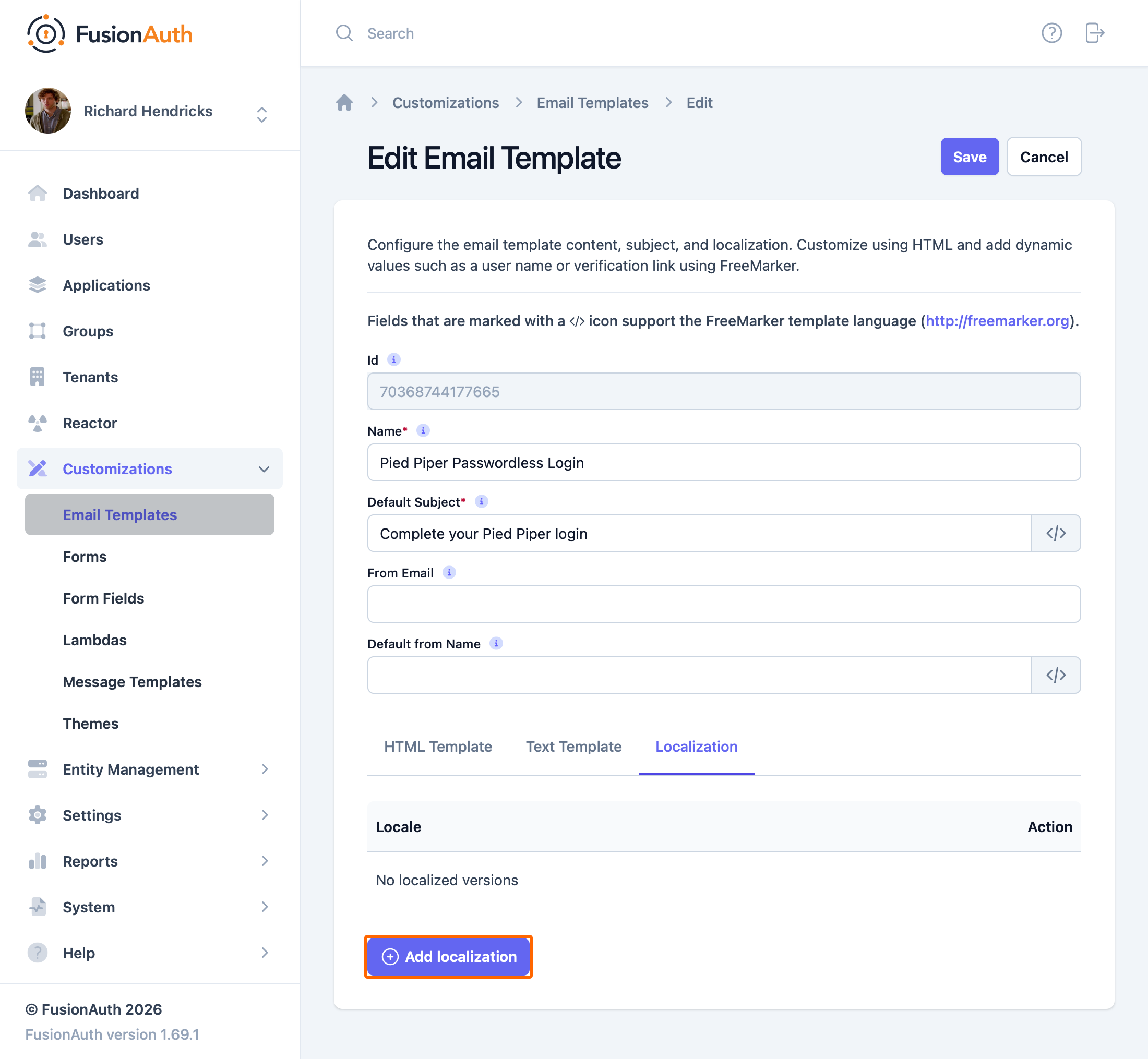
    
    ![The localization settings for the email template.](https://fusionauth.io/img/docs/screenshots/passwordless-email-template-localization.png)
    
    Customize email subject
    
    The following example shows how to customize the email subject with FreeMarker with the time that the link expires:
    
    ```ftl
    [#setting time_zone = (user.timezone)!"US/Denver"]
    [#setting time_format = "h:mm a"]
    Expires at: ${((.now?date?long + timeToLive * 1000)?number_to_time)?string}
    ```
    
3.  Navigate to Tenants -> Edit -> Identities -> Template Settings . In the **Email** column, choose your template from the **Passwordless login** dropdown.
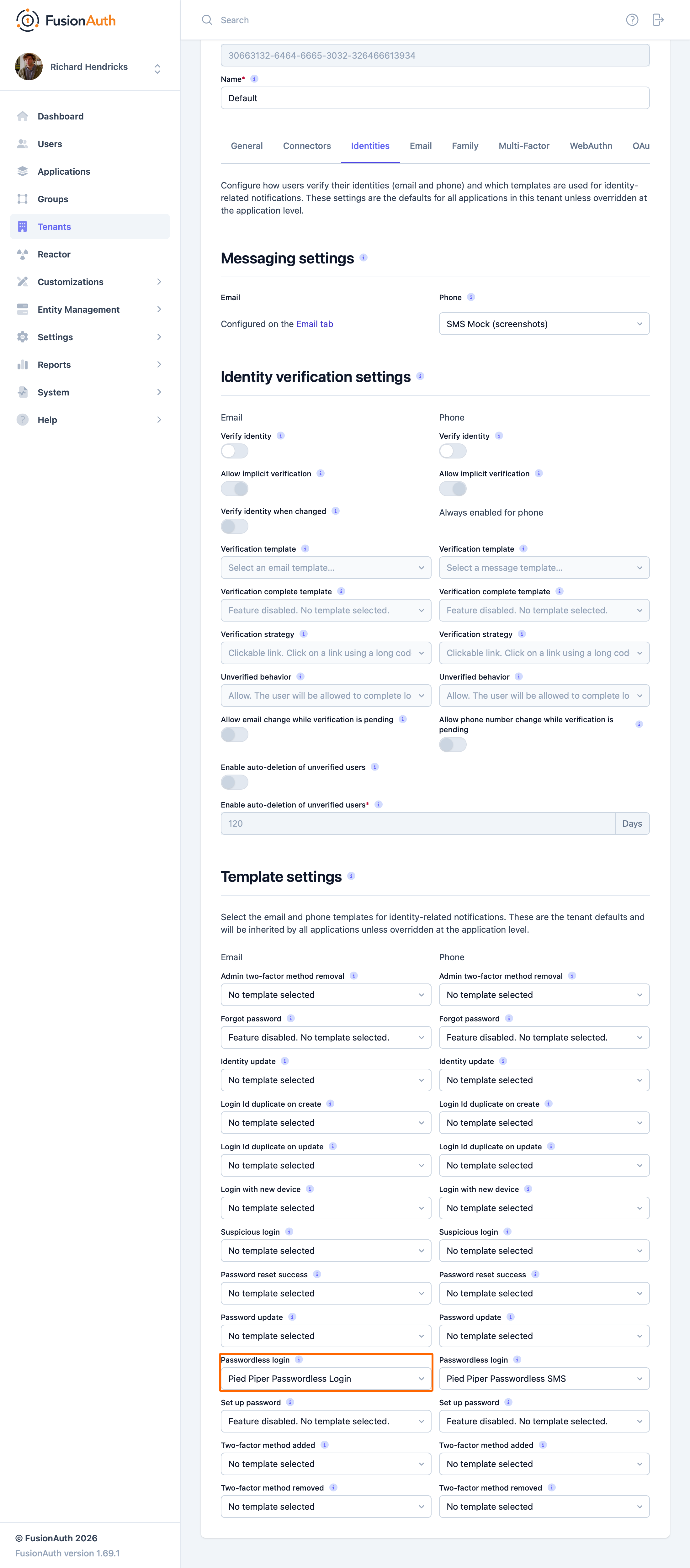
    
    ![Updating the tenant to use the new one-time password email template.](https://fusionauth.io/img/docs/screenshots/passwordless-tenant-email-config.png)
    

### Message Template Customization

Tip

You must configure a [Messenger](https://fusionauth.io/docs/customize/email-and-messages/messengers.md) before you can send one-time passwords to a phone. To configure a Messenger, navigate to Settings -> Messengers .

1.  Navigate to Customizations -> Message Templates .
    
    The message template page.
    
2.  Click **Add** to create a new message template.
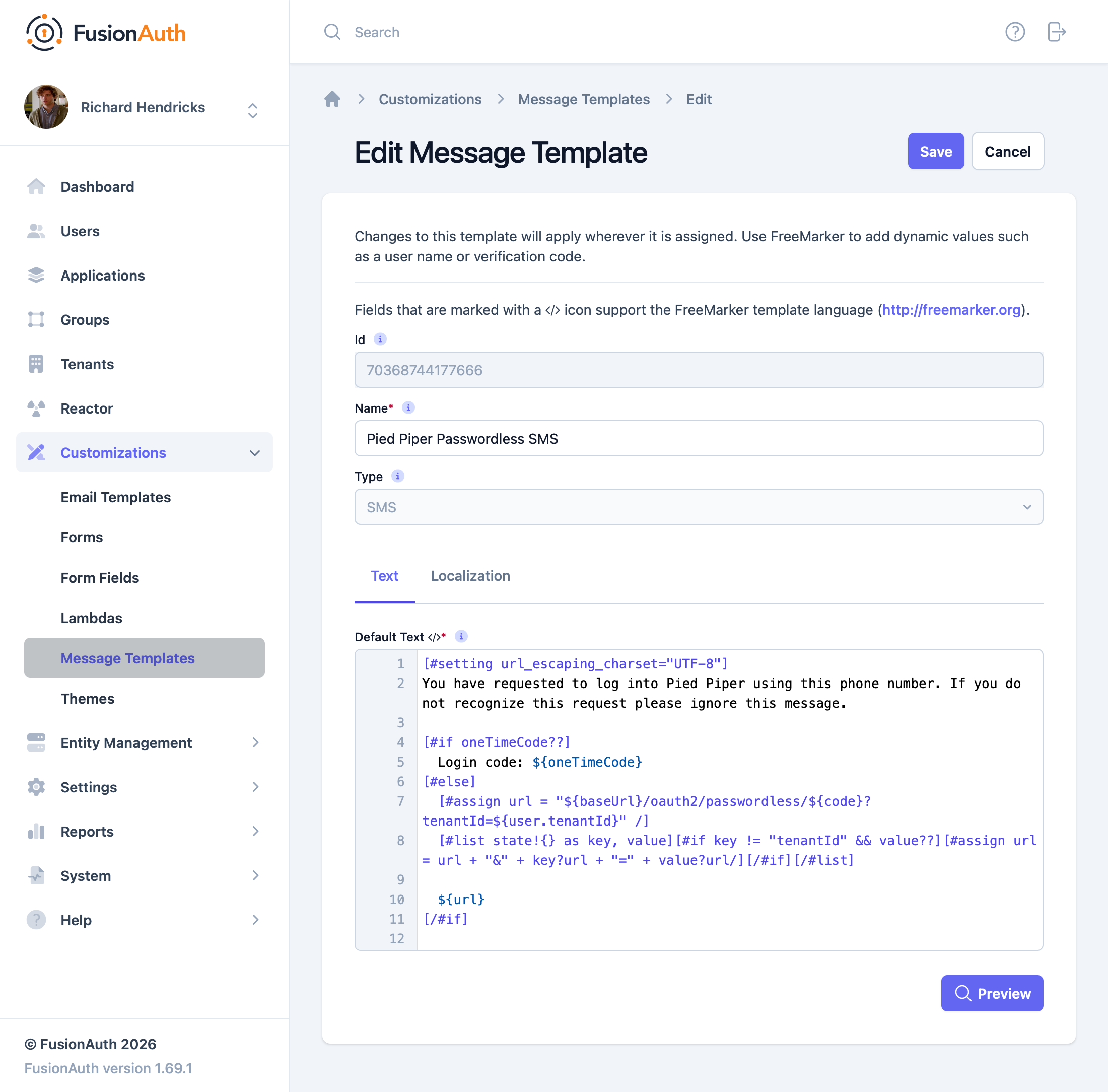
    
    ![Modifying the one-time password login message template.](https://fusionauth.io/img/docs/screenshots/passwordless-message-template-edit.png)
    
    When customizing, you can use any [Apache FreeMarker built-ins](https://freemarker.apache.org/docs/ref_builtins.html) within the template and in the subject. The following example template provides a good starting point that you can build upon with your own branding:
    
    ```json
    [#setting url_escaping_charset="UTF-8"]
    You have requested to log into FusionAuth using this phone number. If you do not recognize this request please ignore this message.
    
    [#if oneTimeCode??]
      Login code: ${oneTimeCode}
    [#else]
    [#-- The optional 'state' map provided on the Start Passwordless API call is exposed in the template as 'state' --]
        [#assign url = "${baseUrl}/oauth2/passwordless/${code}?tenantId=${user.tenantId}" /]
        [#list state!{} as key, value][#if key != "tenantId" && value??][#assign url = url + "&" + key?url + "=" + value?url/][/#if][/#list]
    
        ${url}
    [/#if]
    
    - FusionAuth Admin
    ```
    
    Like the Email templates, you can optionally localize your message templates to customize the template language for a given locale.
    
3.  Navigate to Tenants -> Edit -> Identities -> Template Settings . In the **Phone** column, choose your template from the **Passwordless login** dropdown.
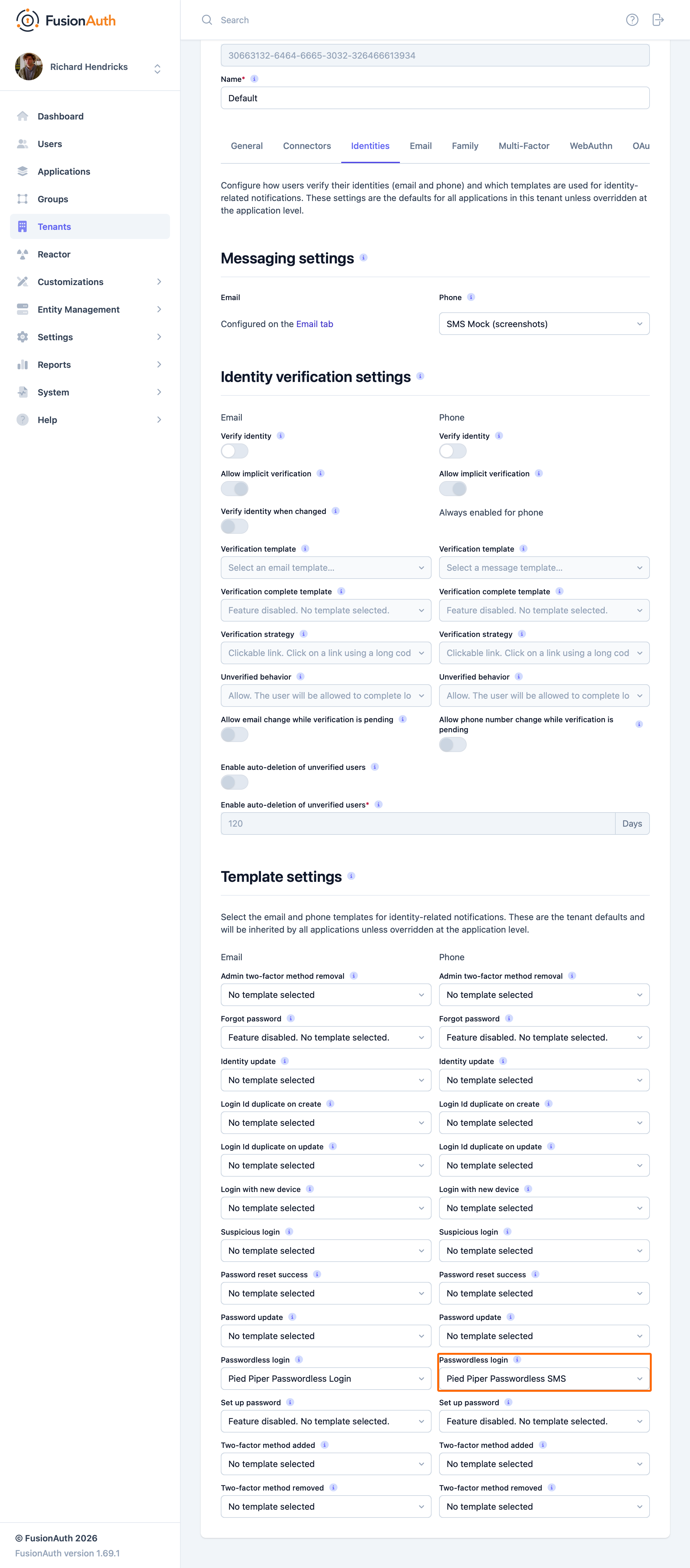
    
    ![Updating the tenant to use the new one-time password message template.](https://fusionauth.io/img/docs/screenshots/passwordless-tenant-message-config.png)
---

## Other pages in One Time Passwords

> For the full index of this section, see [Lifecycle](https://fusionauth.io/docs/llms-lifecycle.txt).

- [Configure One-Time Passwords](https://fusionauth.io/docs/lifecycle/authenticate-users/one-time-passwords/configure.md): Set up a passwordless experience using magic links and codes.
- [One-Time Passwords](https://fusionauth.io/docs/lifecycle/authenticate-users/one-time-passwords.md): Create a passwordless experience using magic links and one-time passwords.
