

In FusionAuth, users verify their identities by entering a code or clicking a link sent to their registered email address, or in recent versions, phone number.
The FusionAuth field user.verified stores whether the user has completed email verification. But as of FusionAuth version 1.59 (August 2025), this field is deprecated. FusionAuth now handles verification for email and phone separately.
This article discusses exactly how user verification has changed and how the new features work.
Summary#
The table below summarizes the differences between the old and new versions of FusionAuth verification. The details are explained in the rest of the article, but if you're experienced with FusionAuth this might be all you need:
| Old version (<1.59) | New version | |
|---|---|---|
| Users can confirm their registration for each application | Yes | No, that's deprecated |
| User's email and phone numbers are kept in | the user object | multiple separate user.identity objects |
| The possible user identity types are | email and username | email, username, and phone |
| Email verification configuration is done in | the Email tab of the tenant | the Identities tab of the tenant |
| User verification field is found in | user.verified |
the combined values of user.identities[].verified and user.identities[].verifiedReason |
| User is effectively verified if | user.verified is true |
the user's primary identity has a verified value of true, or the identity has a verified reason that is not one of completed, implicit, or pending. |
From a user perspective, the experience of receiving a link or code to verify identities hasn't changed. To configure SMTP providers (email), use the Tenant page in FusionAuth. To configure SMS providers, use the Messengers page in Settings .
If you want to prevent a user from using your app (signing in) until they have verified their identity, follow the gating tutorial. The main FusionAuth application cannot be gated. Unverified users that are registered to the FusionAuth application will always be able to log in.
For more information on the user and identity objects, consult the Users API.
⛔ The old verification system#
Let's summarize the obsolete email verification system from before version 1.59. Even if you're a new user working on the latest version of FusionAuth, read this section first, to understand the verification process of sending and clicking links, which hasn't changed in the new version.
The object model#
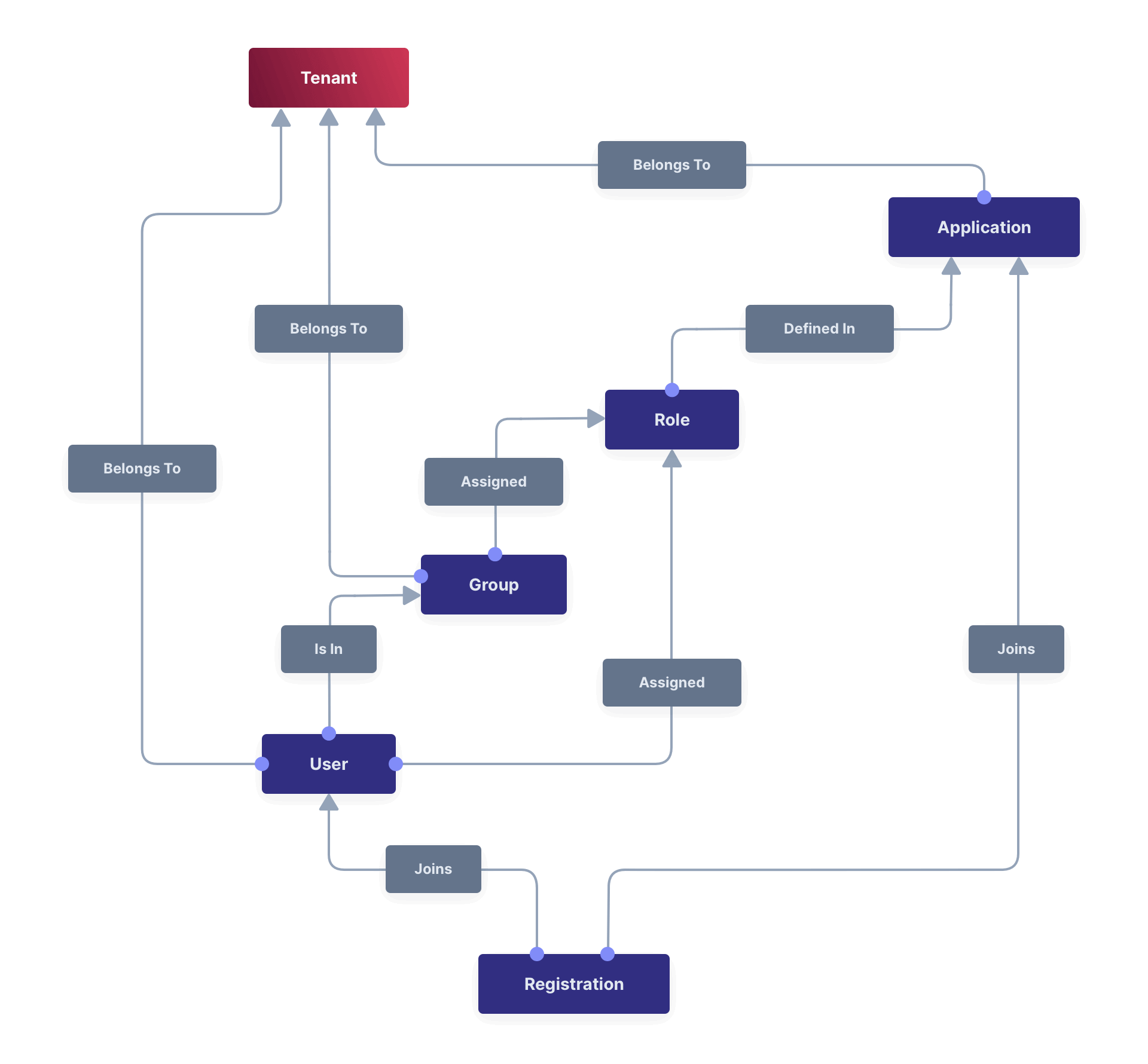
If you're unfamiliar with FusionAuth types, like Tenants, Applications, Users, and Registrations, please review the documentation. The relationship diagram below summarizes the types.
Notice that users are members of applications through an object called a registration (because a user "registers" themselves to use an application).
If you open your FusionAuth database, you'll see the user object is split into two tables: users and identities. The users table holds biographical information like name, birth date, and timezone. The identities table holds multiple records for a user, which may include a username, email address, and phone number. (To update users, you should use the FusionAuth admin UI or the Users API and mustn't access the database directly, but the user object in the API has the same structure as the database tables, so the diagram below should help your understanding.)
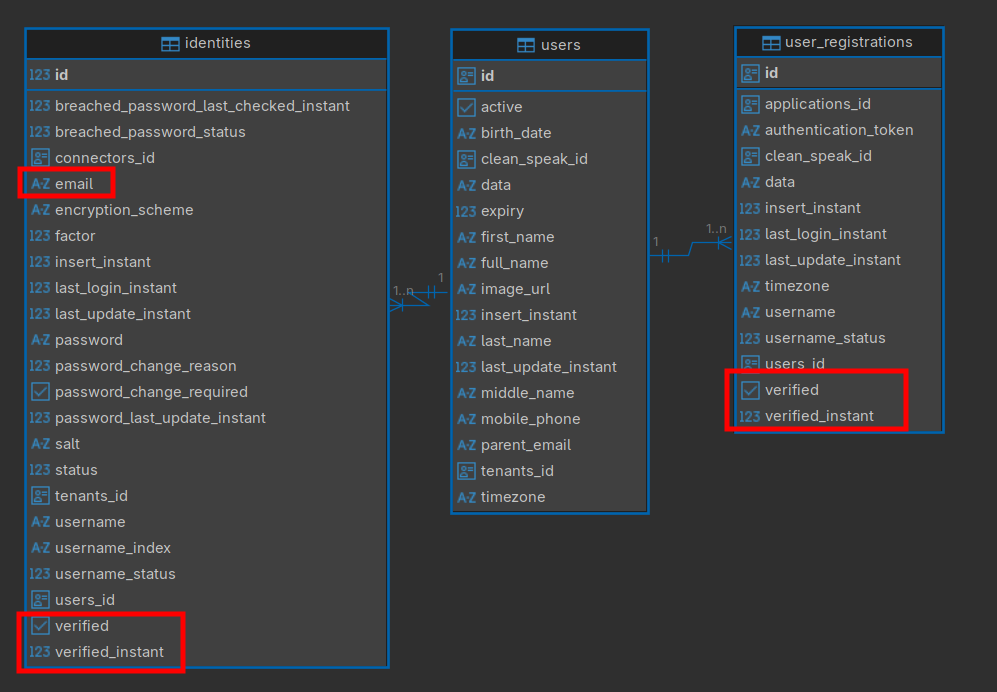
Verification in FusionAuth prior to version 1.59 uses only email addresses (and not phone numbers or other identifiers).
Each user identity (email address) has the fields verified and verified_instant. The verified field is false until the user clicks the verification link, when it becomes true. The verified_instant is the time at which the user verified.
A registration also has the verified and verified_instant fields. If the user identity already has a verified field, why does the registration need another verification field? The application registration tutorial explains: a user verifying that they signed up to use an application has a different purpose to a user verifying their email or phone when creating an account in FusionAuth, although both procedures are named verification and both send a link the user must click. Verifying your identity proves ownership, whereas verifying your registration avoids surprise.
The tutorial gives an example using applications called Non-Hotdog and PiperChat:
However, PiedPiper requires separate registration verification to allow access to both Not-Hotdog and PiperChat through the same email account. This registration verification is a concrete, separate step that the user must engage in by clicking a link or entering a code (sent via email). Without this verification step, users may find it alarming their logins (jared@piedpiper.com) work for both Not-Hotdog and PiperChat (without their express consent, especially if they did not know about the parent company relationship).
The verification process#
This section demonstrates what email verification looks like. If you want to test it for yourself, you need an SMTP server. To test the process you can use a fake SMTP service, like MailCatcher.
Configure SMTP and email verification in the Email tab of the default tenant in the FusionAuth admin UI. This is also the tab where you enable Verify email and choose the
Verification template Email Verification.

If you also want to test registration verification, go to the Registration tab of your application, enable Verify registrations , and for the
Verification template choose Registration Verification. Enable self-service registration on this page too, so you can register on FusionAuth as a new user.
After registering on your application with any email address, like test@example.com, browse to MailCatcher on your local host. You can see below what the received email looks like.
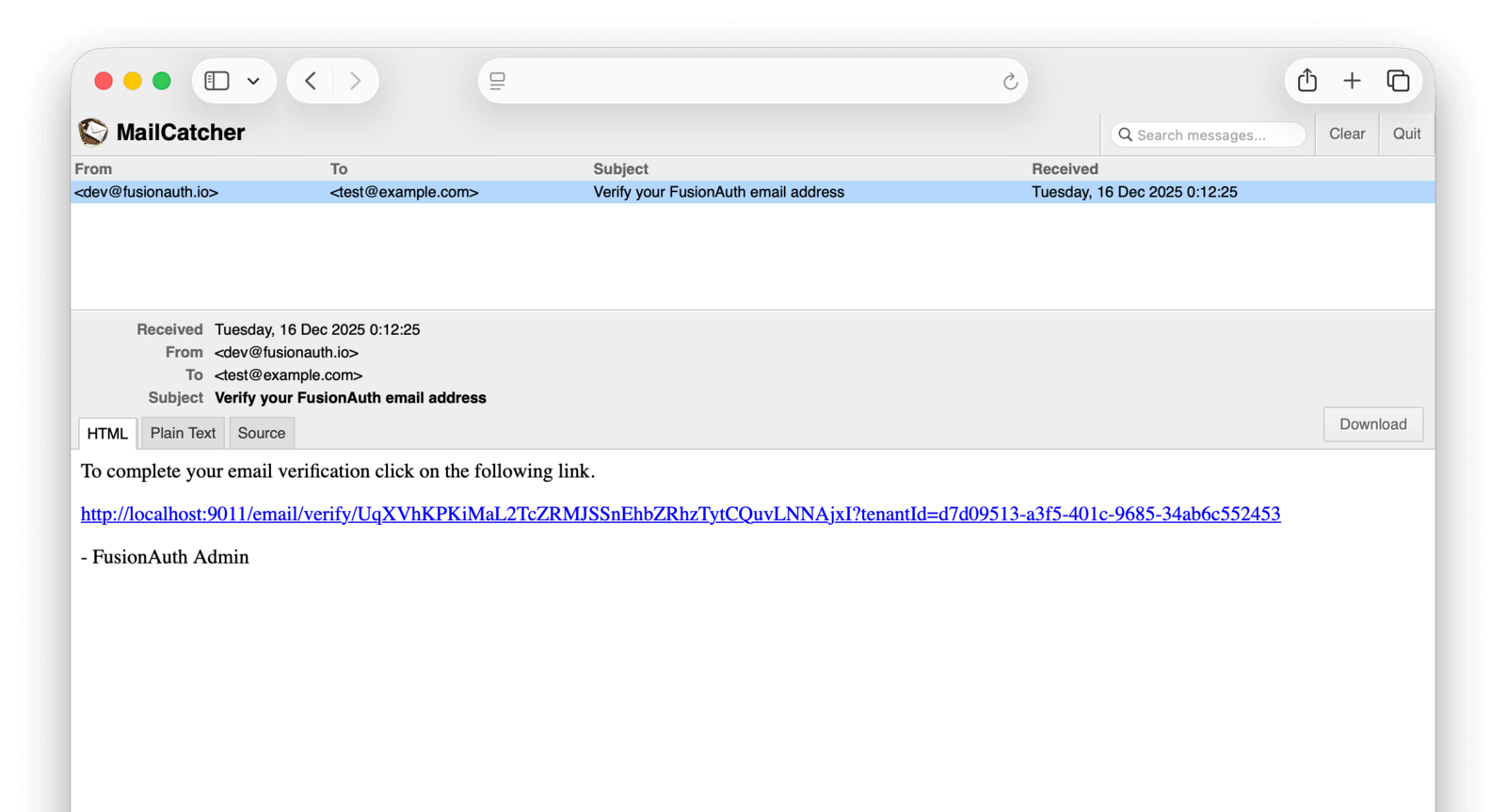
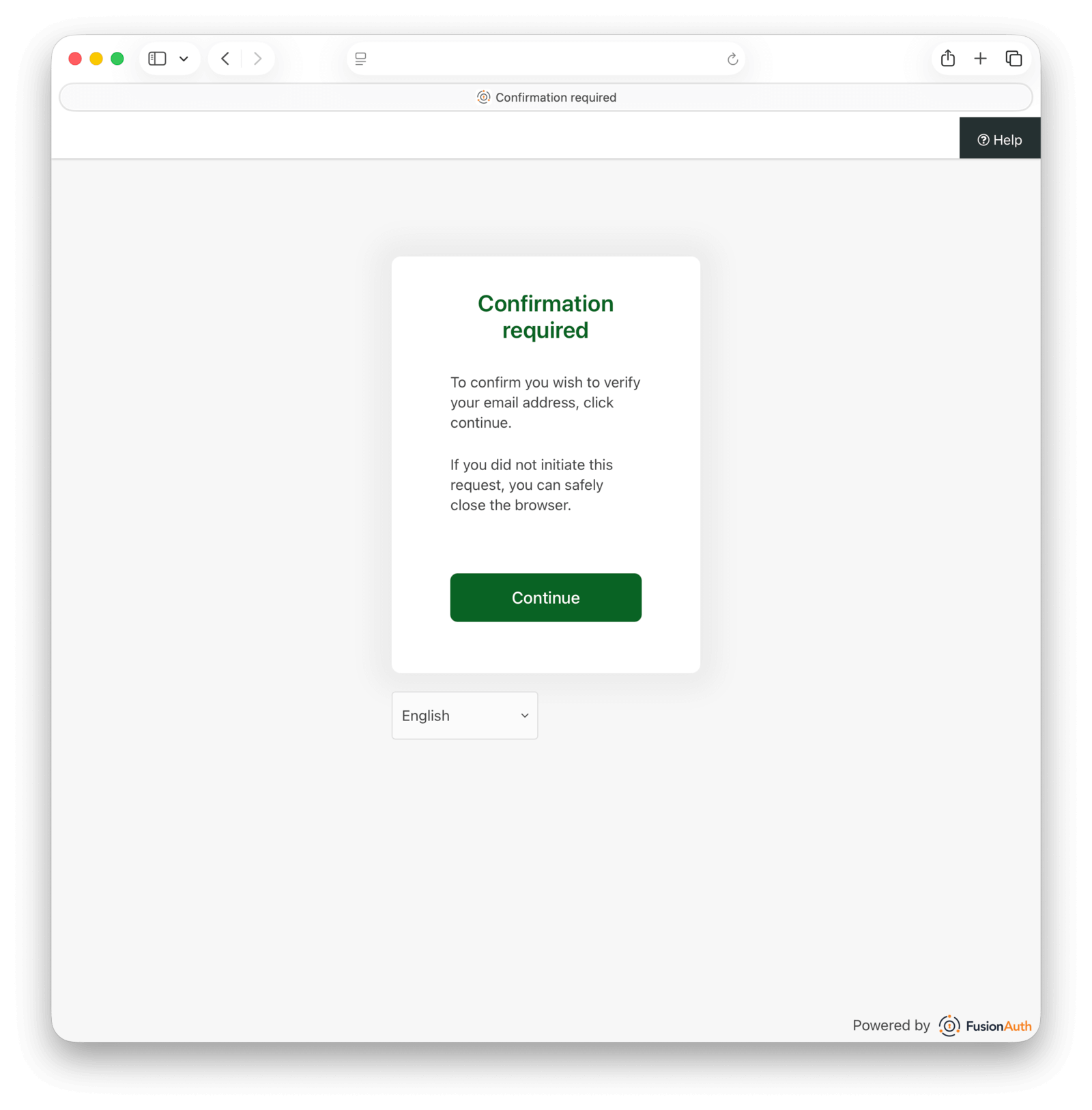
Clicking the link redirects the user to FusionAuth to confirm their address:
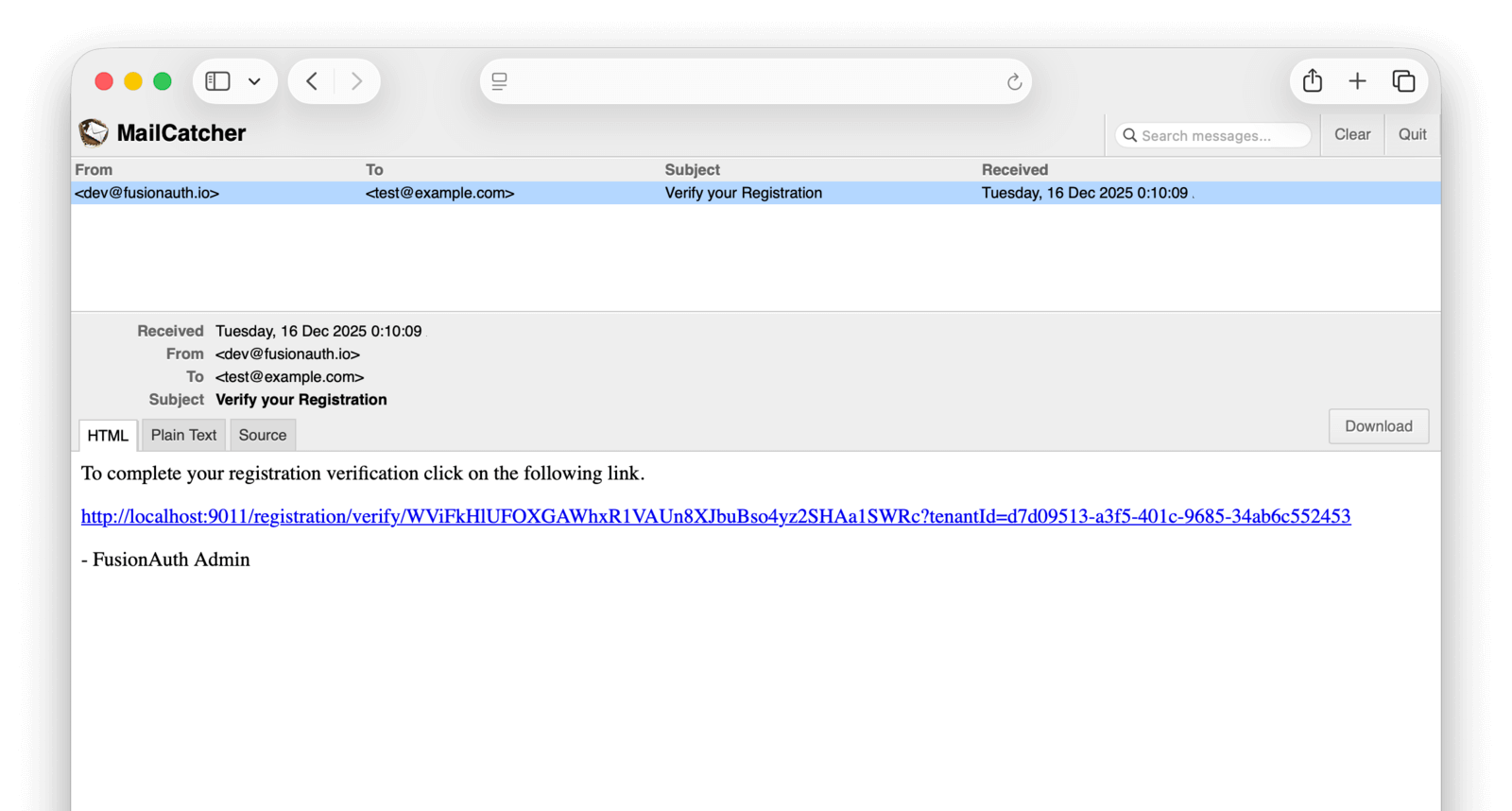
The email for verifying your registration to the application looks almost identical:
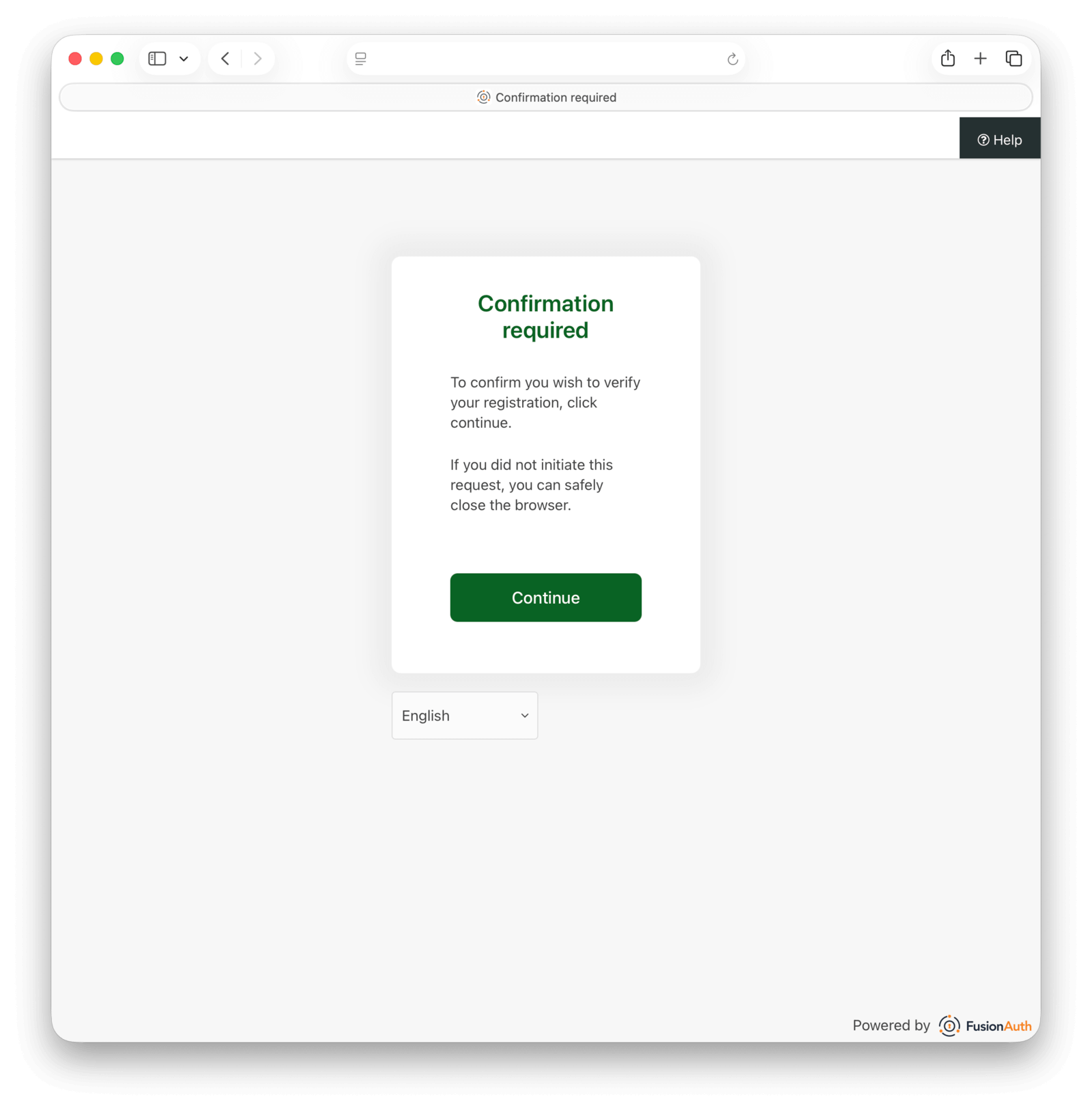
As does the confirmation page it links to:
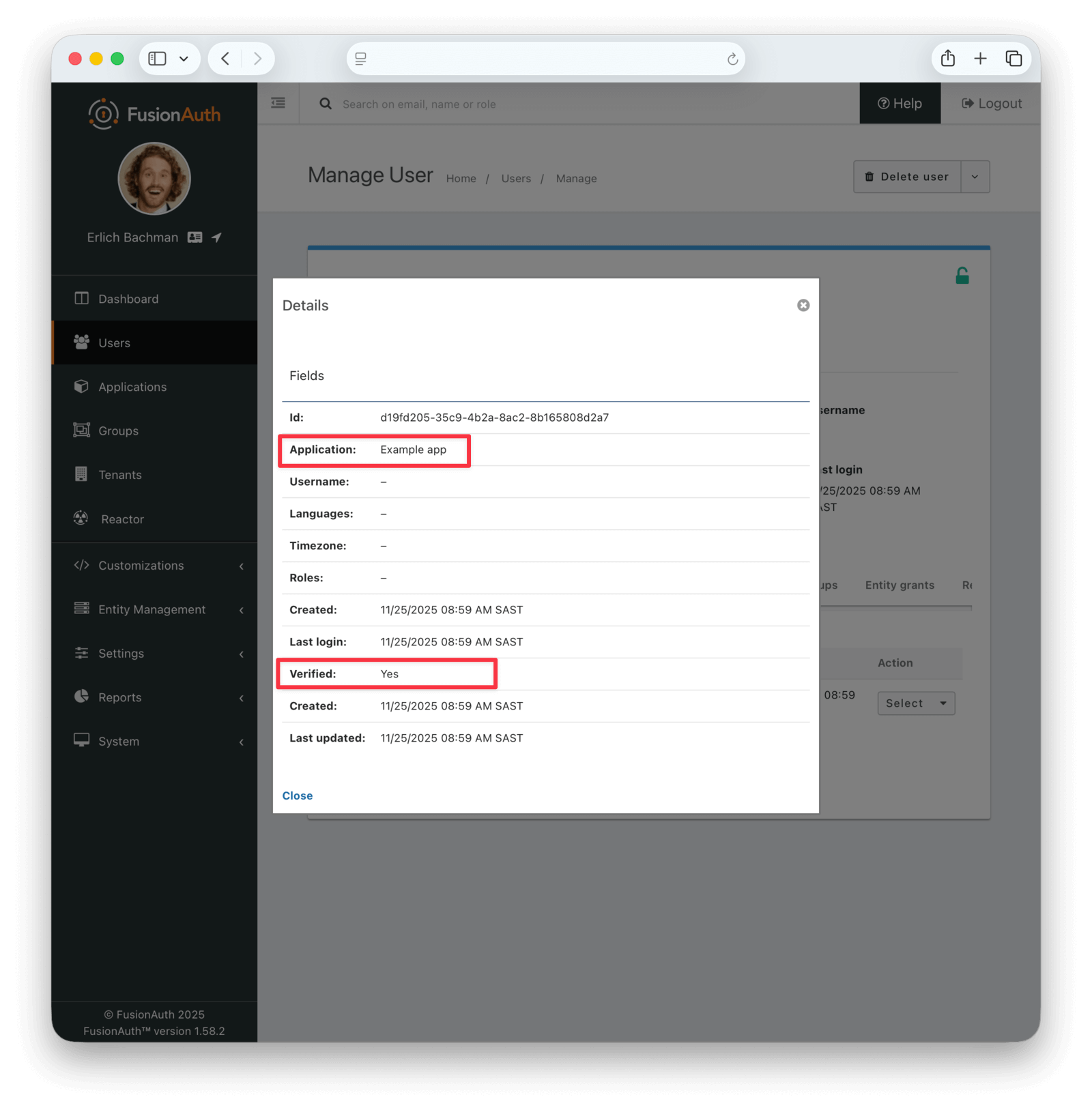
Back in the FusionAuth admin UI, as the administrator, manage the new user on the Users page. Below, you can see the green verified tick in the header, as well as the verified field in the user data.

If you exit the management page and instead view the user, you can see their application registration is verified too.
✅ The new verification system#
Recent versions of FusionAuth support phone number verification in addition to email. Supporting this new feature required moving verification fields from the single user object to multiple user identity objects.
In recent versions of FusionAuth, your users don't have to provide their email addresses. You can use phone numbers as the only identifier if you like.
The object model#
To understand the new FusionAuth verification model, look at the new Identities tab in a tenant. In the image below, you can see the old version of FusionAuth at the top and the new version below it.
The SMTP settings remain in the new version of the Email tab, but the verification settings and email templates have moved to the new Identities tab.
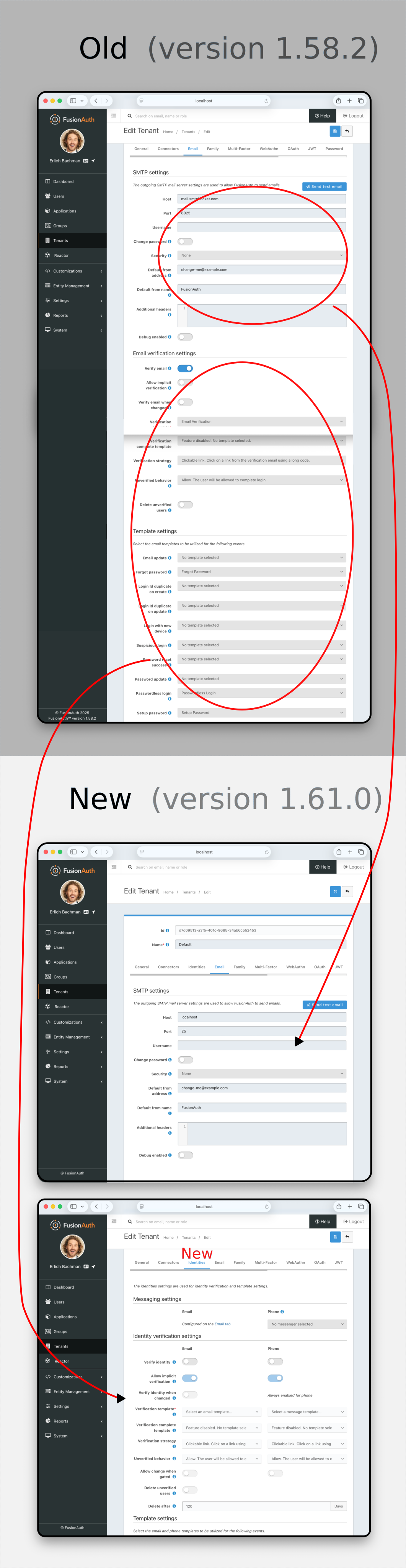
The Identities tab isn't just for email. FusionAuth now supports phone numbers as a unique identifier for users, as an alternative to email addresses. You can see the Identities tab has two columns, with Email on the left and identical settings for Phone on the right.
In addition to changing identity verification, FusionAuth has changed registration verification. Registration verification has been deprecated. FusionAuth no longer believes that users "find it alarming their logins" work for two different applications without explicit confirmation.
You can see in the new database diagram below that user identities now hold all verification information, and the fields related to verification in other tables have been deprecated.
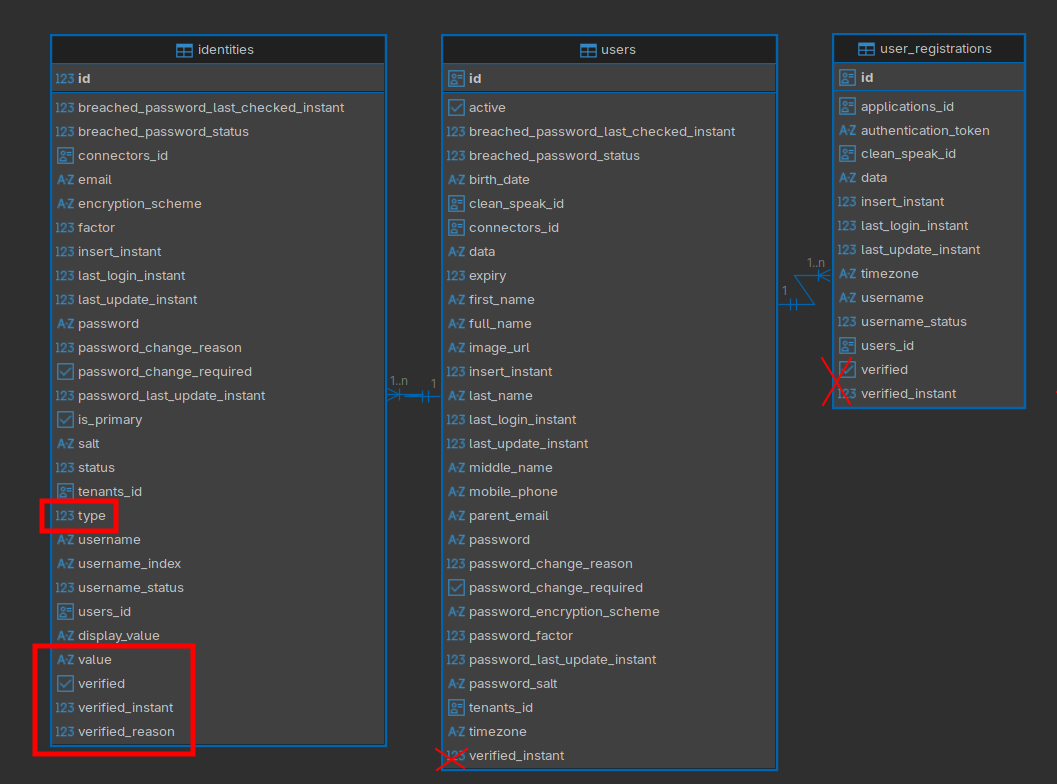
Each identity has a type, which might be email, phone, or username. The value field contains the actual email address or phone number.
There's also a new field, verified_reason. The way a verification is used can be more nuanced than merely true or false, so verified_reason provides more possibilities.
If the verified_reason is one of the following values, the identity does not require verification (the user is treated as verified), regardless of whether verified is true or false:
Disabled: The tenant policy did not require verification.Import: The user was imported from an external provider, so verification was not performed by FusionAuth.Skipped: The tenant policy does not apply any verification gating requirements.Trusted: The identity was created via an external identity provider or a connector, so verification was not performed by FusionAuth.Unverifiable: FusionAuth doesn't know how to verify this identity type. Usernames are an example.Administrative: An administrator marked the user as verified.
If the verified_reason is one of the following values and verified is false, then the user does require verification:
Completed: Verification was performed by FusionAuth.Implicit: Verification was implicitly performed by sending a set password or passwordless message.Pending: The tenant policy requires verification but no verification has been performed yet.
The field values above are handled automatically by FusionAuth. You can't set them using the API.
The verified_instant field is set only if real verification occurs, not if it is skipped.
How to list effectively verified users#
A user might have a verified value of false but still count as being verified.
One unintuitive implication of FusionAuth now using a verification reason, is that a user might have a verified value of false but still count as being verified (so they can log in even if your application has excluded unverified users by gating). There is a simple algorithm to check the user identities manually yourself to see whether a user is effectively verified:
- If the user's primary identity has a verified value of
true, the user is verified. - Else if the
verified_reasonis notCompleted,Implicit, orPending, the user is verified. - Else the user is not verified.
If you use the FusionAuth Users API to get a list of users that count as verified, you need to look at the fields user.identities[].isPrimary, user.identities[].verified, and user.identities[].verification_reason.
If you use SQL, you can run the following query to find all effectively verified users:
SELECT i.id, i.verified, i.verified_reason
FROM identities i
JOIN users u
	ON u.id = i.users_id
WHERE
	i.is_primary = true
	AND (i.verified = true
		OR NOT (
			i.verified_reason = 3 OR
			i.verified_reason = 4 OR
			i.verified_reason = 5
		)
	)
And you can use the following query to find all unverified users:
SELECT i.id, i.verified, i.verified_reason
FROM identities i
JOIN users u
	ON u.id = i.users_id
WHERE
	i.is_primary = true
	AND (i.verified = false
		AND
		(
			i.verified_reason = 3 OR
			i.verified_reason = 4 OR
			i.verified_reason = 5
		)
	)
The verified_reason in the database is an integer, with the values shown below:
| Integer | String |
|---|---|
0 |
Skipped |
1 |
Trusted |
2 |
Unverifiable |
3 |
Implicit |
4 |
Pending |
5 |
Completed |
6 |
Disabled |
7 |
Administrative |
8 |
Import |
If you prefer using the FusionAuth API, you can run a query similar to the following to find all effectively verified users.
curl --silent \
  'http://localhost:9011/api/user/search?queryString=*' \
  -H 'Authorization: 33052c8a-c283-4e96-9d2a-eb1215c69f8f-not-for-prod' \
| jq '
  .users[]
  | . as $u
  | $u.identities[]
  | select(.primary == true)
  | select(
      .verified == true
      or (
        .verifiedReason != "Implicit"
        and .verifiedReason != "Pending"
        and .verifiedReason != "Completed"
      )
    )
  | {
      userId: $u.id,
      verified: .verified,
      verifiedReason: .verifiedReason
    }
'
The verification process#
The verification process for email remains the same in the latest versions as it is in the old versions. Phone verification is very similar. In an identical way to email verification, the user receives a link to click or a code to type in to confirm their registration.
To send an SMS message from FusionAuth, you need to configure an SMS provider. Whereas SMTP providers for email are configured per tenant, SMS is configured for the whole FusionAuth instance in the Settings -> Messengers tab. To separate SMS fees for different clients, you can create multiple messengers and link each tenant to their own messenger.

You can use the SMS service, Twilio, for which FusionAuth has an available messenger type (shown above). For another service, you need to use the generic messenger type, and write your own web service to receive the message, format it for your SMS provider, and forward it to the provider.
However, SMS isn't required. Since FusionAuth supports generic messengers, you can forward the text message through a smartphone app like WhatsApp or Threema.
If you wanted to, you could also forward the message to a notification website like Slack, ntfy.sh, or even email the message. Don't use these options, because they can be used without a phone number, and so completely defeat the purpose of verification. This possibility might be useful in future, however, if FusionAuth supports identifiers other than email and phone.
You can choose which type of registration your users are allowed to use in an application's registration tab. This is shown below. Only one identity type is allowed for all users — you may not have some users registering with email addresses and others with usernames.
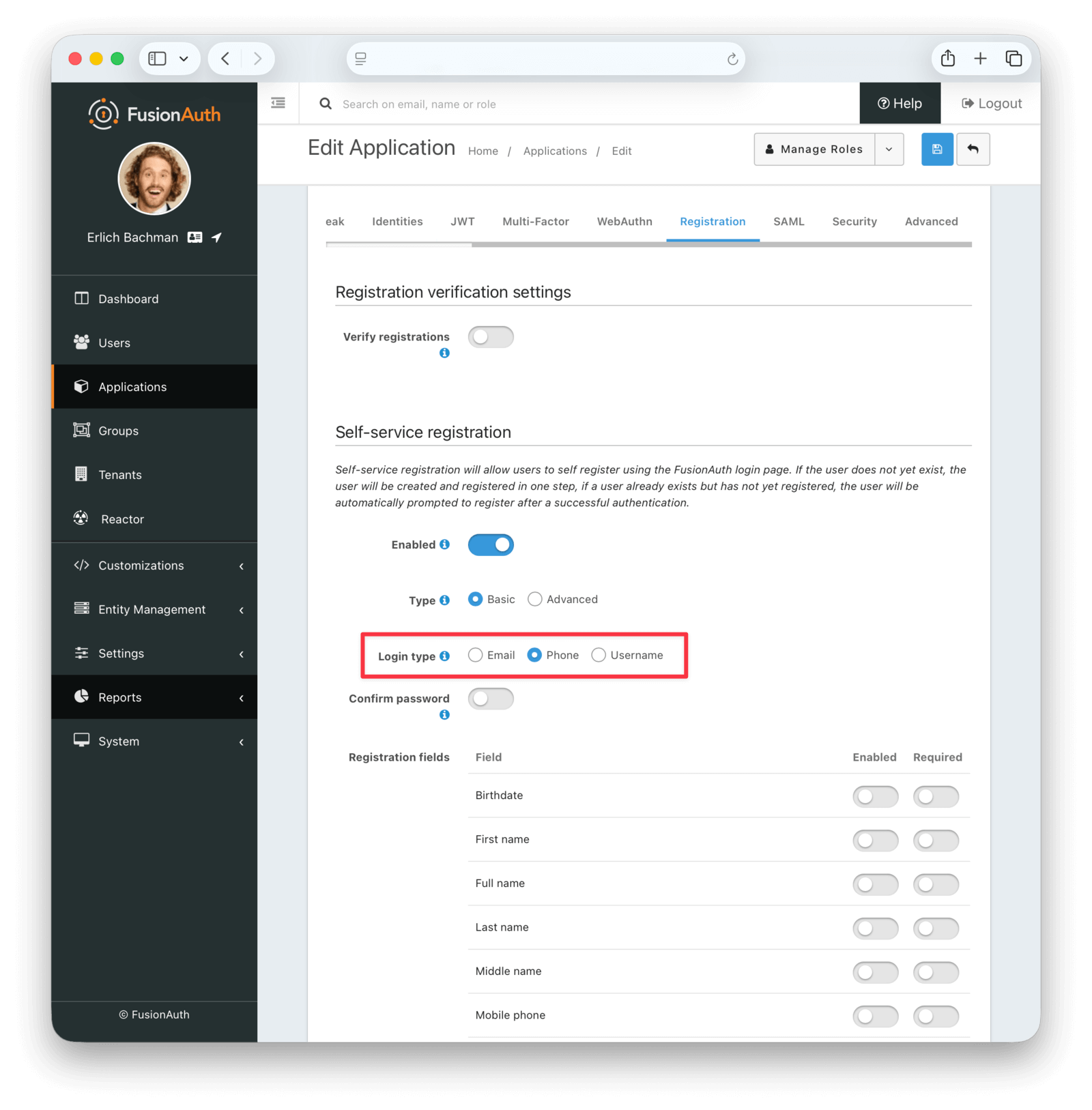
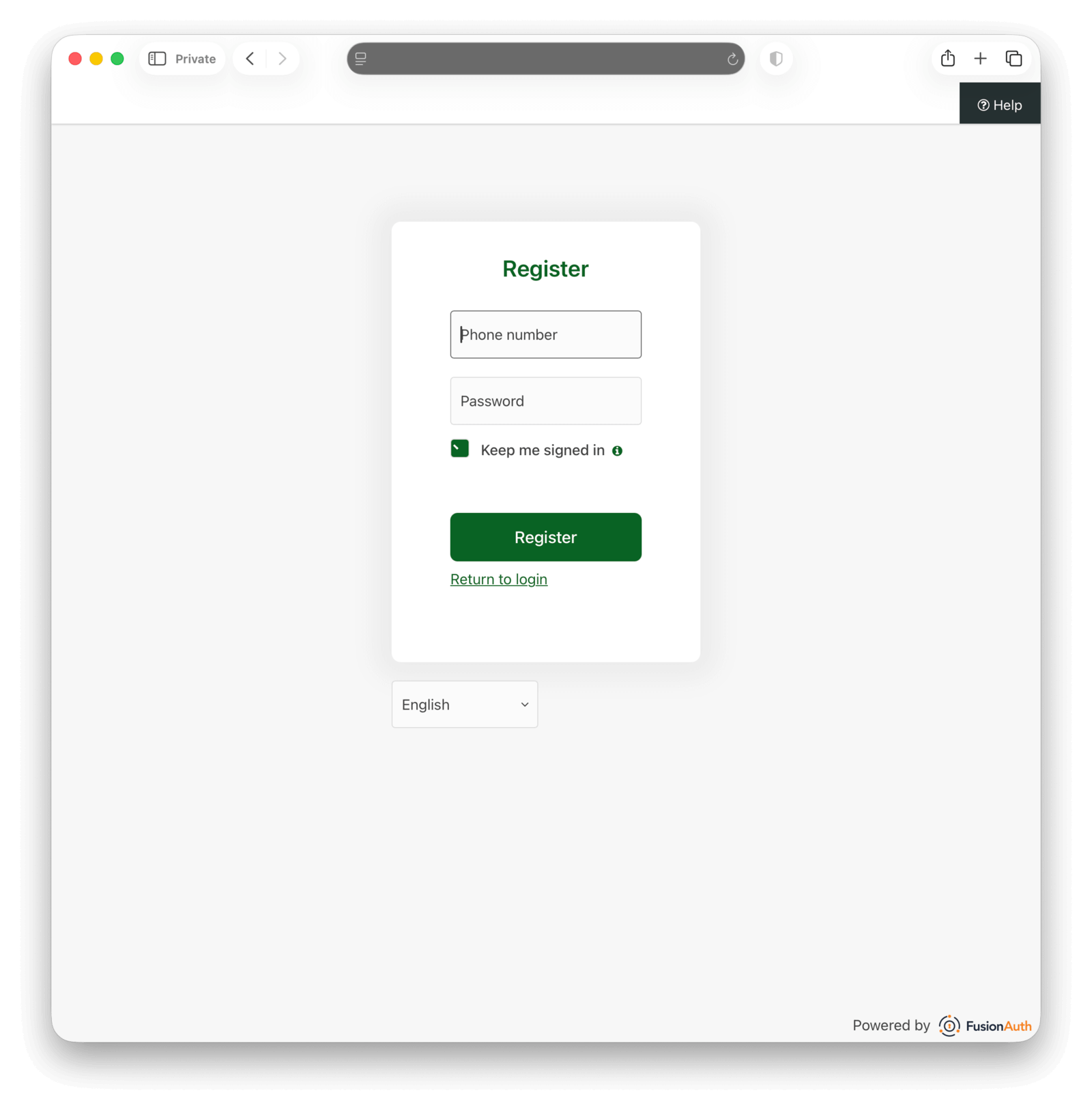
If you choose Phone as your registration type, the registration screen (shown below) looks the same as the Email registration screen, except the user must enter their phone number instead.
Changes to the API#
If you use the FusionAuth Users API to create or manage users programmatically, you need to be aware of some verification-related changes in the latest version. The following fields have been deprecated in api/user requests:
-
In
GETrequests (to view a user),user.verifiedis a deprecated field that indicates only whether the user's primary email identity is verified. Don't use it. Useuser.identities[].verifiedanduser.identities[].verifiedReasoninstead. -
In
POSTrequests (to create a user),sendSetPasswordEmailis deprecated. UsesendSetPasswordIdentityTypeinstead. You can use the valueemailorphone. (The same applies to the User Registrations API.) To streamline creation of administrator accounts, you can use the newskipVerificationfield to avoid wasting time verifying email addresses.
Similarly, sendForgotPasswordEmail is deprecated in api/user/forgot-password POST requests. Use sendForgotPasswordMessage instead.
In addition to the Users API, there is a new API, the Identity Verify API. This API allows you to start and complete verification programmatically. It is almost never needed if users register with your app manually. But if you want to create a custom verification scheme (for some identifier other than email or phone), this API is the tool to use. You also need to use this API if you send codes to your users instead of links. When the user types the code into your app, you need to send it to FusionAuth programmatically.