Add an Xbox IdP
On this page
This feature requires at least a Starter plan.
1.28.0
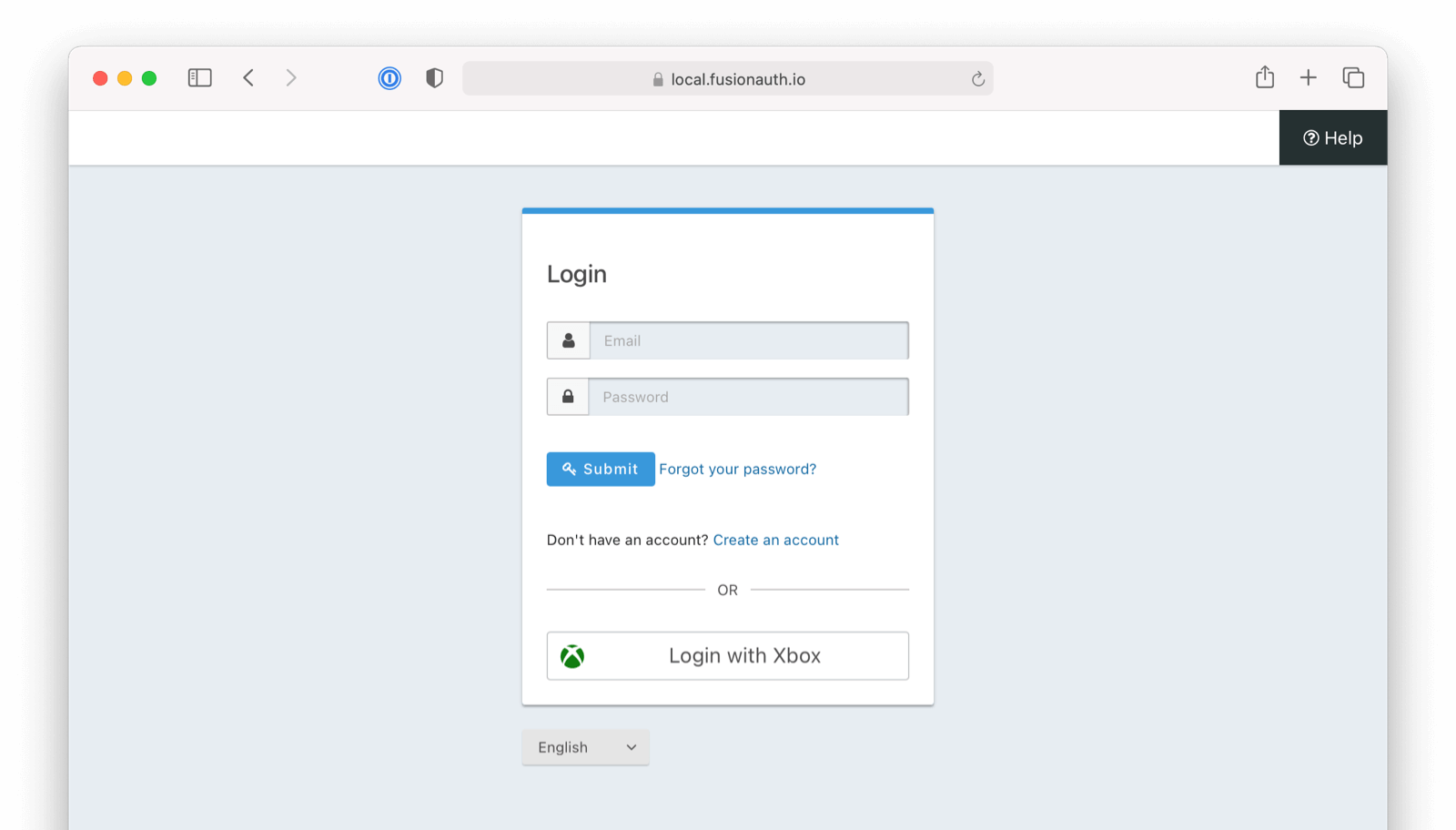
This section explains how to add a Login with Xbox button to FusionAuth. Below is an example login page with the Xbox Identity Provider enabled.
Once you have completed this configuration you will be able to enable the Xbox login button for one or more FusionAuth Applications. Below is an example login page with the Xbox Identity Provider enabled.
Here's a diagram of the login flow between:
- the user
- your application
- FusionAuth and
- a remote identity provider
Although this looks complex, the user only sees a few screens, such as the FusionAuth login screen, the provider login screen, and your application.
Create an Xbox Account#
Follow instructions for obtaining a Client id and Client secret from the Xbox documentation.
Create an Xbox Identity Provider#
To enable Xbox for an Application:
-
Navigate to Settings -> Identity Providers .
-
Click the Add provider dropdown and select Xbox . This will take you to the Add Xbox screen.
- Fill out the required fields; your identity provider can provide most of these values. For a detailed description of each field, see the documentation for Xbox.
-
In the Applications configuration section at the bottom of this panel, find your application name.
-
To dynamically create FusionAuth user accounts (with default roles) for all users who successfully authenticate using this provider, select Create registration . If you disable this option, only an administrator with registration permissions can create new users for this application with access via Sign in with Xbox.
- You should now see the Sign in with Xbox button on the login page for the Pied Piper application.
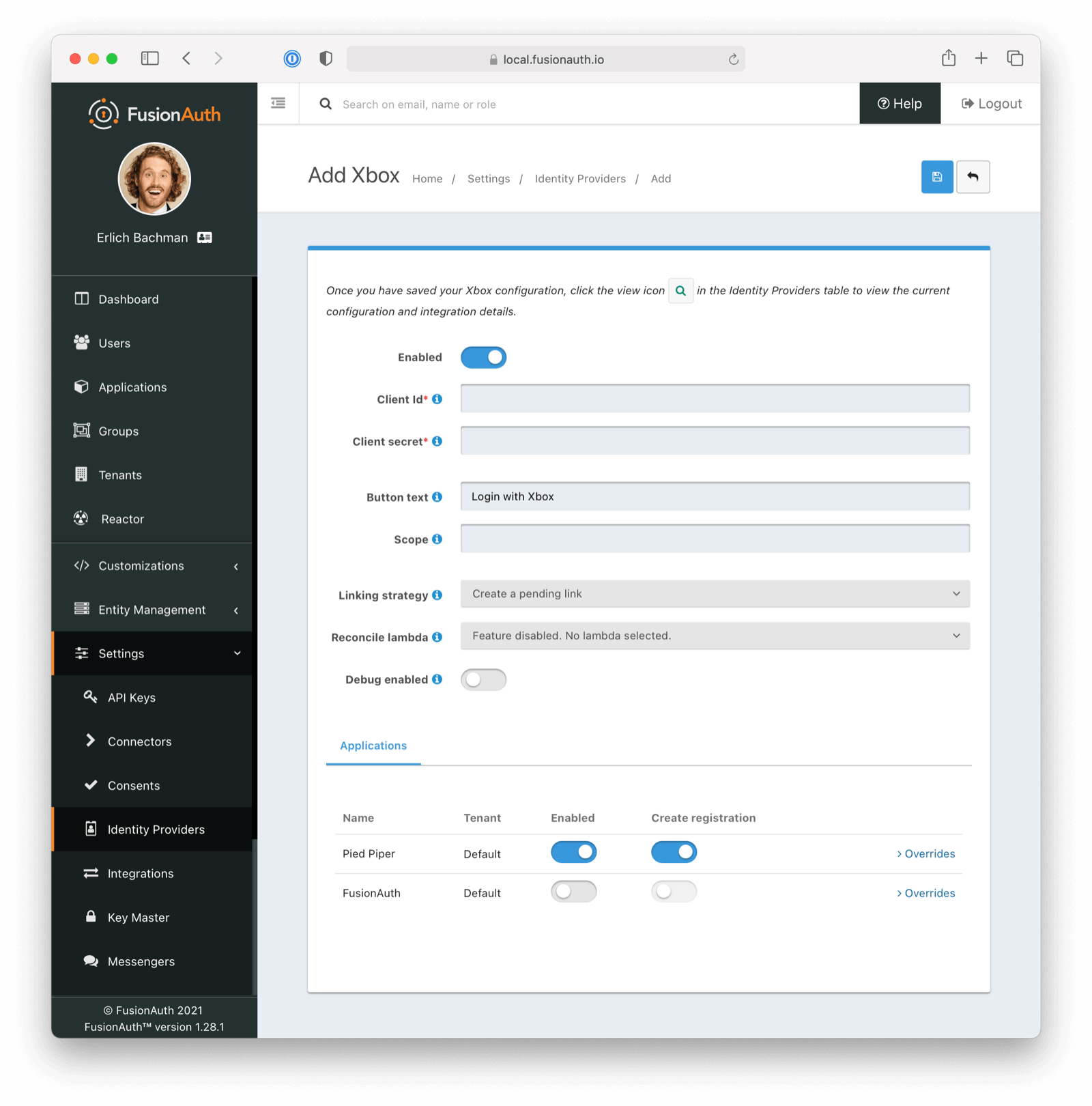
Form Fields
IdAn optional UUID. When this value is omitted a unique Id will be generated automatically.
TenantThe tenant to which this identity provider belongs. This field only displays when the user selects a specific tenant on the previous page. When Global identity provider is selected on the previous page, this field does not display.
NameA unique name to identify the identity provider. This name is for display purposes only and it can be modified later if desired.
Client IdThe unique client identifier obtained from Xbox. See Xbox - Getting Started.
Client secretThe client secret obtained from Xbox and used to authenticate the request. See Xbox - Getting Started.
Button textThe text to be displayed in the button on the login form. This value is defaulted to Login with Xbox but it may be modified to your preference.
Linking strategyThe linking strategy for the Xbox provider. See Linking Strategies for more.
Reconcile lambdaA lambda maps custom claims returned from Xbox to the FusionAuth User or Registration. To create or configure a lambda, navigate to Customizations -> Lambdas . See the lambda documentation for more.
Enable debug loggingEnable debug to create event log entries during the user login process. This will assist you in debugging integration issues.
Building Your Own Integration#
If you are building your own login experience, you'll want to start the identity provider flow yourself and then complete the login.
You might do this if you are using the Login API rather than using the hosted FusionAuth login pages. Here's a diagram illustrating this login flow:
If you require a refresh token after completing the login, ensure Enable JWT Refresh is true in the application configuration. This is found in the administrative user interface by navigating to Applications -> Your Application -> Security -> Login API settings .
Related
Learn about the APIs for creating, retrieving, updating and disabling an Xbox identity provider.
Learn how to set up user log in using Discord as an OpenID Connect Identity Provider.
Learn more about user login with Epic Games using the Epic Games Identity Provider.
Learn more about user login with Nintendo using the Nintendo Identity Provider.