Create an Email Template
On this page
FusionAuth uses email templates for a number of built in workflows. You may also create your own email templates and send them to Users via the Send Email API.
The email template body (both HTML and plaintext), subject, and from name fields support replacement variables. This means placeholders can be inserted and the value will be calculated at the time the email template is rendered and sent to a user.
Most templates will contain the User object as returned on the Retrieve User API. This means you can utilize any value found on the User object such as email, first name, last name, etc.
If you create a template with content and template variables for one type of email template (e.g. Forgot Password), but assign it to another type of email template (e.g. Passwordless Login), the email fail to send and FusionAuth will add an error to the Event Log.
Use Replacement Variables#
Always configure either the Application or Tenant baseURL to a public URL such as https://auth.example.com so links rendered from templates point to the correct host.
Below are some basic examples of using replacement values in your email templates.
Consider the following User represented by this condensed JSON object.
{
  "email": "monica@piedpiper.com",
  "firstName": "Monica",
  "id": "1c592f8a-59c6-4a09-82f8-f4257e3ea4c8",
  "lastName": "Hall"
}
The following are example usages with a rendered output based upon the above mentioned example User. The replacement variables are rendered using Apache FreeMarker which is an HTML template language.
A default value should be provided for variables that may be undefined at runtime such as firstName. See firstName in the example below
is followed by a bang ! and then the string Unknown User. This indicates that if firstName is undefined when the template is rendered the value
of Unknown User should be used as a default value.
Template Source
Hi ${user.firstName!'Unknown User'}, welcome to Pied Piper.

Please verify your email address ${user.email} by following the provided link.

https://piedpiper.fusionauth.io/email/verify/${verificationId}
- Admin
Rendered Output
Hi Monica, welcome to Pied Piper.

Please verify your email address monica@piedpiper.com by following the provided link.

https://piedpiper.fusionauth.io/email/verify/YkQY5Gsyo4RlfmDciBGRmvfj3RmatUqrbjoIZ19fmw4
- Admin
Create Custom Replacement Variables#
In addition to the variables mentioned in the previous section, when defining your own email templates to be used by the Send Email API custom data may be provided on the API request to be used in the email template.
On Send Email API request, the contents of the requestData field will be made available when the template is rendered.
For example, consider the following request to the Send API to send email template Id 1bc118ae-d5fa-4cdf-a90e-e8ef55c3e11e to the User by Id ce485a91-906f-4615-af75-81d37dc71e90 (POST /api/email/send/1bc118ae-d5fa-4cdf-a90e-e8ef55c3e11e).
{
  "requestData": {
    "paymentAmount": "$9.99",
    "product": "party hat",
    "quantity": "12"
  },
  "userIds": [
    "ce485a91-906f-4615-af75-81d37dc71e90"
  ]
}
Template Source
Hello ${user.firstName!''},

Thank you for your purchase! We value your business, please come again!

Product: ${requestData.product!'unknown'}
Quantity: ${requestData.quantity!'unknown'}

- Pied Piper Customer Success
Rendered Output
Hello Kelly,

Thank you for your purchase! We value your business, please come again!

Product: party hat
Quantity: 12

- Pied Piper Customer Success
Allowed Content#
There are no FusionAuth enforced limits on the content of HTML or text email templates. You can store whatever HTML or text you'd like.
The only validation performed ensures that non-null strings are provided for each template.
The maximum length of an email template is 65,535 bytes due to the database column used.
Managing Templates#
FusionAuth ships with several templates to support Forgot Password, Setup Password, Verify Email and other workflows. You should modify these templates before using them to better match your application.
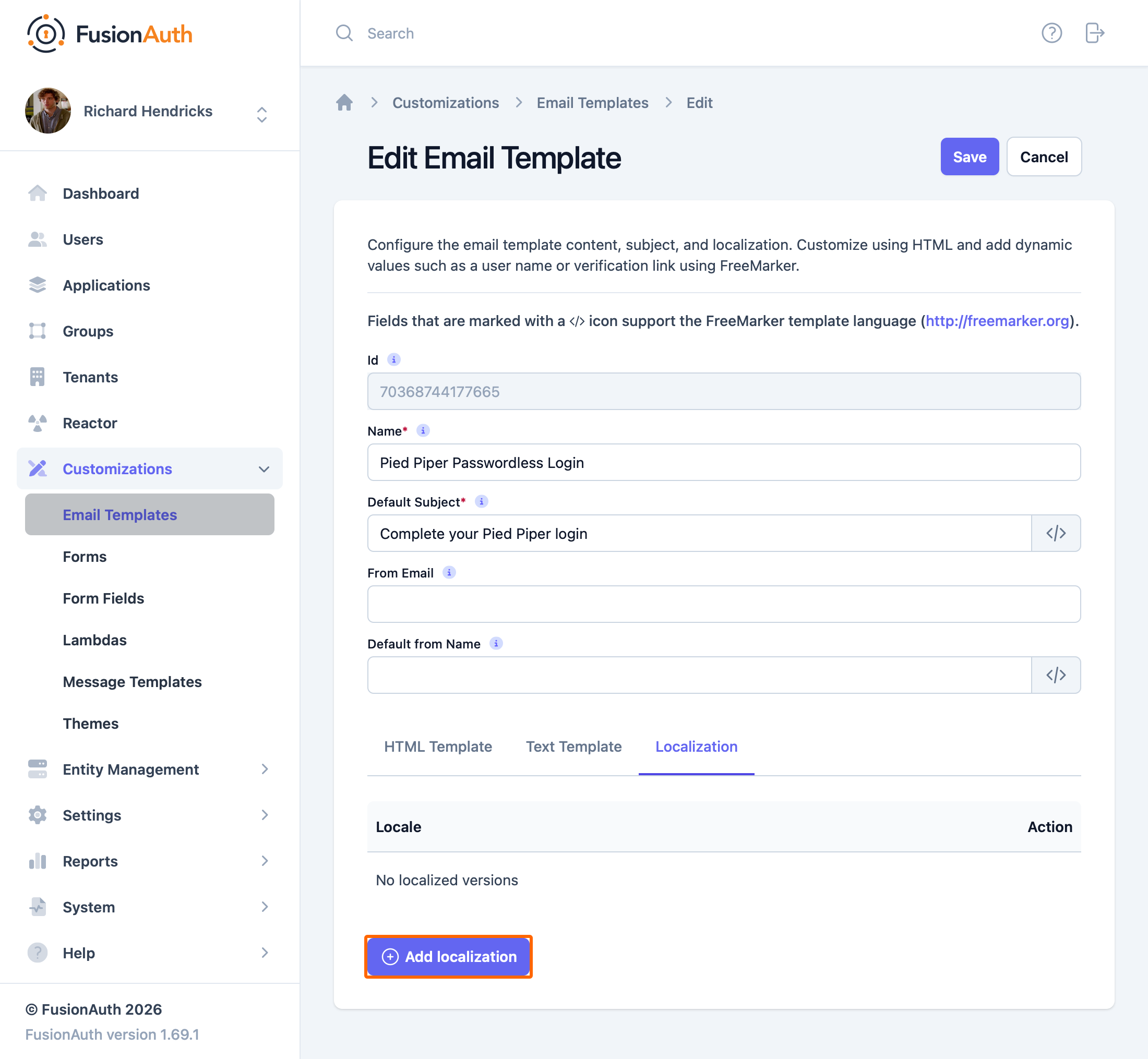
When you first log into FusionAuth and navigate to Customizations -> Email Templates you will see the default templates.
Base Information#
IdThe unique Id of the email template. The template Id may not be changed and will be used to interact with the template when using the Email APIs.
NameThe name of the template. This value is for display purposes only and can be changed at any time.
Default SubjectThe default subject of the email. The default value will be used unless a localized version is found to be a better match based upon the User's preferred locales.
This field supports replacement variables.
From EmailThe from email address used to send this template. As of version 1.16.0, this field is optional.
Default from NameThe default from name of the email. The default value will be used unless a localized version is found to be a better match based upon the User's preferred locales.
This field supports replacement variables.
Localization#
The email template body (both HTML and text values), subject, and from name fields can be localized.
You can associate these values with a locale. If a user has a preferred language, the localized template will be used when this email is sent.
Related
API documentation for the FusionAuth Create an Email Template API.
Learn about the APIs for creating, retrieving, updating and deleting email templates as well as sending emails to users.
API documentation for the FusionAuth Preview an Email Template API.
API documentation for the FusionAuth Retrieve an Email Template API.