Add an OpenID Connect with Azure AD IdP
On this page
Once you have completed this configuration you may enable an OpenID Connect Login with Azure AD button for one or more FusionAuth Applications. See Microsoft Entra ID - Register An App QuickStart Guide as an additional reference.
The following diagram shows a login through Azure AD on the FusionAuth hosted login pages:
A user logs in through an Identity Provider on the FusionAuth hosted login pages.
The user sees only the FusionAuth login page, the login page of Azure AD, and your application. Your application completes a standard OAuth authorization code grant with FusionAuth, and FusionAuth handles the exchange with Azure AD.
Azure AD is Microsoft Entra ID. But the usage of Azure AD is common. In this document, wherever you see Azure AD, rest assured we mean Microsoft Entra ID as well.
Register a New Azure Active Directory Application#
You will first need to login to the Azure Portal.
Once logged in, navigate to Azure Active Directory -> App Registrations -> New Registration to create a new Azure Active Directory Application.
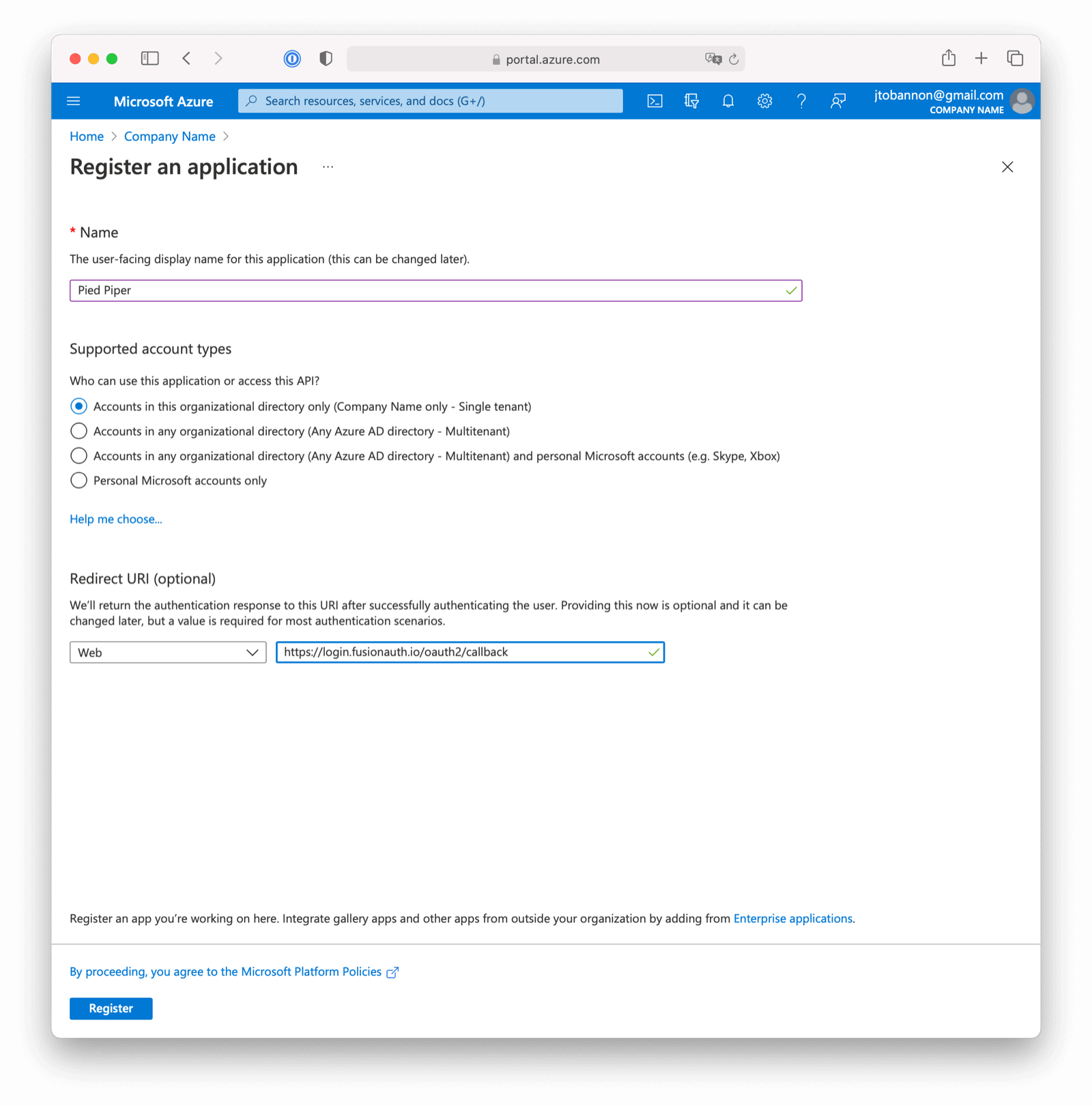
Here we have configured our application Redirect URI. If FusionAuth is running at https://login.fusionauth.io, this value should be https://login.fusionauth.io/oauth2/callback.
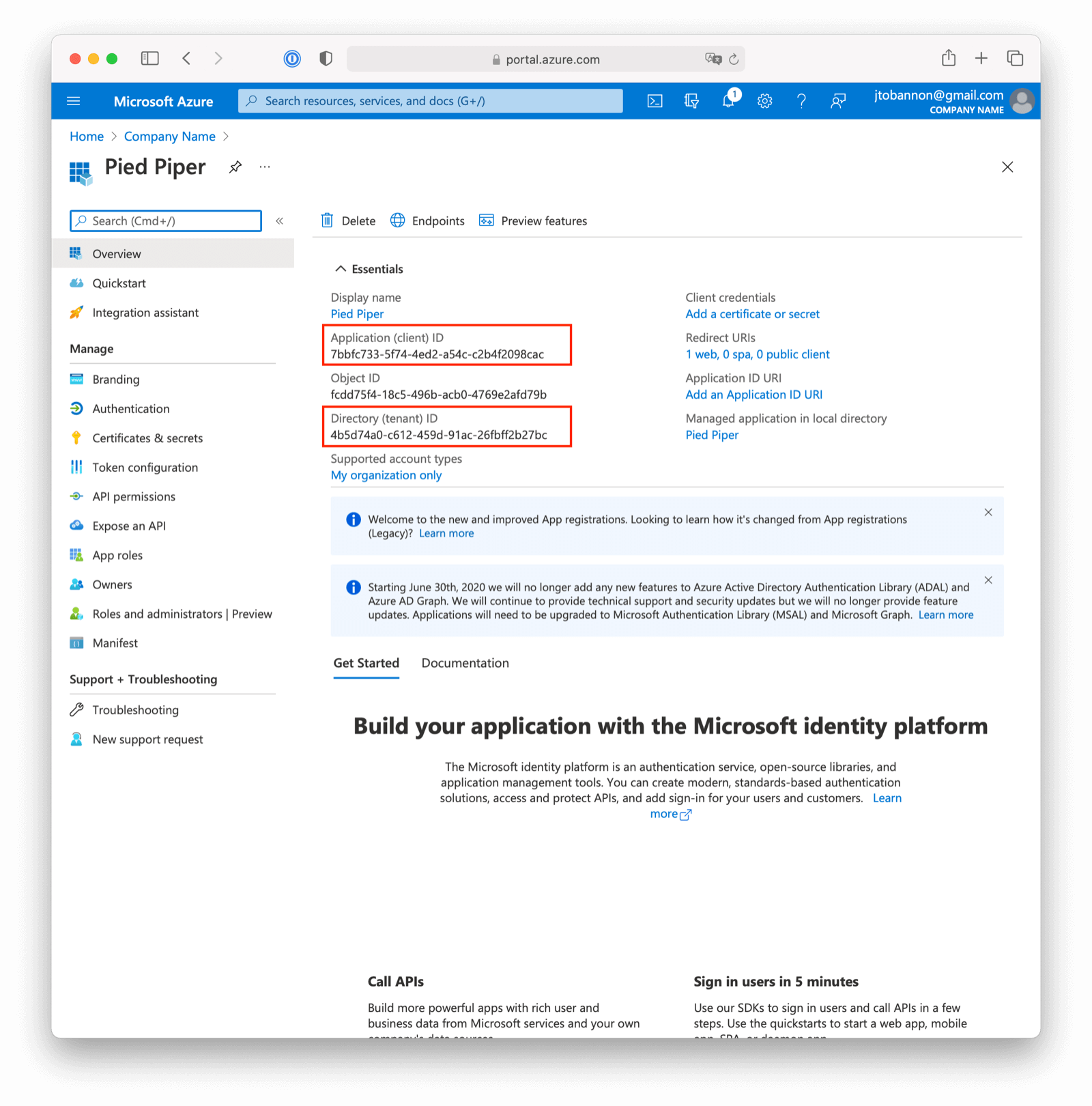
Once the application has been created, note the Application (client) ID and the Directory (tenant) ID. These will be used respectively as the Client Id value and to construct the Issuer value in your FusionAuth OpenID Connect Identity Provider configuration.
Create a New Azure Active Directory Application Secret#
Navigate to Azure Active Directory -> App Registrations -> Your Application -> Certificates & secrets -> New client secret to create a new Azure Active Directory Application Client Secret.
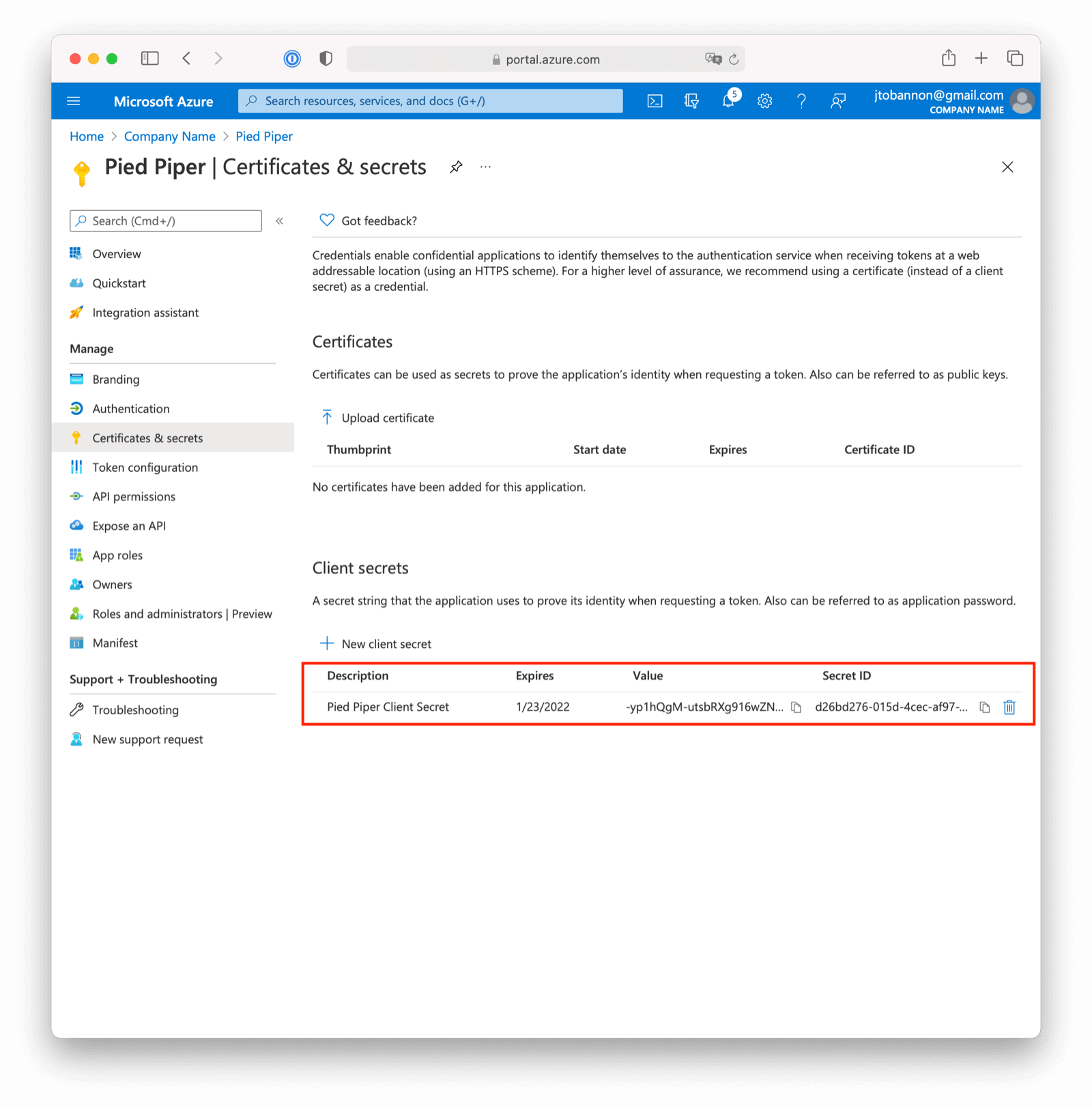
Note the VALUE of the created client secret. This will be used as the Client secret value in your FusionAuth OpenID Connect Identity Provider configuration.
Configure a New FusionAuth OpenID Connect Identity Provider#
To create an Azure AD Identity Provider return to FusionAuth and navigate to Settings -> Identity Providers and click Add provider and select OpenID Connect from the dialog.
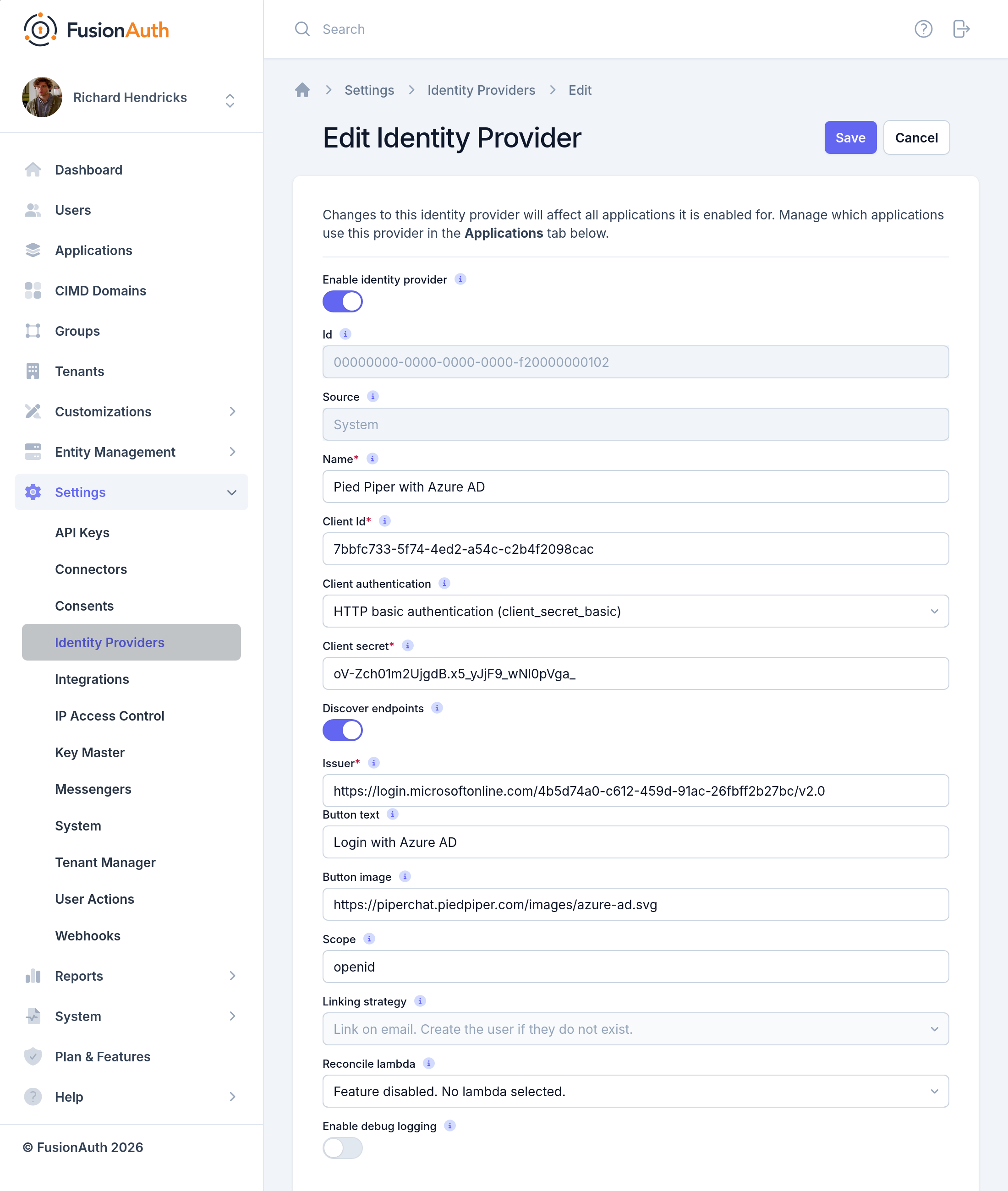
This will take you to the Add OpenID Connect panel, and you'll fill out the required fields.
You will need to set the Client authentication to HTTP Basic authentication (client_secret_basic).
Client Id and Client secret values reference the previously noted Azure AD Application's Application (client) ID, client secret VALUE.
Azure AD has implemented a well-known configuration endpoint, so FusionAuth will be able to discover the necessary endpoints using a discovery document by entering the Microsoft Authority URL in the Issuer field. To see the Issuer field, you may need to toggle Discover endpoints.
The Microsoft URL may differ across national clouds, so you will need to review the Microsoft documentation to ensure you have the correct URL for your region. For the Microsoft global Azure AD service, the URLs are as follows, where {tenantId} is the Directory (tenant) ID previously noted while creating our Azure AD Application.
- Azure AD v1
https://login.microsoftonline.com/{tenantId} - Azure AD v2
https://login.microsoftonline.com/{tenantId}/v2.0
You may set a Reconcile lambda to map attributes from the JWT provided by Azure AD to the FusionAuth user or registration. This is optional. Learn more about lambdas. You may also modify the Button text or Button logo if desired.
You will need to specify openid as a Scope.
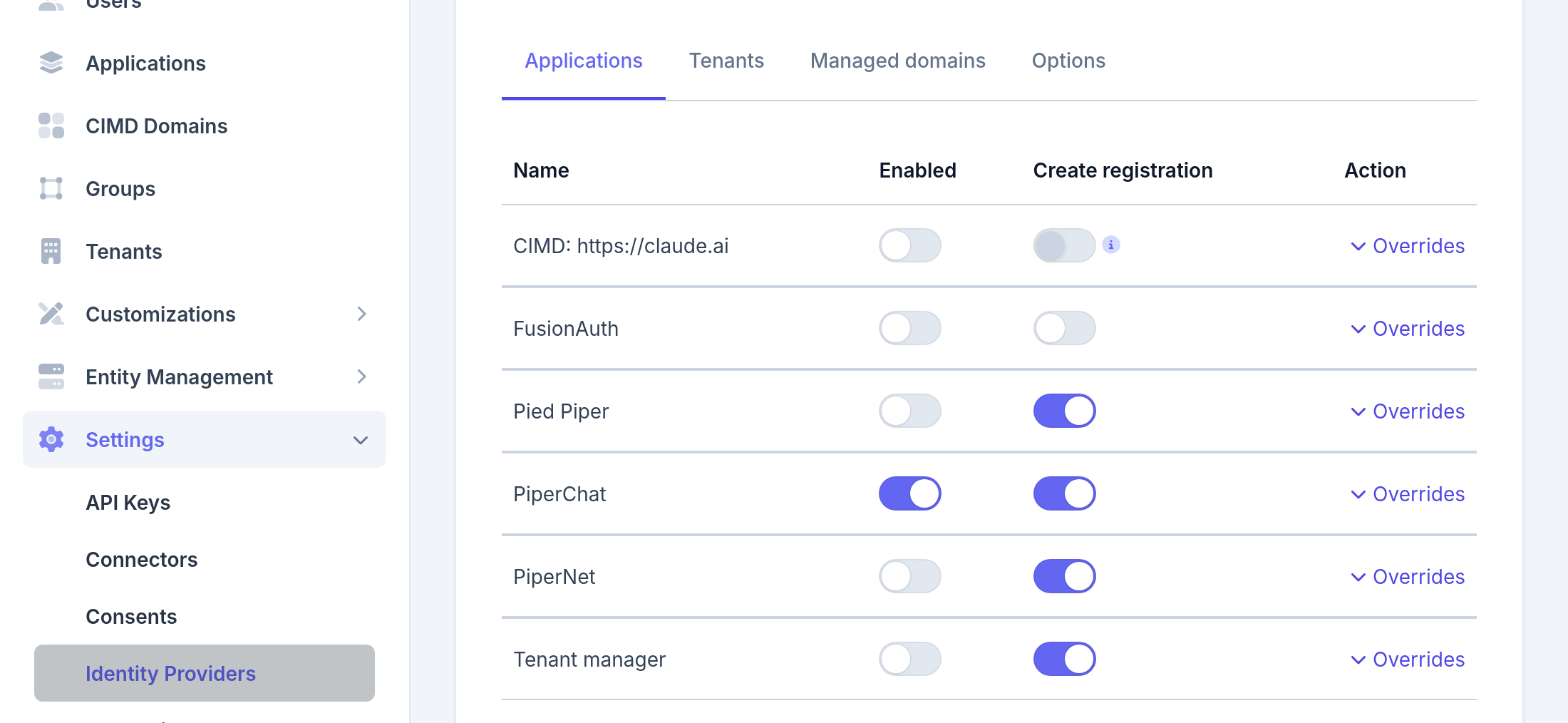
Scroll down and make sure you enable this Identity Provider for your application. In the following screenshot you will see that we have enabled this login provider for the Pied Piper application and enabled Create registration.
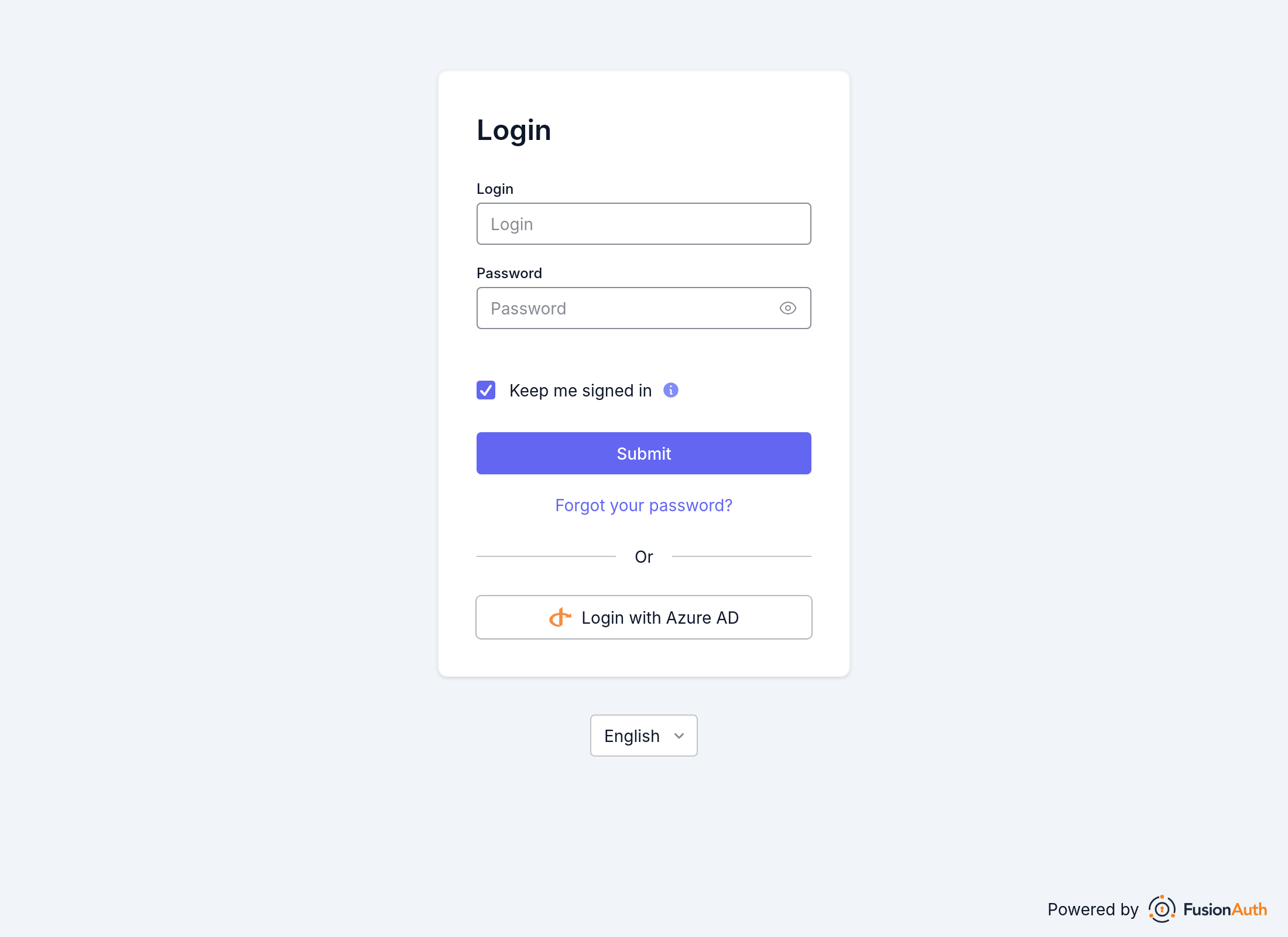
The login page of each enabled Application then shows the Login with Azure AD button.
Form Fields#
TenantThe Tenant that the Identity Provider belongs to. When you select a specific tenant on the previous page, FusionAuth shows Tenant. When you select Global identity provider, FusionAuth hides Tenant.
Client IdThe client Id from Azure.
Client secretThe client secret from Azure. FusionAuth authenticates requests to Azure with the secret.
Button textThe text of the Azure button on the FusionAuth login page.
Linking strategyHow FusionAuth links a Azure user to a FusionAuth user. For more information, see Linking Strategies.
Reconcile lambdaA lambda that maps custom claims from Azure to the FusionAuth User or Registration. To create a lambda, go to Customizations -> Lambdas . For more information, see Lambdas.
Enable debug loggingWhen you enable debug logging, FusionAuth writes Event Log entries during the login process. Use the entries to debug integration issues.
Related
Learn how to configure Azure AD (Microsoft Entra ID) as a SAML v2 Identity Provider for FusionAuth.
Learn how to set up user login using Okta as an OpenID Connect Identity Provider.
Learn about the APIs for creating, retrieving, updating and deleting identity providers.
Learn about the APIs for creating, retrieving, updating and deleting OpenID Connect identity providers.