Let Users Reset Passwords on the Hosted Login Pages
On this page
The hosted login pagesThe login, registration, password recovery, and multi-factor authentication pages that FusionAuth serves. A Theme controls the look of the pages. show a Forgot your password? link on the login page. When a user clicks the link, FusionAuth runs the forgot password workflow for you. To make the link work, give the TenantA logical container for Users, Applications, and settings that is isolated from other Tenants. a forgot password template for each way your users log in.
Prerequisites#
- For recovery by email, configure an email server on the Tenant. See Configure Email.
- For recovery by text message, create an SMS messenger. Recovery by text message requires FusionAuth
1.59.0or later. - An ApplicationA software program that your users log in to through FusionAuth. that logs users in through the hosted login pages.
Choose the Forgot Password Templates#
FusionAuth ships with a [FusionAuth Default] Forgot Password email template. The setup wizard assigns that template to the default Tenant. FusionAuth doesn't ship a forgot password message template, so create one for recovery by text message. See Message Templates.
To assign the templates:
- Navigate to Tenants and click next to your Tenant.
- Select the Identities tab.
- For recovery by text message, set Messenger in the Messaging settings section to your SMS messenger.
- In the Template settings section, set Forgot password in the email column to your email template.
- For recovery by text message, set Forgot password in the phone column to your message template.
- Click .
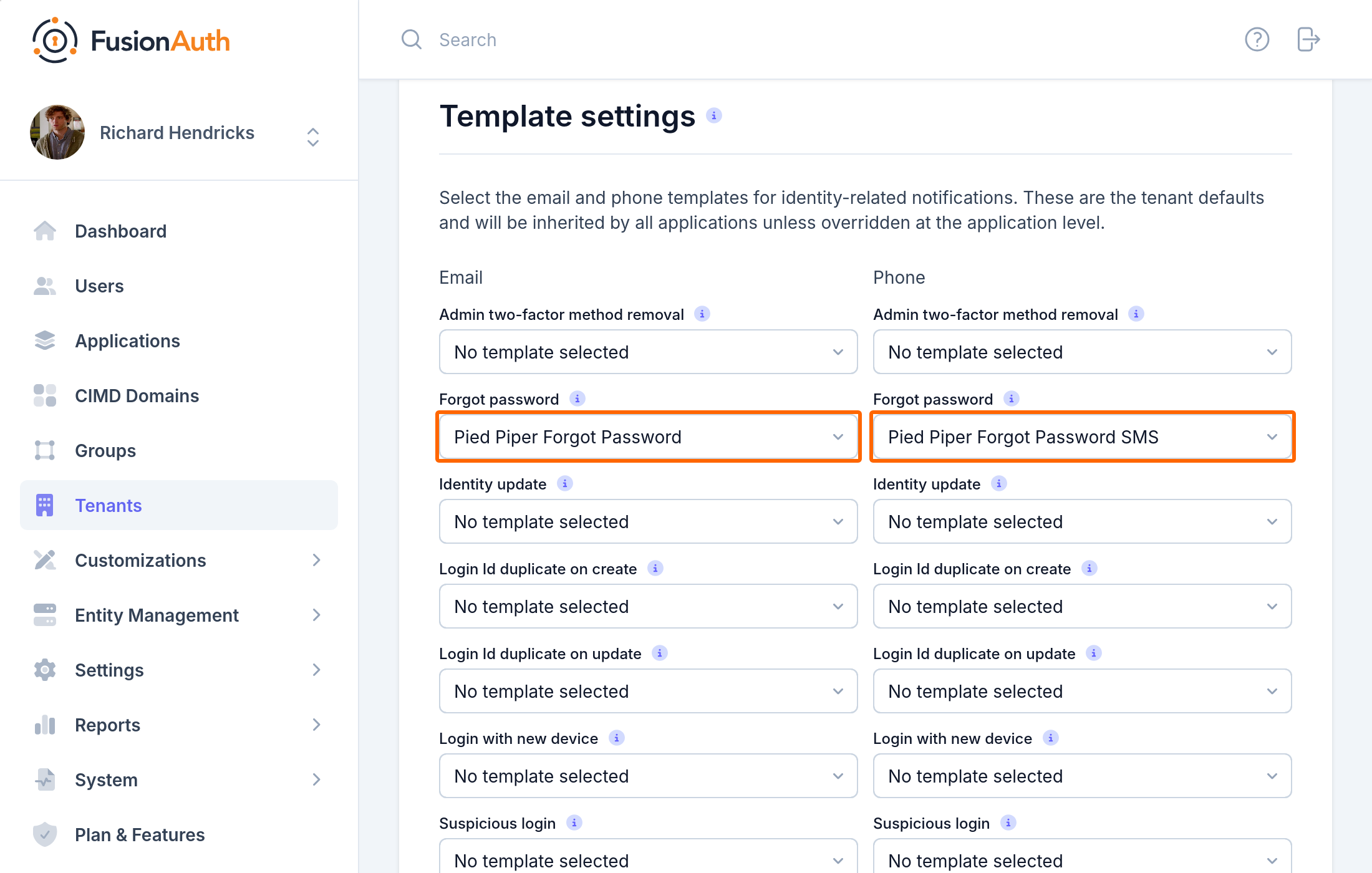
Set a template for every identity type your users log in with. If a user enters a phone number and the Tenant has no forgot password message template, FusionAuth shows an error instead of the confirmation page. That error also tells the visitor that an account with the phone number exists.
To brand the message for one Application, set the Application's own Forgot password templates on the Application's Identities tab. An Application template replaces the Tenant template for users who start the workflow from that Application. The Tenant template must still be set. See Application-Specific Email Templates.
Test the Workflow#
To confirm that the workflow works:
- Open the login page for your Application in a private browser window.
- Click Forgot your password?.
- Enter the email address, phone number, or username of a test user, and submit the form.
- Open the email or text message, then open the link in the message.
- Enter a new password and submit the form.
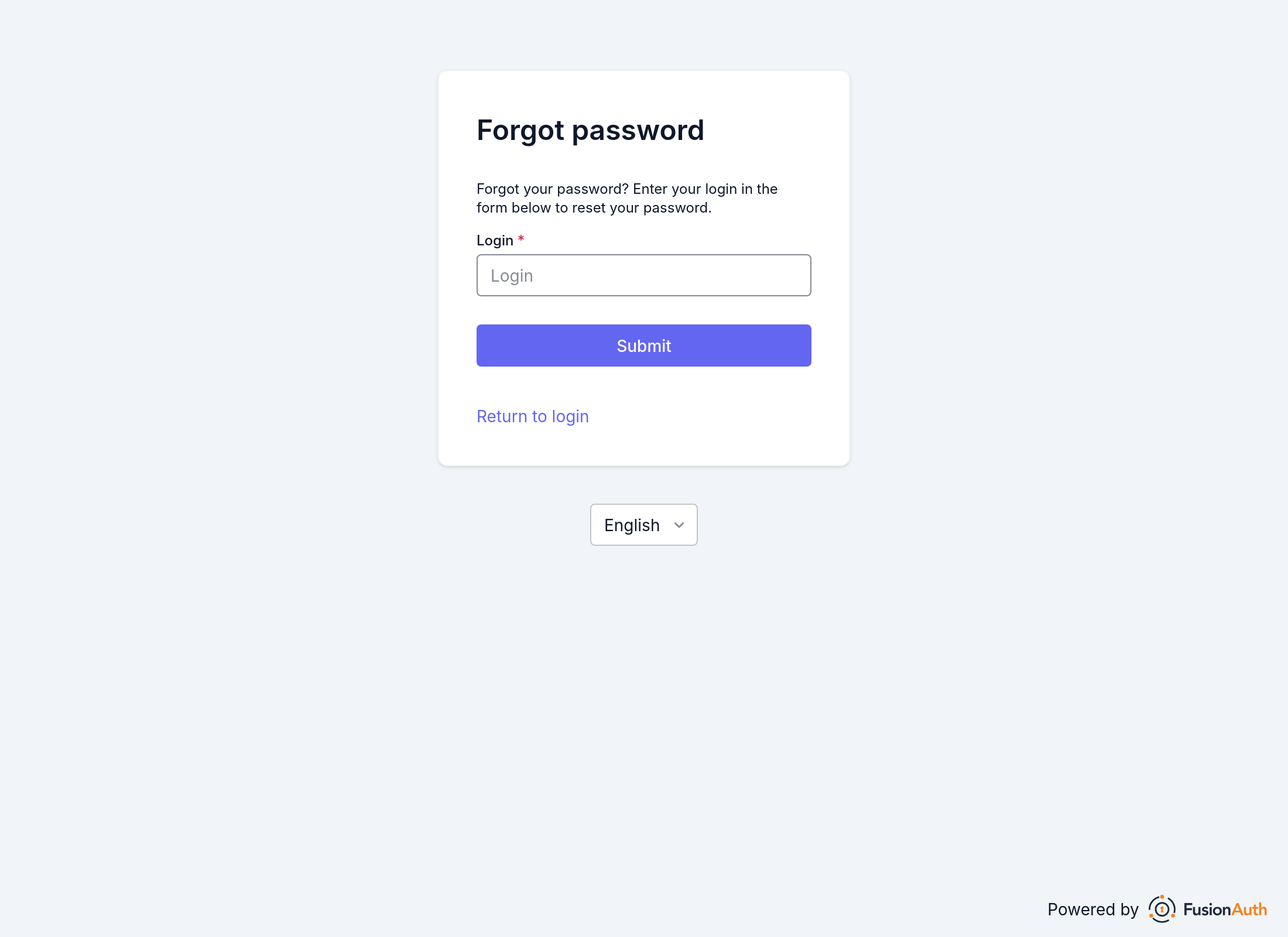
When you start from the login page, FusionAuth logs the test user in after the change and redirects the user to your Application. If the test user has MFA enabled, FusionAuth asks for the second factor before the new password form.
To confirm the change, log out and log in with the new password.
Customize the Pages#
To change the text or layout of the forgot password pages, edit the passwordForgot, passwordSent, passwordChange, and passwordComplete templates in your theme. To change the messages, edit the email or message template. For the variables each template can use, see the email template reference and the message template reference.
To link to the forgot password page from your own application, use /password/forgot?client_id={yourClientId}. Without the client Id, FusionAuth uses the Tenant theme and doesn't log the user in after the change.
Troubleshooting#
The Page Says Forgot Password Handling Is Not Enabled#
The Tenant has no forgot password template for the identity the user entered. Assign the template as shown in Choose the Forgot Password Templates.
The User Never Receives the Message#
The confirmation page appears even when FusionAuth finds no matching user, so check the login Id first. Then check the email server or the messenger. See Troubleshooting Email, or turn on debugging for the messenger.
The Link Returns the User to the Forgot Password Page#
The change password Id expired, or a newer request replaced the Id. Start the workflow again. To give users more time, raise Change password in the Tenant's external identifier durations.
Related
Learn how FusionAuth lets users reset a forgotten password by email or text message, and how recovery interacts with MFA, sessions, and account lockout.
Learn how to turn off the forgot password workflow for a FusionAuth tenant and hide the forgot password link on the hosted login pages.
Learn how to build your own forgot password pages with the Forgot Password and Change Password APIs, including users with MFA.
API documentation for the FusionAuth Change a User's Password API.