LDAP Connector
On this page
An LDAPA protocol for reading and authenticating users in a directory server, such as Active Directory. FusionAuth connects to a directory server through an LDAP Connector. Connector authenticates users against, or migrates users from, an LDAP server that FusionAuth can reach.
Configuration#
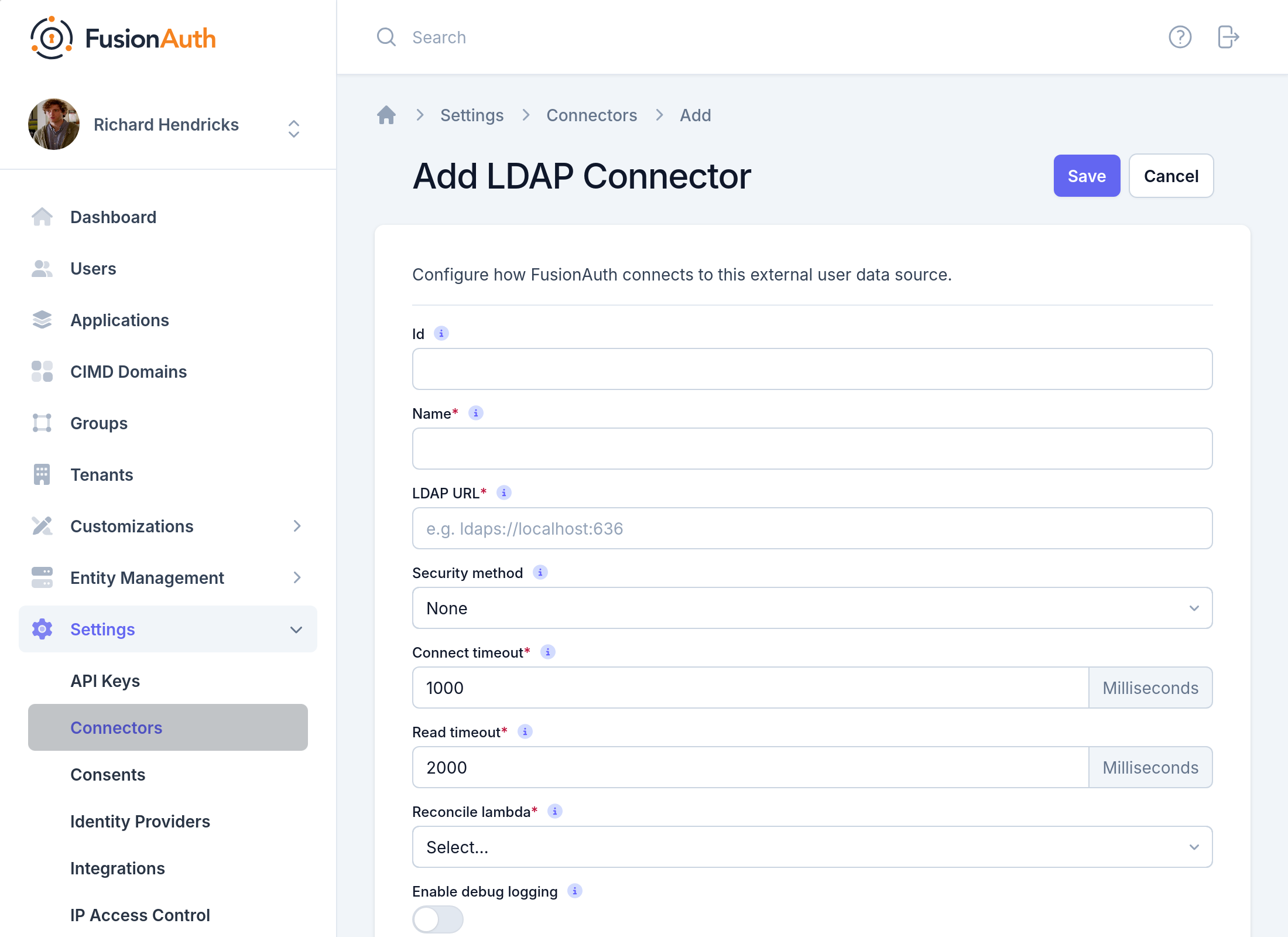
Form Fields#
IdAn optional UUID. When you omit the Id, FusionAuth generates a unique Id.
NameA unique name for the Connector. FusionAuth uses the name for display only, and you can change the name later.
LDAP URLThe URL of the LDAP server.
Security methodThe security method for the connection to LDAP. The default, None, doesn't encrypt the connection. Use None only when another method secures the connection, such as a VPN.
Connect timeoutThe connect timeout for requests to LDAP, in milliseconds.
Read timeoutThe read timeout for requests to LDAP, in milliseconds.
Reconcile lambdaThe lambda that maps the LDAP user to a FusionAuth user.
To create the lambda, navigate to Customizations -> Lambdas .
Enable debug loggingWhen enabled, FusionAuth writes Event Log entries that help you debug integration errors. To view the entries, navigate to System -> Event Log .
Directory#
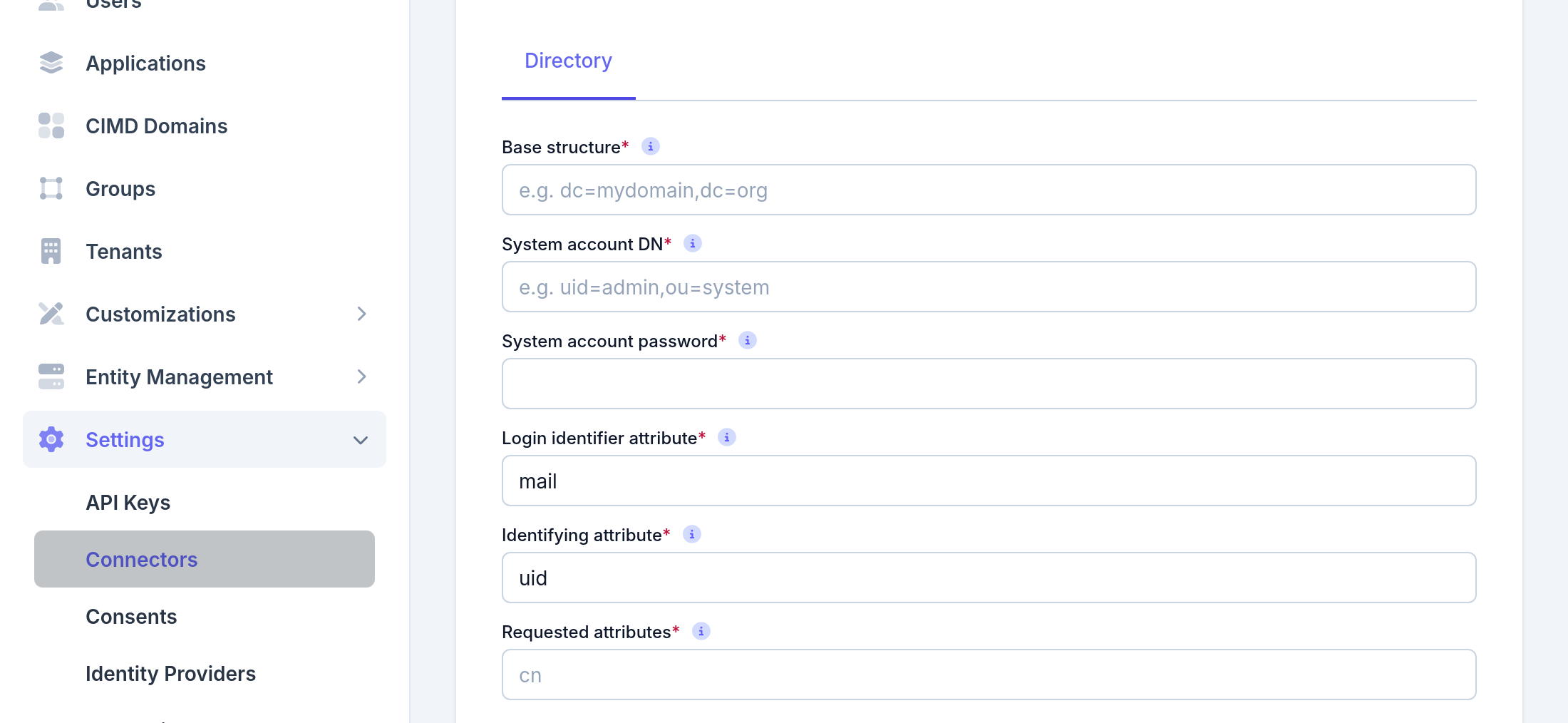
Base structureThe directory that FusionAuth searches for users.
For example, to search the entire directory, use DC=piedpiper,DC=com. To search only engineering, add the organization: OU=engineering,DC=piedpiper,DC=com.
System account DNThe distinguished name of an entry with read access to the directory.
For example: CN=ReadOnlyFusionAuthUser,OU=engineering,DC=piedpiper,DC=com.
System account passwordThe password of the System account DN.
Login identifier attributeThe attribute that holds the username that the user enters on the login page.
For example: uid or userPrincipalName.
Identifying attributeThe attribute that forms the first component of the distinguished name of each directory entry.
For example: cn.
Requested attributesThe directory attributes that LDAP returns for the user. FusionAuth passes the attributes to the reconcile lambda. The lambda converts the attributes to FusionAuth user attributes. Add the attributes one at a time.
For example: cn givenName sn userPrincipalName mail
Using the LDAP Connector#
To use an LDAP Connector:
- Make sure FusionAuth can reach your LDAP server. You might need a VPN, a FusionAuth instance in the same network, or a firewall rule.
- Choose the LDAP user that FusionAuth connects as.
- Create an LDAP Reconcile lambda that maps the directory attributes to FusionAuth user attributes.
- Configure the Connector in Settings -> Connectors . At a minimum, configure the following settings:
- The LDAP URL and connection security
- The reconcile lambda
- The directory settings
- Add a Connector policy in Tenants -> Your Tenant -> Connectors . The policy sets the domains that the Connector applies to.
Using the LDAP Connector as the System of Record#
You can use the Connector to authenticate users or to migrate users:
- When the Connector authenticates users, the backing LDAP directory remains the system of record, which holds the canonical user data.
- When the Connector migrates users, FusionAuth copies each user after the user's first successful login. FusionAuth then becomes the system of record.
For the other differences between the options, see Connectors.
When the Connector authenticates users without migrating the users, each login replaces the stored user with the user that the Connector returns. FusionAuth resets the following user attributes at each login:
- Group memberships
- Application registrations
- Multi-factor authenticationAn authentication method that requires two or more independent factors. methods and recovery codes
For example, when you register a Connector user for an application through the FusionAuth API or the Admin UI, FusionAuth removes the registration at the user's next login.
When the Connector doesn't migrate users, FusionAuth doesn't keep the multi-factor authentication methods that users set up in FusionAuth. FusionAuth replaces the methods before the multi-factor authentication check, so the login completes without a challenge. For example, a user who sets up an authenticator app gets no challenge at the next login, and FusionAuth deletes the authenticator app method.
To use FusionAuth multi-factor authentication with Connector users, turn on Migrate user in the Connector policy. FusionAuth then keeps the methods and challenges the user at each login.
To keep group memberships and application registrations for these users:
- Store the attributes in the LDAP directory.
- Add the attributes to Requested attributes.
- Set the user attributes in the LDAP Reconcile lambda.
FusionAuth doesn't push user profile data to LDAP. Data flows only from the Connector into FusionAuth.
To see which Connector is authoritative for a user, check connectorId on the User object.
Connecting to Active Directory#
Microsoft Active Directory exposes user data over LDAP. To let some of your users authenticate against Active Directory, use the LDAP Connector.
The following video shows how to configure FusionAuth with Microsoft Active Directory:
Related
Learn about the APIs for creating, retrieving, and updating LDAP Connectors.
Learn how to move users into FusionAuth one at a time, as each user logs in, with an LDAP or Generic Connector.
FusionAuth Connectors allow you to authenticate users against external data sources and optionally migrate them.
Learn about the APIs for creating, retrieving, updating and deleting identity providers.