Silent Mode
On this page
Silent Mode automatically:
- performs database migrations when updating FusionAuth
- configures schemas for new databases when installing FusionAuth
Activate Silent Mode#
To put an instance into Silent Mode, complete the following steps:
-
Open your FusionAuth configuration file, located at
\$(brew --prefix)/etc/fusionauth/fusionauth.properties. -
Find the existing
search.typeproperty and change it fromdatabasetoelasticsearch:fusionauth.properties search.type=elasticsearch -
Append the following lines for the Kickstart, Silent Mode, and Search Server configurations (be sure to replace
/path/to/your/kickstart/kickstart.jsonwith your actual file path):fusionauth.properties fusionauth-app.kickstart.file=/path/to/your/kickstart/kickstart.json fusionauth-app.silent-mode=true search.servers=http://localhost:9200
Behavior#
Silent mode automatically creates everything in the database that FusionAuth needs without prompts in the browser. When enabled, silent mode will perform the following steps:
- Open a raw socket to the database on the correct port to ensure it is reachable.
- If the configuration contains super user credentials, connect to the FusionAuth database using the super user (i.e. the
fusionauthdatabase and not themysqlorpostgresdatabase). - If the database doesn't exist in either case, silent mode will connect to the root database (i.e.
mysqlorpostgresdepending on the database server type) again using the super user credentials and create the database. - Connect to the root database (i.e.
mysqlorpostgresdepending on the database server type) using the super user credentials and check if the ordinary user exists. - If the ordinary user doesn't exist, attempt to create it and grant it all the necessary privileges to connect and use the FusionAuth database. This might also change the owner of the FusionAuth database to the ordinary user if you are using PostgreSQL.
- Silent mode connects to the FusionAuth database as the ordinary user and creates the FusionAuth schema.
Silent mode will try each of the steps above and if any of them fail, it will exit and put FusionAuth into maintenance mode. This will then require you to remedy the situation and possibly restart FusionAuth to get it back into silent mode. When silent mode does fail, it will present an error message for you to try and figure out what happened. The error might look like this:
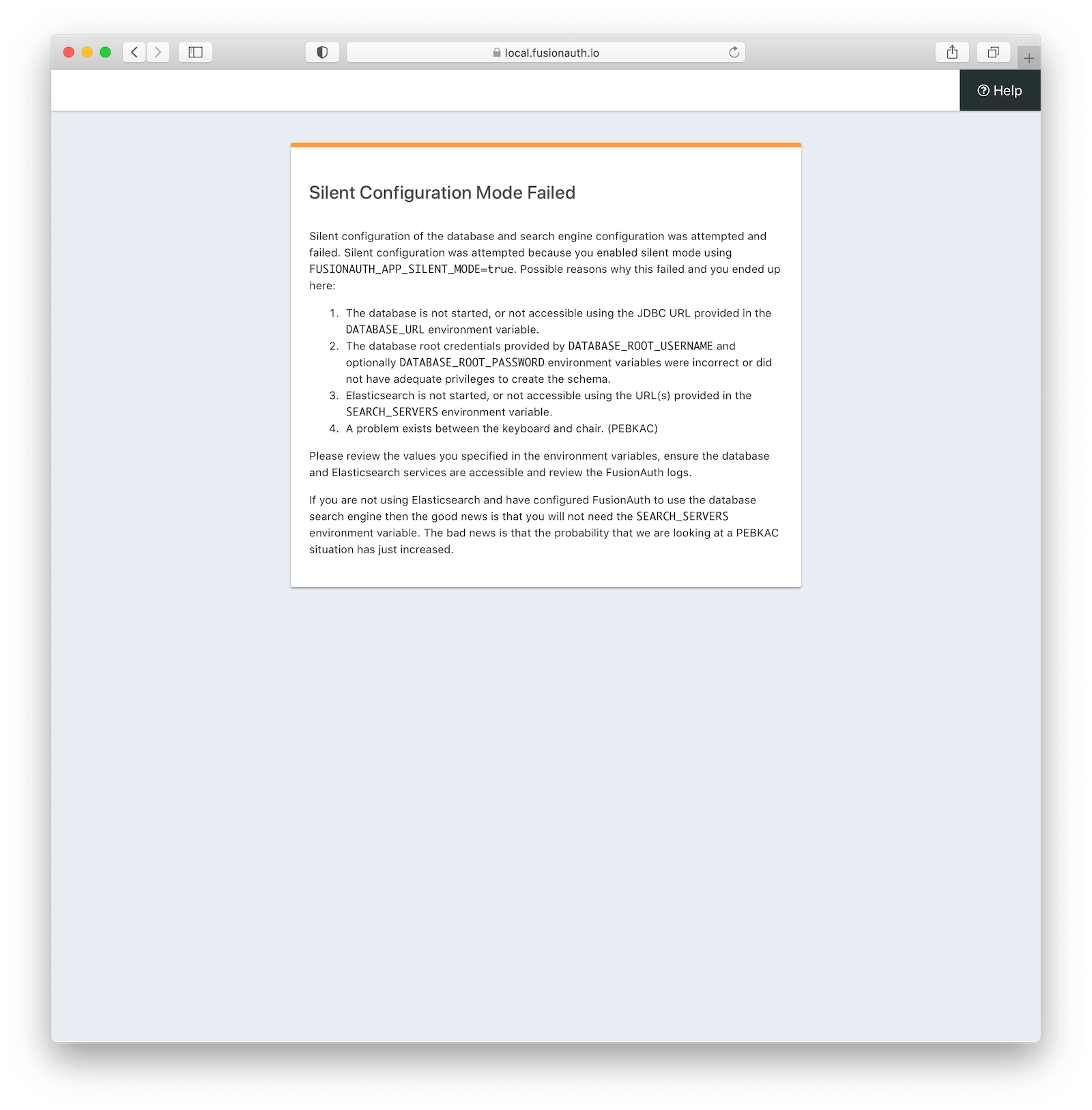
All of the silent mode steps ensure that at the end of silent mode FusionAuth can connect to the database and function properly. This also prevents FusionAuth from entering the interactive maintenance mode.
Configuration#
Production mode#
In order to configure FusionAuth to take these steps, you must specify a number of configuration properties. You can specify configuration properties with environment variables, command line properties, or the fusionauth.properties file. You can also mix and match these strategies. Here is an example configuration file that defines the necessary properties to enable silent mode and instruct it to install FusionAuth using the steps above:
database.url=jdbc:postgresql://localhost:5432/fusionauth
database.username=fusionauth
database.password=ordinary-user-password
database.root.username=postgres
database.root.password=super-user-password

fusionauth-app.runtime-mode=production
FusionAuth enables silent mode automatically because database.url, database.username, and database.root.username are set.
Development mode#
Silent mode can also be used in development mode. The following configuration will use silent mode. fusionauth-app.runtime-mode can be omitted because its default value is development.
database.url=jdbc:postgresql://localhost:5432/fusionauth
database.username=fusionauth
database.password=ordinary-user-password
database.root.username=postgres
database.root.password=super-user-password
Managed databases#
Some cloud providers don't provide access to a super user account and also don't allow you to connect to the "root" databases (i.e. mysql or postgres). Instead, they provision an ordinary user account and create an empty database for you to use. Often you can name this database to anything you want.
For these types of situations, FusionAuth can still connect to the managed database and create all of the necessary tables it requires to run. The only difference is that you must not specify the root credentials in the configuration. Here's an example configuration that will allow silent mode to function without access to any super user information or database. Note that the fusionauth-app.silent-mode property is explicitly set in this case:
database.url=jdbc:postgresql://localhost:5432/fusionauth
database.username=fusionauth
database.password=ordinary-user-password

fusionauth-app.runtime-mode=production
fusionauth-app.silent-mode=true
Updates#
You can use Silent Mode to update a FusionAuth deployment using the configuration files above. Always back up your FusionAuth database before performing a Silent Mode update.
The only additional step that you need to take is to update the version of FusionAuth itself. When the new version of FusionAuth starts up, it checks the database to determine if there are any database migrations that need to be run. If there are, FusionAuth will run the migrations in order and then resume the startup process.