Configure Passkeys
On this page
This feature requires at least a Licensed Community plan as of version 1.52.0.
1.41.0
Users can register passkeysA credential that replaces a password with a key pair stored on the user's device. Passkeys use the WebAuthn standard. and log in with them in the following ways:
- The FusionAuth hosted login pagesThe login, registration, password recovery, and multi-factor authentication pages that FusionAuth serves. A Theme controls the look of the pages. run the browser side of each WebAuthn ceremony for you. A theme makes the pages match your application.
- The WebAuthn API lets your application run each ceremony on its own pages.
Passkeys on the user's device, such as Touch ID or Windows Hello, require a Licensed Community plan. Cross-platform authenticators, such as security keys, require an Enterprise plan.
Enable WebAuthn#
Both approaches need WebAuthn enabled on the Tenant:
-
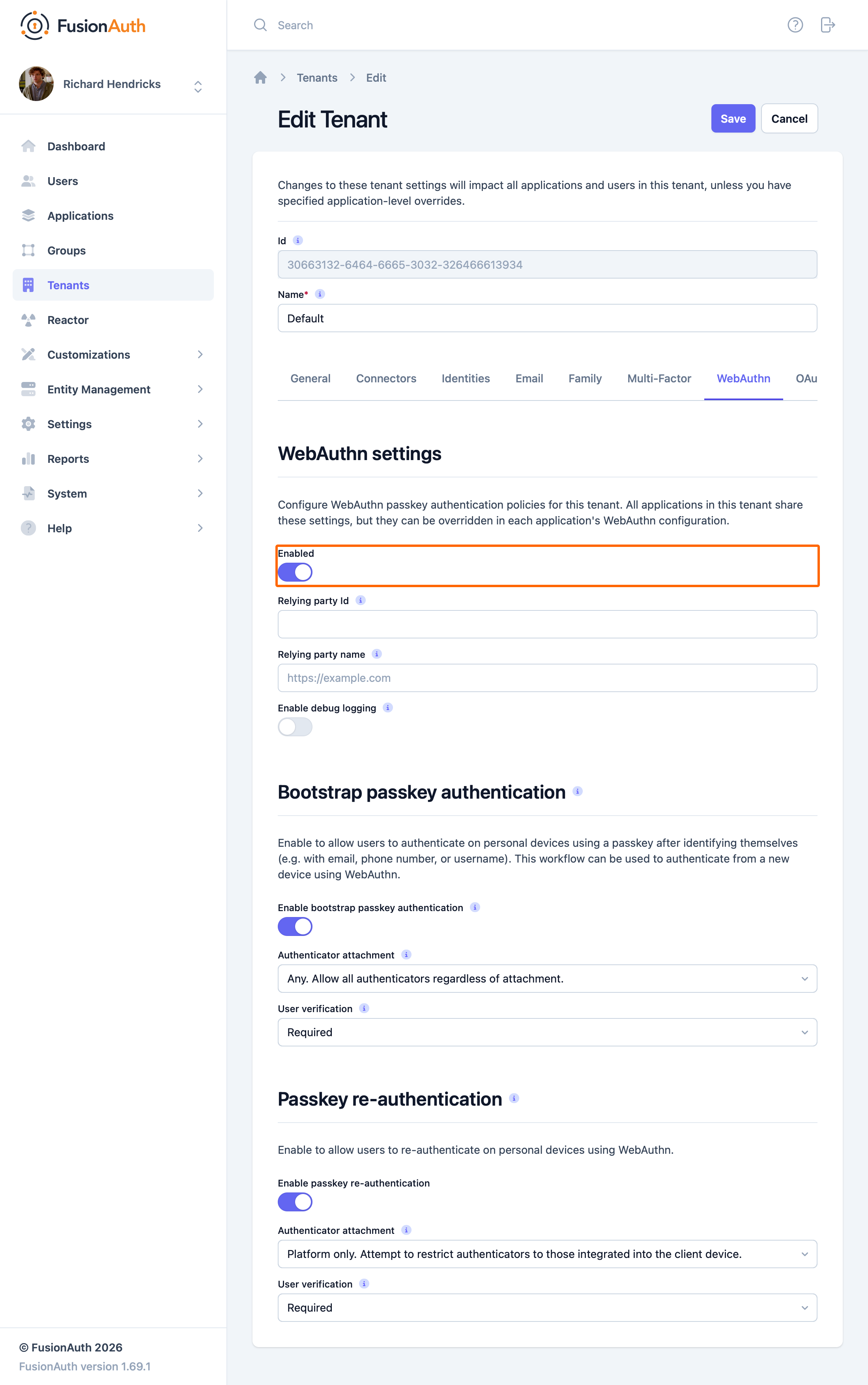
Navigate to Tenants , edit the Tenant, and open the WebAuthn tab. Turn on Enabled:
-
Enable the bootstrap workflow, the re-authentication workflow, or both:
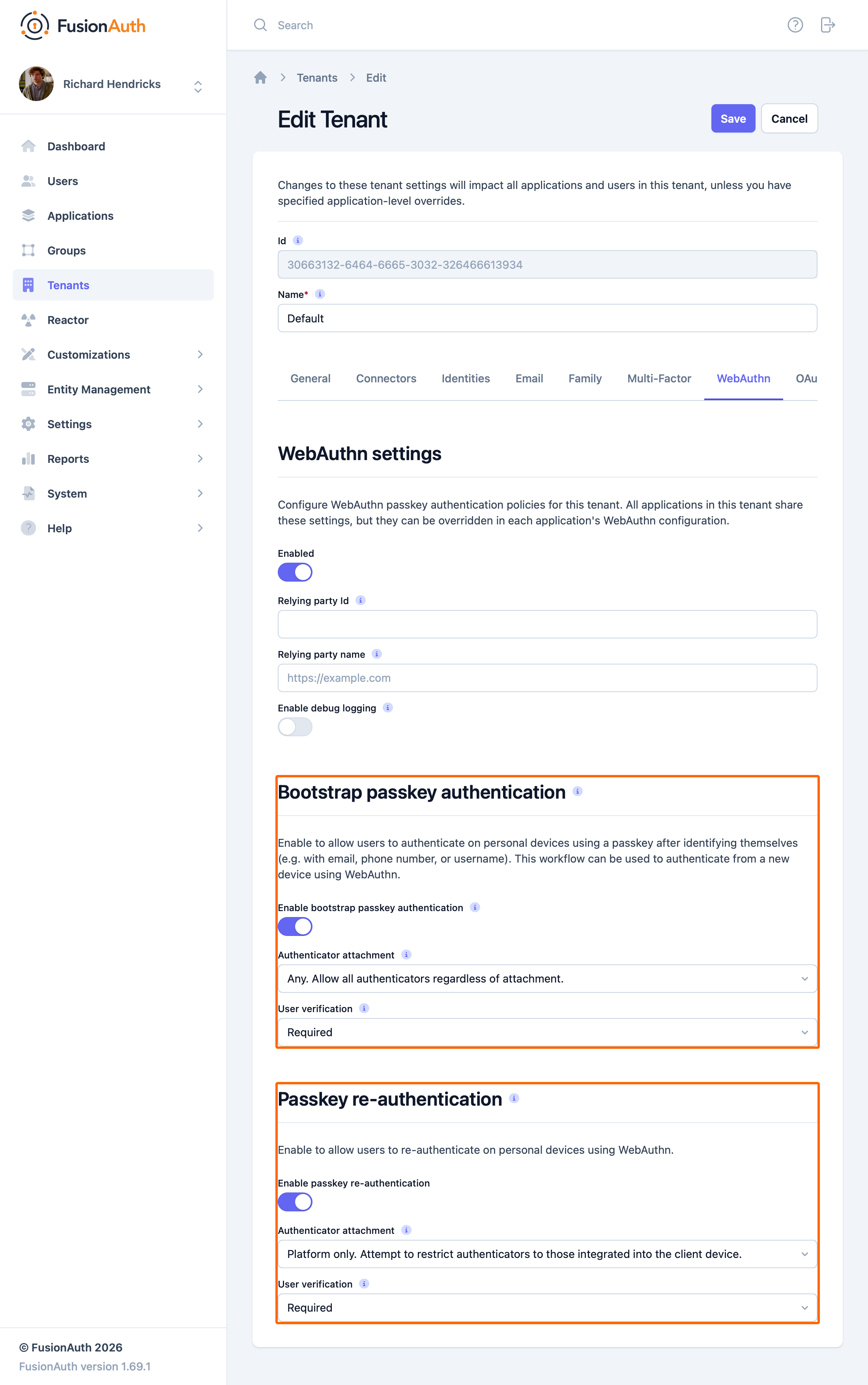
An Application can override which workflows are enabled. For every Tenant and Application setting, see Passkeys.
Use the Hosted Login Pages#
The hosted login pages convert data between the FusionAuth APIs and the WebAuthn JavaScript API, and call the WebAuthn JavaScript API. The hosted login pages need no configuration beyond Enable WebAuthn.
The hosted login pages support the re-authentication workflow and the bootstrap workflow. You can change every page in both workflows with a theme, like any other hosted login page.
Re-authentication#
The re-authentication workflow speeds up repeated logins from the same device. FusionAuth prompts users to opt in when FusionAuth detects a compatible device. The next time the user logs in, FusionAuth shows a page that lists the user's passkeys on that device. The user clicks a passkey and completes the WebAuthn authentication ceremony.
Register a Re-authentication Passkey#
After a successful login, FusionAuth sends the user to a passkey prompt when both of the following are true:
- The re-authentication workflow is enabled.
- The browser reports a suitable device through the isUserVerifyingPlatformAuthenticatorAvailable() JavaScript method.
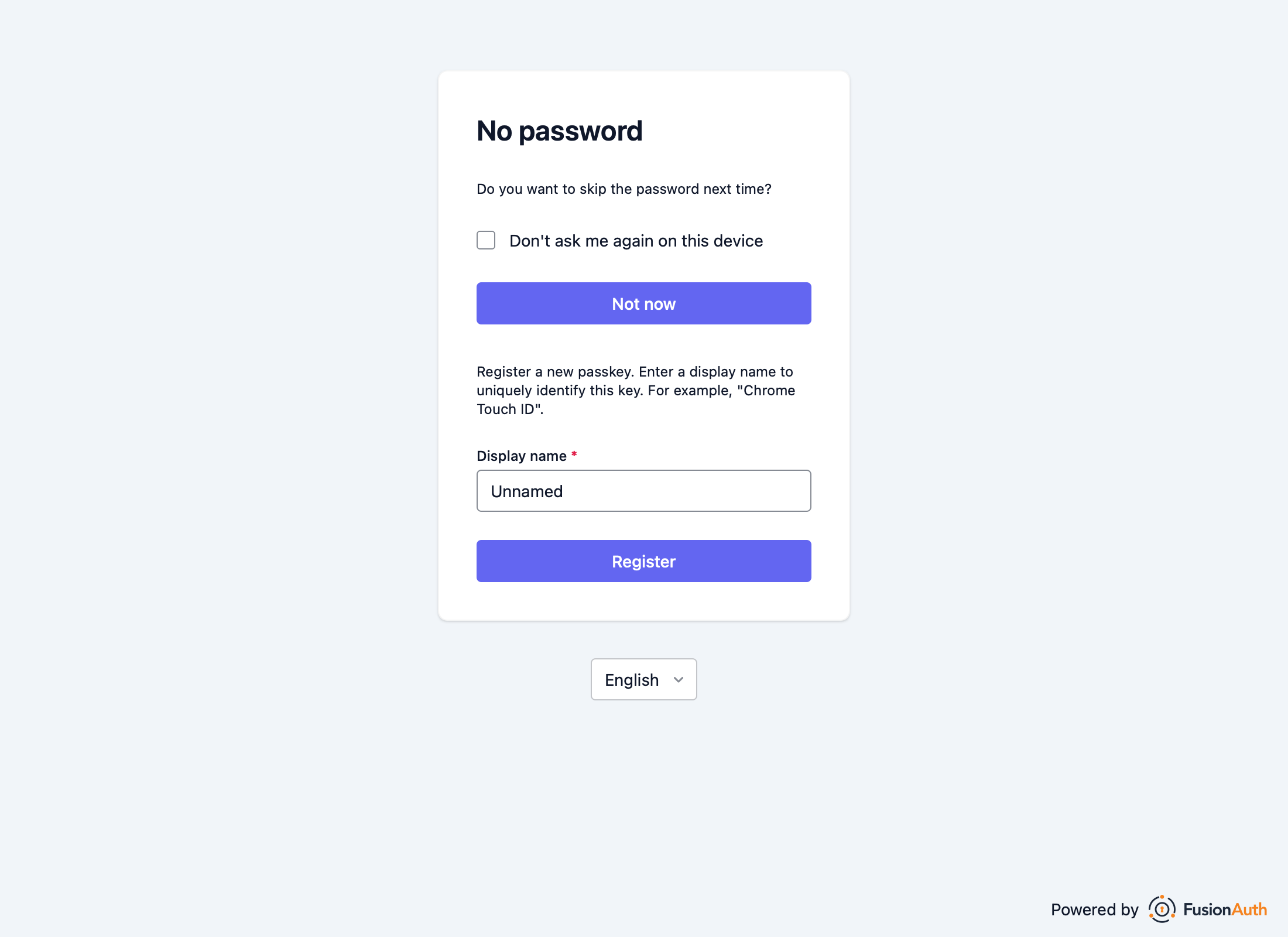
The prompt lists the user's passkeys that meet the attachment and user verification requirements of the Tenant. The prompt also has a form to register a new passkey. The list has the following limits:
- A listed passkey can belong to an authenticatorA device or app that proves a user's identity during login, such as a hardware security key that stores a passkey or an app that generates multi-factor authentication codes. that isn't present, such as a removable security key.
- A listed passkey can belong to another browser. A passkey registered with a platform authenticator in one browser usually doesn't work in a different browser.
- Registration fails when the user registers a new passkey with an authenticator that already holds one of the user's passkeys.
The user can select a listed passkey and complete a WebAuthn authentication ceremony. Or the user can enter a display name and register a new passkey. Either way, FusionAuth marks the passkey for re-authentication. The next time FusionAuth would show a login page, FusionAuth shows the re-authentication page instead.
To skip the prompt, the user clicks Not now . When the user also selects Don't ask me again on this device, FusionAuth stops showing the prompt on that device.
Log In with a Re-authentication Passkey#
When a user starts a login on the hosted login pages, FusionAuth checks whether the user has set up a passkey for this device. When FusionAuth finds one, FusionAuth shows the re-authentication page.
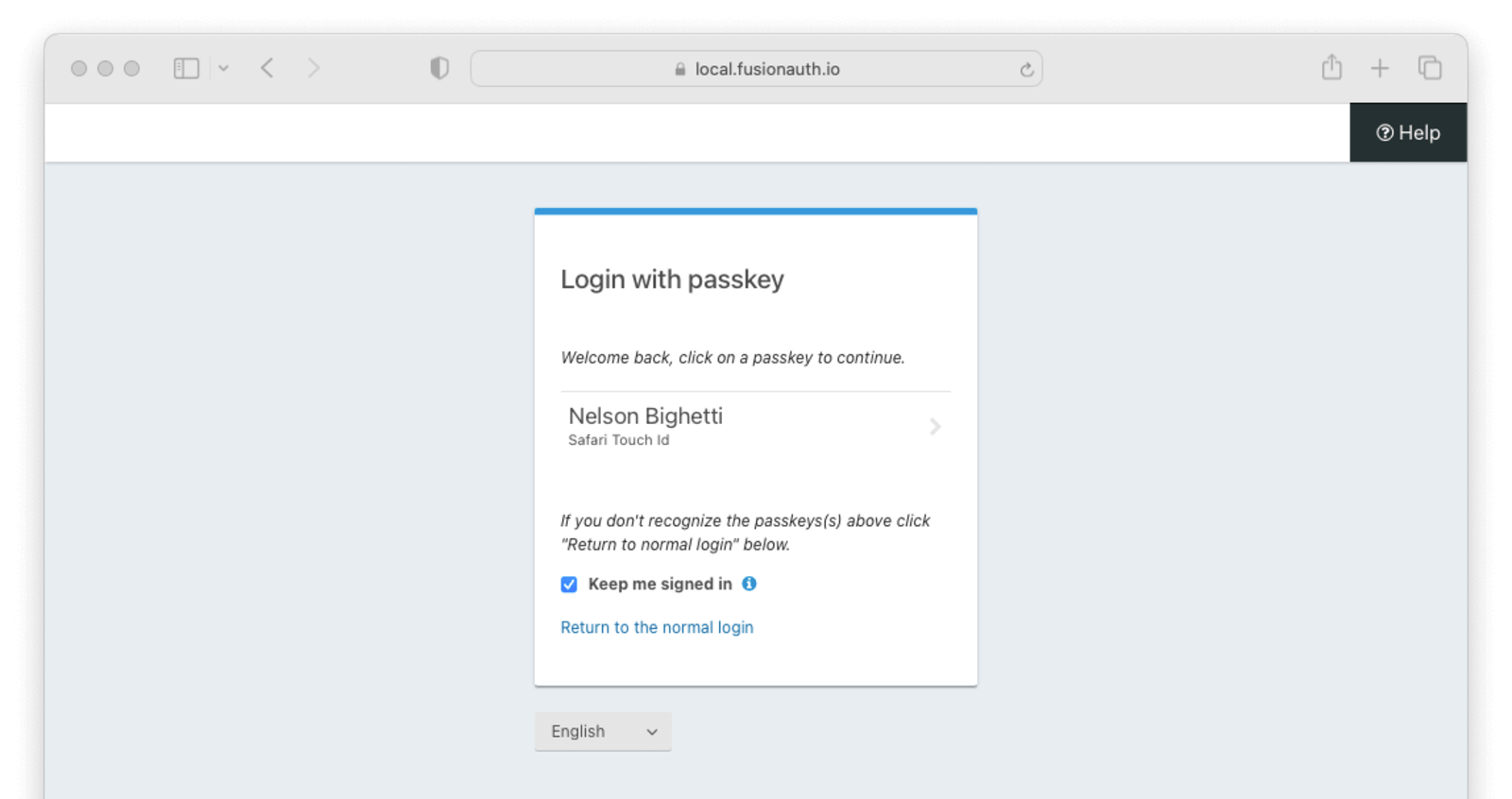
The page lists the passkeys on the device. Each passkey belongs to one account, so the user picks an account by picking a passkey. Clicking a passkey starts the WebAuthn authentication ceremony, and only the selected passkey can complete the ceremony. When the ceremony succeeds, FusionAuth logs the user in.
To use the normal login page instead, the user clicks Return to the normal login .
Bootstrap Authentication#
In the bootstrap workflow, the user starts the WebAuthn authentication ceremony by entering a username, email address, or phone number. The re-authentication workflow prompts users automatically, while the bootstrap workflow waits for the user to choose a passkey login. The user can complete the ceremony with any passkey whose authenticator meets the attachment and user verification requirements of the workflow.
Register a Bootstrap Passkey#
When the re-authentication workflow is disabled, the login pages don't prompt users to add a passkey. Users can add passkeys through self-service account management, which requires a Starter plan. On a Licensed Community plan, register passkeys with the WebAuthn API instead.
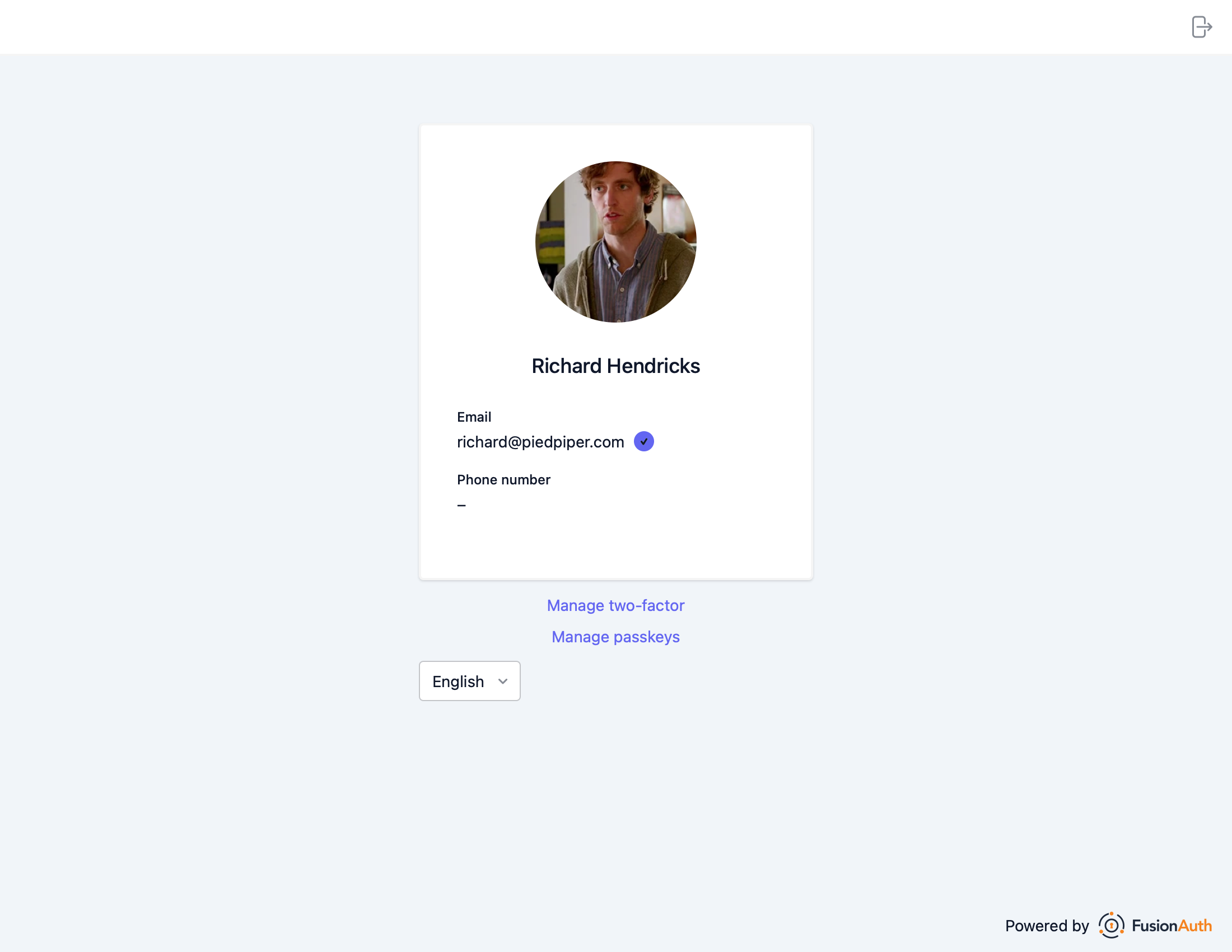
The account page lists the user's passkeys, with a button to delete each passkey and a button to add a passkey. The account page registers passkeys with the broadest attachment and user verification settings. With an Enterprise plan, that includes cross-platform authenticators. Otherwise the account page accepts only platform authenticators.
A passkey on the account page doesn't always work with every enabled workflow. For example, when the user adds a security key but the bootstrap workflow accepts only platform authenticators, the security key appears in the list but can't complete a bootstrap login.
Log In with a Bootstrap Passkey#
When the bootstrap workflow is enabled, the login page shows a Fingerprint, device or key button:
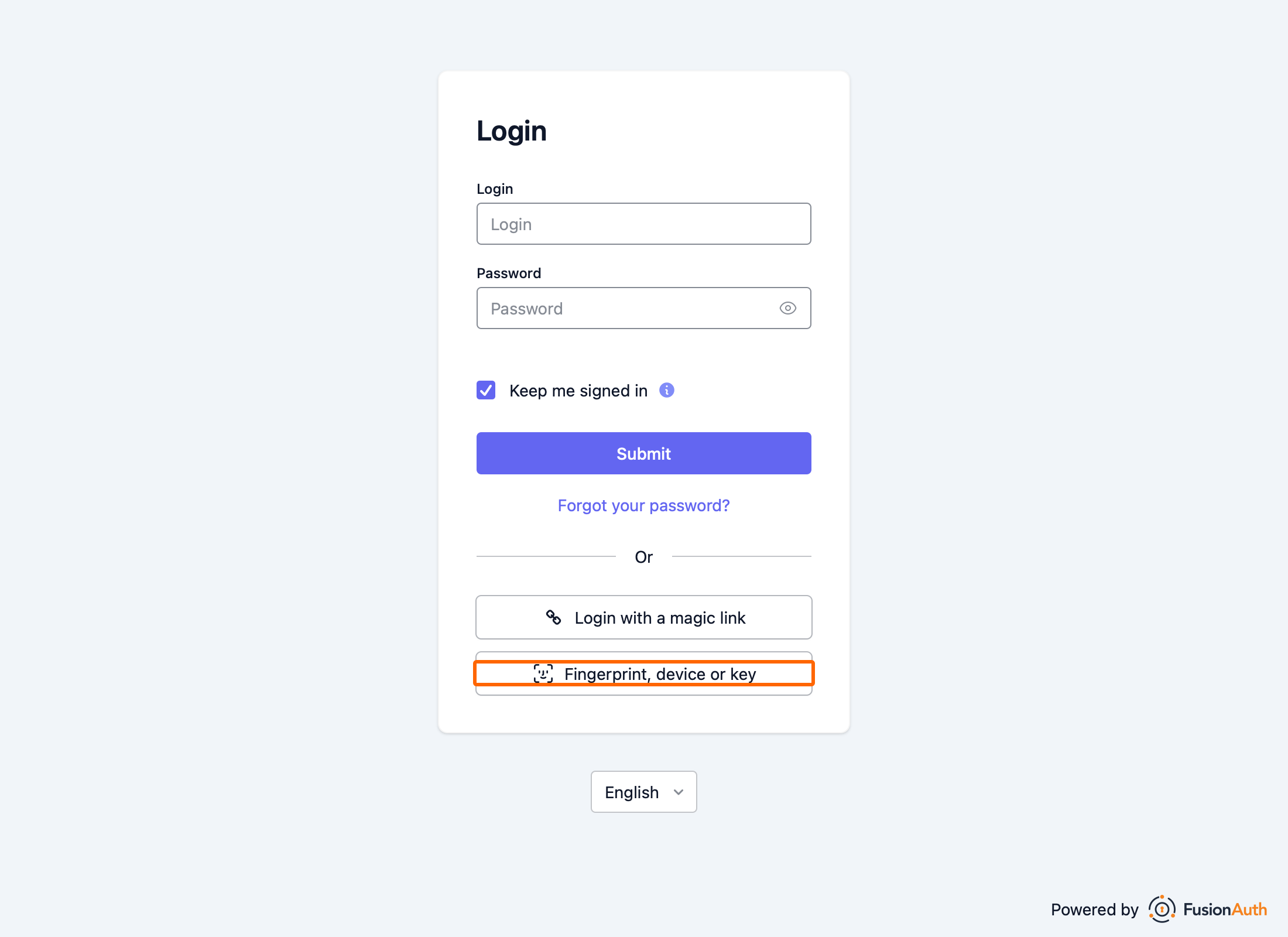
When the browser holds a re-authentication passkey, the login page also shows a Return to passkey authentication link above the other login methods. The link opens the re-authentication page.
Clicking Fingerprint, device or key opens the bootstrap login page:
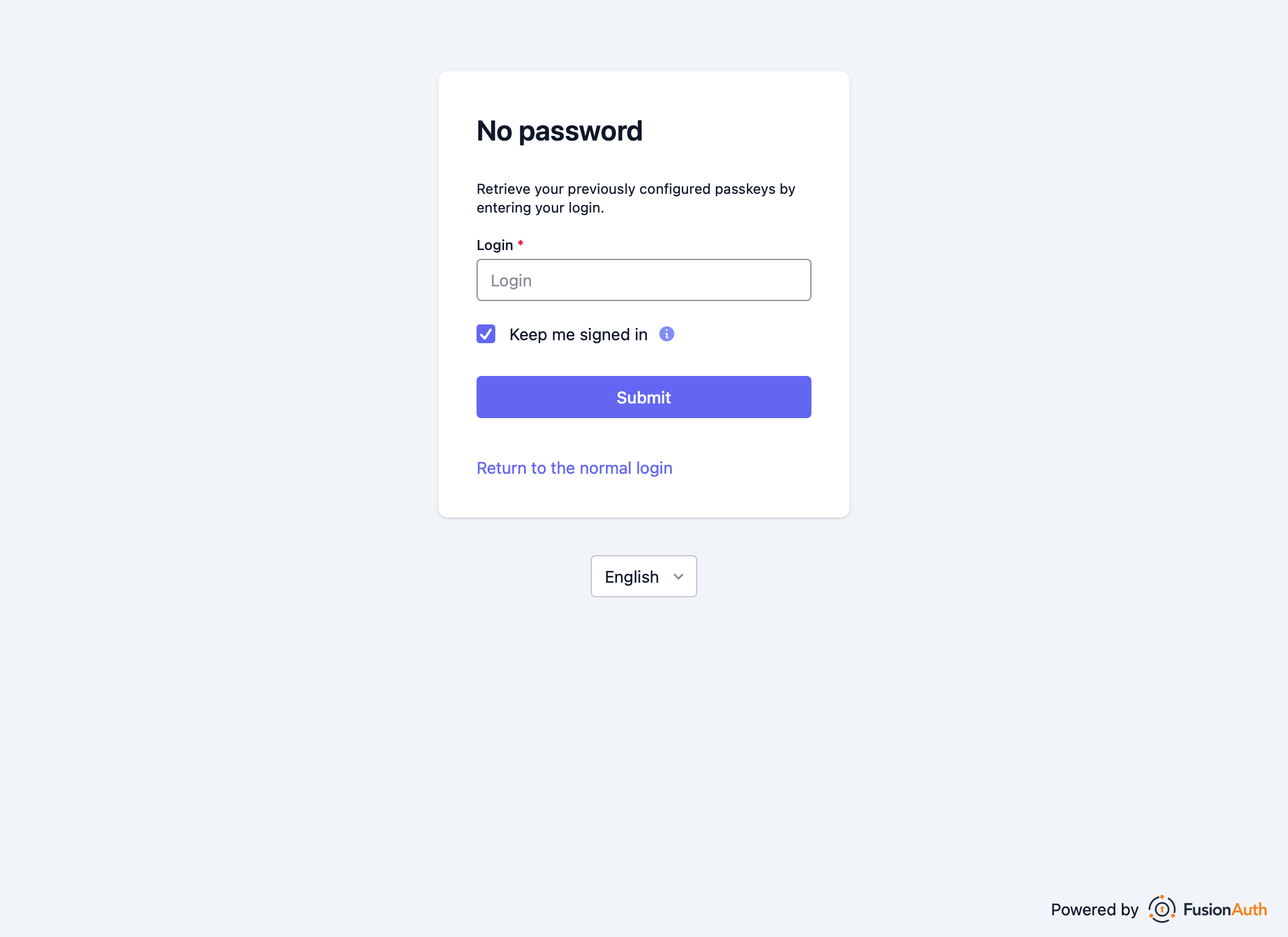
The user enters a username, email address, or phone number, and clicks Submit to start the WebAuthn authentication ceremony. When the ceremony succeeds, FusionAuth logs the user in.
Prompt Users to Add a Passkey#
When the re-authentication workflow is enabled, the hosted login pages already prompt users for a passkey after login. For more information, see Register a Re-authentication Passkey.
To prompt users from your own application instead:
-
In the browser, call isUserVerifyingPlatformAuthenticatorAvailable(). When the method returns
false, the device has no built-in authenticator, so skip the prompt. The hosted re-authentication prompt makes the same check.const canPrompt = window.PublicKeyCredential && await PublicKeyCredential.isUserVerifyingPlatformAuthenticatorAvailable(); -
On your server, retrieve the user's passkeys with the Retrieve a Passkey API. The API requires an API key with the
GETpermission on/api/webauthn:$ curl -H "Authorization: $API_KEY" \ "https://auth.example.com/api/webauthn?userId=$USER_ID"When the user has no passkeys, FusionAuth returns
{"credentials": []}. The list includes passkeys from every browser and device, including security keys. The API can't tell which passkeys work on the current device. A user with a passkey only in another browser still has a passkey in the list, so this check skips that user. -
Skip the prompt when the user has dismissed the prompt before. To remember a dismissal across devices, store a flag in
user.datawith the Update a User API:$ curl -X PATCH -H "Authorization: $API_KEY" \ -H "Content-Type: application/json" \ "https://auth.example.com/api/user/$USER_ID" \ -d '{"user": {"data": {"passkeyPromptDismissed": true}}}'The user's profile then has
data.passkeyPromptDismissedset totrue. To remember a dismissal on one device only, set a cookie instead. -
Show the prompt. When the user accepts, add the passkey in one of the following ways:
- Register the passkey with the WebAuthn API, and keep the user on your own pages. Set
workflowto the workflow the passkey serves, such asbootstrap. For the steps, see Register a Passkey. - Send the user to
https://auth.example.com/account/webauthn/add?client_id=<clientId>, the add passkey page of the self-service account pages. Set<clientId>to the client Id of your Application. The account pages require a Starter plan, a self-service form on the Application, and a user registered to the Application. After the user adds the passkey, FusionAuth shows the user's passkey list and doesn't return the user to your application. For more information, see Add WebAuthn Passkey.
- Register the passkey with the WebAuthn API, and keep the user on your own pages. Set
To find every user without a passkey, call the Retrieve a Passkey API once per user. The User Search API can't filter users by passkey.
Use the WebAuthn API#
The WebAuthn API lets you build every part of the login experience. The WebAuthn API also lets you track which passkeys work for re-authentication in your own way. For every WebAuthn API call, see the WebAuthn API reference.
The /api/webauthn/start and /api/webauthn/register/start endpoints require an API key with the POST permission on each endpoint. The endpoints that complete a ceremony don't require an API key.
The registration and authentication ceremonies follow the same steps:
- Call FusionAuth to start the ceremony.
- Convert the options in the FusionAuth response for the WebAuthn JavaScript API.
- Call the WebAuthn JavaScript API in the browser with the converted options.
- Convert the authenticator response for transport over the network.
- Send the converted response to FusionAuth to complete the ceremony.
Register a Passkey#
The registration ceremony creates a new passkey for a user.
Start the Registration#
To start a registration, call the /api/webauthn/register/start endpoint:
$ API_KEY=...
$ REQUEST_PAYLOAD='{...}'
$ curl  -H "Content-type: application/json" -H "Authorization: $API_KEY" https://local.fusionauth.io/api/webauthn/register/start -d $REQUEST_PAYLOAD
The following example shows a request payload:
{
  "displayName": "Chrome Touch ID",
  "userId": "703fe2d2-2d39-4cb7-b76d-0b9918ed2457",
  "workflow": "reauthentication"
}
FusionAuth returns options for the WebAuthn JavaScript API, including a one-time challenge for this ceremony:
{
  "options": {
    "attestation": "none",
    "authenticatorSelection": {
      "authenticatorAttachment": "platform",
      "userVerification": "required"
    },
    "challenge": "fdnW2u1_Nk9_FY2SprU4mPs0NgBTbo9tOO5Q9EvO1Oc",
    "excludeCredentials": [
      {
        "id": "MBU0eBsaNAt4VEh4Lbn2sQ==",
        "transports": [
          "internal"
        ],
        "type": "public-key"
      }
    ],
    "extensions": {
      "credProps": true
    },
    "pubKeyCredParams": [
      {
        "alg": -36,
        "type": "public-key"
      },
      {
        "alg": -35,
        "type": "public-key"
      },
      {
        "alg": -7,
        "type": "public-key"
      },
      {
        "alg": -39,
        "type": "public-key"
      },
      {
        "alg": -38,
        "type": "public-key"
      },
      {
        "alg": -37,
        "type": "public-key"
      },
      {
        "alg": -259,
        "type": "public-key"
      },
      {
        "alg": -258,
        "type": "public-key"
      },
      {
        "alg": -257,
        "type": "public-key"
      }
    ],
    "rp": {
      "id": "piedpiper.com",
      "name": "Pied Piper"
    },
    "timeout": 180000,
    "user": {
      "displayName": "Chrome Touch ID",
      "id": "NzAzZmUyZDItMmQzOS00Y2I3LWI3NmQtMGI5OTE4ZWQyNDU3",
      "name": "richard@fusionauth.io"
    }
  }
}
Convert the Registration Options#
FusionAuth returns some fields as base64url-encoded strings. Convert the following fields to JavaScript ArrayBuffers when the fields are present, and leave the rest of the response unchanged:
- options.challenge
- options.excludeCredentials[x].id
- options.user.id
For details on each field, see the /api/webauthn/register/start response body.
The following function converts a base64url-encoded string:
function base64URLToBuffer(base64URL) {
  const base64 = base64URL.replace(/-/g, '+').replace(/_/g, '/');
  const padLen = (4 - (base64.length % 4)) % 4;
  return Uint8Array.from(atob(base64.padEnd(base64.length + padLen, '=')), c => c.charCodeAt(0));
}
The following snippet builds creationOptions for navigator.credentials.create() from options, the options field of the FusionAuth response:
const creationOptions = {
  // publicKey indicates this is for WebAuthn
  publicKey: {
    ...options,
    challenge: base64URLToBuffer(options.challenge),
    excludeCredentials: options.excludeCredentials?.map(c => {
      return {
        ...c,
        id: base64URLToBuffer(c.id)
      }
    }) ?? [],
    user: {
      ...options.user,
      id: base64URLToBuffer(options.user.id)
    }
  }
};
Call navigator.credentials.create()#
Pass creationOptions to navigator.credentials.create(). The function returns a Promise that resolves to a PublicKeyCredential. For details, see the WebAuthn specification.
Convert the Registration Response#
Convert the following fields of the PublicKeyCredential from ArrayBuffers to base64url-encoded strings when the fields are present, where credential is the PublicKeyCredential:
- credential.response.attestationObject
- credential.response.clientDataJSON
For details on each field, see the /api/webauthn/register/complete request body.
The following function converts an ArrayBuffer:
function bufferToBase64URL(buffer) {
  const bytes = new Uint8Array(buffer);
  let string = '';
  bytes.forEach(b => string += String.fromCharCode(b));

  const base64 = btoa(string);
  return base64.replace(/\+/g, '-').replace(/\//g, '_').replace(/=/g, '');
}
After navigator.credentials.create() succeeds, the response field holds an AuthenticatorAttestationResponse. Read the authenticator's transports and any client extension results from the PublicKeyCredential and the response field. The following snippet builds transformedCredential, the credential field of the /api/webauthn/register/complete request:
const transformedCredential = {
  id: credential.id,
  response: {
    attestationObject: bufferToBase64URL(credential.response.attestationObject),
    clientDataJSON: bufferToBase64URL(credential.response.clientDataJSON)
  },
  type: credential.type,
  clientExtensionResults: credential.getClientExtensionResults(),
  transports: typeof credential.response.getTransports === 'undefined' ? [] : credential.response.getTransports()
};
Complete the Registration#
To complete the registration, call the /api/webauthn/register/complete endpoint:
$ REQUEST_PAYLOAD='{...}'
$ curl  -H "Content-type: application/json" https://local.fusionauth.io/api/webauthn/register/complete -d $REQUEST_PAYLOAD
In the following example payload, credential is the transformedCredential from the previous snippet:
{
  "credential": {
    "clientExtensionResults": {
      "credProps": {
        "rk": true
      }
    },
    "id": "HdN9wqP9mqOonacmiM2gIjASFYg",
    "response": {
      "attestationObject": "v2dhdHRTdG109mhhdXRoRGF0YViemPsv4VW-wth0V9gzsxWRFn-1SyC9gM4-QC4ptMFDNhVFAAAAFmhGAxjmXUwbl-q5EoJkWH0AELmJieDlA5kNXEtcIgWnp1a_YTMmYTECYi0xAWItMlggTmZZ1aeY0PP8-Ebdufqcg9TWEs_mJaFJmJ57uRyQ1BxiLTNYIQCzqsN1dkCeZKpWGKEVP0-eqBlkKGNCjfcdg5221SRZX_9jZm10ZG5vbmX_",
      "clientDataJSON": "eyJjaGFsbGVuZ2UiOiJ2dHk0WG1ES01EMmxTc2dVOEpsOFlIVEtBcGZlWXpMdkRVUksxTXpGd1JvIiwiY3Jvc3NPcmlnaW4iOmZhbHNlLCJvcmlnaW4iOiJodHRwczovL2Z1c2lvbmF1dGguaW8iLCJ0eXBlIjoid2ViYXV0aG4uY3JlYXRlIn0="
    },
    "transports": [
      "internal"
    ],
    "type": "public-key"
  },
  "origin": "https://auth.piedpiper.com",
  "rpId": "piedpiper.com",
  "userId": "703fe2d2-2d39-4cb7-b76d-0b9918ed2457"
}
FusionAuth validates the request against the WebAuthn specification, extracts the public key, and adds the new passkey to the user. FusionAuth returns the new passkey:
{
  "credential": {
    "algorithm": -7,
    "attestationType": "none",
    "authenticatorSupportsUserVerification": true,
    "credentialId": "HdN9wqP9mqOonacmiM2gIjASFYg",
    "data": {},
    "displayName": "Chrome Touch ID",
    "name": "richard@fusionauth.io",
    "id": "c664318a-2384-4c35-9475-9a200e1d3b72",
    "insertInstant": 1668011701792,
    "discoverable": false,
    "lastUseInstant": 1668021630599,
    "publicKey": "-----BEGIN PUBLIC KEY-----\nMFkwEwYHKoZIzj0CAQYIKoZIzj0DAQcDQgAEz9DI9AQfZn1aDJG5sw3Ckl7SoQ7E\nLPElDoJMijphvVigTcNMTc8H9Xptl8B20QHMOXGTzaUxLGNY1c8yhw9VVA==\n-----END PUBLIC KEY-----",
    "relyingPartyId": "piedpiper.com",
    "signCount": 41,
    "tenantId": "30663132-6464-6665-3032-326466613934",
    "transports": [
      "internal"
    ],
    "userId": "703fe2d2-2d39-4cb7-b76d-0b9918ed2457"
  }
}
Authenticate with a Passkey#
The authentication ceremony logs a user in with a passkey. To check that a user holds a passkey without logging the user in, see Complete an Assertion.
Start the Authentication#
To start an authentication, call the /api/webauthn/start endpoint:
$ API_KEY=...
$ REQUEST_PAYLOAD='{...}'
$ curl  -H "Content-type: application/json" -H "Authorization: $API_KEY" https://local.fusionauth.io/api/webauthn/start -d $REQUEST_PAYLOAD
The following example shows a request payload:
{
  "applicationId": "82b24314-95f6-4393-b3da-72c341185244",
  "userId": "703fe2d2-2d39-4cb7-b76d-0b9918ed2457",
  "workflow": "reauthentication"
}
FusionAuth returns options for the WebAuthn JavaScript API, including a one-time challenge for this ceremony:
{
  "options": {
    "allowCredentials": [
      {
        "id": "HdN9wqP9mqOonacmiM2gIjASFYg",
        "transports": [
          "internal"
        ],
        "type": "public-key"
      }
    ],
    "challenge": "fdnW2u1_Nk9_FY2SprU4mPs0NgBTbo9tOO5Q9EvO1Oc",
    "rpId": "piedpiper.com",
    "timeout": 180000,
    "userVerification": "required"
  }
}
Convert the Authentication Options#
Convert the following fields to ArrayBuffers when the fields are present, and leave the rest of the response unchanged:
- options.challenge
- options.allowCredentials[x].id
For details on each field, see the /api/webauthn/start response body.
The following function converts a base64url-encoded string:
function base64URLToBuffer(base64URL) {
  const base64 = base64URL.replace(/-/g, '+').replace(/_/g, '/');
  const padLen = (4 - (base64.length % 4)) % 4;
  return Uint8Array.from(atob(base64.padEnd(base64.length + padLen, '=')), c => c.charCodeAt(0));
}
The following snippet builds requestOptions for navigator.credentials.get() from options, the options field of the FusionAuth response:
const requestOptions = {
  // publicKey indicates this is for WebAuthn
  publicKey: {
    ...options,
    challenge: base64URLToBuffer(options.challenge),
    allowCredentials: options.allowCredentials.map(c => {
      return {
        ...c,
        id: base64URLToBuffer(c.id)
      }
    })
  }
};
Call navigator.credentials.get()#
Pass requestOptions to navigator.credentials.get(). The function returns a Promise that resolves to a PublicKeyCredential. For details, see the WebAuthn specification.
Convert the Authentication Response#
Convert the following fields of the PublicKeyCredential from ArrayBuffers to base64url-encoded strings when the fields are present, where credential is the PublicKeyCredential:
- credential.response.authenticatorData
- credential.response.clientDataJSON
- credential.response.signature
- credential.response.userHandle
For details on each field, see the /api/webauthn/login and /api/webauthn/assert request bodies.
The following function converts an ArrayBuffer:
function bufferToBase64URL(buffer) {
  const bytes = new Uint8Array(buffer);
  let string = '';
  bytes.forEach(b => string += String.fromCharCode(b));

  const base64 = btoa(string);
  return base64.replace(/\+/g, '-').replace(/\//g, '_').replace(/=/g, '');
}
After navigator.credentials.get() succeeds, the response field holds an AuthenticatorAssertionResponse. Read any client extension results from the PublicKeyCredential. The following snippet builds transformedCredential, the credential field of the /api/webauthn/login or /api/webauthn/assert request:
let userHandle = undefined;
if (credential.response.userHandle) {
  userHandle = bufferToBase64URL(credential.response.userHandle);
}
const transformedCredential = {
  id: credential.id,
  response: {
    authenticatorData: bufferToBase64URL(credential.response.authenticatorData),
    clientDataJSON: bufferToBase64URL(credential.response.clientDataJSON),
    signature: bufferToBase64URL(credential.response.signature),
    userHandle
  },
  type: credential.type,
  clientExtensionResults: credential.getClientExtensionResults()
};
Complete the Authentication#
To complete the authentication, call the /api/webauthn/login endpoint:
$ REQUEST_PAYLOAD='{...}'
$ curl  -H "Content-type: application/json" https://local.fusionauth.io/api/webauthn/login -d $REQUEST_PAYLOAD
In the following example payload, credential is the transformedCredential from the previous snippet:
{
  "credential": {
    "id": "HdN9wqP9mqOonacmiM2gIjASFYg",
    "response": {
      "authenticatorData": "mPsv4VW-wth0V9gzsxWRFn-1SyC9gM4-QC4ptMFDNhUFAAAAKQ==",
      "clientDataJSON": "eyJjaGFsbGVuZ2UiOiJTeTYzQldla285blFsYzVOQmVWcE1BWjFtQ0hvdzBXUXVFeDRJU2xuQzR3IiwiY3Jvc3NPcmlnaW4iOmZhbHNlLCJvcmlnaW4iOiJodHRwczovL2Z1c2lvbmF1dGguaW8iLCJ0eXBlIjoid2ViYXV0aG4uZ2V0In0=",
      "signature": "MEUCIQDUwlDp9aNcYQmvpVGLJ35H8lRWjWsfjVsfPf_5HhY3GwIgahBhISBxv82ZS4ll8TZiJp5bIN2CGx_-VjUymfzKqGA=",
      "userHandle": "NzAzZmUyZDItMmQzOS00Y2I3LWI3NmQtMGI5OTE4ZWQyNDU3"
    },
    "type": "public-key"
  },
  "origin": "https://auth.piedpiper.com",
  "rpId": "piedpiper.com"
}
FusionAuth validates the request against the WebAuthn specification, verifies the signature, and logs the user in. FusionAuth returns the user and the tokens for the login:
{
  "token": "eyJhbGciOiJIUzI1NiIsInR5cCI6IkpXVCJ9.eyJleHAiOjE0ODUxNDA5ODQsImlhdCI6MTQ4NTEzNzM4NCwiaXNzIjoiYWNtZS5jb20iLCJzdWIiOiIyOWFjMGMxOC0wYjRhLTQyY2YtODJmYy0wM2Q1NzAzMThhMWQiLCJhcHBsaWNhdGlvbklkIjoiNzkxMDM3MzQtOTdhYi00ZDFhLWFmMzctZTAwNmQwNWQyOTUyIiwicm9sZXMiOltdfQ.Mp0Pcwsz5VECK11Kf2ZZNF_SMKu5CgBeLN9ZOP04kZo",
  "user": {
    "active": true,
    "birthDate": "1976-05-30",
    "breachedPasswordLastCheckedInstant": 1471786483322,
    "breachedPasswordStatus": "None",
    "connectorId": "e3306678-a53a-4964-9040-1c96f36dda72",
    "data": {
      "displayName": "Johnny Boy",
      "favoriteColors": [
        "Red",
        "Blue"
      ]
    },
    "email": "example@fusionauth.io",
    "expiry": 1571786483322,
    "firstName": "John",
    "fullName": "John Doe",
    "id": "00000000-0000-0001-0000-000000000000",
    "identities": [
      {
        "insertInstant": 1742936980069,
        "lastLoginInstant": 1742936980069,
        "lastUpdateInstant": 1742936980069,
        "primary": true,
        "type": "email",
        "value": "example@fusionauth.io",
        "verified": false,
        "verifiedReason": "Disabled"
      },
      {
        "insertInstant": 1742936980069,
        "lastLoginInstant": 1742936980069,
        "lastUpdateInstant": 1742936980069,
        "primary": true,
        "type": "phoneNumber",
        "value": "+13035551212",
        "verified": false,
        "verifiedReason": "Disabled"
      },
      {
        "displayValue": "johnny123",
        "insertInstant": 1742936980069,
        "lastLoginInstant": 1742936980069,
        "lastUpdateInstant": 1742936980069,
        "moderationStatus": "ACTIVE",
        "primary": true,
        "type": "username",
        "value": "johnny123",
        "verified": false,
        "verifiedReason": "Unverifiable"
      }
    ],
    "imageUrl": "http://65.media.tumblr.com/tumblr_l7dbl0MHbU1qz50x3o1_500.png",
    "insertInstant": 1742936980069,
    "lastLoginInstant": 1742936980069,
    "lastName": "Doe",
    "middleName": "William",
    "mobilePhone": "303-555-1234",
    "passwordChangeRequired": false,
    "passwordLastUpdateInstant": 1742936980069,
    "phoneNumber": "+13035551212",
    "preferredLanguages": [
      "en",
      "fr"
    ],
    "registrations": [
      {
        "applicationId": "10000000-0000-0002-0000-000000000001",
        "data": {
          "displayName": "Johnny",
          "favoriteSports": [
            "Football",
            "Basketball"
          ]
        },
        "id": "00000000-0000-0002-0000-000000000000",
        "insertInstant": 1742936980069,
        "lastLoginInstant": 1742936980069,
        "preferredLanguages": [
          "en",
          "fr"
        ],
        "roles": [
          "user",
          "community_helper"
        ],
        "username": "johnny123",
        "usernameStatus": "ACTIVE",
        "verified": true,
        "verifiedInstant": 1742936980069
      }
    ],
    "timezone": "America/Denver",
    "tenantId": "f24aca2b-ce4a-4dad-951a-c9d690e71415",
    "twoFactor": {
      "methods": [
        {
          "authenticator": {
            "algorithm": "HmacSHA1",
            "codeLength": 6,
            "timeStep": 30
          },
          "id": "35VW",
          "method": "authenticator"
        },
        {
          "id": "V7SH",
          "method": "sms",
          "mobilePhone": "555-555-5555"
        },
        {
          "email": "example@fusionauth.io",
          "id": "7K2G",
          "method": "email"
        }
      ]
    },
    "usernameStatus": "ACTIVE",
    "username": "johnny123",
    "verified": true,
    "verifiedInstant": 1742936980069
  }
}
Complete an Assertion#
To check that a user holds a passkey without logging the user in, call the /api/webauthn/assert endpoint instead of /api/webauthn/login. FusionAuth validates the request and verifies the signature in the same way:
$ REQUEST_PAYLOAD='{...}'
$ curl  -H "Content-type: application/json" https://local.fusionauth.io/api/webauthn/assert -d $REQUEST_PAYLOAD
In the following example payload, credential is the transformedCredential from the previous snippet:
{
  "credential": {
    "id": "HdN9wqP9mqOonacmiM2gIjASFYg",
    "response": {
      "authenticatorData": "mPsv4VW-wth0V9gzsxWRFn-1SyC9gM4-QC4ptMFDNhUFAAAAKQ==",
      "clientDataJSON": "eyJjaGFsbGVuZ2UiOiJTeTYzQldla285blFsYzVOQmVWcE1BWjFtQ0hvdzBXUXVFeDRJU2xuQzR3IiwiY3Jvc3NPcmlnaW4iOmZhbHNlLCJvcmlnaW4iOiJodHRwczovL2Z1c2lvbmF1dGguaW8iLCJ0eXBlIjoid2ViYXV0aG4uZ2V0In0=",
      "signature": "MEUCIQDUwlDp9aNcYQmvpVGLJ35H8lRWjWsfjVsfPf_5HhY3GwIgahBhISBxv82ZS4ll8TZiJp5bIN2CGx_-VjUymfzKqGA=",
      "userHandle": "NzAzZmUyZDItMmQzOS00Y2I3LWI3NmQtMGI5OTE4ZWQyNDU3"
    },
    "type": "public-key"
  },
  "origin": "https://auth.piedpiper.com",
  "rpId": "piedpiper.com"
}
FusionAuth returns the passkey that completed the assertion, and doesn't log the user in:
{
  "credential": {
    "algorithm": -7,
    "attestationType": "none",
    "authenticatorSupportsUserVerification": true,
    "credentialId": "HdN9wqP9mqOonacmiM2gIjASFYg",
    "data": {},
    "displayName": "Chrome Touch ID",
    "name": "richard@fusionauth.io",
    "id": "c664318a-2384-4c35-9475-9a200e1d3b72",
    "insertInstant": 1668011701792,
    "discoverable": false,
    "lastUseInstant": 1668021630599,
    "publicKey": "-----BEGIN PUBLIC KEY-----\nMFkwEwYHKoZIzj0CAQYIKoZIzj0DAQcDQgAEz9DI9AQfZn1aDJG5sw3Ckl7SoQ7E\nLPElDoJMijphvVigTcNMTc8H9Xptl8B20QHMOXGTzaUxLGNY1c8yhw9VVA==\n-----END PUBLIC KEY-----",
    "relyingPartyId": "piedpiper.com",
    "signCount": 41,
    "tenantId": "30663132-6464-6665-3032-326466613934",
    "transports": [
      "internal"
    ],
    "userId": "703fe2d2-2d39-4cb7-b76d-0b9918ed2457"
  }
}
Related
Learn about passkeys, which let users log in with a device instead of a password.
Customize the passkey experience in your application.
API documentation for the FusionAuth Complete a WebAuthn Passkey Assertion API.
API documentation for the FusionAuth Complete a WebAuthn Passkey Authentication API.