OAuth Device Authorization Grant
On this page
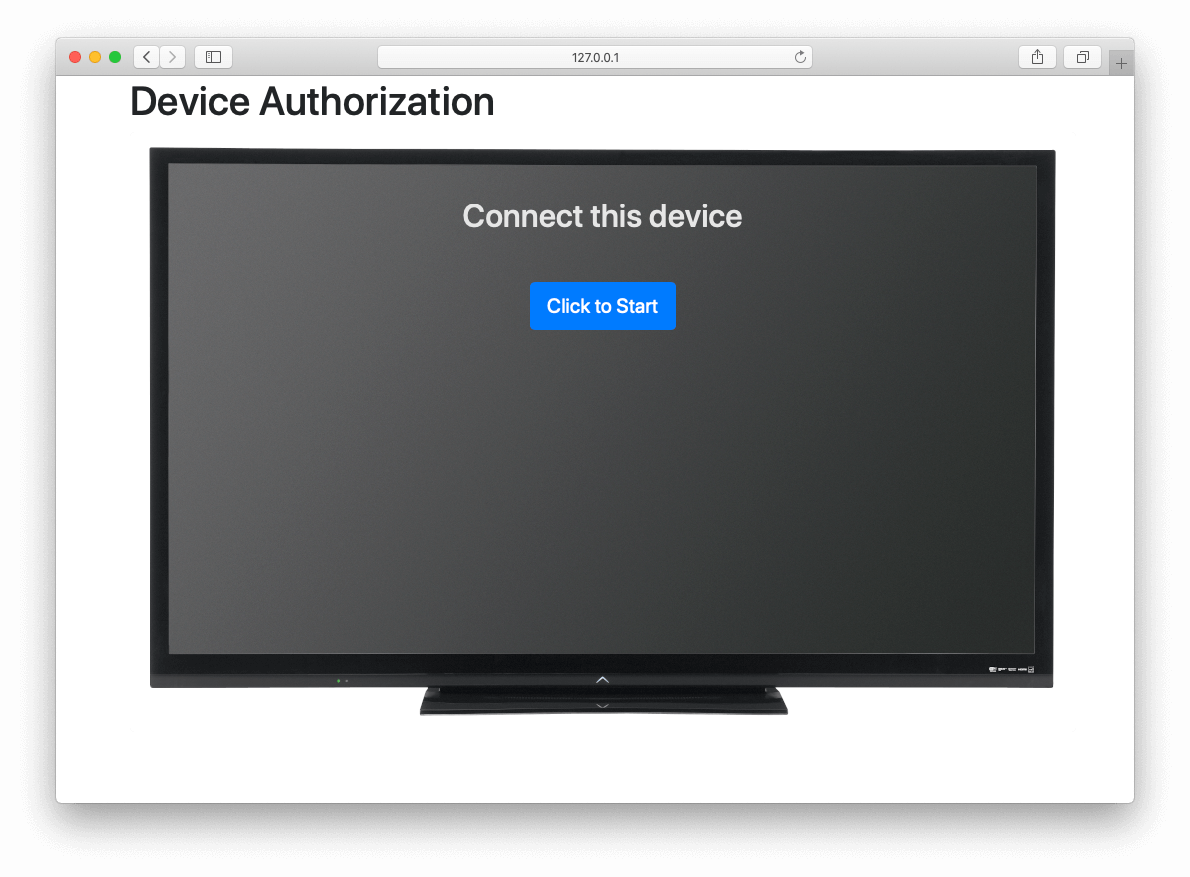
The Device Authorization GrantAn OAuth 2.0 grant type for devices with limited input, such as TVs. The user completes the login on a second device. logs users in on devices with no browser or keyboard, such as a TV. The device shows a short code. The user enters the code on a phone or a computer and logs in there. The device then gets the tokens. The screenshots come from the Device Grant example, which also works as a code reference.
Configure the Application#
On the OAuth tab of the Application, enable Device in Enabled grants and set Device Verification URL. For the other OAuth settings, see Configure Application OAuth Settings.
Set Device Verification URL to a page in your app, so your app can pass the Tenant Id through the flow. The page can host your own form. The page can also redirect to the themed FusionAuth device page at /oauth2/device, which requires the client_id and tenantId query parameters. After the user submits the code on the FusionAuth device page, FusionAuth logs the user in with an Authorization Code grant and redirects to the redirect_uri. FusionAuth approves the device when your app exchanges the authorization code for tokens.
To change how long the device code and user code stay valid, or how FusionAuth generates user codes, use the Advanced tab of the Tenant.
Start the Flow on the Device#
The device sends a request to the Device Authorize endpoint. The OpenID Configuration also lists the endpoint.
To request scopes on the tokens, send scope. To get a refresh token, add offline_access. FusionAuth applies the scopes when the user enters the code, as described in Pass the User Code to FusionAuth. For scope policies, custom scopes, and consent, see Scopes.
The example adds line breaks for readability.
POST /oauth2/device_authorize HTTP/1.1
Host: piedpiper.fusionauth.io
Content-Type: application/x-www-form-urlencoded

client_id=06494b74-a796-4723-af44-1bdb96b48875
    &scope=offline_access
The response holds the values the device needs for the rest of the flow:
{
  "device_code": "e6f_lF1rG_yroI0DxeQB5OrLDKU18lrDhFXeQqIKAjg",
  "expires_in": 600,
  "interval": 5,
  "user_code": "SFYNPV",
  "verification_uri": "https://piedpiper.fusionauth.io/oauth2/device",
  "verification_uri_complete": "https://piedpiper.fusionauth.io/oauth2/device?user_code=SFYNPV"
}
Poll the Token Endpoint#
The device sends the device_code to the Token endpoint every interval seconds. Until the user approves the device, FusionAuth returns an authorization_pending error. The example adds line breaks for readability.
POST /oauth2/token HTTP/1.1
Host: piedpiper.fusionauth.io
Content-Type: application/x-www-form-urlencoded

client_id=06494b74-a796-4723-af44-1bdb96b48875
    &device_code=e6f_lF1rG_yroI0DxeQB5OrLDKU18lrDhFXeQqIKAjg
    &grant_type=urn%3Aietf%3Aparams%3Aoauth%3Agrant-type%3Adevice_code
While the user hasn't approved the device, FusionAuth returns the following error:
{
  "error": "authorization_pending",
  "error_description": "The authorization request is still pending"
}
After the device code expires, FusionAuth returns the following error, and the device must start over:
{
  "error": "expired_token",
  "error_description": "The device_code has expired, and the device authorization session has concluded."
}
For an unknown device code, FusionAuth returns the following error:
{
  "error": "invalid_request",
  "error_reason": "invalid_device_code",
  "error_description": "The request has an invalid parameter: device_code"
}
Show the Code to the User#
The device shows the user_code and asks the user to visit the verification_uri. To save the user from typing the code, the device can show a QR code for the verification_uri_complete, which fills in the code.
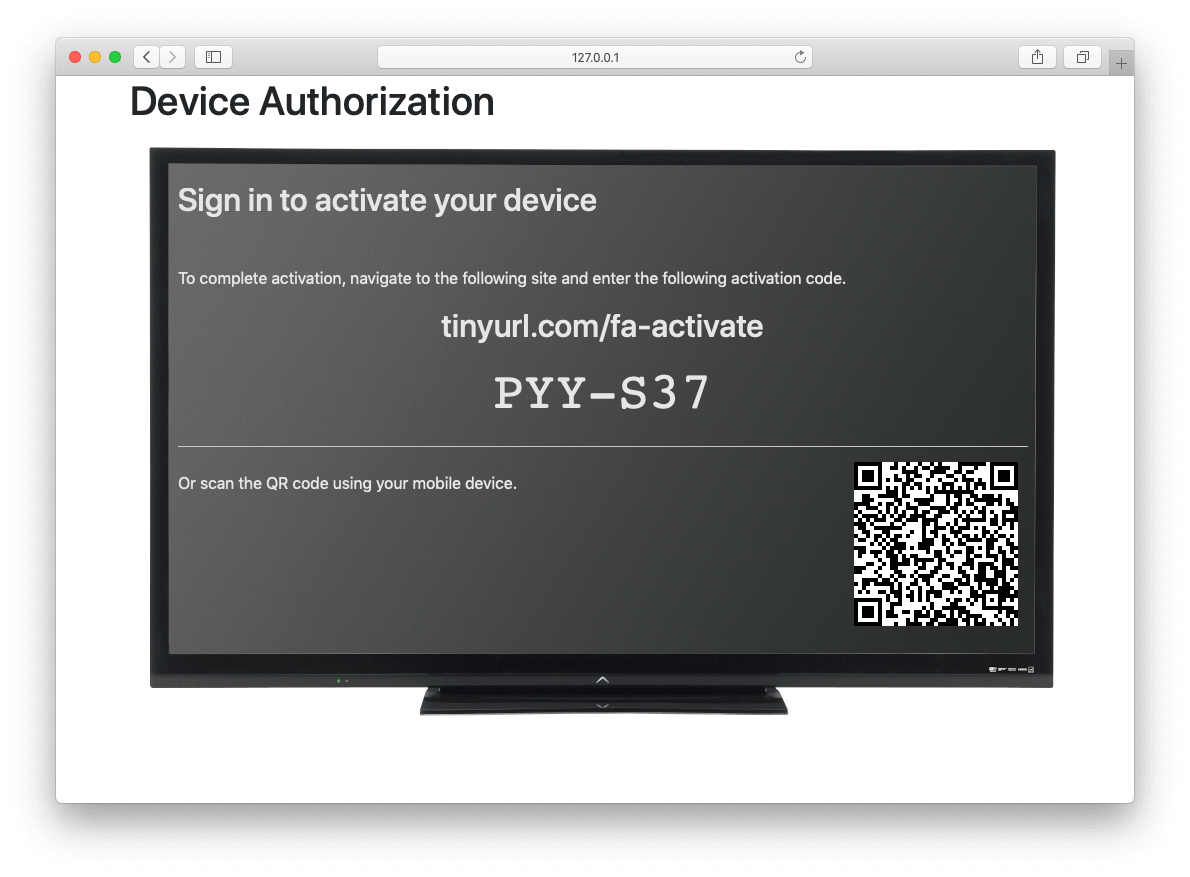
The user visits the URL and enters the code:
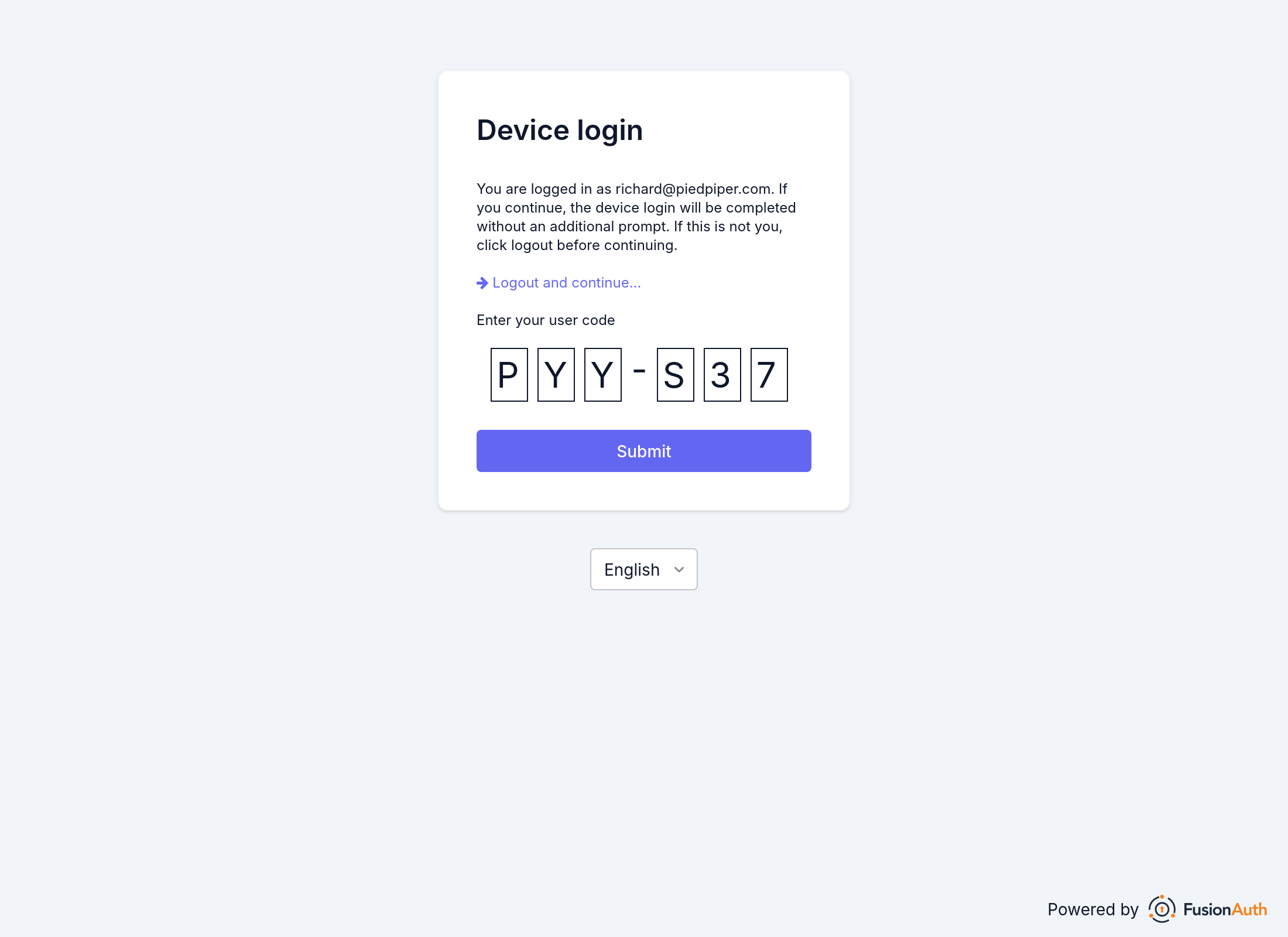
Pass the User Code to FusionAuth#
When your app hosts the code form, validate the code with the Device Validate endpoint. For a valid code, the endpoint returns a 200 response with no body.
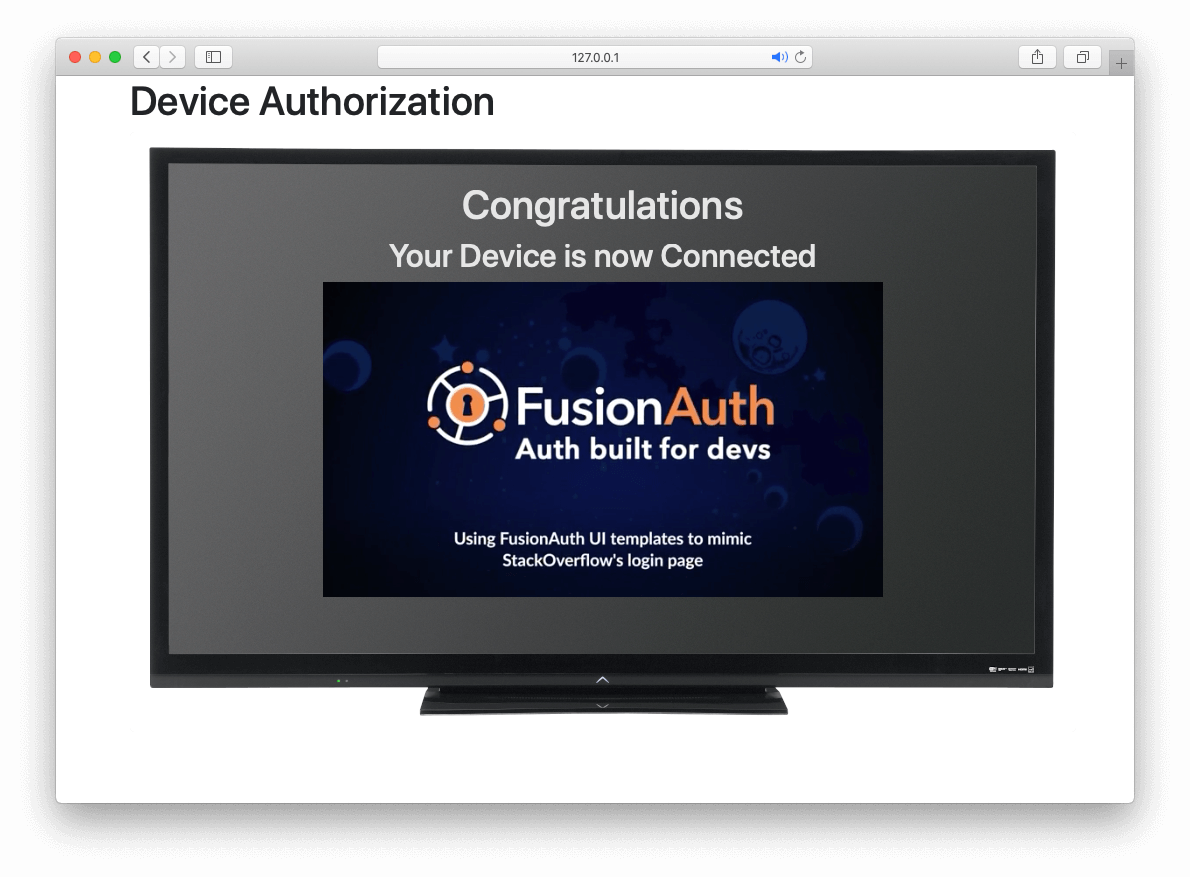
After validating the code, log the user in with the Authorization Code grant. The Implicit and Password grants also work. Send the code in the user_code parameter, and FusionAuth approves the device when the login completes. See the Authorize endpoint and the Token endpoint.
Receive the Tokens#
After the user logs in, the next poll from the device returns the tokens:
{
  "access_token" : "eyJhbGciOiJIUzI1NiIsInR5cCI6IkpXVCJ9.eyJleHAiOjE0ODUxNDA5ODQsImlhdCI6MTQ4NTEzNzM4NCwiaXNzIjoiYWNtZS5jb20iLCJzdWIiOiIyOWFjMGMxOC0wYjRhLTQyY2YtODJmYy0wM2Q1NzAzMThhMWQiLCJhcHBsaWNhdGlvbklkIjoiNzkxMDM3MzQtOTdhYi00ZDFhLWFmMzctZTAwNmQwNWQyOTUyIiwicm9sZXMiOltdfQ.Mp0Pcwsz5VECK11Kf2ZZNF_SMKu5CgBeLN9ZOP04kZo",
  "expires_in" : 3600,
  "refresh_token": "ze9fi6Y9sMSf3yWp3aaO2w7AMav2MFdiMIi2GObrAi-i3248oo0jTQ",
  "scope": "offline_access",
  "token_type" : "Bearer",
  "userId" : "3b6d2f70-4821-4694-ac89-60333c9c4165"
}
Related
Learn how to log users in with the OAuth Authorization Code grant and PKCE.
Learn how to get an access token for machine-to-machine requests with the OAuth Client Credentials grant.
Learn about the OAuth 2.0 and OpenID Connect grants FusionAuth supports for login and single sign-on.
Learn how the legacy OAuth Implicit and Password grants work in FusionAuth, for existing integrations.