Enable Multi-Factor Authentication for a User
On this page
FusionAuth asks for a second factor only from a user who has an MFA method, unless the login policy is Required. Before you add methods, turn on each method on the Tenant. For more information, see Configure MFA.
Add MFA methods to a user in one of the following ways:
- The self-service account pages let users add and remove their own methods. The account pages require the Starter plan or higher. For more information, see Enable or Disable MFA in the account pages guide.
- When the login policy is
Required, the hosted login pagesThe login, registration, password recovery, and multi-factor authentication pages that FusionAuth serves. A Theme controls the look of the pages. ask a user without a method to add one during login. - The Admin UI adds methods to your own account only.
- The Two-Factor APIs let you build your own enrollment pages. The user proves access to the method with a code.
- The User API writes methods to a user directly, with no code. Use the User API to import methods from another system.
Add a Method to Your Own Admin Account#
The Admin UI can't add a method to another user, because adding a method requires a code from the user's device, email, or phone.
-
Navigate to Users and open your own user.
-
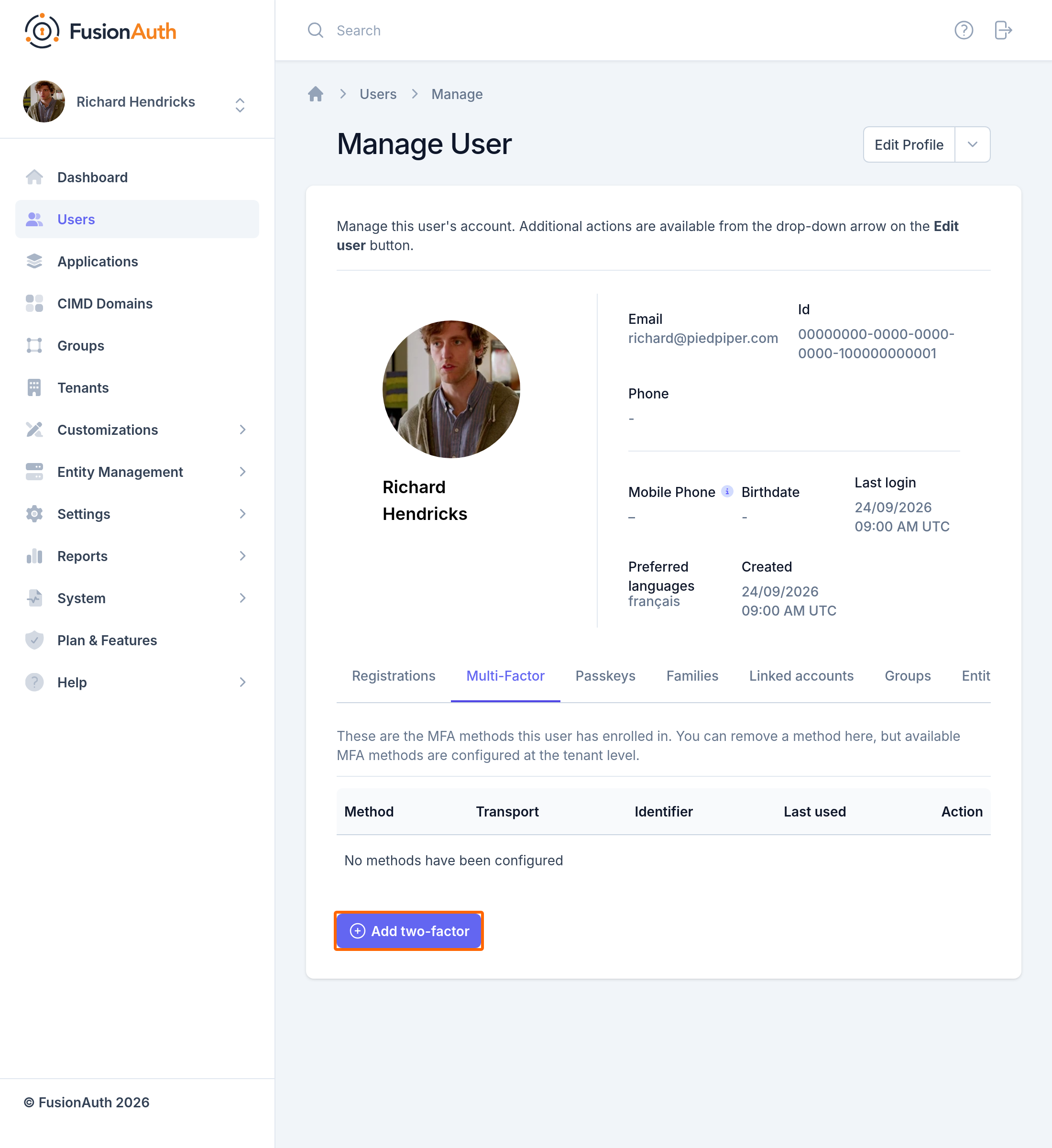
Click the Multi-Factor tab.
-
Click Add two-factor .
-
Select a method and enter the code that FusionAuth sends or that your authenticator app shows.
-
When the method is your first method, store the recovery codes that FusionAuth shows.
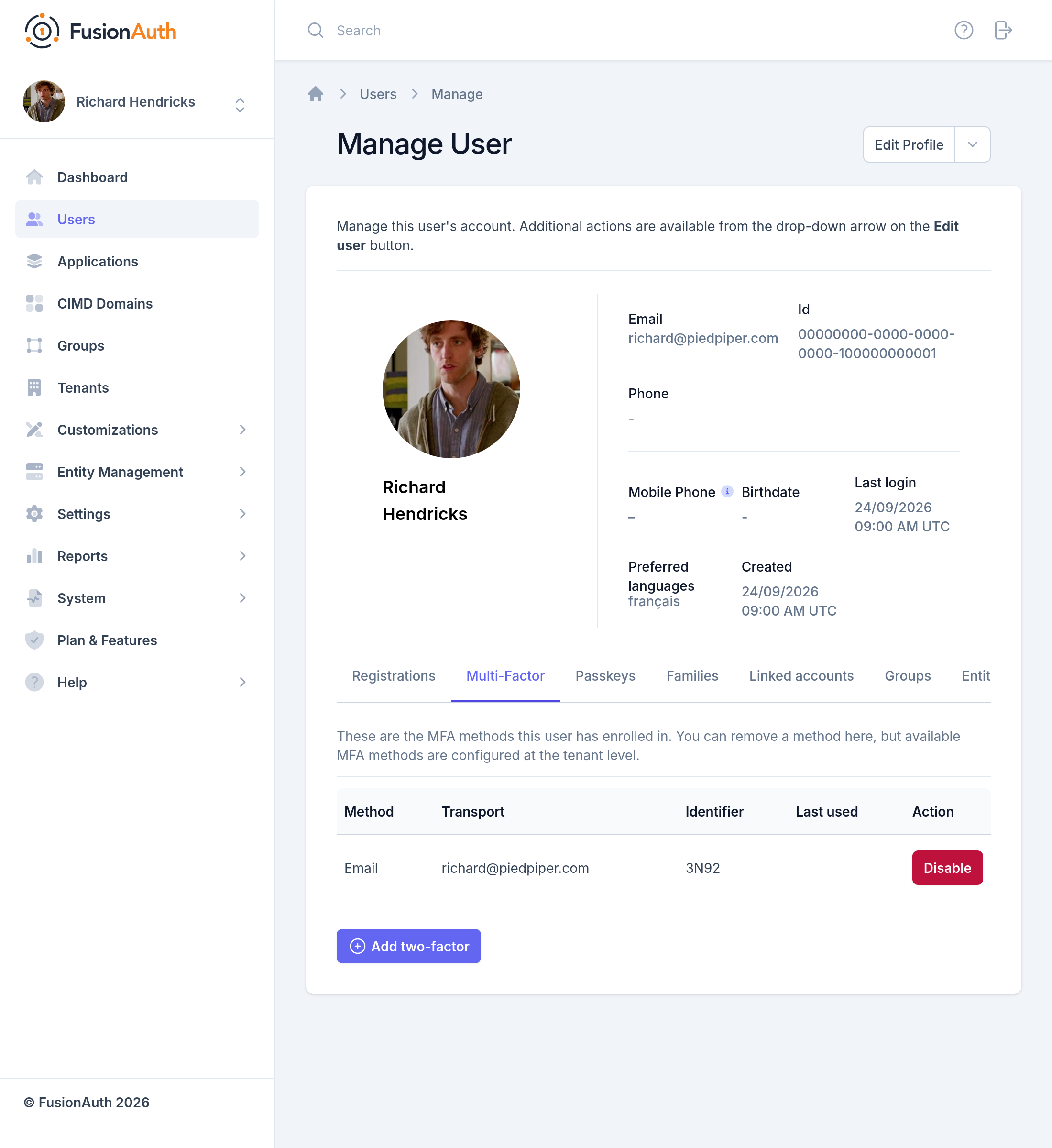
The Multi-Factor tab then lists the method:
Build Your Own Enrollment Pages#
The Two-Factor APIs add a method only after the user enters a valid code. The check confirms that the user controls the authenticator app, email address, or phone.
-
For an authenticator method, create a shared secret. Call the Generate a Secret API, or generate a random secret yourself:
Generate a shared secret API_KEY=... curl -XGET -H "Authorization: $API_KEY" 'https://local.fusionauth.io/api/two-factor/secret'Generate a shared secret response { "secret": "8MJJfCY4ERBtotvenSc3", "secretBase32Encoded": "HBGUUSTGINMTIRKSIJ2G65DWMVXFGYZT" }Show the secret to the user as a QR code or as text. The user adds the secret to an authenticator app, such as Google Authenticator or Authy.
-
For an email or SMS method, send a code with the Send a Multi-Factor Code When Enabling MFA API:
Send a code API_KEY=... REQUEST_PAYLOAD='{...}' curl -XPOST -H 'Content-type: application/json' -H "Authorization: $API_KEY" 'https://local.fusionauth.io/api/two-factor/send' -d $REQUEST_PAYLOADSend a code request { "messageType": "Voice", "method": "sms", "mobilePhone": "+13035551212", "userId": "c075e472-a732-47d6-865a-d385a5fcb525" }The Tenant's Two-Factor one-time code duration controls how long the code stays valid.
-
Build a page that collects the code. An email or SMS user enters the code from the message. An authenticator user enters the code that the app shows.
-
Call the Enable Multi-Factor API with the
methodand thecode. For an email method, include theemail:Enable an email method API_KEY=... USER_ID=... REQUEST_PAYLOAD='{...}' curl -XPOST -H 'Content-type: application/json' -H "Authorization: $API_KEY" 'https://local.fusionauth.io/api/user/two-factor/'$USER_ID -d $REQUEST_PAYLOADEnable an email method request { "code": "435612", "email": "richard@piedpiper.com", "method": "email", "name": "Work email" }For an authenticator method, include the
secretfrom the first step:Enable an authenticator method request { "code": "435612", "method": "authenticator", "name": "Work authenticator", "secret": "8MJJfCY4ERBtotvenSc3", "twoFactorId": "a6yRXP9-FF0sqD86L_1n_zRp6iAS_aXuuhQM8OL_nIA" }In FusionAuth
1.68.0and later, setnameto give the method a label that the user recognizes, such asWork email. The hosted login pages show the name in the list of methods. -
When the method is the user's first method, the response contains the user's recovery codes. Show the codes to the user once, and ask the user to store the codes:
Enable response with recovery codes { "code": "752185", "recoveryCodes": [ "QJD73-L6GR5", "R7RJH-GB7H3", "JJ5YZ-KS4C3", "CRDHP-7L355", "928QS-P9HMJ", "8VLFT-Z2WMM", "PQZX9-YV5VR", "TK9TB-7BT6H", "6QYPL-ZPQJV", "VJ35W-98RW4" ] }
To add another method, repeat the steps. The response for a second method has no body, and the recovery codes don't change.
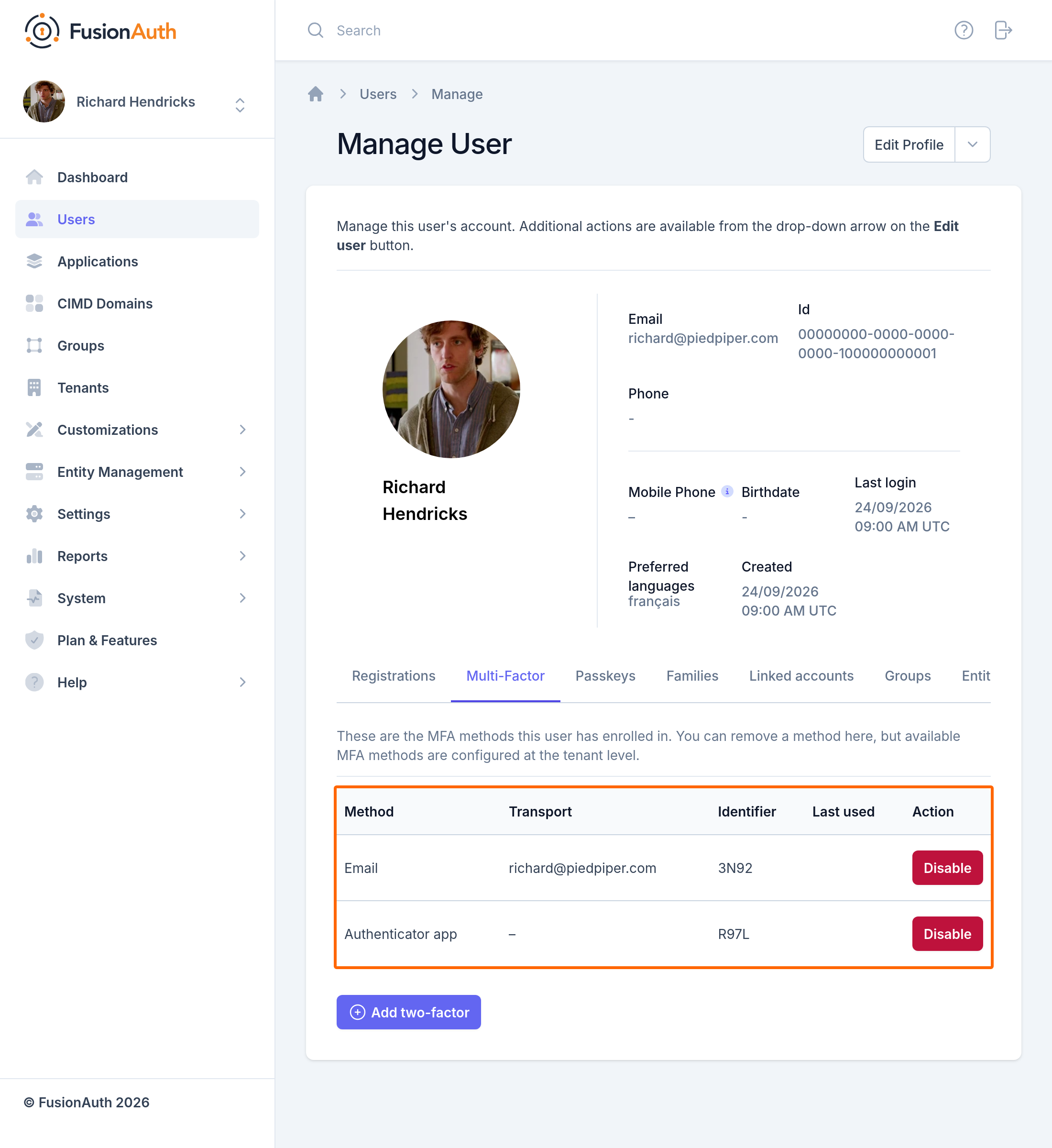
The user's Multi-Factor tab in the Admin UI then lists each method:
Add Methods With the User API#
The User API adds methods without a code, so FusionAuth never checks that the user controls the email address, phone, or authenticator app. When the email address or phone number is wrong, the user never receives a code and can't log in with the method. Use the User API when you already trust the method, such as during an import.
Send a PATCH request with the new methods in twoFactor.methods:
API_KEY=...

curl -XPATCH -H 'Content-type: application/json' -H "Authorization: $API_KEY" \
'https://local.fusionauth.io/api/user/00000000-0000-0000-0000-000000000004' \
-d '{
  "user": {
    "twoFactor": {
      "methods": [{
        "method": "email",
        "email": "dinesh@aol.com"
      }, {
        "method": "email",
        "email": "dinesh@gmail.com"
      }]
    }
  }
}'
A PATCH request adds the methods to the user's existing methods. To replace the methods, retrieve the user, change twoFactor.methods, and send the user back with a PUT request. For more information, see The PATCH HTTP Method.
For an authenticator method, set secret to a base64-encoded secret, and give the secret to the user for the authenticator app.
FusionAuth generates recovery codes for the first method, but the User API doesn't return the codes. To give the user codes, call the Generate Recovery Codes API after you add the method.
Import MFA Methods#
FusionAuth can import users with authenticator, email, and SMS methods. Set the twoFactor fields on each user in a request to the Import Users API for a bulk migration, or the User API for a slow migration. The following example adds two email methods:
"twoFactor": {
  "methods": [{
    "method": "email",
    "email": "dinesh@aol.com"
  },
  {
    "method": "email",
    "email": "dinesh@gmail.com"
  }]
}
For an authenticator method, include the base64-encoded secret from the old system, so the user's authenticator app keeps working. The Import Users API also accepts the user's existing recoveryCodes.
When the old system uses a message-based method that FusionAuth doesn't support, such as push notifications, a Generic Messenger may fit. The Generic Messenger sends SMS method codes to a service you run. For any other method, open a GitHub issue that describes your use case.
Related
Learn about multi-factor authentication (MFA) in FusionAuth, including the supported methods, recovery codes, and trust tokens.
API documentation for the FusionAuth Enable Multi-Factor API.
Learn how to turn on MFA methods for a Tenant and set when FusionAuth asks users for a second factor.
Learn how to remove MFA methods from a user with the account pages, the Admin UI, the Two-Factor APIs, or the User API.