Switching Search Engines
On this page
This page explains how to change your FusionAuth search engine. You could simplify your deployment strategy with the database search engine. Or perhaps you need the advanced searching options of Elasticsearch after your application has grown.
FusionAuth supports the following search engine types:
databaseelasticsearch(for Elasticsearch or OpenSearch)
They have different strengths and limitations.
Prerequisites#
This tutorial assumes you are running version 1.16.0 or greater.
If you aren't, head on over to the installation guide or the update guide.
Because there are a variety of ways to run FusionAuth, this guide won't document how to start or stop your FusionAuth instance. Please consult the installation specific documentation for instructions on how to start or stop it.
Overview#
To switch the search engine, you need to do the following:
- Stop FusionAuth
- Modify the FusionAuth configuration
- Start FusionAuth
- Reindex (if switching from the database search engine to Elasticsearch)
FusionAuth can be configured in a number of ways, outlined in the Configuration Reference, including environment variables and the fusionauth.properties file. This tutorial modifies the fusionauth.properties file, but adapting the instructions to your configuration method should be straight forward.
From Elasticsearch to Database#
The first step is to stop FusionAuth.
Locate your FusionAuth configuration file named fusionauth.properties. This is usually located at /usr/local/fusionauth/config/fusionauth.properties unless you installed via Fast Path, in which case it is located in your service root.
Add or update the fusionauth-app.search-engine-type key to have the value database.
fusionauth-app.search-engine-type=database
Optionally, comment out or remove any properties prefixed with fusionauth-search. as well as the fusionauth-app.search-servers property. If not removed, these will be ignored.
Restart the FusionAuth application.
Verify the change#
Log into the FusionAuth Admin UI. Navigate to System -> About and look at the System panel. This will show the new value for your search engine: Database.
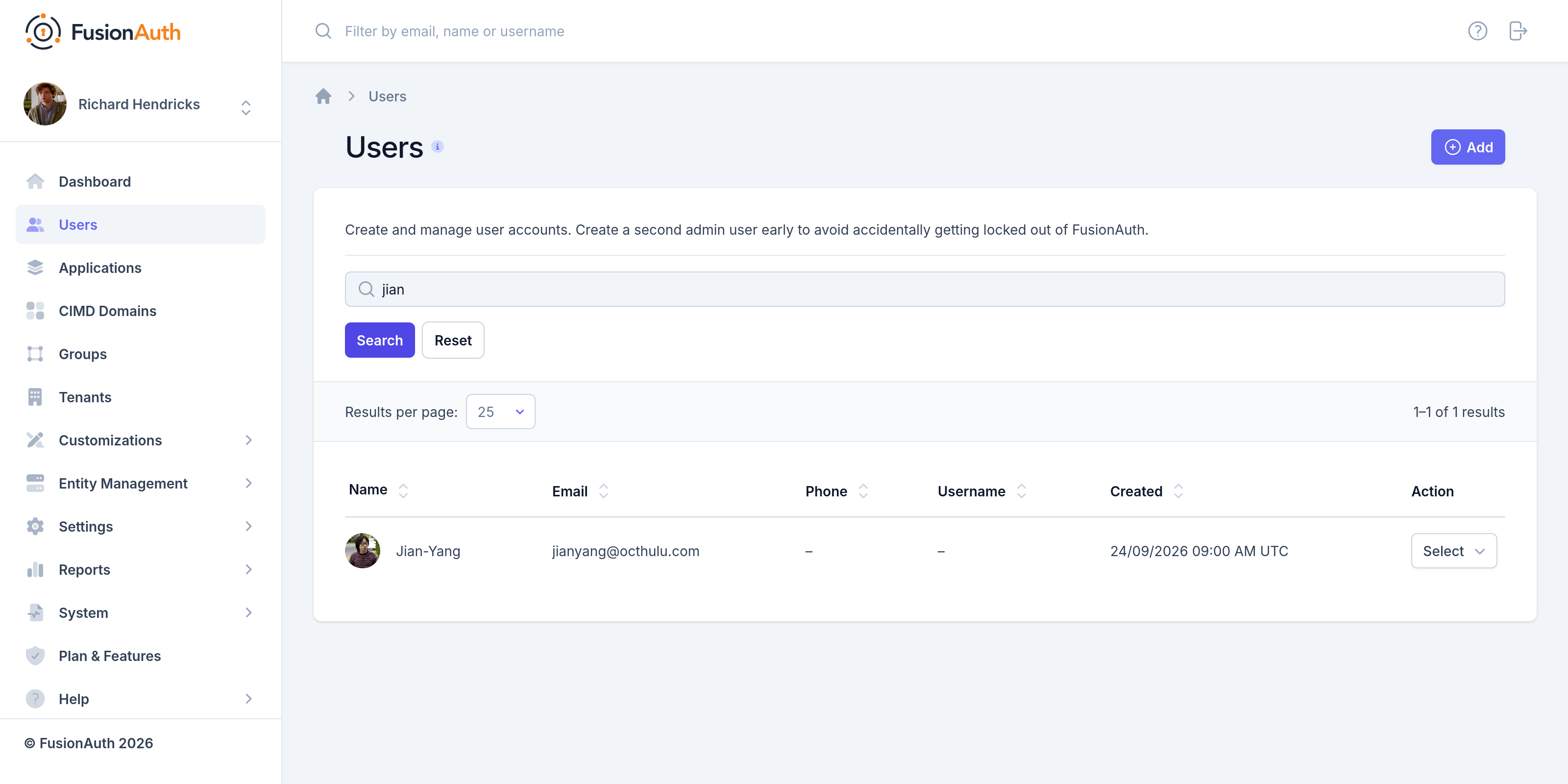
You can also navigate to Users and search for a user by email address or first name to confirm that you can search.
From Database to Elasticsearch#
If you already have FusionAuth running, but need to install the search service, here are instructions to do so.
Once you have Elasticsearch running, the next step is to stop FusionAuth.
Locate your FusionAuth configuration file named fusionauth.properties. This is usually located at /usr/local/fusionauth/config/fusionauth.properties unless you installed via Fast Path, in which case it is located in your service root.
Uncomment or add the fusionauth-app.search-servers property. Set it to point to your Elasticsearch servers. For example:
fusionauth-app.search-servers=http://localhost:9021
In addition, add or update the fusionauth-app.search-engine-type property to have the value elasticsearch.
fusionauth-app.search-engine-type=elasticsearch
Finally, add or uncomment and update any properties prefixed by fusionauth-search needed for your installation. These are all documented in the Configuration Reference.
Restart the FusionAuth application.
Verify the change and reindex#
Log in to the FusionAuth Admin UI. Navigate to System -> About and look at the System panel. This will show the new value for your search engine: Elasticsearch.
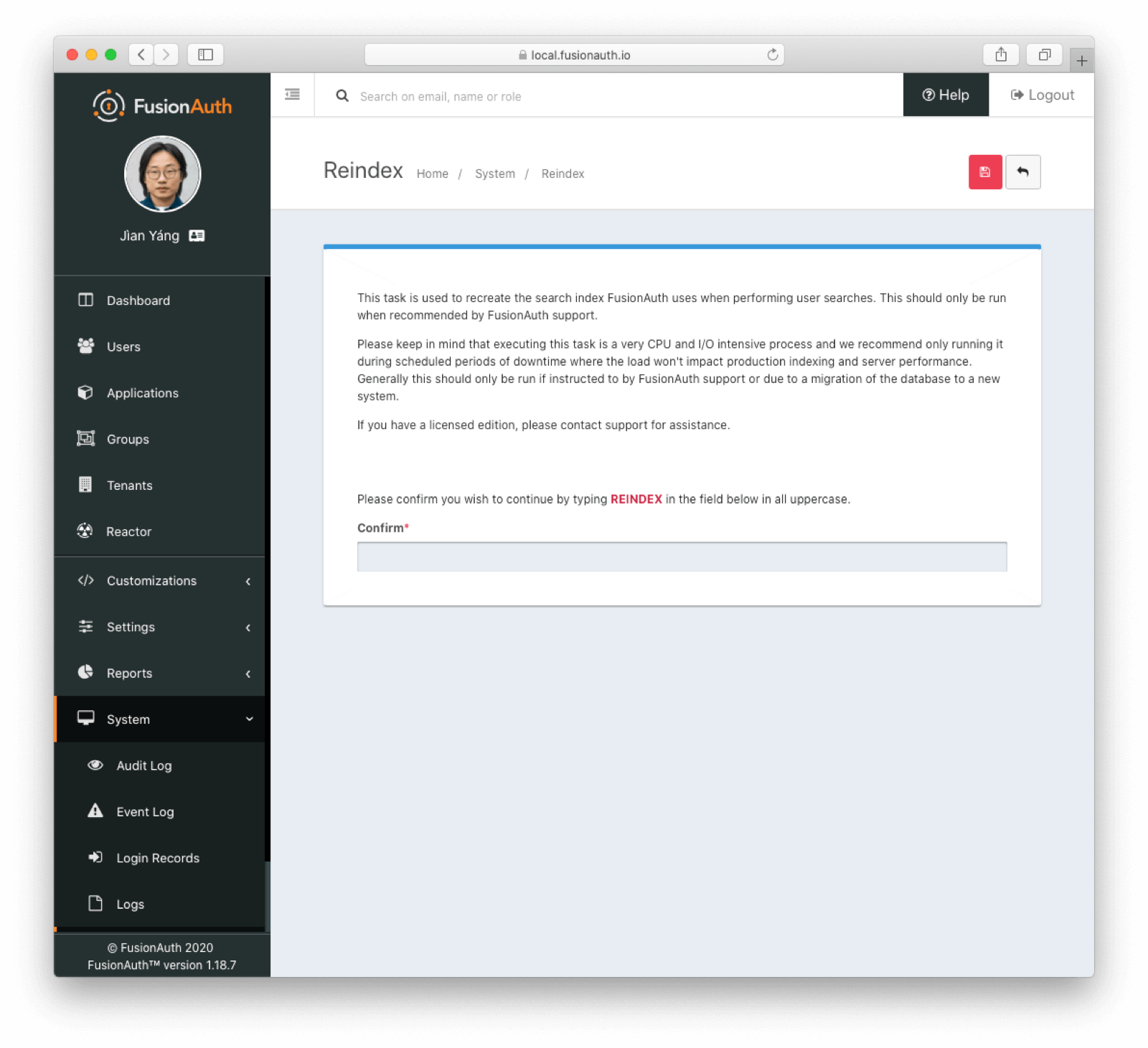
You'll also want to reindex by navigating to System -> Reindex . This will initialize the search index and synchronize it with your database. Reindexing may take some time, depending on the number of users you have and the amount of custom data to be indexed.
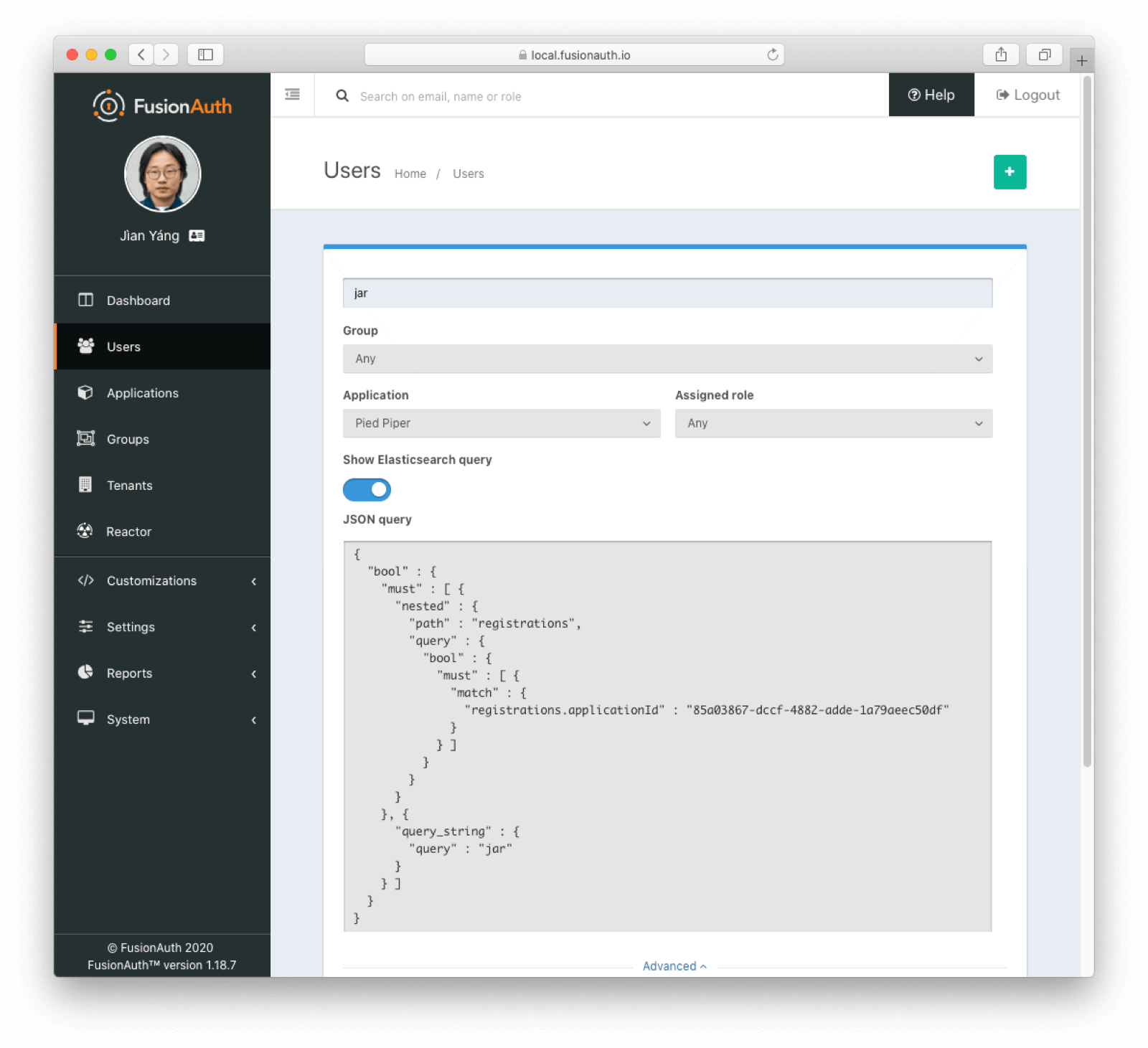
Navigate to Users and search for a user by email address, first name or other attribute to confirm that the search engine is working. You'll also notice that the advanced search form elements are also present.
Limitations#
FusionAuth provides data fields on many types of objects, including Applications, Tenants, Groups, Users, Registrations, Entities, and Consents.
When you use the Elasticsearch search engine, Elasticsearch indexes the user.data, registration.data, and entity.data fields. Elasticsearch requires a field to have the same data type across all indexed objects. After Elasticsearch indexes a field as one type, Elasticsearch expects every later value of the field to have the same type.
For example, you might store a boolean in user.data.migrated. If you later set user.data.migrated to an object for one User, searches no longer find that User. Searches still find other Users, as long as user.data.migrated holds a boolean or no value.
Keep the data type of each field consistent across objects. FusionAuth doesn't enforce the type, so the software that updates data fields must enforce the type. For the request to add enforcement to FusionAuth, see GitHub issue 1149.
Keep a consistent schema in every data field, even when you use the database search engine:
- Elasticsearch may index other
datafields in future versions of FusionAuth. - When you switch from the database search engine to the Elasticsearch search engine, Elasticsearch indexes your existing data. Inconsistent types then hide objects from searches.
Store only valid dates in data fields. Elasticsearch fails to parse a date such as 0000-00-00, which some databases return for an invalid timestamp. Set an invalid date to null instead.
When the types in data fields are inconsistent, searches silently skip objects, and Elasticsearch can throw a MapperParsingException.
Related
Learn about the APIs for retrieving and updating integrations.
API documentation for the FusionAuth Rebuild the Elasticsearch index API.
API documentation for the FusionAuth Retrieve the status of an index rebuild API.
API documentation for the Search for Users API.