Configure Session and Token Lifetimes
On this page
Several settings decide how long a user stays logged in. Each setting controls a different session, so set each one with the others in mind. For what each session does, see How Sessions Work. For every field, unit, and default, see Session Settings.
Choose Lifetimes by Risk#
Match lifetimes to what a stolen session could do. A banking or admin application needs short sessions and frequent logins. A content or community application can keep users logged in for weeks. When applications with different risk share a Tenant, set the Tenant values for the most common case and override the values on the riskier Applications. You can also require a fresh login for one application with prompt=login or max_age. For more information, see Require a Fresh Login for One Application.
Keep the lifetimes in the following order, from shortest to longest:
- JWT duration, so a revoked session stops working soon.
- Refresh token Duration, which bounds a centralized sessionAn application session that your application ties to a FusionAuth refresh token, so you can view and revoke the session in FusionAuth..
- Your application session, so the application doesn't end a session that FusionAuth still considers valid.
FusionAuth applies lifetime changes to existing sessions and refresh tokens at the next check, not only to new ones. Shortening a lifetime can end sessions right away.
Set the SSO Session Timeout#
The Session timeout decides how long an idle SSO sessionThe session FusionAuth keeps in the browser after a user logs in through the hosted login pages. While the SSO session lasts, FusionAuth logs the user in to other Applications in the Tenant without asking for credentials. lasts. Each SSO login to an application starts the timeout over. The timeout has no absolute maximum, so a user who logs in to an application through SSO at least once per timeout period stays logged in indefinitely.
- Navigate to Tenants -> Your Tenant -> OAuth .
- Set Session timeout in seconds.
- Click Save .
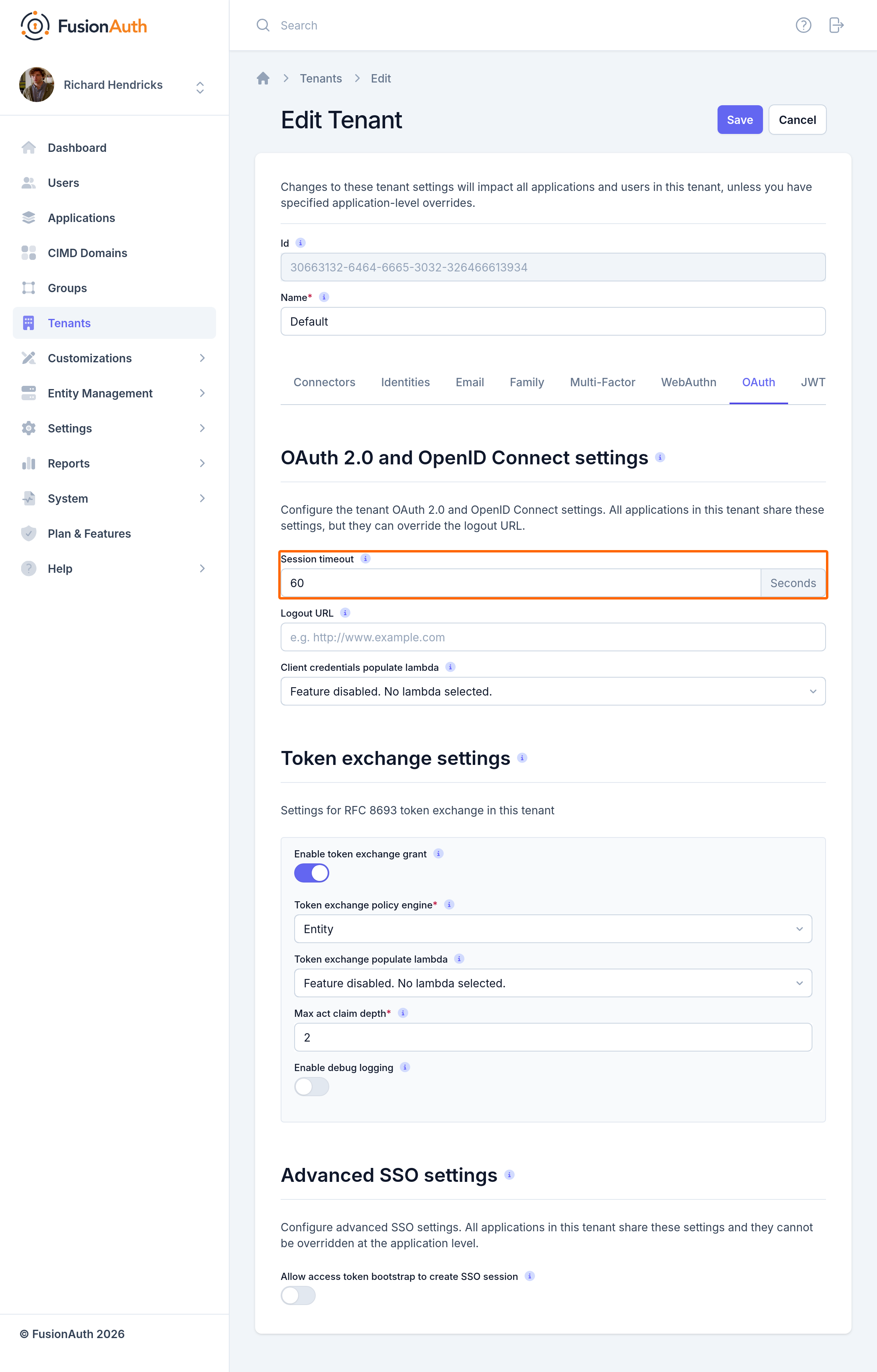
The SSO session spans every Application in the Tenant, so Applications can't override the timeout. To turn off SSO, change the theme rather than setting Session timeout to 0. For more information, see Create the SSO Session at Login.
Set the Refresh Token Lifetime#
Refresh tokens bound centralized sessions and decide how long a client can get new access tokens.
- Navigate to Tenants -> Your Tenant -> JWT .
- Under Refresh Token settings, set Duration in minutes.
- Set Expiration policy:
Fixedends the refresh token a fixed time after login. UseFixedto force a login on a schedule.Sliding windowends the refresh token after a period without use. UseSliding windowfor an idle timeout.Sliding window with a maximum lifetimeadds an absolute limit to the sliding window. Use this policy for an idle timeout plus a forced login, such as 1 hour idle and 12 hours maximum.
- Click Save .
The sliding window counts only refresh grants. Retrieving a refresh token with the API doesn't count as use. For a centralized session that stays alive while the user is active, see Check the Refresh Token on Each Request.
To override the Tenant values for one Application, navigate to Applications -> Your Application -> JWT , turn on Enable application-level JWT override, and set the refresh token fields. The Application values don't apply to the SSO session.
Set the Access Token Lifetime#
Set JWT duration in seconds on the JWT tab of the Tenant, or of the Application to override the Tenant. Access tokens stay valid until the tokens expire, even after you revoke the refresh token, so keep the duration short. Many applications use 5 to 60 minutes.
Set Your Application Session Lifetime#
Configure your application's own session timeout in your framework. Without centralized sessions, the application session lifetime is the main control over how long a user stays logged in to that application. FusionAuth can't change the application session lifetime.
Confirm the Result#
To check the SSO session timeout, set Session timeout to a short value such as 120. Log in to an application with Keep me signed in checked, wait past the timeout, and open a second application. FusionAuth shows the login form. Restore the timeout when you finish.
To see each session's expiration, navigate to Users -> The User -> Sessions .
Related
Reference for every FusionAuth setting that controls session, token, and logout behavior.
Learn about the sessions that keep a user logged in to FusionAuth and to your applications, and how the sessions relate.
Learn about how FusionAuth keeps users logged in across applications, and how to configure session lifetimes, single sign-on, and logout.
Learn how to fix common problems with FusionAuth SSO, session lifetimes, and logout.