Add a Theme to a Kickstart
On this page
KickstartA file of API requests that FusionAuth runs on first startup to configure a new instance. configures a new FusionAuth instance from a template file on first startup. In this guide, you write a Kickstart that replaces the default theme with a dark theme. The Kickstart also creates the following:
- An Application named
Kickstart Appwith OAuth settings. - A user who can log in to the Admin UI and who has a Registration for the Kickstart App.
First Time Setup creates the same Application and user by hand. You don't need to complete First Time Setup before this guide.
Prerequisites#
You need Docker. For the Docker requirements, see Install Locally.
The Default Theme#
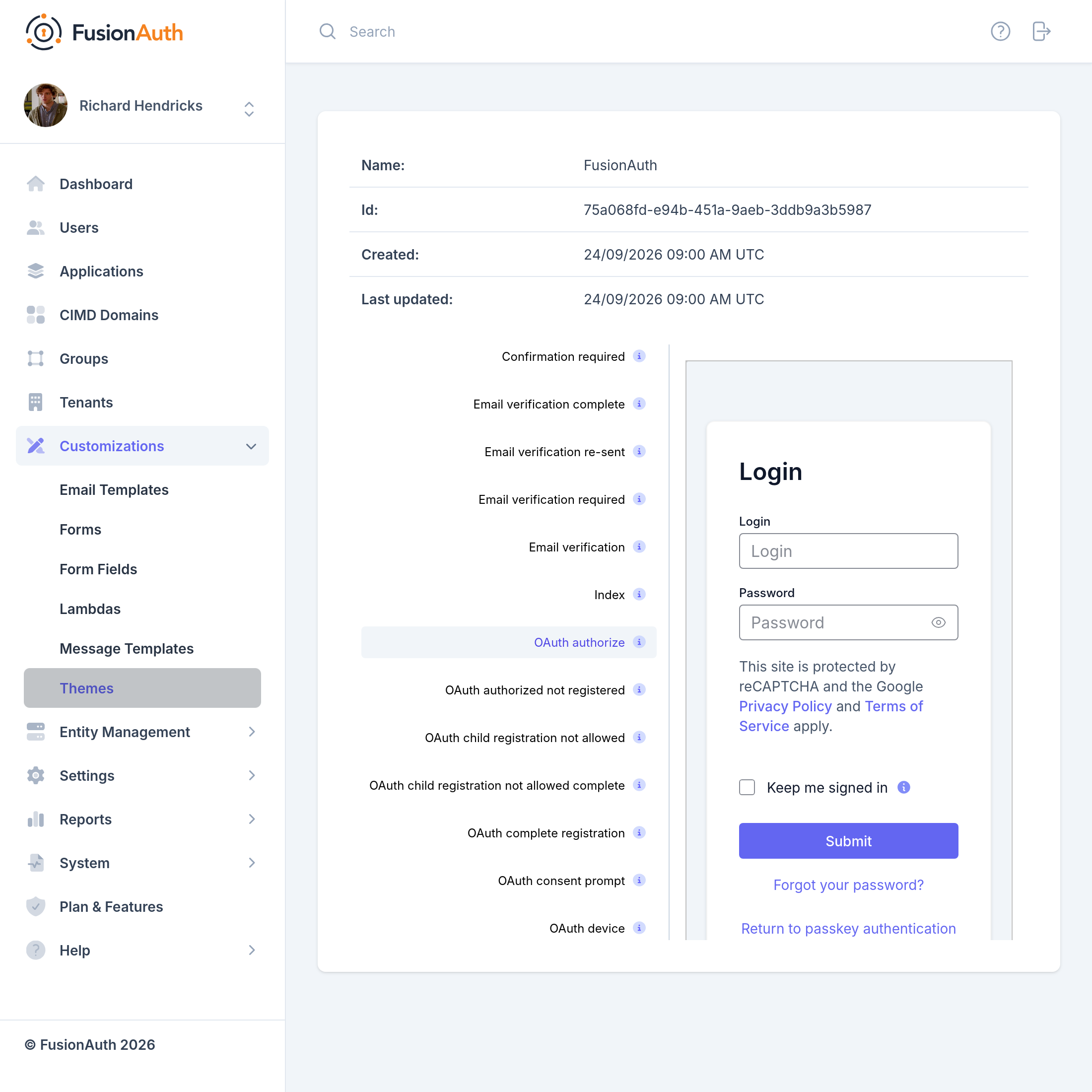
FusionAuth uses the default theme until you assign a different theme. The OAuth authorize page in the default theme looks like this:
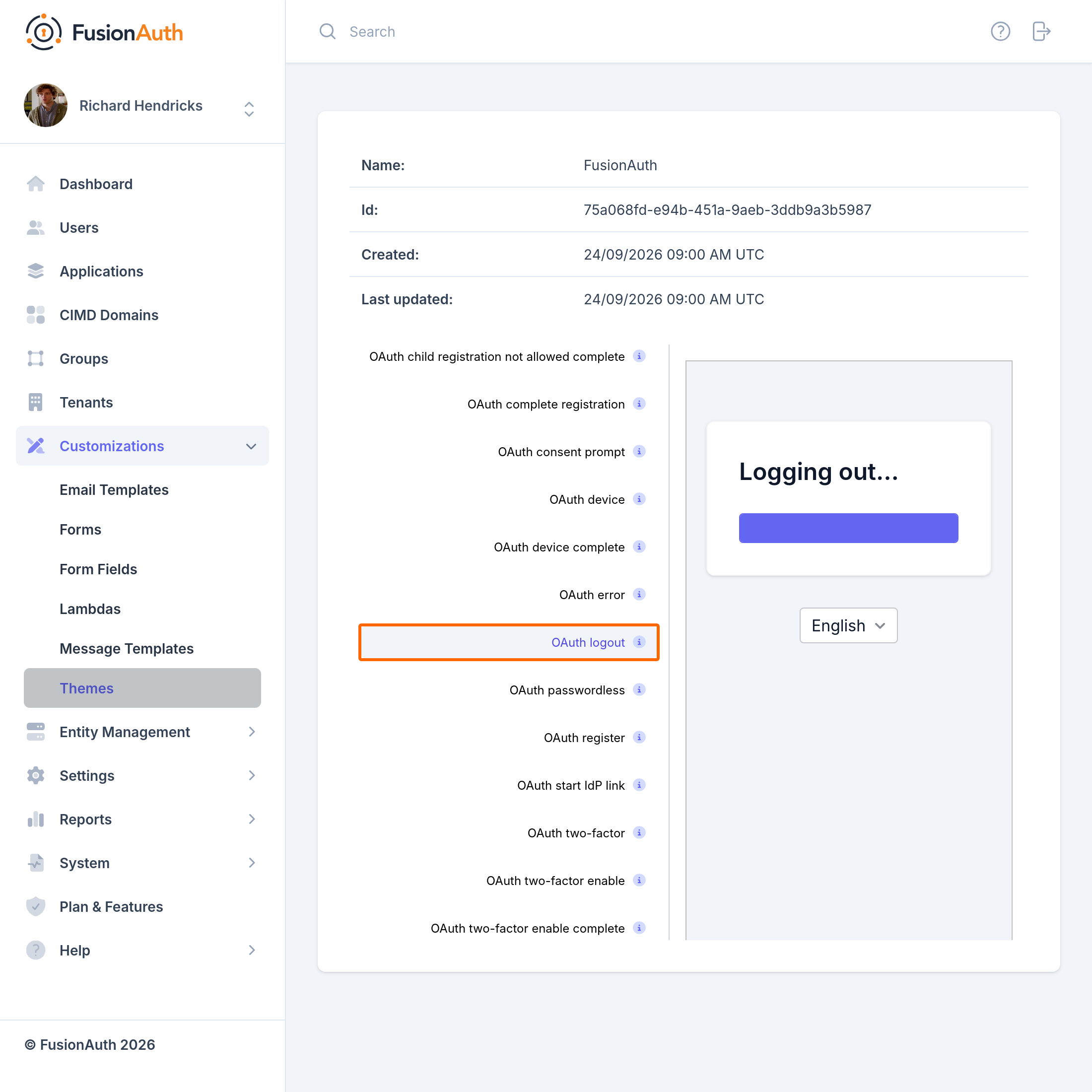
The OAuth logout page in the default theme looks like this:
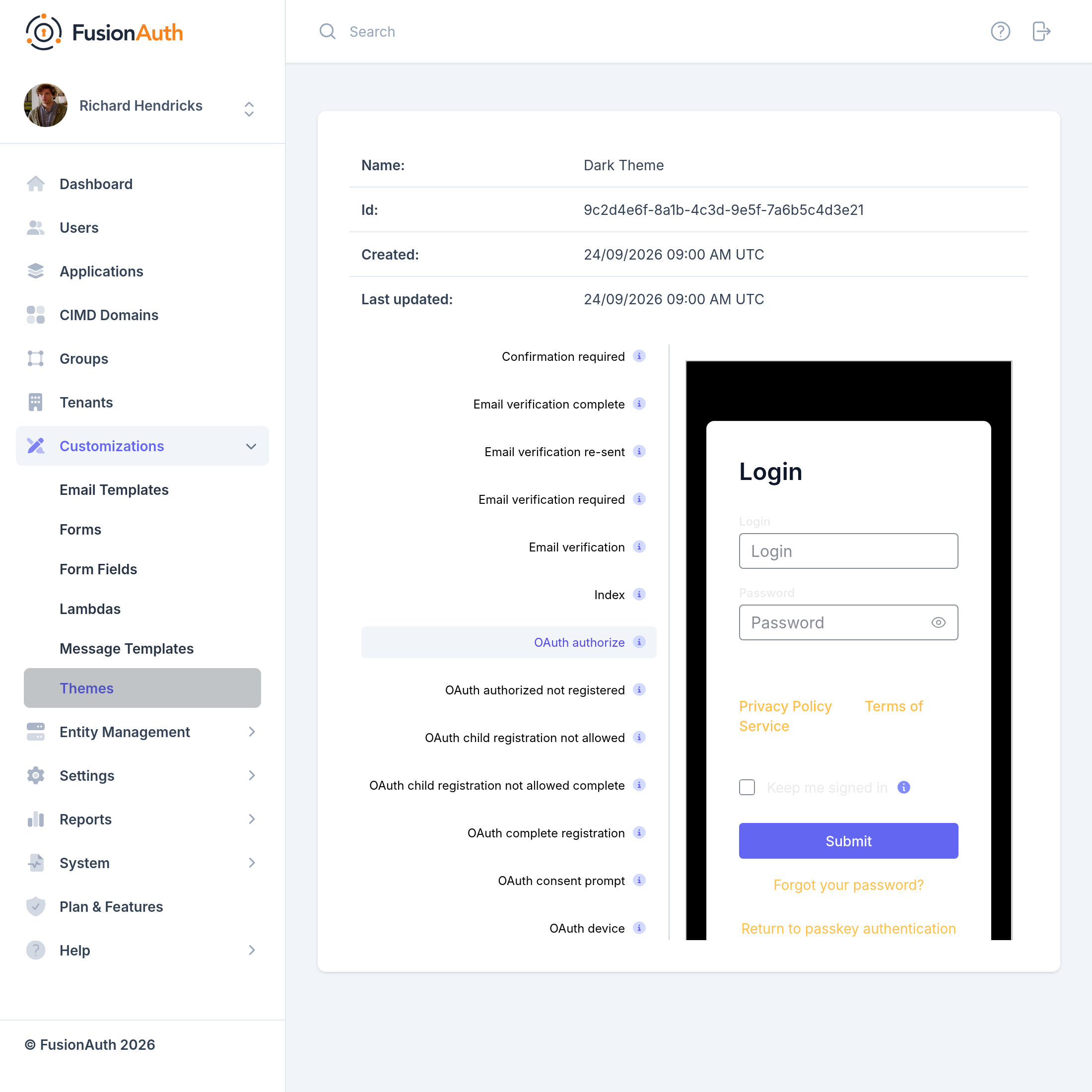
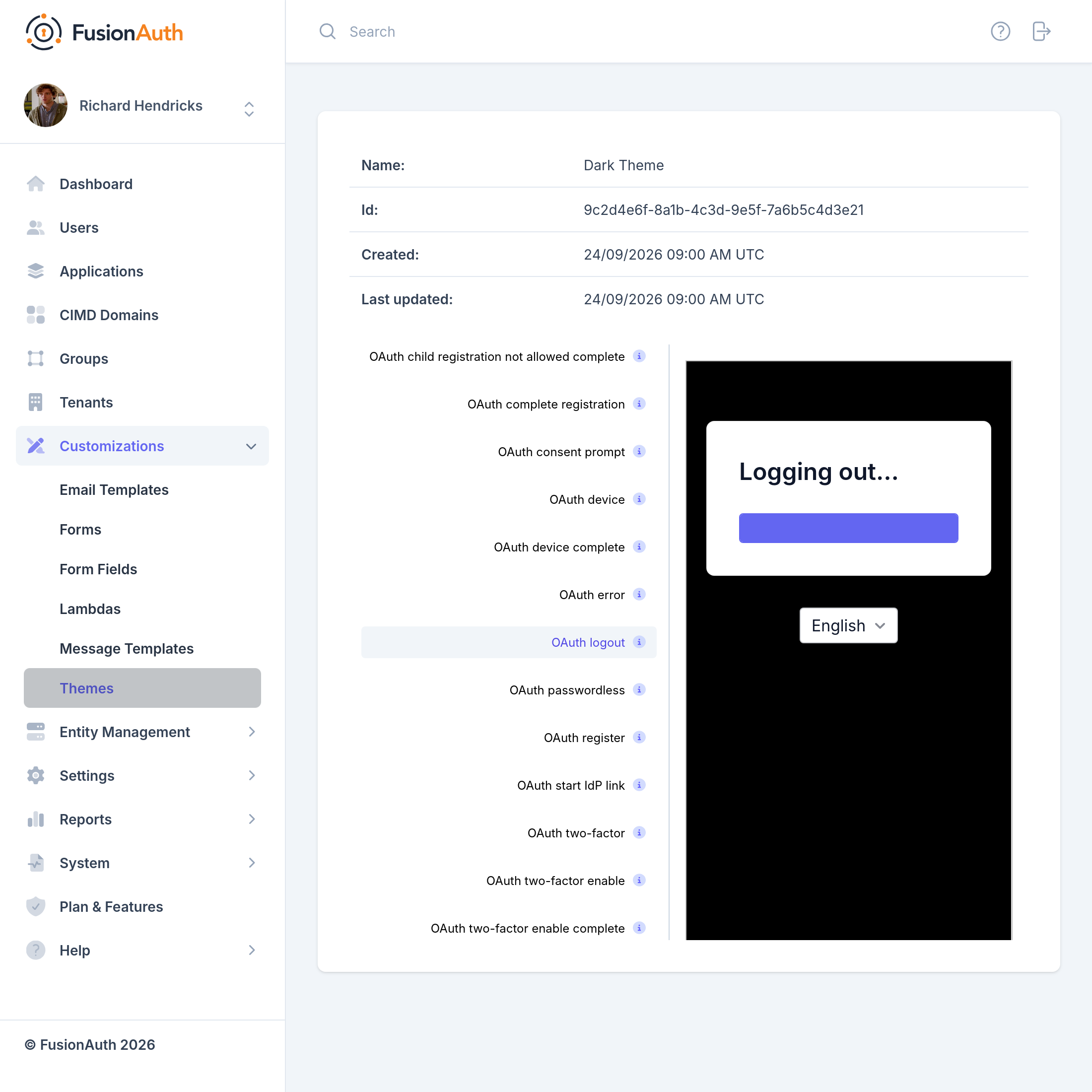
After you finish this guide, the same pages look like this:
Create the Kickstart Files#
The Kickstart needs the following files:
darkTheme.css, a stylesheet that defines the dark theme.kickstart.json, which lists the variables, the API key, and the API requests that configure FusionAuth.- One JSON file for each API request.
To skip writing the files, download the theme-css-only example and go to Download the Docker Compose File.
Write the Stylesheet#
A stylesheet restyles every page in a theme. Write the CSS rules with the web inspector of your browser:
-
In the Admin UI, navigate to Customizations -> Themes and click on the row for
FusionAuth. -
Right-click the page and select Inspect .
-
Click Select element , then click the area of the page to style. For example, click the
divelement with the class.panel.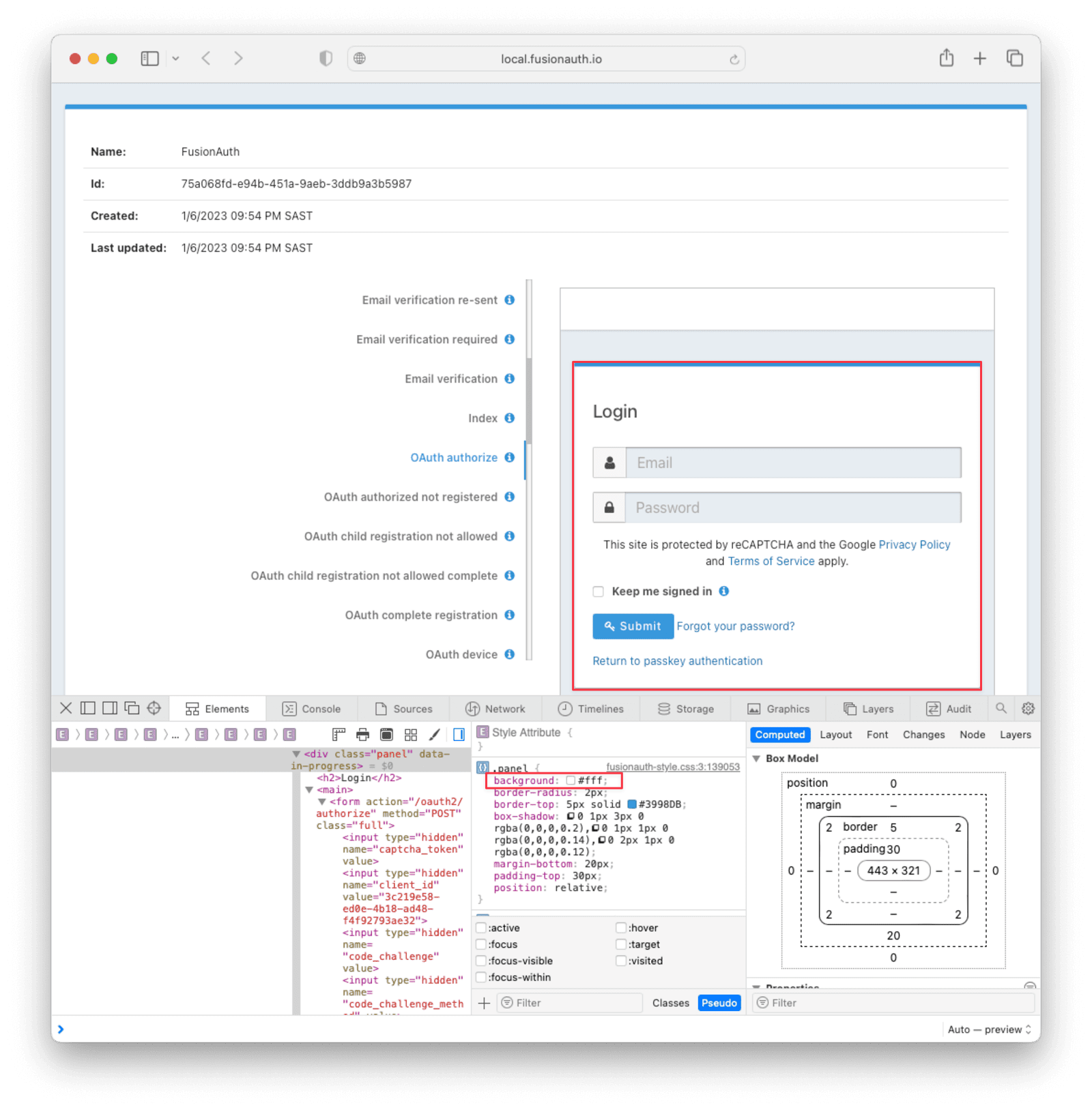
The
.panelelement has abackgroundof#fff, which is white. -
With the element selected, click + and type
background: black.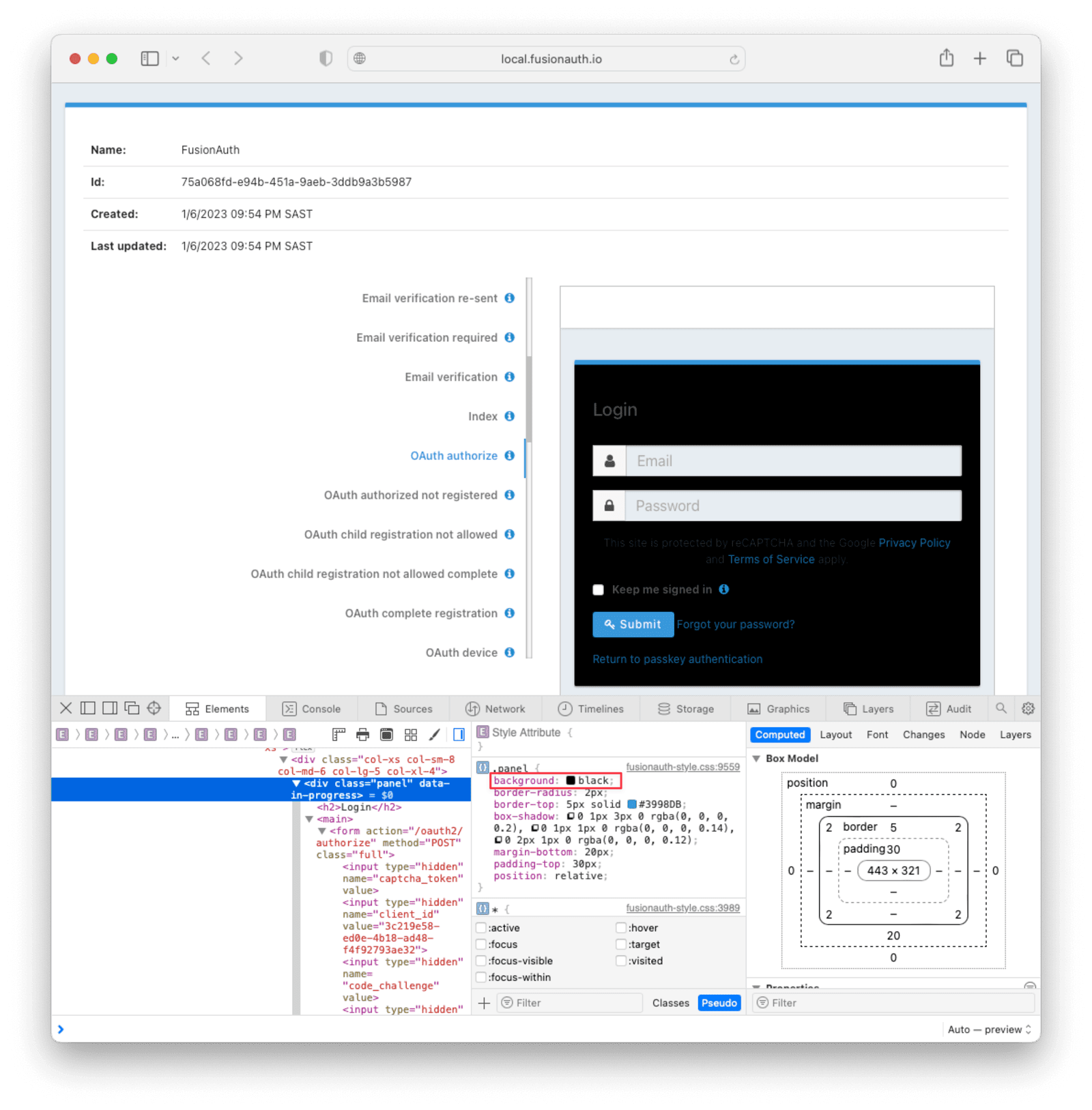
-
Copy the rule, including the selector the browser added, into a file named
darkTheme.css:.panel { background: black }
Repeat the process for each element to restyle. For a complete dark theme, use the darkTheme.css example file.
Create a folder named kickstart, and move darkTheme.css into the folder.
Write kickstart.json#
kickstart.json configures FusionAuth on first startup. Create kickstart/kickstart.json with the following contents:
{
  "variables":{
    "apiKey" : "#{UUID()}",
    "themeID" : "#{UUID()}",
    "applicationID" : "404e516b-06b8-49da-9c68-c1cd1928c81d",
    "clientSecret" : "RBLhJrfRsa0-YxVPrn_aZfzIGccWyncdvHvDNTy-Hrs",
    "defaultTenantId": "da025934-3ba7-4a13-83f0-aab68c9919b8",
    "userID" : "#{UUID()}"
  },
  "apiKeys": [
    {
      "key": "#{apiKey}"
    }
  ],
  "requests":[
    "&{json/createTheme.json}",
    "&{json/updateTheme.json}",
    "&{json/createApplication.json}",
    "&{json/createUser.json}",
    "&{json/registerUser.json}",
    "&{json/setDefaultTheme.json}"
  ]
}
The file has three sections:
variablesdefines values that the requests reuse.apiKey,themeID, anduserIDget random UUIDs.applicationID,clientSecret, anddefaultTenantIdhave fixed values, so you know the values in advance.defaultTenantIdsets the Id of the default tenantThe Tenant that FusionAuth creates during installation. You can't delete the Default Tenant, which hosts the FusionAuth Admin UI Application..apiKeysdefines the API key that Kickstart uses to run the requests. Everykickstart.jsonneeds at least one API key.requestslists the API requests in the order Kickstart runs them. Each&{...}entry loads a request from a separate file. A request can also live inline inkickstart.json, but separate files are easier to edit when a Kickstart grows.
Write the API Requests#
Create a folder named json inside the kickstart folder. Add each of the following files to the json folder.
createTheme.json creates the dark theme:
{
  "method" : "POST",
  "url" : "api/theme/#{themeID}",
  "body" : {
    "sourceThemeId" : "75a068fd-e94b-451a-9aeb-3ddb9a3b5987",
    "theme" : {
      "name" : "Dark Theme"
    }
  }
}
sourceThemeId copies the default FusionAuth theme, which always has the Id 75a068fd-e94b-451a-9aeb-3ddb9a3b5987. The URL path sets the Id of the new theme to the themeID variable.
updateTheme.json applies darkTheme.css to the new theme:
{
  "method" : "PATCH",
  "url" : "api/theme/#{themeID}",
  "body" : {
    "theme" : {
      "stylesheet" : "@{darkTheme.css}"
    }
  }
}
setDefaultTheme.json assigns the dark theme to the default tenant:
{
  "method": "PATCH",
  "url": "/api/tenant/#{defaultTenantId}",
  "body": {
    "tenant": {
      "themeId": "#{themeID}"
    }
  }
}
createApplication.json creates the Kickstart App:
{
  "method" : "POST",
  "url" : "/api/application/#{applicationID}",
  "body" : {
    "application":{
      "name" : "Kickstart App",
      "oauthConfiguration" : {
        "authorizedRedirectURLs" : [
          "http://localhost:3000/oauth-redirect"
        ],
        "clientId" : "#{applicationID}",
        "clientSecret" : "#{clientSecret}",
        "logoutURL": "http://localhost:3000/logout",
        "enabledGrants": [
          "authorization_code",
          "refresh_token"
        ],
        "requireRegistration" : "true"
      }
    }
  }
}
The Kickstart App uses the same OAuth settings that First Time Setup uses. The redirect URLThe URL where the authorization server sends the browser after login, with an authorization code or an error. and logout URL point to an app on port 3000. This guide doesn't run that app. FusionAuth checks the redirect_uri of an authorize request against authorizedRedirectURLs, so the Application still needs a redirect URL to show the login page.
createUser.json creates a user with a Registration for the FusionAuth application, so the user can log in to the Admin UI:
{
  "method": "POST",
  "url": "/api/user/registration/#{userID}",
  "body": {
    "user": {
      "email": "richard@example.com",
      "password": "password"
    },
    "registration": {
      "applicationId": "#{FUSIONAUTH_APPLICATION_ID}",
      "roles": [
        "admin"
      ]
    }
  }
}
registerUser.json adds a second Registration for the Kickstart App:
{
  "method": "POST",
  "url": "/api/user/registration/#{userID}",
  "body": {
    "registration": {
      "applicationId": "#{applicationID}"
    }
  }
}
The second Registration needs a separate request, because createUser.json uses the registration field for the FusionAuth application.
Download the Docker Compose File#
The FusionAuth docker-compose.yml mounts a kickstart folder next to the file and runs kickstart/kickstart.json on first startup. In the folder that holds your kickstart folder, download the file:
$ curl -o docker-compose.yml https://fusionauth.io/docs/docker-compose.yml
When another FusionAuth instance runs on port 9011, stop that instance first. Run docker compose down in the folder of that instance.
For other ways to run Kickstart in Docker, see Docker Configuration.
Run Kickstart#
Your folder should now look like the following. This guide calls the folder Kickstart_Theme, but any name works.
+ Kickstart_Theme
|
+-- docker-compose.yml
|
+--+ kickstart
   |
   +-- kickstart.json
   |
   +-- darkTheme.css
   |
   +--+ json
      |
      +-- createTheme.json
      |
      +-- updateTheme.json
      |
      +-- createUser.json
      |
      +-- registerUser.json
      |
      +-- createApplication.json
      |
      +-- setDefaultTheme.json
To launch the FusionAuth instance, run the following command in the Kickstart_Theme folder:
$ docker compose up
After Kickstart finishes, FusionAuth runs at http://localhost:9011.
Log in to the Admin UI at http://localhost:9011/admin. kickstart/json/createUser.json sets the email and password. This guide uses the following values:
"email": "richard@example.com",
"password": "password"
To confirm that Kickstart configured everything, look at Applications , Users , and Customizations -> Themes .
View the Themed Pages#
To preview the dark theme, navigate to Customizations -> Themes . Click on the row for Dark Theme. The preview renders every themed page, including the OAuth authorize and OAuth logout pages.
To see the live login page, open the following URL in a private browser window:
http://localhost:9011/oauth2/authorize?client_id=404e516b-06b8-49da-9c68-c1cd1928c81d&redirect_uri=http%3A%2F%2Flocalhost%3A3000%2Foauth-redirect&response_type=code
The private window keeps your Admin UI session from logging you in. FusionAuth shows the login page with the dark theme:
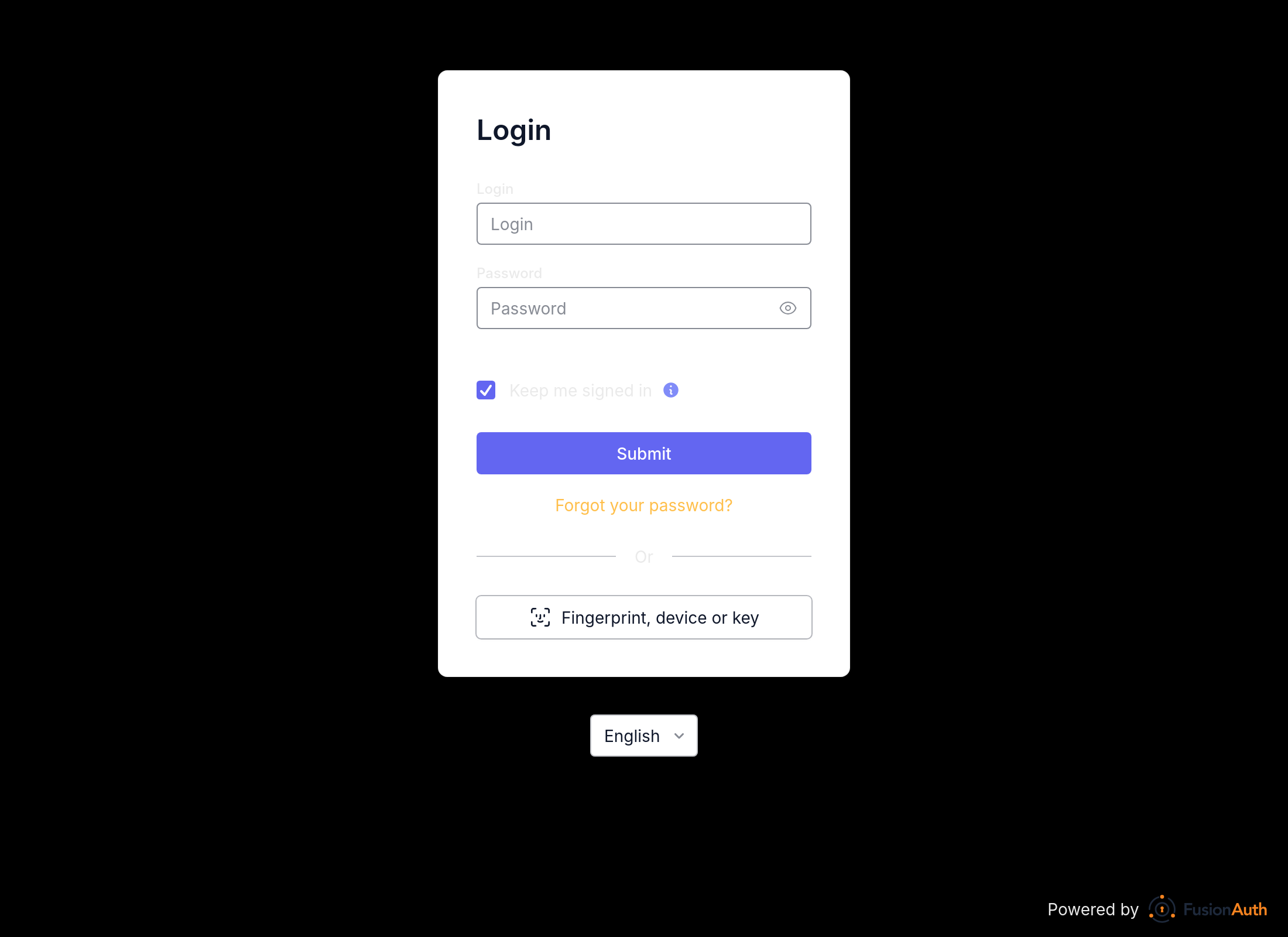
Close the window without logging in. A login redirects the browser to localhost:3000, and no app runs there.
Change a Default Message#
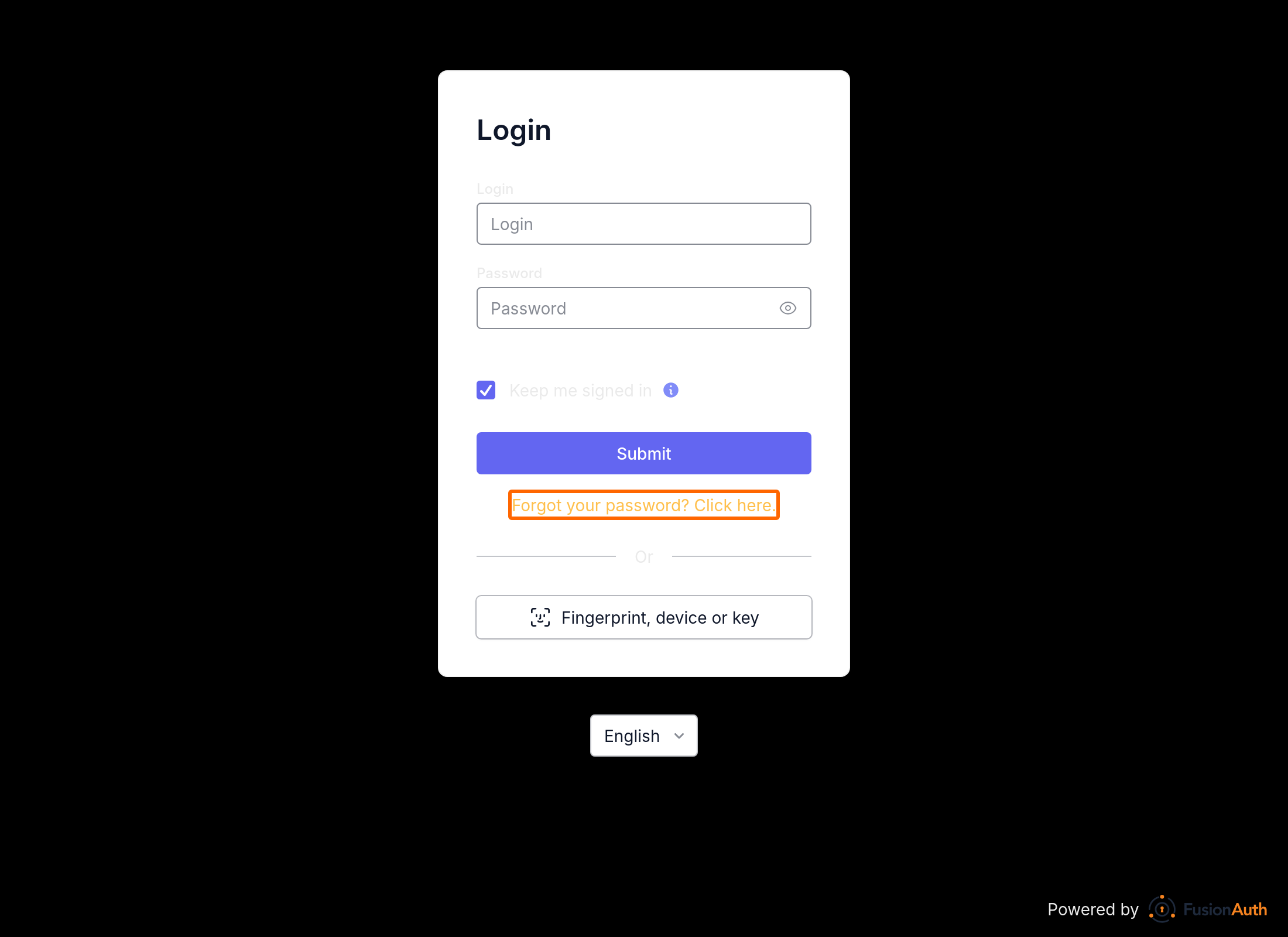
A Kickstart can also change the text on themed pages. The following steps change the "Forgot your password?" link on the OAuth authorize page to "Forgot your password? Click here."
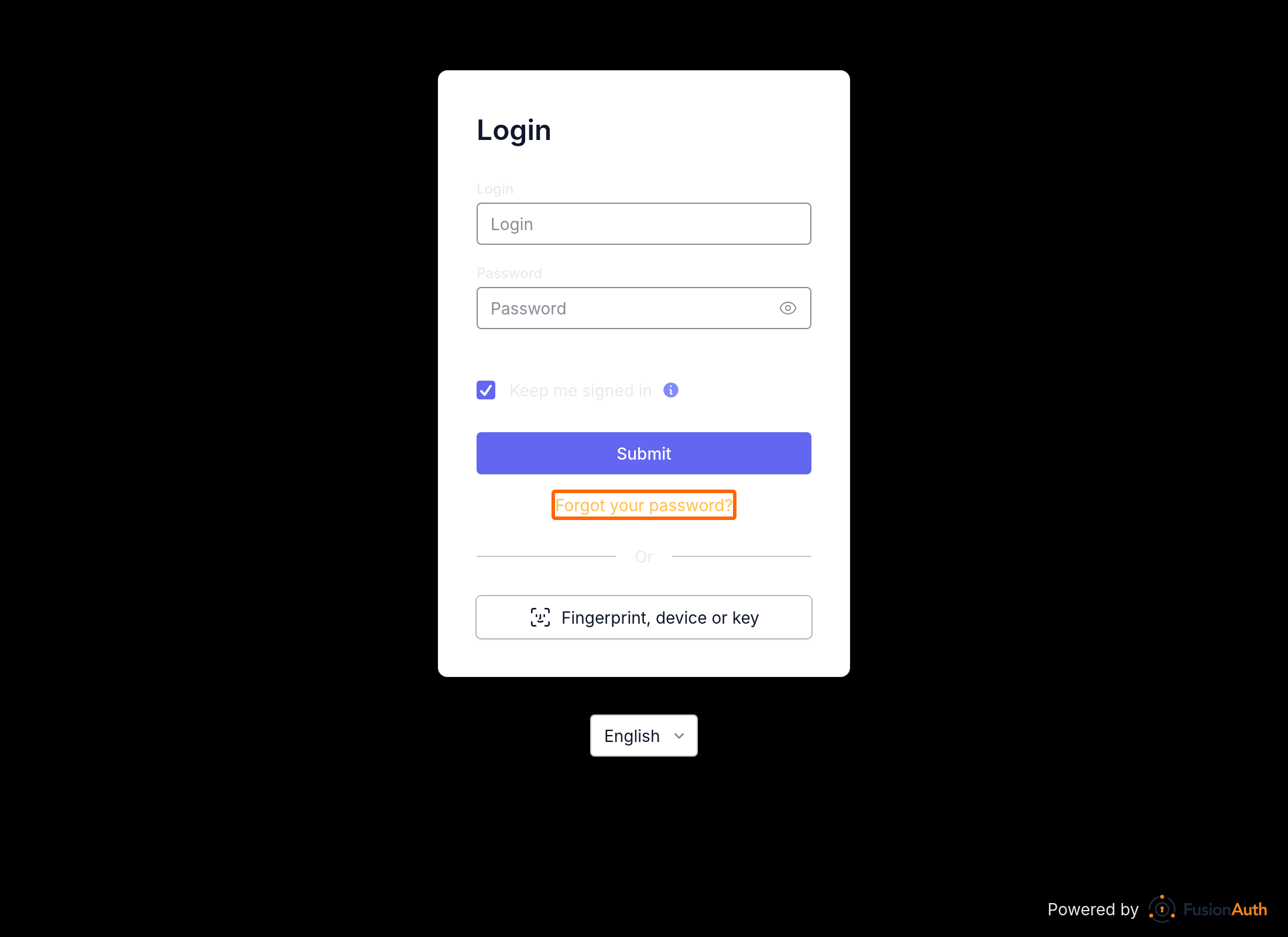
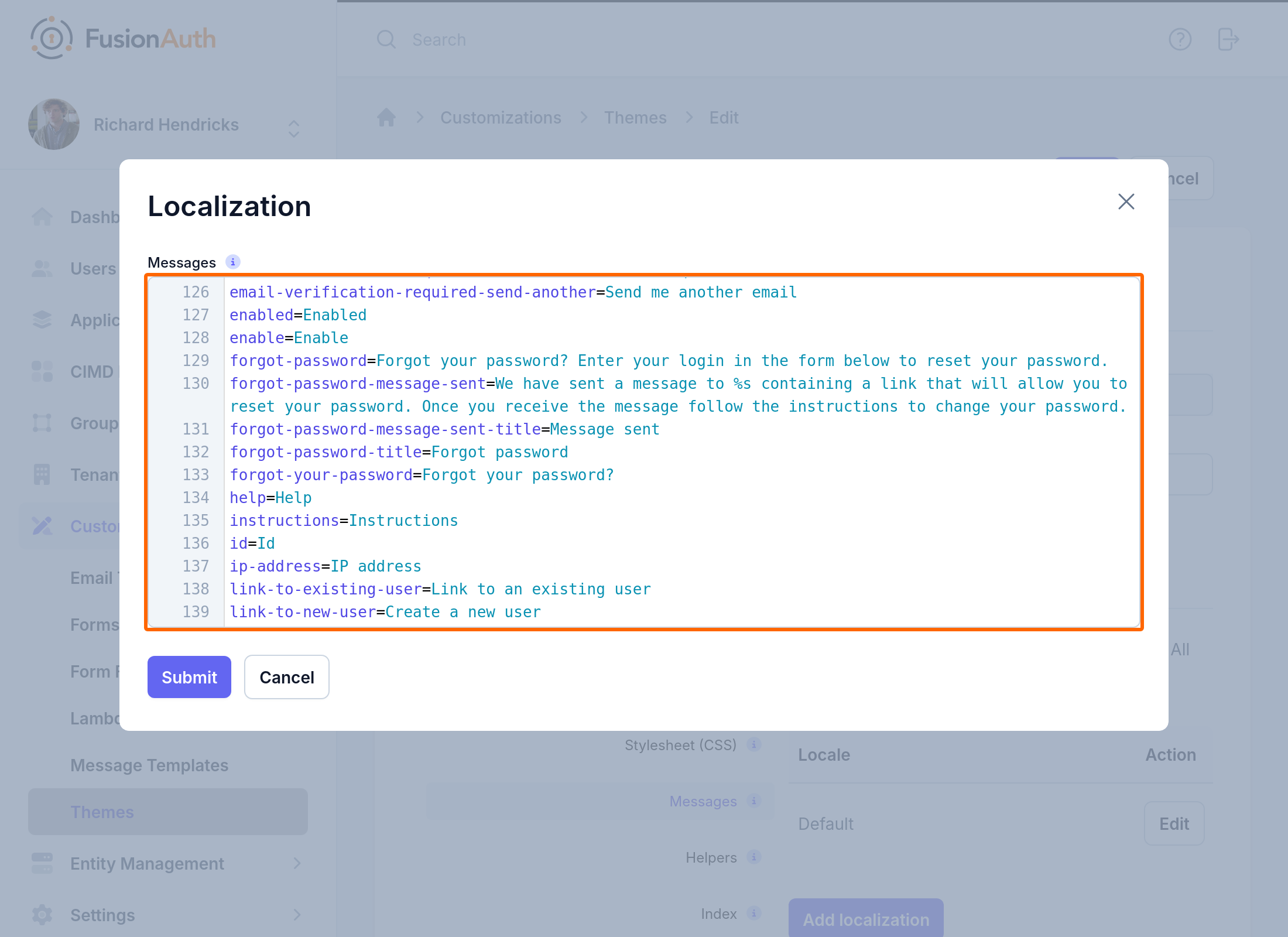
The defaultMessages field of a theme replaces every message at once. The value must contain every message in the default messages file that ships with FusionAuth. To get the full set:
-
In the Admin UI, edit the dark theme.
-
Click Messages , then click Edit .
-
Copy every message into a new file,
kickstart/defaultMessages.txt. -
In
defaultMessages.txt, change the value offorgot-your-passwordtoForgot your password? Click here.
Add defaultMessages to json/updateTheme.json:
{
  "method" : "PATCH",
  "url" : "api/theme/#{themeID}",
  "body" : {
    "theme" : {
      "stylesheet" : "@{darkTheme.css}",
      "defaultMessages" : "@{defaultMessages.txt}"
    }
  }
}
Kickstart runs only on an empty database. When FusionAuth finds any users, API keys, or Applications, FusionAuth skips the Kickstart to protect the data. To run the updated Kickstart, delete the Docker volumes of the instance:
docker compose down -v deletes every user, Application, and setting in the instance.
$ docker compose down -v
Then start the instance again:
$ docker compose up
The login page now shows the new message:
For more ways to customize a theme, see Themes. To manage themes with the API, see the Themes API.
Related
Learn how to theme and the FusionAuth login pages (including forgot password, two-factor authentication and others).
API documentation for the FusionAuth Create an Email Template API.
Learn about the APIs for creating, retrieving, updating and deleting email templates as well as sending emails to users.
API documentation for the FusionAuth Preview an Email Template API.