Multi-Factor Authentication at Login
On this page
When FusionAuth decides to challenge a user, the user enters a code after the password. The hosted login pagesThe login, registration, password recovery, and multi-factor authentication pages that FusionAuth serves. A Theme controls the look of the pages. handle the challenge for you. When you build your own login pages, your pages handle the challenge with the Login APIThe FusionAuth API that logs a user in without the hosted login pages..
To decide when FusionAuth challenges a user, see Configure MFA.
Hosted Login Pages#
The hosted login pages use the following pages for the MFA challenge:
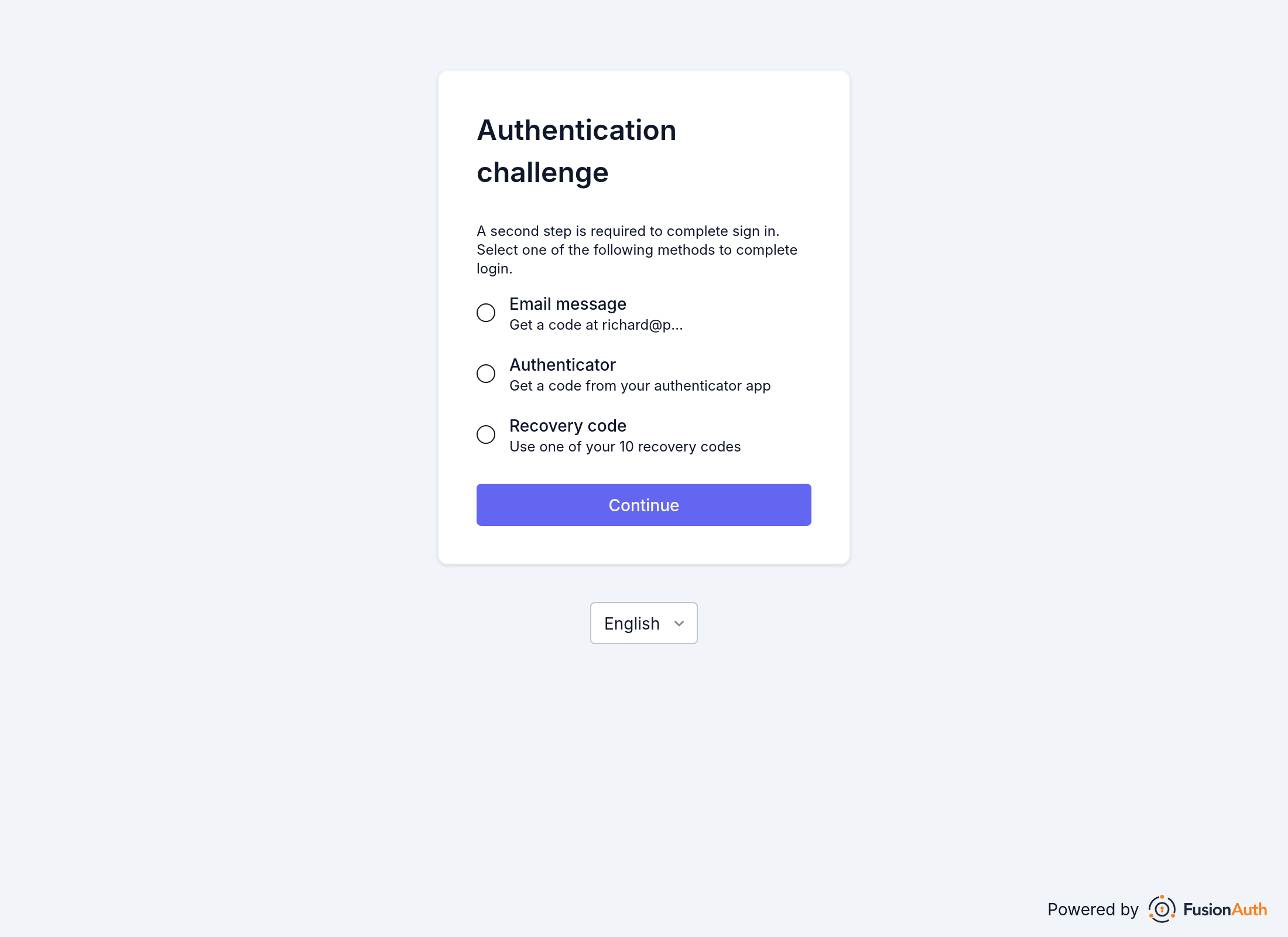
- The method picker lists the user's MFA methods. The OAuth two-factor methods template renders the method picker.
- The code page asks for the code. The OAuth two-factor template renders the code page.
Choose the Method#
After the password, FusionAuth either shows the method picker or picks a method and goes straight to the code page. The following diagram shows how FusionAuth decides:
How the hosted login pages decide whether to show the MFA method picker.
The last used method is the method from the user's last successful MFA login. A user with one method always has a last used method, so FusionAuth skips the method picker. Adding a method doesn't make the method the last used method. A user with two methods sees the method picker until the first login with one of the methods.
When the user has one SMS method and the Tenant turns on both SMS and voice, FusionAuth shows the method picker anyway. The user then chooses between a text message and a voice call.
For an email or SMS method, FusionAuth sends the code before the code page appears. For an authenticator method, the user reads the code from the app.
The method picker lists each method by name, or by type when the method has no name. When the user has recovery codes left, the method picker also lists a recovery code option with the number of codes left:
Enter the Code#
The code page asks the user to enter the verification code or a recovery code. The code page accepts a recovery code for every method, so the user doesn't need to choose the recovery code option first:
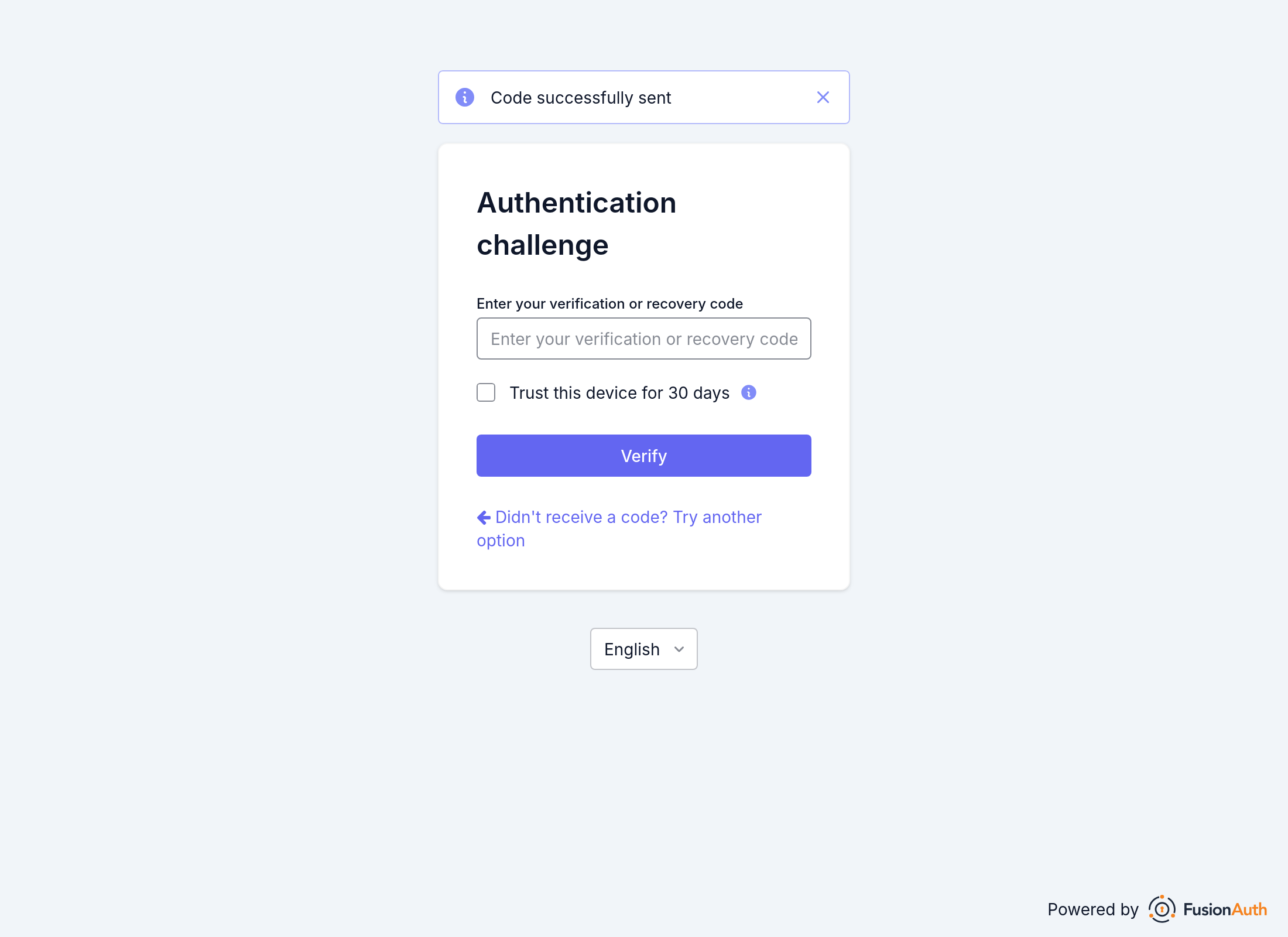
When the user has an email or SMS method, the code page shows a link back to the method picker. The user follows the link to resend a code, to choose another method, or to choose the recovery code option. A user with only authenticator methods never sees the method picker.
When the user selects the option to trust the computer, FusionAuth skips the challenge on the same browser until the trust expires. The Tenant's Two-Factor trust duration controls how long the trust lasts.
Customize the Pages#
To change the MFA pages, edit the OAuth two-factor methods and OAuth two-factor templates in an advanced theme. For email, SMS, and voice methods, also edit the templates for the messages that carry the code. For more information, see Email Templates and Message Templates.
When you customize the pages, keep the following behavior in mind:
- The recovery code option on the method picker is only a hint. Removing the option doesn't stop users from entering a recovery code on the code page.
- The
codemessage sets the text in the code field. When you change the message, keep the mention of recovery codes, because the text is the only hint for a user with only authenticator methods. - The
recoverCodesAvailablevariable holds the number of recovery codes the user has left.
For the variables on each page, see OAuth Two-Factor Methods and OAuth Two-Factor in the template variables reference. To change the text without an advanced theme, see Messages.
Build Your Own Login Pages#
When you build your own login pages, handle the MFA challenge with the Login API and the Two-Factor APIs.
-
Call the Login API with the user's login Id and password:
Log the user in API_KEY=... REQUEST_PAYLOAD='{...}' curl -XPOST -H 'Content-type: application/json' -H "Authorization: $API_KEY" 'https://local.fusionauth.io/api/login' -d $REQUEST_PAYLOADLogin request { "applicationId": "10000000-0000-0002-0000-000000000001", "eventInfo": { "ipAddress": "127.0.0.1" }, "loginId": "example@fusionauth.io", "loginIdTypes": [ "email" ], "newDevice": false, "noJWT": false, "password": "password" }When FusionAuth challenges the user, the Login API returns a
242status code. The response contains atwoFactorIdand the user'smethods:Login response when FusionAuth challenges the user { "methods": [ { "authenticator": { "algorithm": "HmacSHA1", "codeLength": 6, "timeStep": 30 }, "id": "2KSZ", "method": "authenticator" }, { "email": "richard@fusionauth.io", "id": "KLRT", "method": "email" } ], "twoFactorId": "YkQY5Gsyo4RlfmDciBGRmvfj3RmatUqrbjoIZ19fmw4" }Store the
twoFactorIdfor the next steps. ThetwoFactorIdexpires after the Tenant's Two-Factor login duration, five minutes by default. -
When the user has more than one method, show the
methodsand ask the user to choose one. Also offer a recovery code. -
When the user chooses an email or SMS method, send a code with the Send a Multi-Factor Code During Login or Step Up API. Set
methodIdto the method'sid:Send a code REQUEST_PAYLOAD='{...}' TWO_FACTOR_ID=... # from the login response curl -XPOST -H 'Content-type: application/json' 'https://local.fusionauth.io/api/two-factor/send?twoFactorId='$TWO_FACTOR_ID -d $REQUEST_PAYLOADSend a code request { "messageType": "Voice", "methodId": "KLRT" }FusionAuth sends the code to the email address or phone number of the method, which can differ from the user's login Id. To resend a code, call the API again. Each send cancels the codes sent before.
-
Build a page that collects the code. Accept a recovery code in the same field.
-
Call the Complete Multi-Factor Authentication API with the
twoFactorIdand the code:Complete the login API_KEY=... REQUEST_PAYLOAD='{...}' curl -XPOST -H 'Content-type: application/json' -H "Authorization: $API_KEY" 'https://local.fusionauth.io/api/two-factor/login' -d $REQUEST_PAYLOADComplete the login request { "applicationId": "10000000-0000-0002-0000-000000000001", "code": "915187", "ipAddress": "192.168.1.42", "twoFactorId": "YkQY5Gsyo4RlfmDciBGRmvfj3RmatUqrbjoIZ19fmw4" }The API returns
200and the user's tokens when the code is valid, and421when the code is wrong.
To skip the challenge at later logins from the same device, set trustComputer to true in the complete request. The response then contains a twoFactorTrustId. Send the twoFactorTrustId with later Login API requests. For more information, see the Login API.
Troubleshooting#
When FusionAuth doesn't send email codes, check the SMTP settings. For more information, see Email Troubleshooting.
When FusionAuth doesn't send SMS or voice codes, test the messenger, turn on debugging for the messenger, and check the Event Log at System -> Event Log .
When a user has an MFA method but FusionAuth doesn't ask for a code at login, check the following:
- The Tenant turns on the user's method. FusionAuth doesn't challenge a user whose only methods the Tenant turns off.
- The login policy of the Tenant or the Application. A risk-based policy skips the challenge when the risk is below the policy level.
- Whether the user chose to trust the device at an earlier login.
When FusionAuth asks for a code but can't send one, check that the Tenant turns on the method and the message type, such as SMS or voice. For more information, see Turn Off an MFA Method.
Related
API documentation for the FusionAuth Complete Multi-Factor Authentication API.
Learn how to turn on MFA methods for a Tenant and set when FusionAuth asks users for a second factor.
Learn how to remove MFA methods from a user with the account pages, the Admin UI, the Two-Factor APIs, or the User API.
Learn how to add MFA methods to a user with the account pages, the Admin UI, the Two-Factor APIs, or the User API.