View and Revoke User Sessions
On this page
FusionAuth tracks each user's SSO sessionThe session FusionAuth keeps in the browser after a user logs in through the hosted login pages. While the SSO session lasts, FusionAuth logs the user in to other Applications in the Tenant without asking for credentials. and refresh tokens. You can list and revoke both. Revoking a refresh token ends a centralized sessionAn application session that your application ties to a FusionAuth refresh token, so you can view and revoke the session in FusionAuth. at the application's next check. Applications that keep their own sessions without checking FusionAuth keep running until those sessions expire.
View a User's Sessions#
Navigate to Users , select the user, and open the Sessions tab. Each row is one refresh token, with the Application, device, IP address, and expiration. The SSO session appears with an Application of single-sign-on.
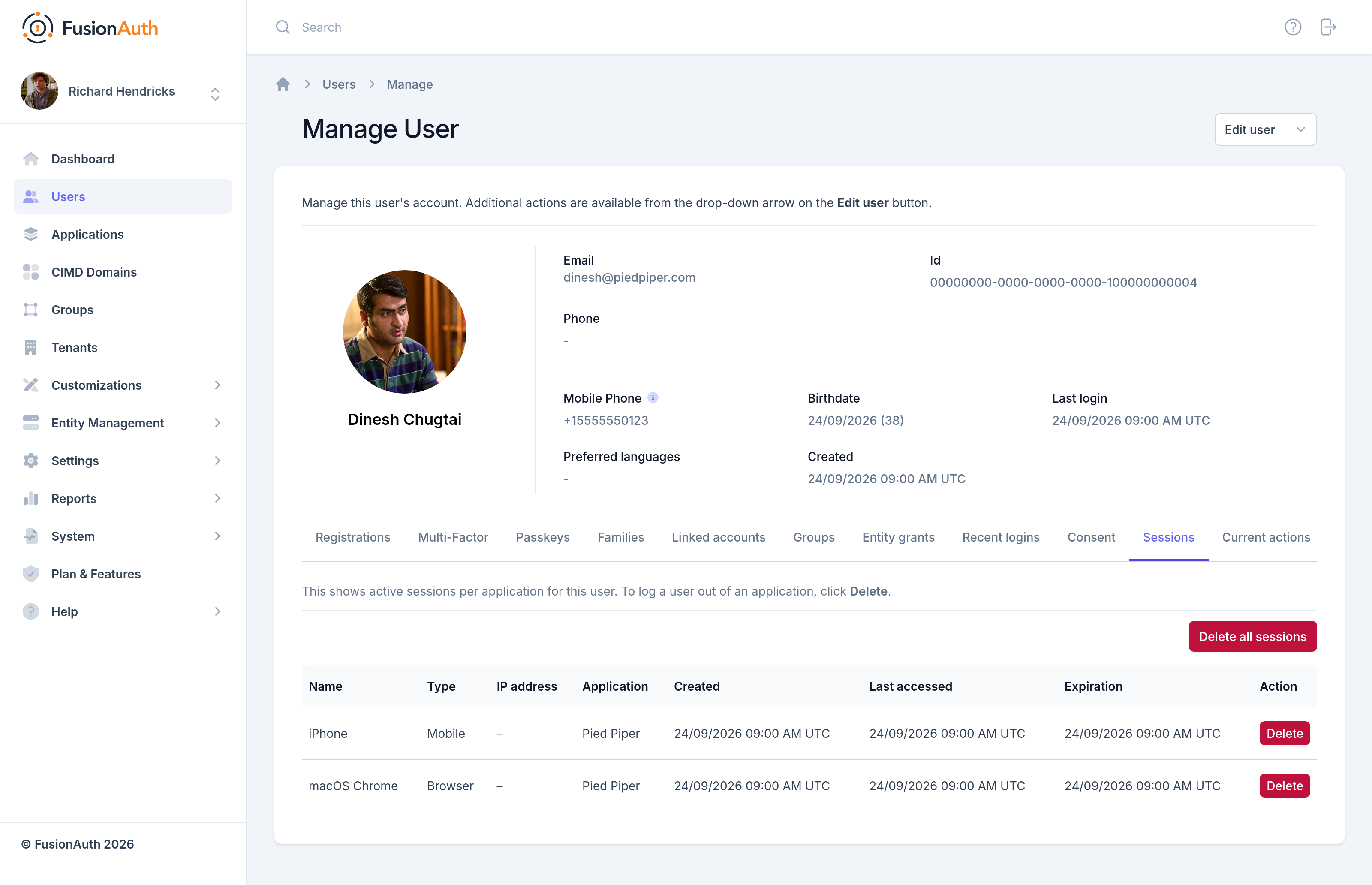
With the API, call the Retrieve Refresh Tokens API with the user's Id. Each refresh token includes metaData.device and startInstant.
Revoke Sessions#
In the Admin UI, click Delete on a row to revoke one session. To revoke every session for the user, click Delete all sessions .
With the API, call the Revoke Refresh Tokens API with an API key. Choose the scope:
- A refresh token Id, to end one session.
- A user Id and an Application Id, to log the user out of one Application on every device.
- A user Id, to log the user out of every Application on every device. Revoking by user also ends the SSO session.
- An Application Id, to log every user out of one Application.
To revoke from a browser or a client without an API key, call /api/logout with the refresh token. Set global to true to revoke all of the user's refresh tokens and the SSO session.
Revoking a refresh token doesn't end access tokens already issued. The access tokens work until the tokens expire. For how to keep that window short, see Configure Session Lifetimes.
Your code can revoke sessions in response to events. For example:
- Revoke all of a user's sessions after a suspicious login.
- Add a "Log out everywhere" button to your account page.
- Revoke the sessions of every user in a group when the group loses access.
Revoke Sessions Automatically#
FusionAuth revokes all of a user's refresh tokens on some account changes. Navigate to Tenants -> Your Tenant -> JWT and set Refresh token revocation under Refresh Token settings:
- On password change revokes after the user's password changes. On by default.
- On action preventing login revokes when a user action locks the account. On by default.
- On multi-factor enable revokes when the user turns on MFA. Off by default.
- On reuse of a one-time use token revokes the token chain when a rotated one-time use token comes back. Off by default.
Track Session Activity#
To record when sessions start, extend, and end, subscribe a webhook to the following events:
user.login.success, when a user logs in.jwt.refresh, when a client uses a refresh token.jwt.refresh-token.revoke, when a refresh token gets revoked.
Correlate the events by user Id to measure session length or count active sessions. For past logins, including logins through application-managed sessions, use the Search Login Records API.
Related
Learn how to track and revoke application sessions in FusionAuth by tying each session to a refresh token.
Learn about what each FusionAuth logout method ends, and how front-channel logout signs a user out of every application.
Learn about how FusionAuth keeps users logged in across applications, and how to configure session lifetimes, single sign-on, and logout.
Learn how to cap the number of devices a user can stay logged in on at the same time.