Custom Password Hashing
On this page
Write a password hashing plugin when you import users whose passwords use a scheme that FusionAuth doesn't support. With the plugin installed, imported users log in with their existing passwords. For the schemes that FusionAuth supports, see Password-Hashing Algorithms.
After the import, keep the custom scheme when the scheme is strong, such as Argon2. When the old system used a weak scheme, rehash the passwords with a stronger scheme. For more information, see Rehashing User Passwords.
This page covers the plugin code. To set up the project, build the jar, and install the plugin, see Writing a Plugin.
The plugin interface uses the words "encrypt" and "encryptor" for backward compatibility. A Password Encryptor hashes passwords.
Write the Password Encryptor#
Implement the io.fusionauth.plugin.spi.security.PasswordEncryptor interface. The following example implements salted PBKDF2 with HMAC-SHA1:
/*
 * Copyright (c) 2019, FusionAuth, All Rights Reserved
 *
 * Licensed under the Apache License, Version 2.0 (the "License");
 * you may not use this file except in compliance with the License.
 * You may obtain a copy of the License at
 *
 *   http://www.apache.org/licenses/LICENSE-2.0
 *
 * Unless required by applicable law or agreed to in writing,
 * software distributed under the License is distributed on an
 * "AS IS" BASIS, WITHOUT WARRANTIES OR CONDITIONS OF ANY KIND,
 * either express or implied. See the License for the specific
 * language governing permissions and limitations under the License.
 */
package com.mycompany.fusionauth.plugins;

import javax.crypto.Mac;
import javax.crypto.SecretKey;
import javax.crypto.SecretKeyFactory;
import javax.crypto.spec.PBEKeySpec;
import javax.crypto.spec.SecretKeySpec;
import java.nio.charset.StandardCharsets;
import java.security.InvalidKeyException;
import java.security.NoSuchAlgorithmException;
import java.security.spec.InvalidKeySpecException;
import java.security.spec.KeySpec;

import com.mycompany.fusionauth.util.HexTools;
import io.fusionauth.plugin.spi.security.PasswordEncryptor;

/**
 *  This is an example of a PBKDF2 HMAC SHA1 Salted hashing algorithm.
 *
 * <p>
 * This code is provided to assist in your deployment and management of FusionAuth. Use of this
 * software is not covered under the FusionAuth license agreement and is provided "as is" without
 * warranty. https://fusionauth.io/license
 * </p>
 *
 * @author Daniel DeGroff
 */
public class ExamplePBDKF2HMACSHA1PasswordEncryptor implements PasswordEncryptor {
  private final int keyLength;

  public ExamplePBDKF2HMACSHA1PasswordEncryptor() {
    // Default key length is 512 bits
    this.keyLength = 64;
  }

  @Override
  public int defaultFactor() {
    return 10_000;
  }

  @Override
  public String encrypt(String password, String salt, int factor) {
    if (factor <= 0) {
      throw new IllegalArgumentException("Invalid factor value [" + factor + "]");
    }

    SecretKeyFactory keyFactory;
    try {
      keyFactory = SecretKeyFactory.getInstance("PBKDF2WithHmacSHA1");
    } catch (NoSuchAlgorithmException e) {
      throw new IllegalStateException("No such algorithm [PBKDF2WithHmacSHA1]");
    }

    KeySpec keySpec = new PBEKeySpec(password.toCharArray(), salt.getBytes(), factor, keyLength * 8);
    SecretKey secret;
    try {
      secret = keyFactory.generateSecret(keySpec);
    } catch (InvalidKeySpecException e) {
      throw new IllegalArgumentException("Could not generate secret key for algorithm [PBKDF2WithHmacSHA1]");
    }

    SecretKeySpec secretKeySpec = new SecretKeySpec(secret.getEncoded(), "HmacSHA1");
    Mac mac;
    try {
      mac = Mac.getInstance("HmacSHA1");
    } catch (NoSuchAlgorithmException e) {
      throw new IllegalStateException("No such algorithm [HmacSHA1]");
    }

    try {
      mac.init(secretKeySpec);
      byte[] hashedPassword = mac.doFinal(password.getBytes(StandardCharsets.UTF_8));
      return HexTools.encode(hashedPassword);
    } catch (InvalidKeyException e) {
      throw new IllegalArgumentException("Invalid key used to initialize HmacSHA1");
    }
  }
}
Add the Guice Binding#
FusionAuth finds Password Encryptors through a Guice MapBinder. Bind your class under a unique name. Users that use the plugin store that name in encryptionScheme:
/*
 * Copyright (c) 2020-2022, FusionAuth, All Rights Reserved
 *
 * Licensed under the Apache License, Version 2.0 (the "License");
 * you may not use this file except in compliance with the License.
 * You may obtain a copy of the License at
 *
 *   http://www.apache.org/licenses/LICENSE-2.0
 *
 * Unless required by applicable law or agreed to in writing,
 * software distributed under the License is distributed on an
 * "AS IS" BASIS, WITHOUT WARRANTIES OR CONDITIONS OF ANY KIND,
 * either express or implied. See the License for the specific
 * language governing permissions and limitations under the License.
 */
package com.mycompany.fusionauth.plugins.guice;

import com.google.inject.AbstractModule;
import com.google.inject.multibindings.MapBinder;
import com.mycompany.fusionauth.plugins.ExamplePBDKF2HMACSHA1PasswordEncryptor;
import io.fusionauth.plugin.spi.PluginModule;
import io.fusionauth.plugin.spi.security.PasswordEncryptor;

/**
 * @author Daniel DeGroff
 */
@PluginModule
public class MyExampleFusionAuthPluginModule extends AbstractModule {
  @Override
  protected void configure() {
    MapBinder<String, PasswordEncryptor> passwordEncryptorMapBinder = MapBinder.newMapBinder(binder(), String.class, PasswordEncryptor.class);

    // TODO :
    //   1. Add one or more bindings here
    //   2. Name your binding. This will be the value you set in the 'encryptionScheme' on the user to utilize this encryptor.
    //   3. Delete any example code you don't use and do not want in your plugin. In addition to the bindings, you should delete any corresponding classes and tests you do not use in your plugin.

    // Example PBKDF2 with a SHA-1
    passwordEncryptorMapBinder.addBinding("example-salted-pbkdf2-hmac-sha1-10000").to(ExamplePBDKF2HMACSHA1PasswordEncryptor.class);
  }
}
The example binds the Password Encryptor as example-salted-pbkdf2-hmac-sha1-10000.
Write a Unit Test#
Before you install the plugin, test the Password Encryptor with known passwords and hashes from your old system. The example uses TestNG, but any Java test framework works:
package com.mycompany.fusionauth.plugins;

import io.fusionauth.plugin.spi.security.PasswordEncryptor;
import org.testng.annotations.DataProvider;
import org.testng.annotations.Test;
import static org.testng.Assert.assertEquals;

/**
 * @author Daniel DeGroff
 */
public class ExamplePBDKF2HMACSHA1PasswordEncryptorTest {
  @Test(dataProvider = "hashes")
  public void encrypt(String password, String salt, String hash) {
    PasswordEncryptor encryptor = new ExamplePBDKF2HMACSHA1PasswordEncryptor();
    assertEquals(encryptor.encrypt(password, salt, 10_000), hash);
  }

  @DataProvider(name = "hashes")
  public Object[][] hashes() {
    return new Object[][]{
        {"password123", "1484161696d0ca62390273b98846f49671cecd78", "4761D3392092F9CA6036B53DC92C6D7F3D597576"},
        {"password123", "ea95629c7954d73ea670f07a798e9fd4ab907593", "9480AD9A59CB5053B832BA5E731AFCD1F78068EC"},
    };
  }
}
Run the tests with Maven:
$ mvn test
Test the Installed Plugin#
After you install the plugin, create a test user with the Create a User API. Set encryptionScheme to the name of the binding:
{
  "user": {
    "email": "test0@example.com",
    "encryptionScheme": "example-salted-pbkdf2-hmac-sha1-10000",
    "password": "password"
  }
}
FusionAuth hashes the password with your Password Encryptor. To confirm that the plugin works, log in as the test user with the Login API.
Sample Code#
Start your plugin from the example plugin project. Before you write a plugin, check the contributed plugins for your scheme. Community members wrote the contributed plugins, and FusionAuth provides no warranty for them.
Rehashing User Passwords#
When you import users with their existing password hashes, users log in without resetting their passwords. FusionAuth keeps each imported hash and the hash's scheme, which may be weak. To replace weak hashes, configure the Tenant to rehash passwords with a stronger scheme:
- Import the users with their existing hashes. When FusionAuth doesn't support the old scheme, write a password hashing plugin for the scheme. For more information, see Custom Password Hashing.
- In the Admin UI, navigate to Tenants -> Your Tenant -> Password .
- In the Cryptographic hash settings section, set Scheme to the new scheme. FusionAuth also uses the new scheme for users that you create in the Tenant later.
- Turn on Re-hash on login or change.
- Click .
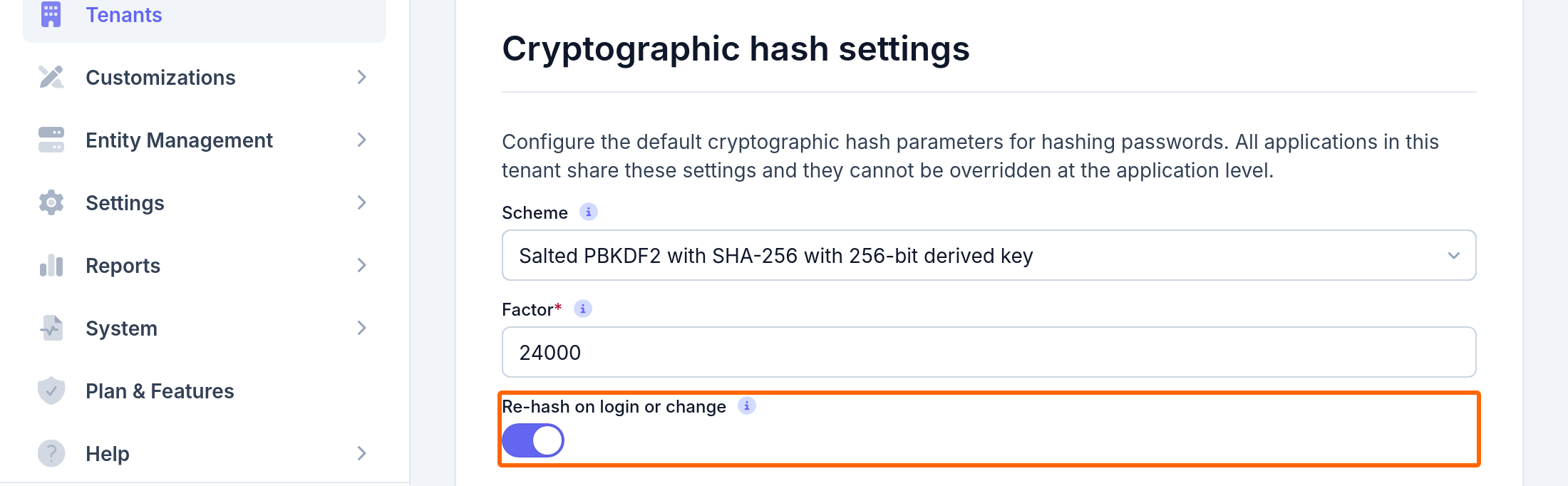
FusionAuth then rehashes a user's password with the new scheme when the user logs in. In FusionAuth 1.42.0 and later, FusionAuth also rehashes the password when the password changes.
Remove a Plugin#
Leave a password hashing plugin installed while any user's password still uses the plugin's scheme. FusionAuth needs the scheme whenever FusionAuth checks or changes that user's password. After you remove the plugin, the following actions fail for that user with an An unexpected exception occurred. error:
- Logging in with the password, through the hosted login pages or the Login API.
- Changing the password.
- Resetting a forgotten password. FusionAuth starts the reset, but setting the new password fails.
- Setting a new password through the Update a User API, even when the request also sets a new
encryptionScheme.
The FusionAuth log records an UnknownEncryptionSchemeException that names the missing scheme. To recover, install the plugin again and restart FusionAuth.
Move Users Off a Scheme#
To move users off a plugin's scheme, keep the plugin installed and turn on Re-hash on login or change in the Tenant. FusionAuth then rehashes each password with the Tenant's scheme at the user's next login or password change. For more information, see Rehashing User Passwords.
Some users may not log in again. To move those users, set a random password and a new encryptionScheme through the Update a User API. The users can then set a password through the forgot password flow.
Find Users on a Scheme#
The Search for Users API doesn't return the hashing scheme and can't filter on the scheme. To see the scheme of one user, navigate to Users -> Your User -> Manage and open the Source tab.
When you self-host FusionAuth, count the users on each scheme with a database query:
SELECT password_encryption_scheme, COUNT(*) FROM users GROUP BY password_encryption_scheme;
The database schema can change between FusionAuth versions. For more information, see Export from FusionAuth.
When you can't query the database, such as on FusionAuth Cloud, write a script that does the following:
- Call the Search for Users API with a
queryStringof*, and collect the User Ids. - Call the Retrieve a User API for each User Id, and count the users by
encryptionScheme.
Add a delay between calls so the script doesn't overload FusionAuth, or run the script outside peak hours.
Delete the Plugin#
When no user or Tenant uses the plugin's scheme, delete the plugin:
- Confirm that no user uses the plugin's scheme.
- Confirm that no Tenant uses the plugin's scheme. Call the Retrieve a Tenant API without a Tenant Id to list every Tenant, and check
tenant.passwordEncryptionConfiguration.encryptionScheme. - Delete the plugin's jar file from the
pluginsdirectory on every node. - Restart FusionAuth on every node.