Linking Strategies
On this page
A linking strategy decides how FusionAuth links a user from an Identity Provider to a user in FusionAuth. You choose the linking strategy in the Linking strategy field when you configure the Identity Provider.

In FusionAuth 1.65.0 and later, you can change the linking strategy only while the Identity Provider is disabled. To change the linking strategy of an enabled Identity Provider, disable the Identity Provider, change the value, and enable the Identity Provider again.
Compare Linking Strategies#
The following table compares the linking strategies:
| Strategy | User must exist | User linked on | Use when |
|---|---|---|---|
Create a pending link |
Depends on the Application. See Pending Link. | The user chooses the account | The Identity Provider shares an email address or username that differs from the user's FusionAuth account, and users know enough to link the accounts. |
Linking disabled |
Not applicable | Not applicable | You want to manage every link yourself with the Link API. Available in FusionAuth 1.37.0 and later. |
Anonymous link |
No | The Identity Provider's user Id | The Identity Provider shares neither a username nor an email address. |
Link on email. Create the user if they do not exist. |
No | Email address | The Identity Provider shares the user's email address, and users who don't exist in FusionAuth can have access. |
Link on email. Do not create the user if they do not exist. |
Yes | Email address | The Identity Provider shares the user's email address, and only users who exist in FusionAuth can have access. Provision those users beforehand. |
Link on username. Create the user if they do not exist. |
No | Username | The Identity Provider shares the user's username, and users who don't exist in FusionAuth can have access. |
Link on username. Do not create the user if they do not exist. |
Yes | Username | The Identity Provider shares the user's username, and only users who exist in FusionAuth can have access. Provision those users beforehand. |
Some Identity Providers don't return a username or an email address. For those Identity Providers, use a pending link or an anonymous link. Both strategies link the user without a username or email address from the Identity Provider.
Every linking strategy except Anonymous link can use a reconcile lambda. An anonymous link has no user information to pass to a lambda.
Linking and Create Registration#
Linking strategy and Create registration are related, but distinct, settings. Linking strategy decides how FusionAuth finds or creates the user from the information that the Identity Provider returns. Create registration decides whether FusionAuth registers the user for an Application. For more information, see Applications and Overrides.
Linking Strategy Examples#
The following examples show each linking strategy on the FusionAuth hosted login pages. In each example, Richard logs in to the Pied Piper application through an Identity Provider named Hooli. The behavior is the same for a social Identity Provider, such as Facebook, and for an enterprise Identity Provider, such as an OpenID Connect or SAML v2 server. The Identity Providers API offers similar behavior.
Disabled#
Available since1.37.0
With Linking disabled, FusionAuth doesn't link users automatically. You create every link with the Link API, which gives you the most control over which users get a link.
The strategy requires the identityProviderUserId, the immutable Id of the user in the Identity Provider. Without access to that Id, the strategy may not work. For more information, see Link a User.
Pending Link#
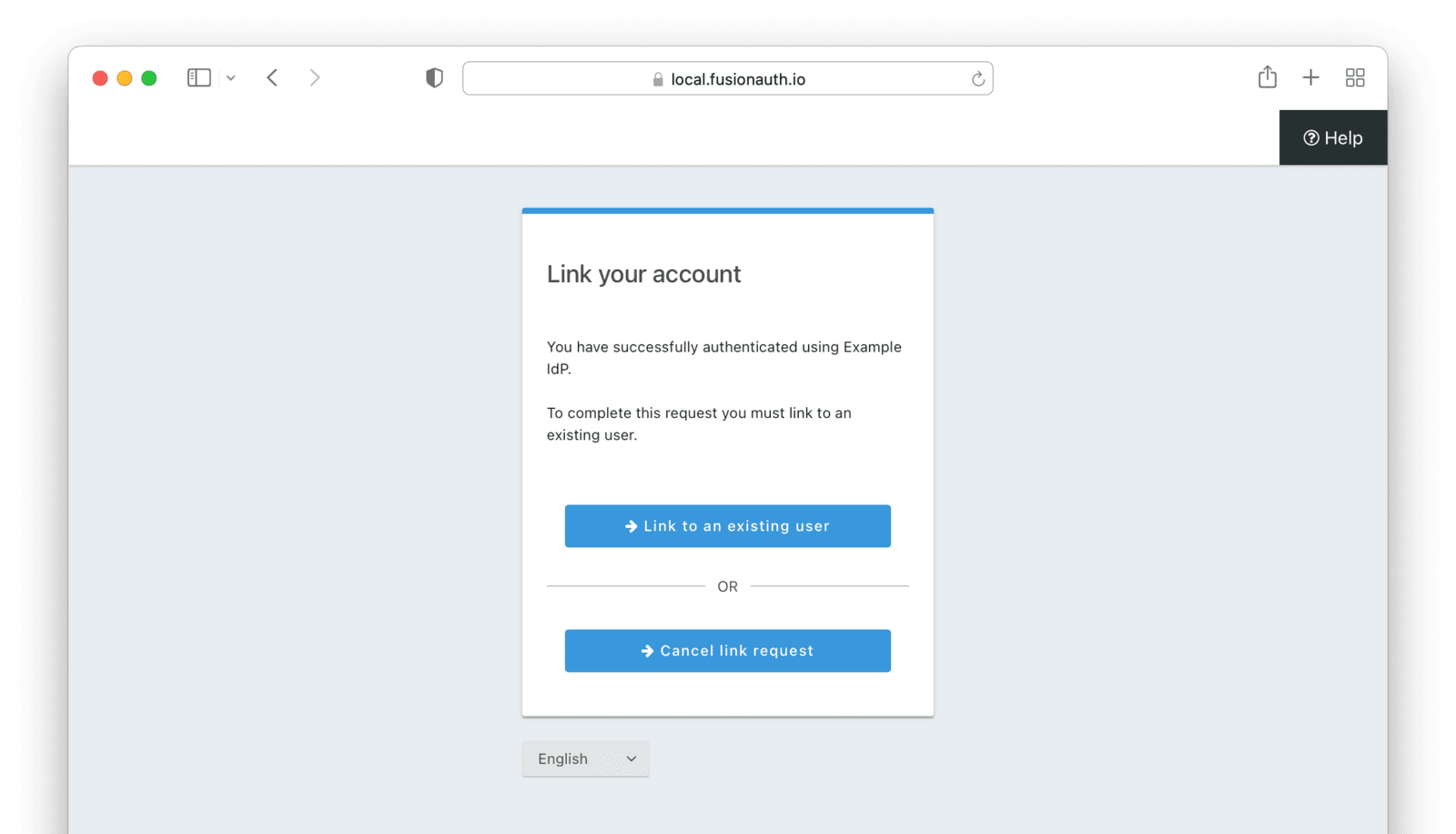
Use Create a pending link when a user's email address or username in the Identity Provider differs from the user's FusionAuth account. The user must remember the FusionAuth account to link the accounts.
When the Application allows self-service registration, the pending link page offers Create a new user as well as Link to an existing user . Otherwise, the page offers only Link to an existing user , and the user must already exist in FusionAuth.
Richard has a FusionAuth account with the email address richard@piedpiper.com, and a Hooli account with the email address richard@hooli.com:
- Richard clicks Login With Hooli on the login page.
- Richard logs in to Hooli with
richard@hooli.com. - Hooli redirects Richard to FusionAuth.
- FusionAuth asks Richard to log in with a Pied Piper email address and password.
- Richard logs in with
richard@piedpiper.com. - FusionAuth links the FusionAuth account
richard@piedpiper.comto the Hooli accountrichard@hooli.com.
Anonymous Link#
Use Anonymous link when you don't want a full user account in FusionAuth. For the limits of an anonymous account, see Anonymous Account Limitations.
Anonymous Link, IdP Provides Email#
Richard has no FusionAuth account:
- Richard clicks Login With Hooli on the login page.
- Richard logs in to Hooli with
richard@hooli.com. - Hooli redirects Richard to FusionAuth.
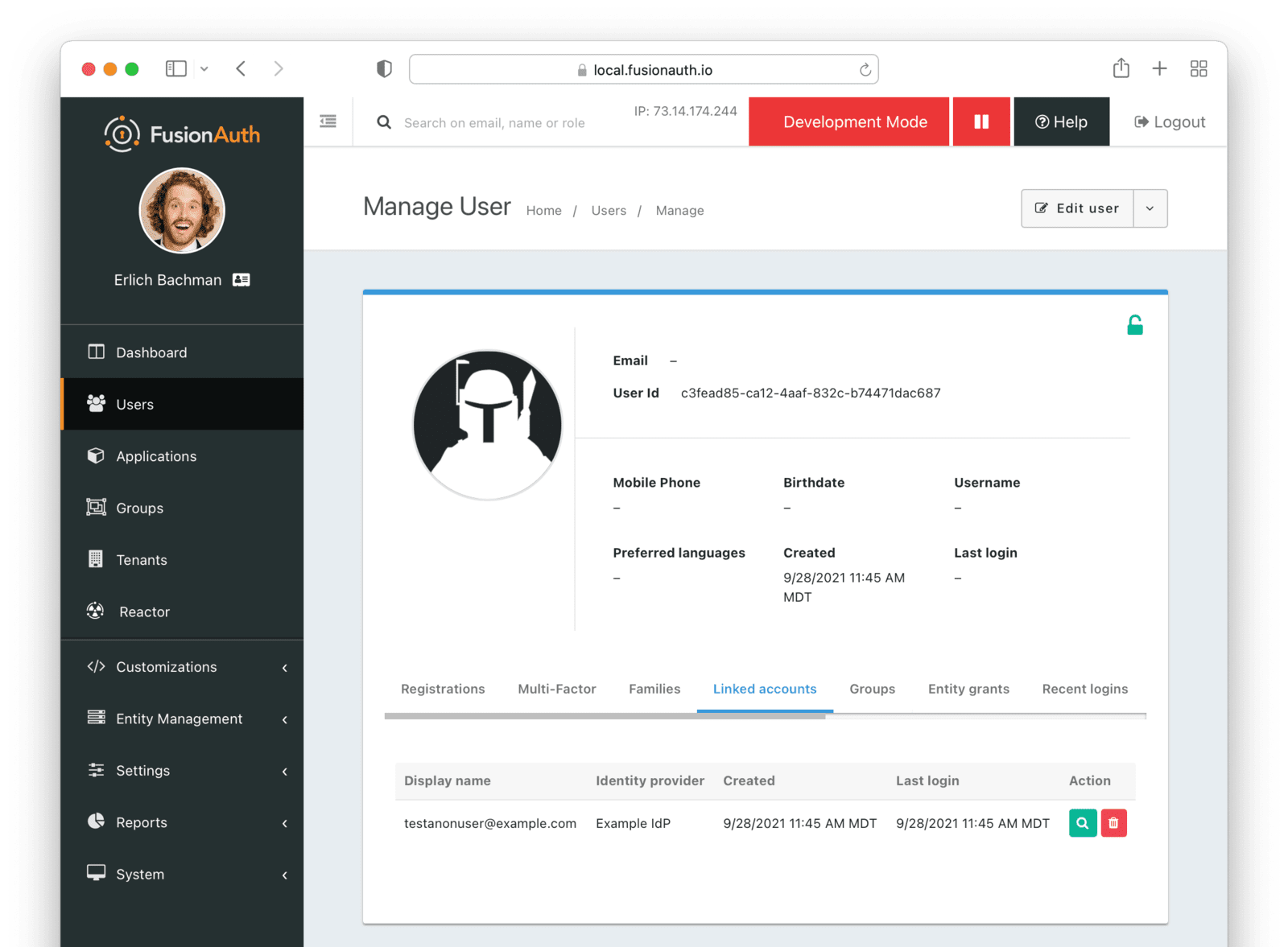
- FusionAuth creates an account with no username or email address. The account isn't a full account.
- Richard can use Pied Piper, and FusionAuth issues a JWT. Richard can't use FusionAuth workflows such as forgot password.
Anonymous Link, IdP Returns No Email or Username#
Richard has no FusionAuth account. The Identity Provider is the Hooli XYZ server, which doesn't return a username or an email address:
- Richard clicks Login With Hooli XYZ on the login page.
- Richard logs in with
richard@hoolixyz.com. - Hooli XYZ redirects Richard to FusionAuth.
- FusionAuth creates an account with no username or email address. The account isn't a full account.
- Richard can use Pied Piper, and FusionAuth issues a JWT. Richard can't use FusionAuth workflows such as forgot password.
Anonymous Account Limitations#
A user with an anonymous account can log in to applications with the credentials from the Identity Provider. An anonymous account has no email address, so the user can't use the email workflows of FusionAuth, such as forgot password.
You can't modify an anonymous user through the FusionAuth APIs. A request to modify the user must include a username or an email address.
An anonymous link provides no information about the user, so Anonymous link can't call a reconcile lambda.
Link on Email#
The following strategies link on an email address:
Link on email. Create the user if they do not exist.creates a user when no matching account exists in FusionAuth.Link on email. Do not create the user if they do not exist.doesn't create a user. When no matching account exists, the login fails. When a matching account exists, the login succeeds.
Link on Email, Matching Account Must Exist and Does#
The Identity Provider uses Link on email. Do not create the user if they do not exist.. Richard has a FusionAuth account with the email address richard@piedpiper.com:
- Richard clicks Login With Hooli on the login page.
- Richard logs in to Hooli with the account
richard@piedpiper.com. - Hooli redirects Richard to FusionAuth, and the login succeeds.
- FusionAuth links the FusionAuth account
richard@piedpiper.comto the Hooli accountrichard@piedpiper.com.
Link on Email, Matching Account Must Exist but Doesn't#
The Identity Provider uses Link on email. Do not create the user if they do not exist.. Richard has no FusionAuth account:
- Richard clicks Login With Hooli on the login page.
- Richard logs in to Hooli with the account
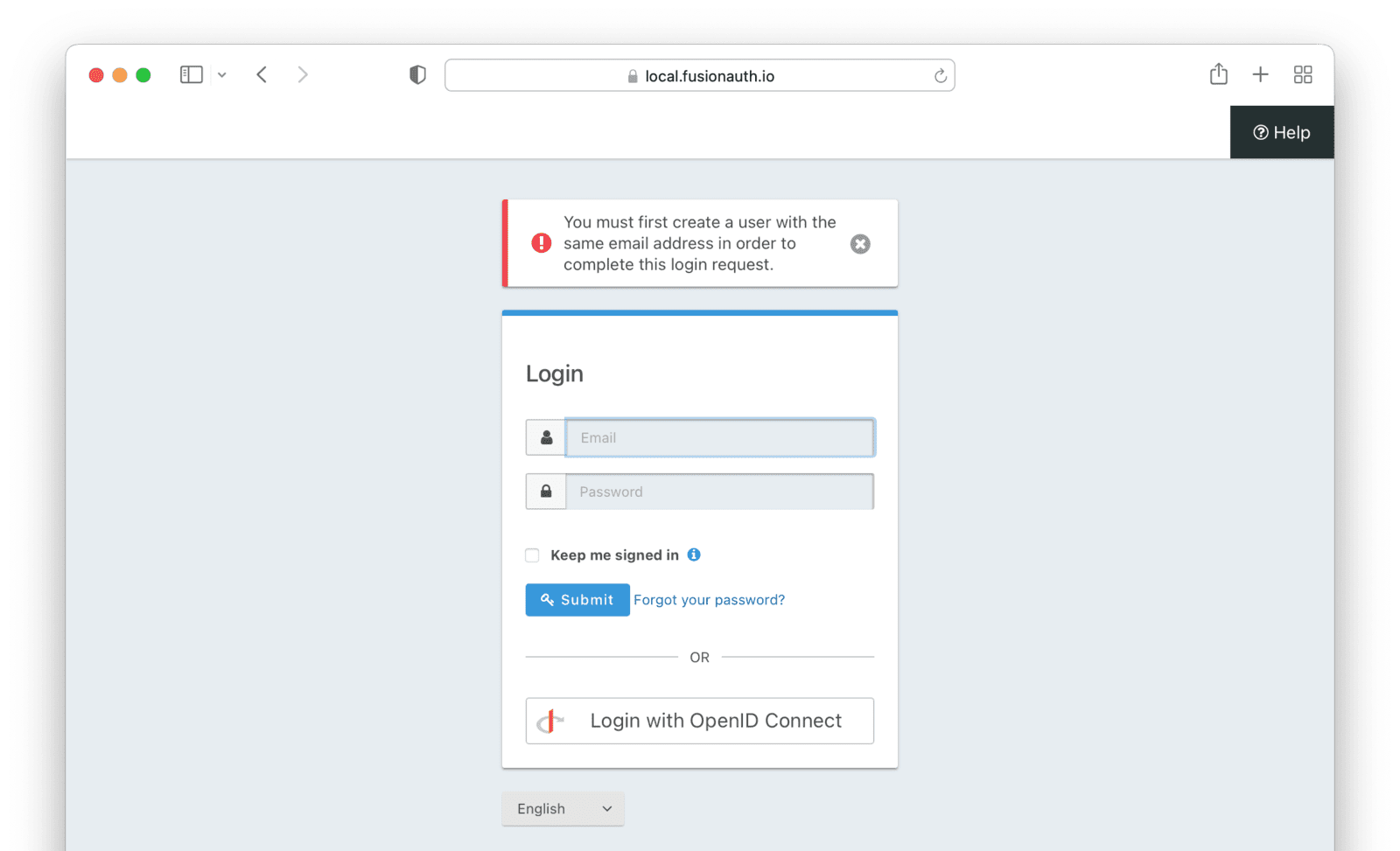
richard@piedpiper.com. - Hooli redirects Richard to FusionAuth, and FusionAuth shows an error. Richard gets no access.
FusionAuth shows the following error page:
Link on Email, User Account Is Created If Needed#
The Identity Provider uses Link on email. Create the user if they do not exist.. Richard has no FusionAuth account:
- Richard clicks Login With Hooli on the login page.
- Richard logs in to Hooli with the account
richard@piedpiper.com. - Hooli redirects Richard to FusionAuth.
- FusionAuth creates an account with the email address
richard@piedpiper.com. - FusionAuth links the new account to the Hooli account
richard@piedpiper.com.
Link on Username#
The following strategies link on a username:
Link on username. Create the user if they do not exist.creates a user when no matching account exists in FusionAuth.Link on username. Do not create the user if they do not exist.doesn't create a user. When no matching account exists, the login fails. When a matching account exists, the login succeeds.
Link on Username, Matching Account Must Exist and Does#
The Identity Provider uses Link on username. Do not create the user if they do not exist.. Richard has a FusionAuth account with the username richard:
- Richard clicks Login With Hooli on the login page.
- Richard logs in to Hooli with the account
richard. - Hooli redirects Richard to FusionAuth, and the login succeeds.
- FusionAuth links the FusionAuth account
richardto the Hooli accountrichard.
Link on Username, Matching Account Must Exist but Doesn't#
The Identity Provider uses Link on username. Do not create the user if they do not exist.. Richard has no FusionAuth account:
- Richard clicks Login With Hooli on the login page.
- Richard logs in to Hooli with the account
richard. - Hooli redirects Richard to FusionAuth, and FusionAuth shows an error. Richard gets no access.
Link on Username, User Account Is Created If Needed#
The Identity Provider uses Link on username. Create the user if they do not exist.. Richard has no FusionAuth account:
- Richard clicks Login With Hooli on the login page.
- Richard logs in to Hooli with the account
richard. - Hooli redirects Richard to FusionAuth.
- FusionAuth creates an account with the username
richard. - FusionAuth links the new account to the Hooli account
richard.
Related
Learn how Identity Providers work with Applications, CIMD clients, and Application-specific overrides.
Learn how to map claims from an Identity Provider response to FusionAuth user and registration fields without a lambda.
Learn how to send users from the hosted login pages straight to an Identity Provider with the idp_hint and login_hint parameters.
Learn about global and tenant-scoped Identity Providers, and how to limit the links that each user can have to an Identity Provider.