Configure Multi-Factor Authentication
On this page
Each Tenant controls which MFA methods users can add and when FusionAuth asks for a second factor. An Application can override when FusionAuth asks.
Before you start, set up delivery for each message-based method that you plan to use:
- For email, configure an SMTP server and create an email template that contains the code. For more information, see Configure Email and Email Templates.
- For SMS or voice, add a messenger and create a message template that contains the code. For more information, see Messengers and Message Templates.
Authenticator apps need no delivery setup. The authenticator method is on by default.
Turn On MFA Methods#
-
Navigate to Tenants and click on the Tenant.
-
Click the Multi-Factor tab.
-
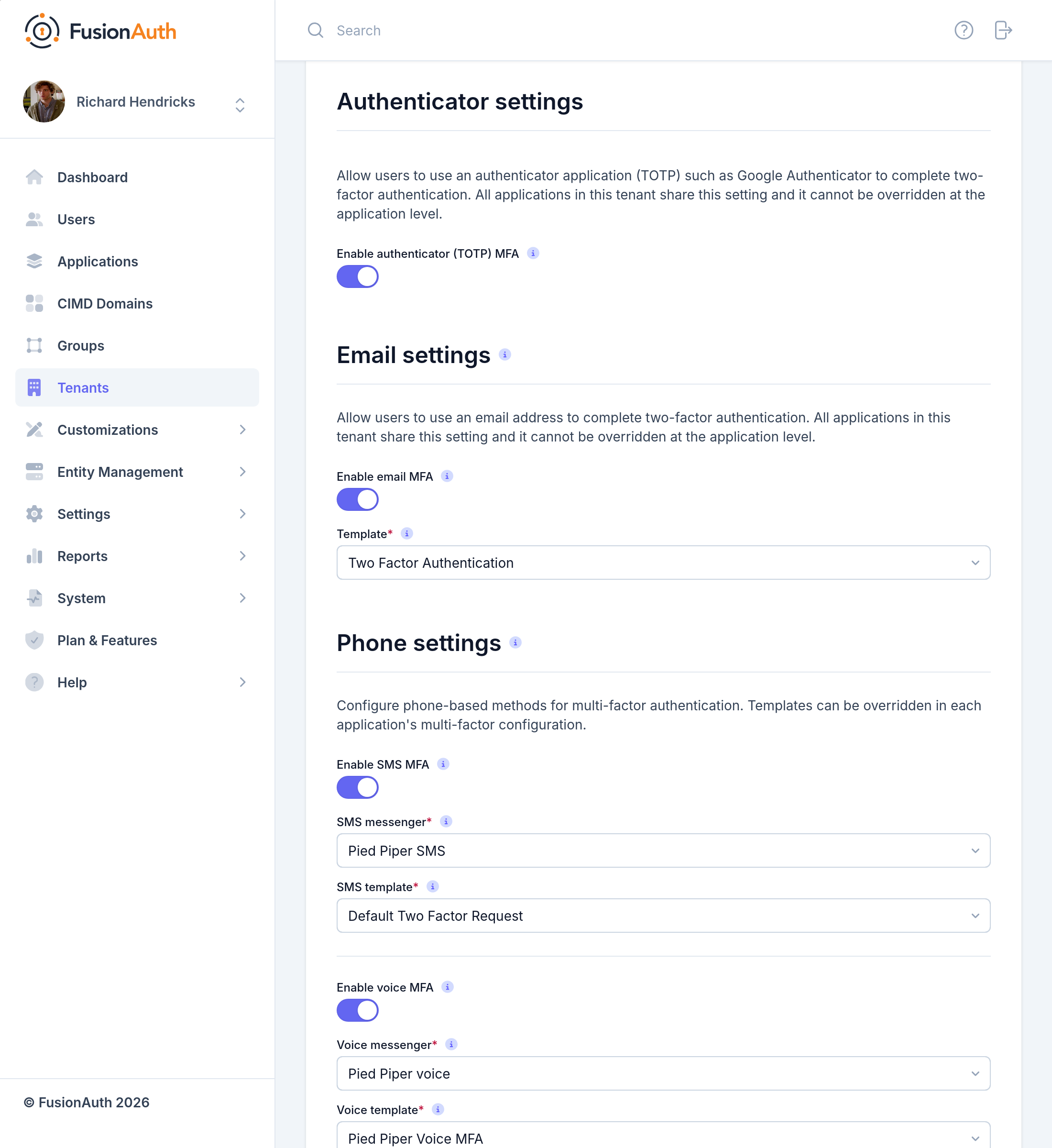
Turn on each method that users can add:
- For authenticator apps, turn on Enable authenticator (TOTP) MFA.
- For email, turn on Enable email MFA and select the Template.
- For SMS, turn on Enable SMS MFA and select the SMS messenger and the SMS template.
- For voice calls, turn on Enable voice MFA and select the Voice messenger and the Voice template.
-
Click .
Email, SMS, and voice require the Starter plan or higher. When the Tenant turns on both SMS and voice, a user with a phone method chooses SMS or voice at each login.
When you use only step-up authentication, turn on at least one method anyway. Without a method on the Tenant, the MFA Status API never requires a step-up.
To configure the Tenant with the API, set the tenant.multiFactorConfiguration fields on the Tenant API. For a full list of fields, see Multi-Factor in the Tenant reference.
Set the Login Policy#
The On login policy on the Tenant's Multi-Factor tab controls when FusionAuth asks for a second factor at login. The policy has the following values:
Enabled: FusionAuth asks for MFA when the user has an MFA method.Enabledis the default.Disabled: FusionAuth never asks for MFA at login, even when the user has an MFA method.Required: FusionAuth always asks for MFA. A user without an MFA method must add one before the login completes. Available in FusionAuth1.42.0and later.Challenge On Medium RiskandChallenge On High Risk: FusionAuth asks for MFA when Intelligent MFA rates the login as risky. Available in FusionAuth1.68.0and later, on the Starter plan or higher.
With the API, set tenant.multiFactorConfiguration.loginPolicy to Enabled, Disabled, Required, ChallengeOnMediumRisk, or ChallengeOnHighRisk.
Except under a risk-based policy, FusionAuth also skips the challenge for a device that the user trusted at an earlier login. While the policy isn't Disabled, the Tenant must keep at least one MFA method on. For the full decision logic, see Contextual Multi-Factor Authentication.
Set an Application Policy#
Application MFA policies require the Enterprise plan, with one exception. On any plan, you can require MFA for the Admin UI. Set the On login policy to Required at Applications -> FusionAuth -> Multi-Factor . Available since 1.49.0
An Application policy overrides the Tenant policy for logins to the Application. For example, an Application for administrators can require MFA, while an Application for customers turns MFA off.
-
Navigate to Applications and click on the Application.
-
Click the Multi-Factor tab.
-
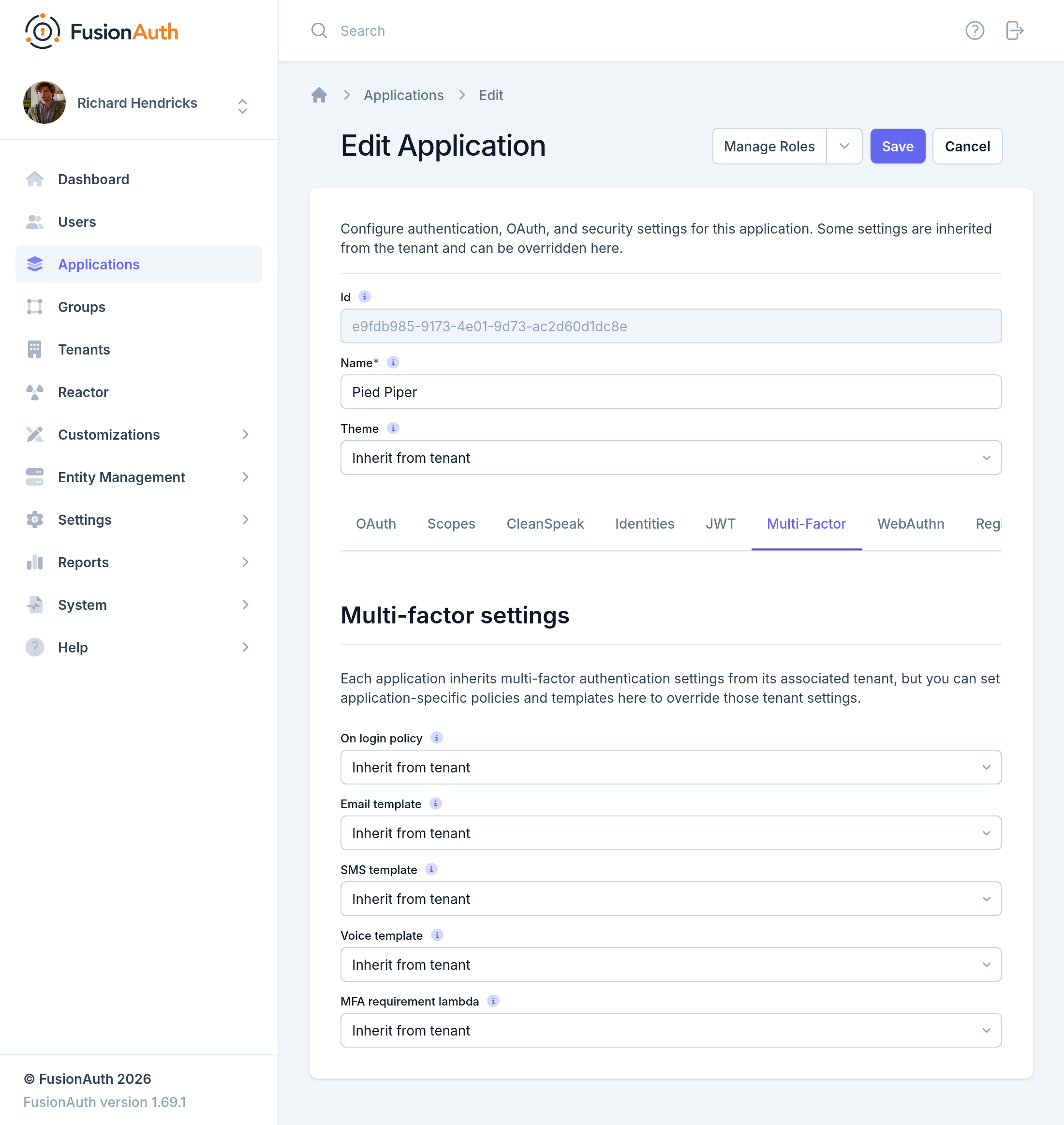
Select the On login policy.
-
When the policy is
EnabledorRequired, select the Trust policy. The trust policy decides whether an MFA challenge in another Application counts for this Application. -
Optionally, select templates to send codes for this Application instead of the Tenant templates.
-
Click .
For a full list of fields, see Multi-Factor in the Application reference. For examples of each trust policy, see Application MFA Configuration.
Change Code Lifetimes#
The Tenant sets how long each MFA code and identifier stays valid. Navigate to Tenants , click on the Tenant, and click the Advanced tab. The following durations apply to MFA:
- Two-Factor login: how long a user has to finish the MFA challenge at login.
- Two-Factor one-time code: how long a code to add or remove an MFA method stays valid.
- Two-Factor trust: how long a trusted device skips the MFA challenge.
- Trust token: how long a trust token stays valid.
The External identifier generation section on the same tab sets the length and character type of each code. For more information, see Advanced in the Tenant reference.
Related
Learn about the APIs for enabling and disabling multi-factor authentication for users.
Learn how to add MFA methods to a user with the account pages, the Admin UI, the Two-Factor APIs, or the User API.
Learn about multi-factor authentication (MFA) in FusionAuth, including the supported methods, recovery codes, and trust tokens.
API documentation for the FusionAuth Enable Multi-Factor API.