Self-service Registration
On this page
Self-service basic registration forms let you quickly and simply add signup functionality to your application.
What Are Basic Registration Forms#
Basic registration forms let you get user registration up and running quickly and simply with no coding required.
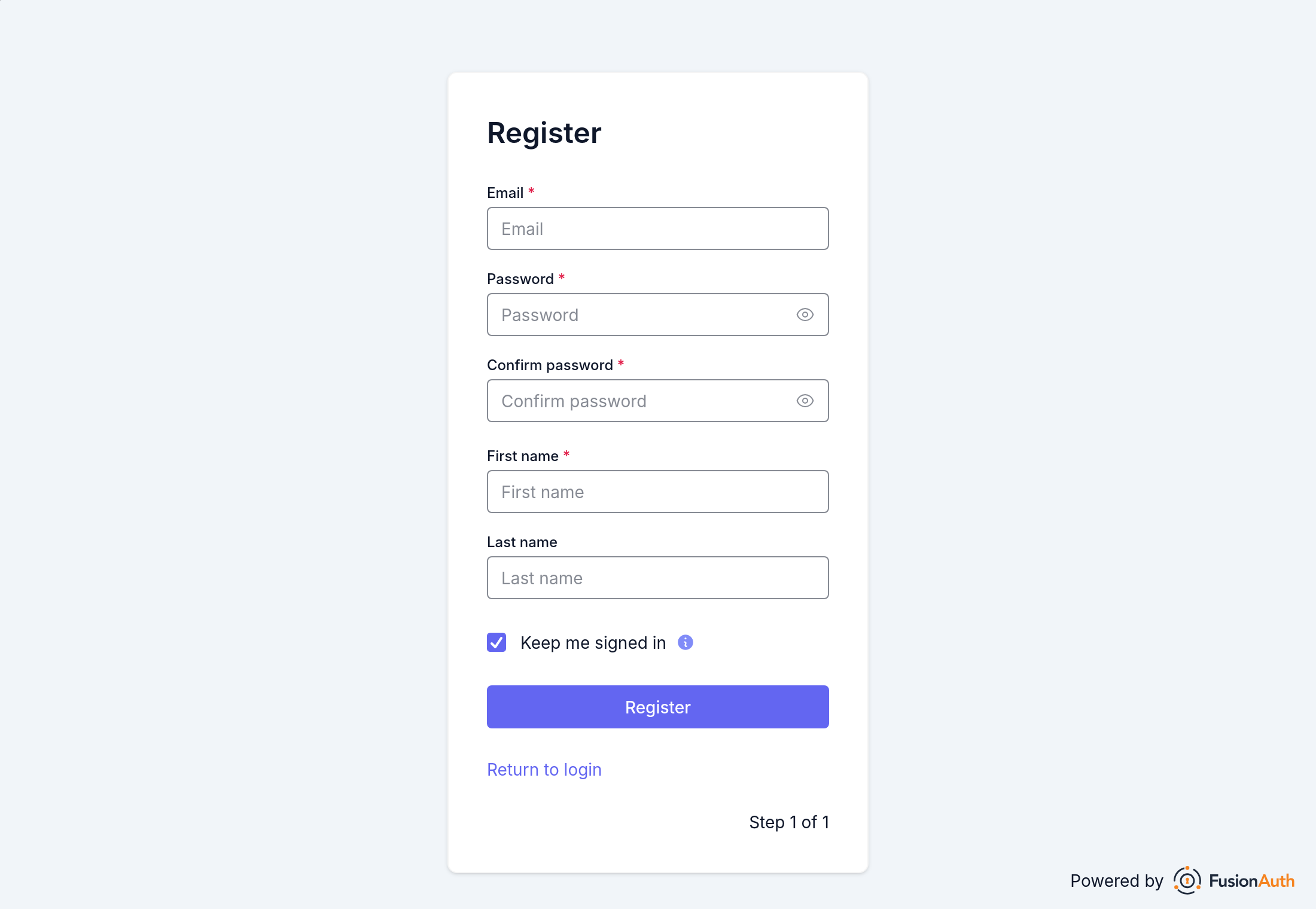
You might be interested in this feature if you have a straightforward registration process, where all you need are a few pieces of common user information to register a new user. Basic registration forms are a single step.
This is also called self-service registrationA feature that lets users create their own accounts., because visitors can create an account on their own, with no action required from you.
If you are building your own login and registration pages using the APIs, you can still use the basic registration setup in the Admin UI, but you will have to generate the user facing HTML from the configured form data and recreate any front end logic. You may want to consider using the themeable hosted login pagesThe login, registration, password recovery, and multi-factor authentication pages that FusionAuth serves. A Theme controls the look of the pages. instead.
Here's a video showing setup and use of the advanced registration formsForms that let you build multi-step registration and admin user management flows for your applications. feature.
How Do I Use Basic Registration Forms?#
To use basic registration forms, you must:
- Create an application.
- Enable and configure registration on the application.
Building a Basic Form Registration Flow#
Let's create a basic registration form for an application that requires:
- Password
- First name
- Optional last name
These fields are already available in the set of basic registration fields in every FusionAuth installation, and only need to have their Enabled and Required switches toggled.
We'll go through the entire process, from creating a new application in FusionAuth, to registering a new user.
Create a new FusionAuth Application#
In order to register a user, you must have first installed FusionAuth and created an Application.
A guide to getting started with installing FusionAuth is provided in the Getting Started Guide.
A tutorial for creating an Application is provided in the Applications Overview. Once the Application has been created, you can set up the basic registration options.
Configuring Basic Registration#
To set up Basic Registration, navigate to the Applications tab, and select the Edit icon to open the edit page.
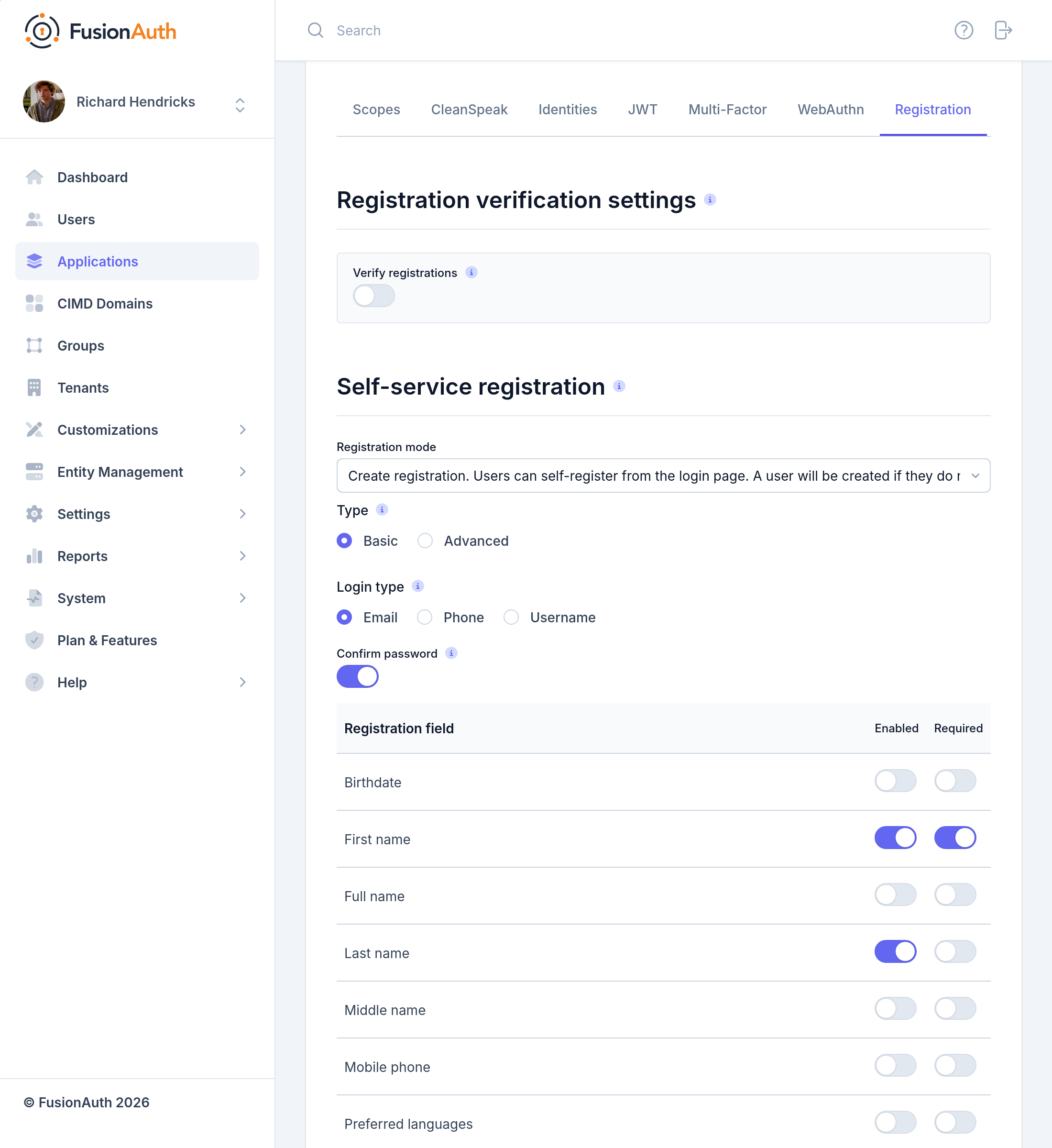
Then navigate to the Registration tab. Scroll down to the Self-service registration section. Set the Registration mode to Create registration.
The Type radio button should have Basic selected. Leave it on this setting.
You can toggle on the Confirm Password switch to ask the user to enter their password twice when creating an account to ensure it is captured correctly.
Leave the Login type radio button set on Email.
Then set the Registration Fields as follows:
- First name: Enabled and Required on.
- Last name: Enabled on and Required off.
Set all the other fields to Enabled off.
The settings should now look like this:
Register a User#
Now that the application has been configured, you can register a user. Navigate to the Applications list page. Click on the green button with the magnifying glass icon next to your application to open the details popup.
Scroll down to the Registration URL item, and copy the URL.
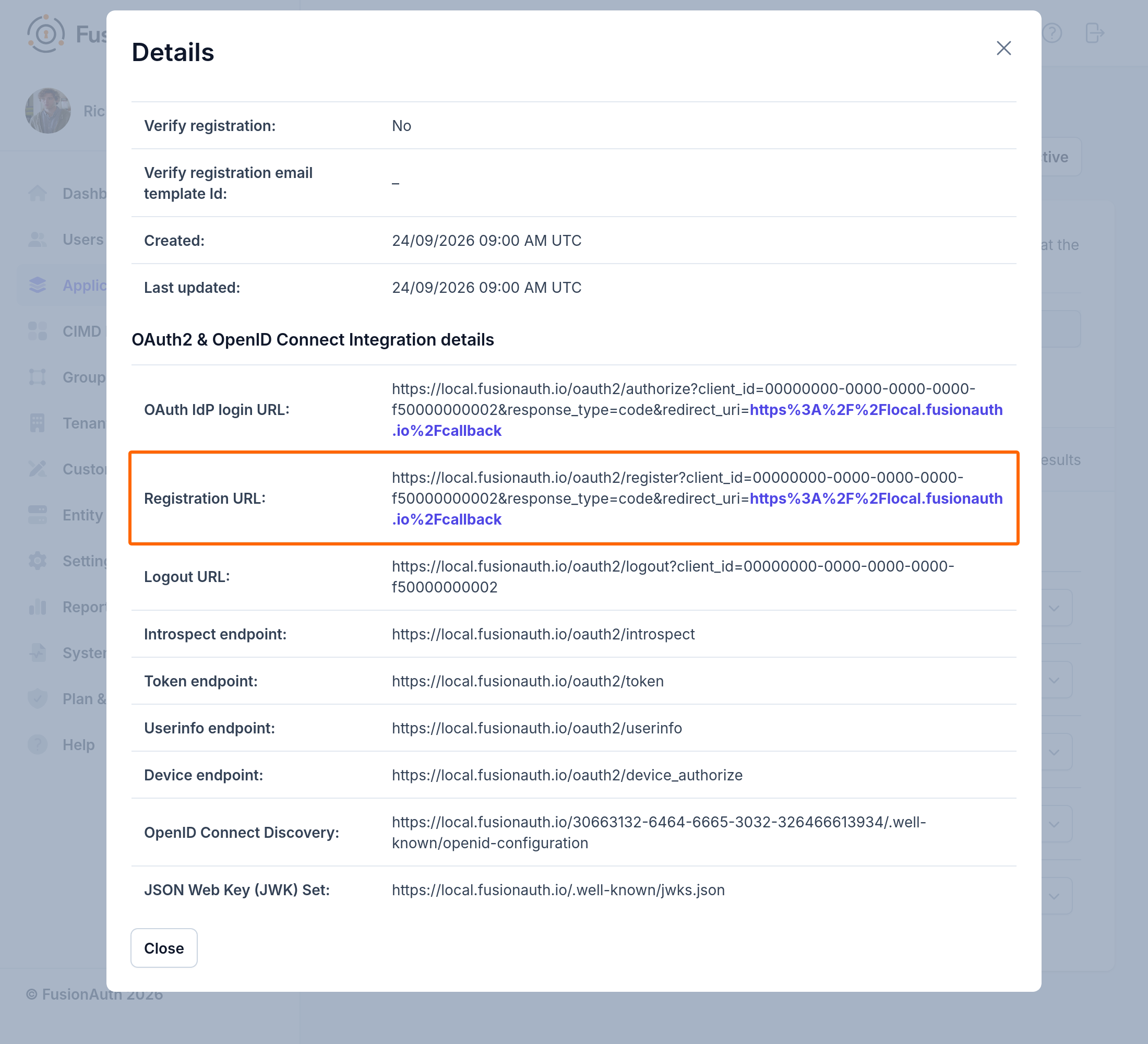
Open the URL in a new tab, and follow the instructions to register a user.
The page specified by the redirect_uri in the Registration URL is the page that your users will be redirected to when they click the Register button. This can be configured on the OAuth tab of the application. You can have more than one.
After registering, you should receive an email with a verification link. Click the link to verify the user.
View the User#
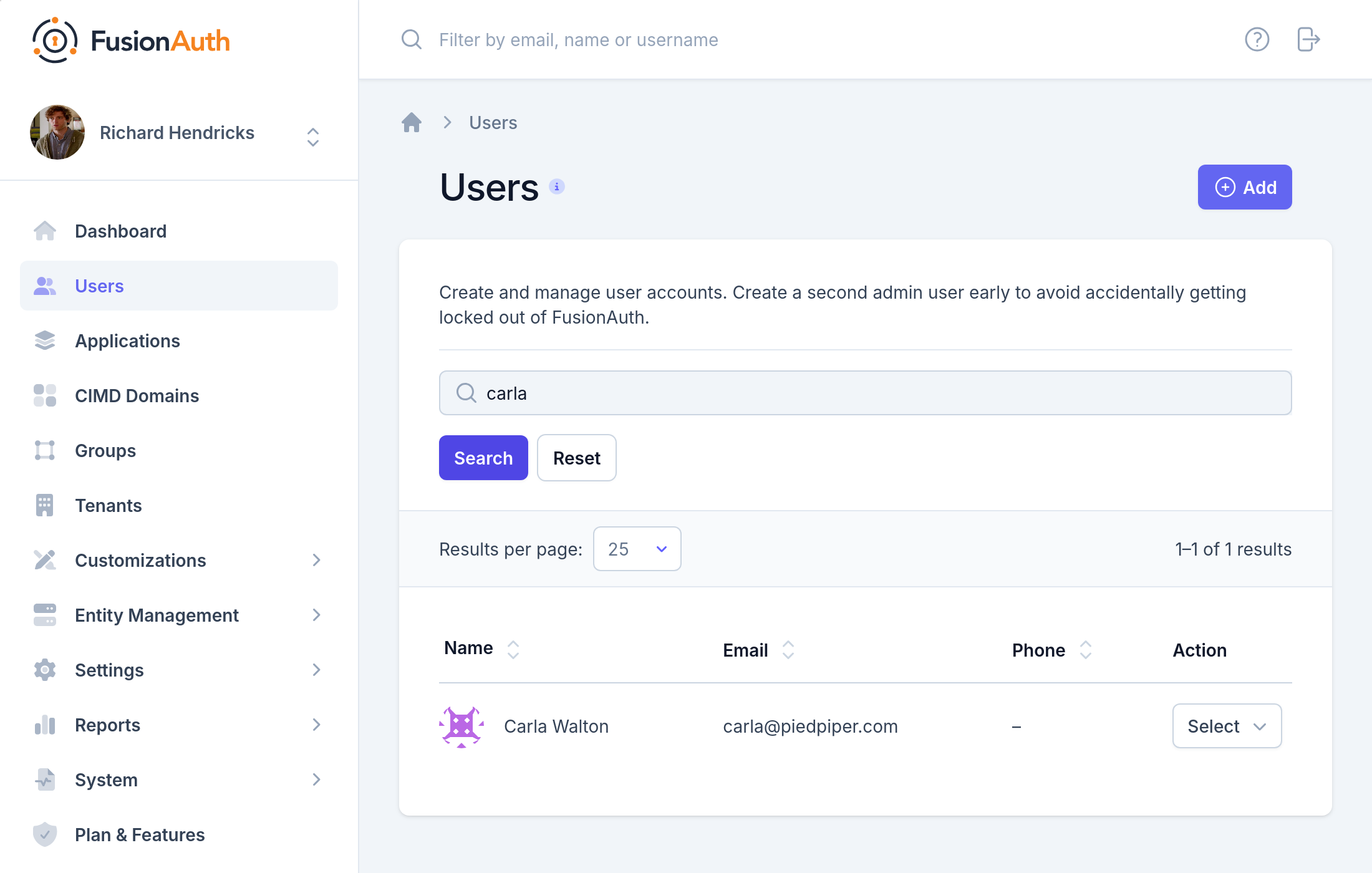
After you have registered a user, you can view the user in the FusionAuth user management interface. Navigate to the Users page in the sidebar.
You should see the newly registered user in the list.
Advanced Registration Forms#
Basic self-service registration can meet many requirements. Advanced self-service registration forms are a paid feature that allows a bit more flexibility including the ability to collect custom user data at registration and more.
This feature requires at least a Starter plan.
With advanced registration forms, in addition to allowing a user to register for an application, you can also:
- Collect additional profile data and store it in FusionAuth.
- Validate any field on the server in a variety of ways, including matching a regular expression.
- Use more complicated fields, such as consent and confirmation fields.
- Break a registration process into a series of less imposing steps.
A guide to setting up advanced registration forms is provided at Advanced Registration Forms.
Self-Service Registration and Registrations#
When an Application has Registration mode set to Create registration, a user without a RegistrationThe association between a User and an Application. for the Application can log in through the hosted login pagesThe login, registration, password recovery, and multi-factor authentication pages that FusionAuth serves. A Theme controls the look of the pages.. FusionAuth creates the Registration during the login and assigns the default roles of the Application.
Self-service registration applies only to the hosted login pages. The following logins don't create a Registration, even when Registration mode is Create registration:
- A login with the Login API. The Login API returns a
202status code and no refresh token. - A login with the Password GrantAn OAuth 2.0 grant type in which the user gives a username and password directly to the application. RFC 9700 forbids this grant.. FusionAuth returns tokens, but the user stays unregistered. For more information, see Users Without a Registration.
To register a user who logs in with an API, create the Registration from your server with the Registrations API. For more information, see Register a User and Log In.
A login through an Identity ProviderAn external system, such as Google or Microsoft Entra ID, that FusionAuth can use for authentication. can also create a Registration. When Create registration is on for the Application in the Identity Provider, FusionAuth creates the Registration for both hosted and API logins, with any Registration mode. When Create registration is off, only a hosted login to an Application in Create registration mode creates the Registration. For more information, see Applications and Overrides.
For example, a Tenant has the following Applications:
- Pied Piper Video Chat, with Registration mode set to
Create registration - Pied Piper Email Service, with self-service registration disabled
The user richard@piedpiper.com has an account in the Tenant, with no Registration for either Application. Richard logs in to Pied Piper Video Chat through the hosted login pages. FusionAuth creates a Registration for Pied Piper Video Chat. The access token contains the applicationId claim and the default roles.
Richard then logs in to Pied Piper Email Service. The login succeeds, because Richard has an account in the Tenant. FusionAuth creates no Registration, so the access token contains no roles and no applicationId claim.
For more information, see Authentication and Authorization.
Related
API documentation for the FusionAuth Register OAuth2 endpoint, which starts self-service user registration on the hosted pages.
Learn how users update their profile data and change their passwords on the self-service account pages.
Learn how to register, verify, manage, and provision users in FusionAuth.