Licensing
On this page
This page explains how to use a license with a FusionAuth instance.
For information about plans and corresponding features, see plans and features.
To access features that require a license, visit the account portal at account.fusionauth.io. In the account portal, you can register for a free Licensed Community plan or purchase a license for a Starter, Essentials, or Enterprise plan. For information about pricing, see our price calculator or contact our sales team.
Add Your License to Your Instance#
Here's a brief video documenting how to find and add your license to your instance if you have a paid plan.
Once a license is purchased you must activate it. To do so, log into your Account. Navigate to the Plan tab.
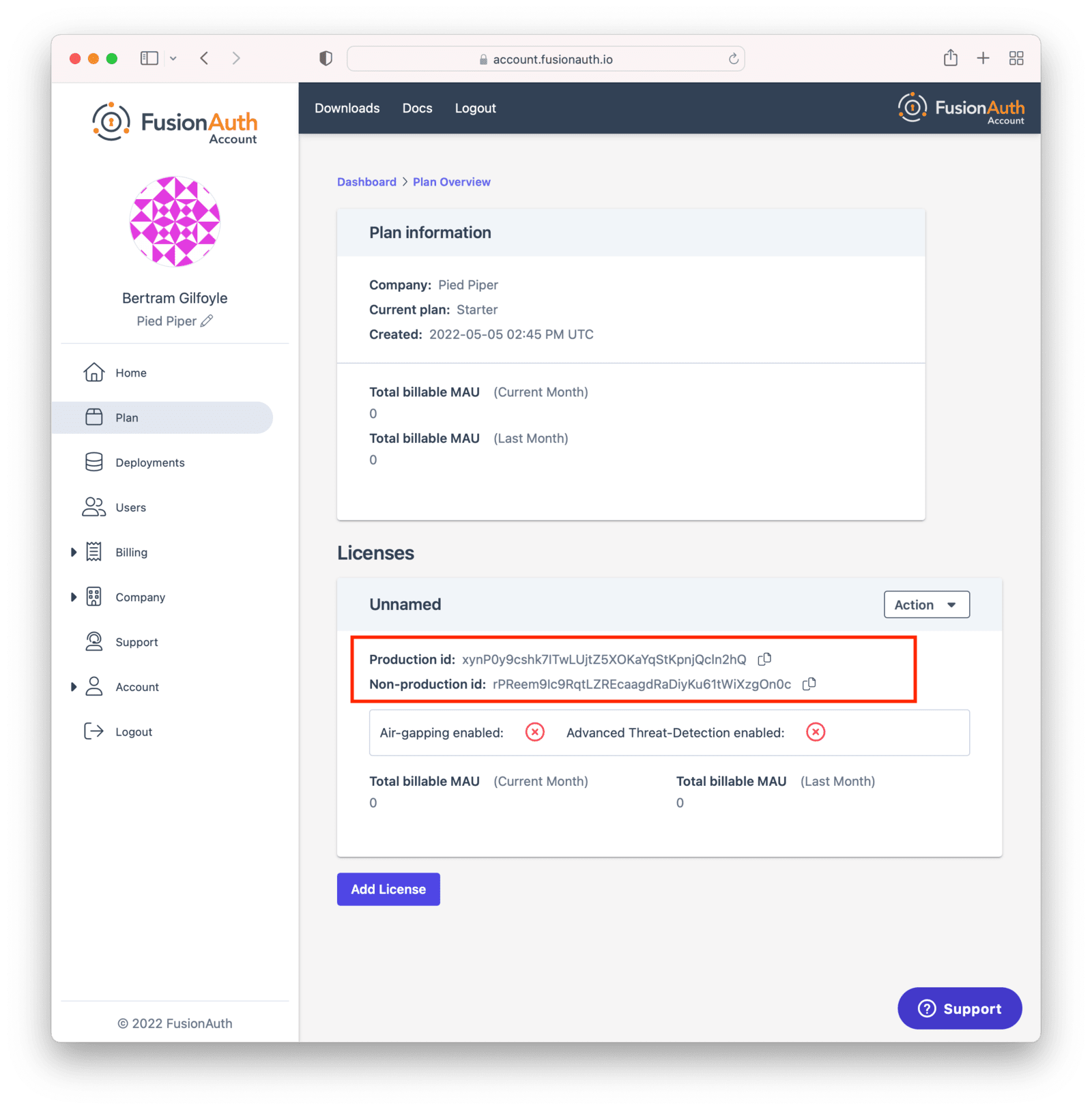
Copy the license keyThe key from the account portal that activates a paid or Licensed Community plan on a FusionAuth instance. Each plan includes a production key, which counts toward monthly active users, and a non-production key for development and testing. appropriate for your needs.
Use the "Production" license key for your production server. This will be used to calculate your monthly active usersThe number of unique users who are active in a month, for example by logging in or refreshing a token. FusionAuth bills paid plans by monthly active users. (MAU), which may affect your monthly bill. Learn more about MAU here. The other license key is suitable for non-production environments, such as user acceptance testing or development.
You can always find your license key by logging in to your Account and then navigating to the Plan tab. If you do not have a license key there, you are on the Community plan. In that case, no license is required.
After you have your license key, log in to the Admin UI of your FusionAuth instance. The Admin UI credentials have no connection to the credentials for your account portal. Navigate to Plan & Features , enter your license key in the License key field, and click Activate license .
To view the Plan & Features page, you need the admin or reactor_manager role in the FusionAuth application.
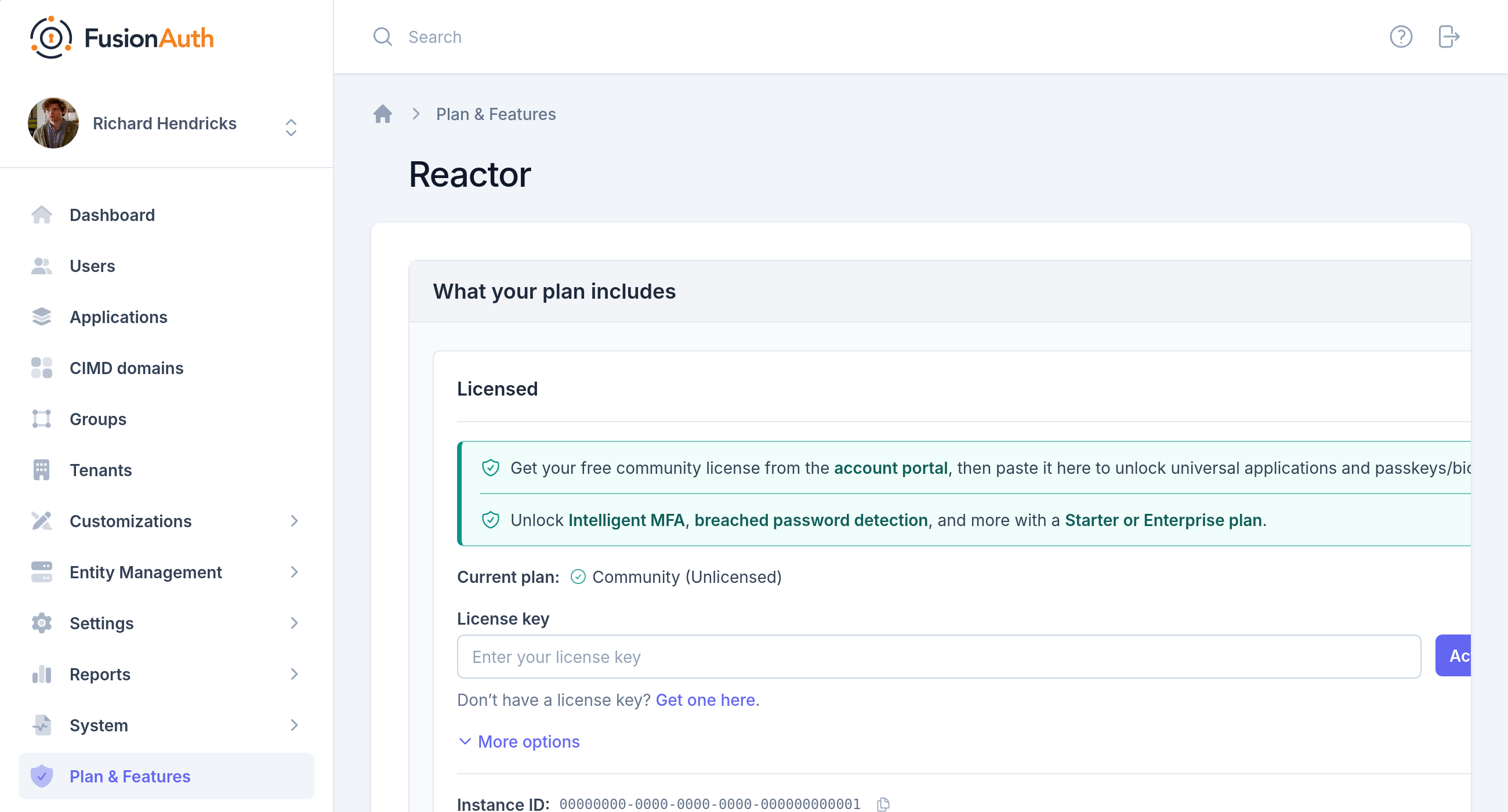
When your instance has no outbound network access, use an air-gapped license. Click More options , check I have an air-gap license, and paste the license text into the License text field. You can find the license text on the Plan tab of the account portal. For more information, see Air-Gapping.
After you activate the license, FusionAuth connects to FusionAuth's servers to confirm the license. Activation can take a minute or two, and you may need to refresh the page.
When activation finishes, Current plan shows your plan with a green checkmark. License type shows whether the license is a production or non-production license. The Features & support section lists each feature and whether your plan includes the feature. For the features in each plan, see Plans and Features.
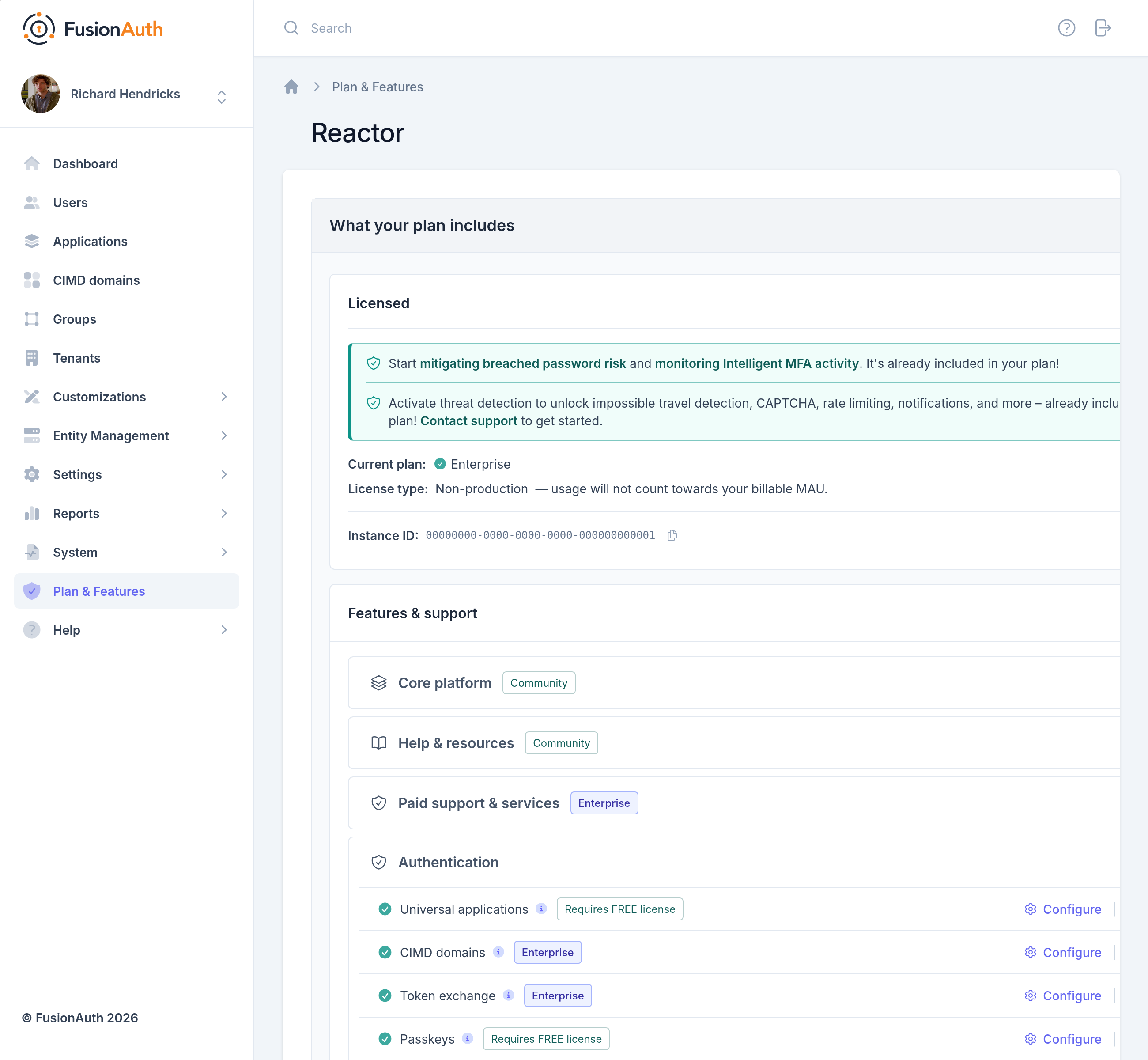
License Types#
There are two licenses, a production license and a non-production one. Use the production license on any system where real live users login. This will be tracked for purposes of MAU calculations, and will affect your monthly bill.
Non-production licenses are used for any other purpose: development, UAT, testing, CI/CD, etc. Any logins which occur on an instance with such a license will not be part of the MAU count.
Regenerate Your License#
You may want to regenerate your license for any number of reasons.
- It may be part of a regular secrets rotation system.
- You may have inadvertently exposed your license key.
You can do so using the Reactor API.
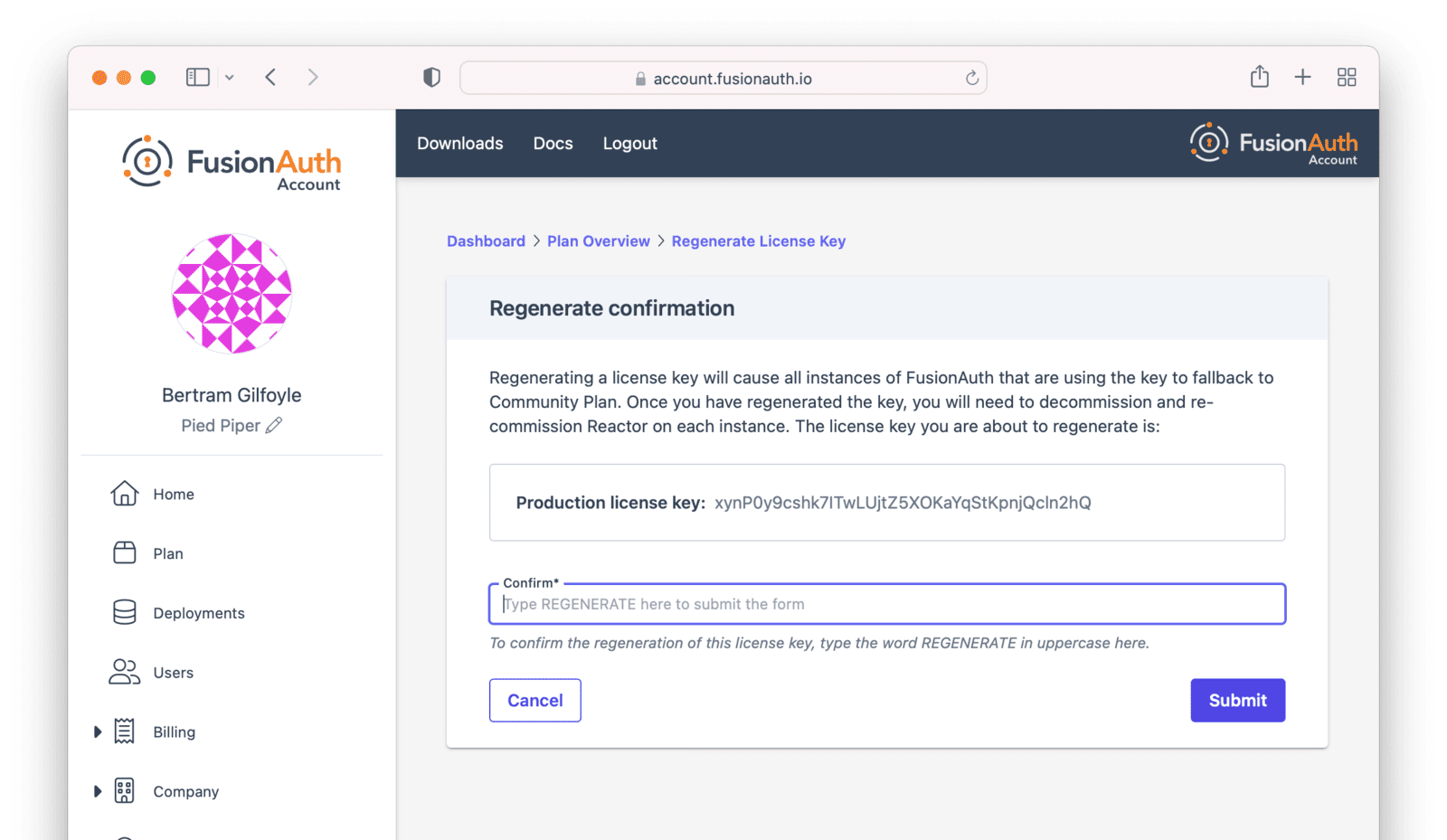
But you can also regenerate the license via the Plan tab. To do so, log into your Account. Then navigate to the Plan tab. Then click the Action button to display the dropdown.
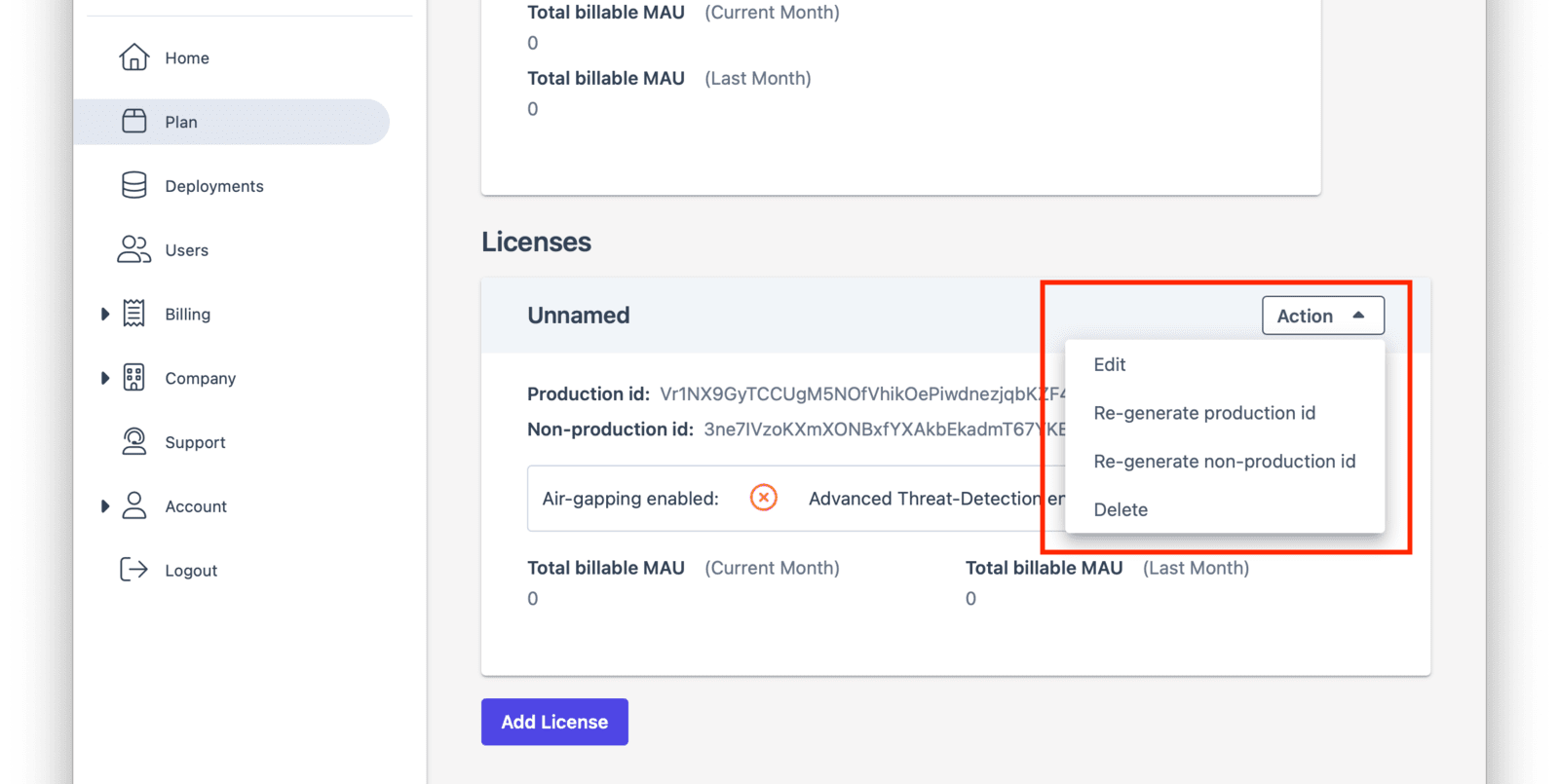
After you choose which license to regenerate, you'll be prompted to confirm your choice.
Deactivate Your License#
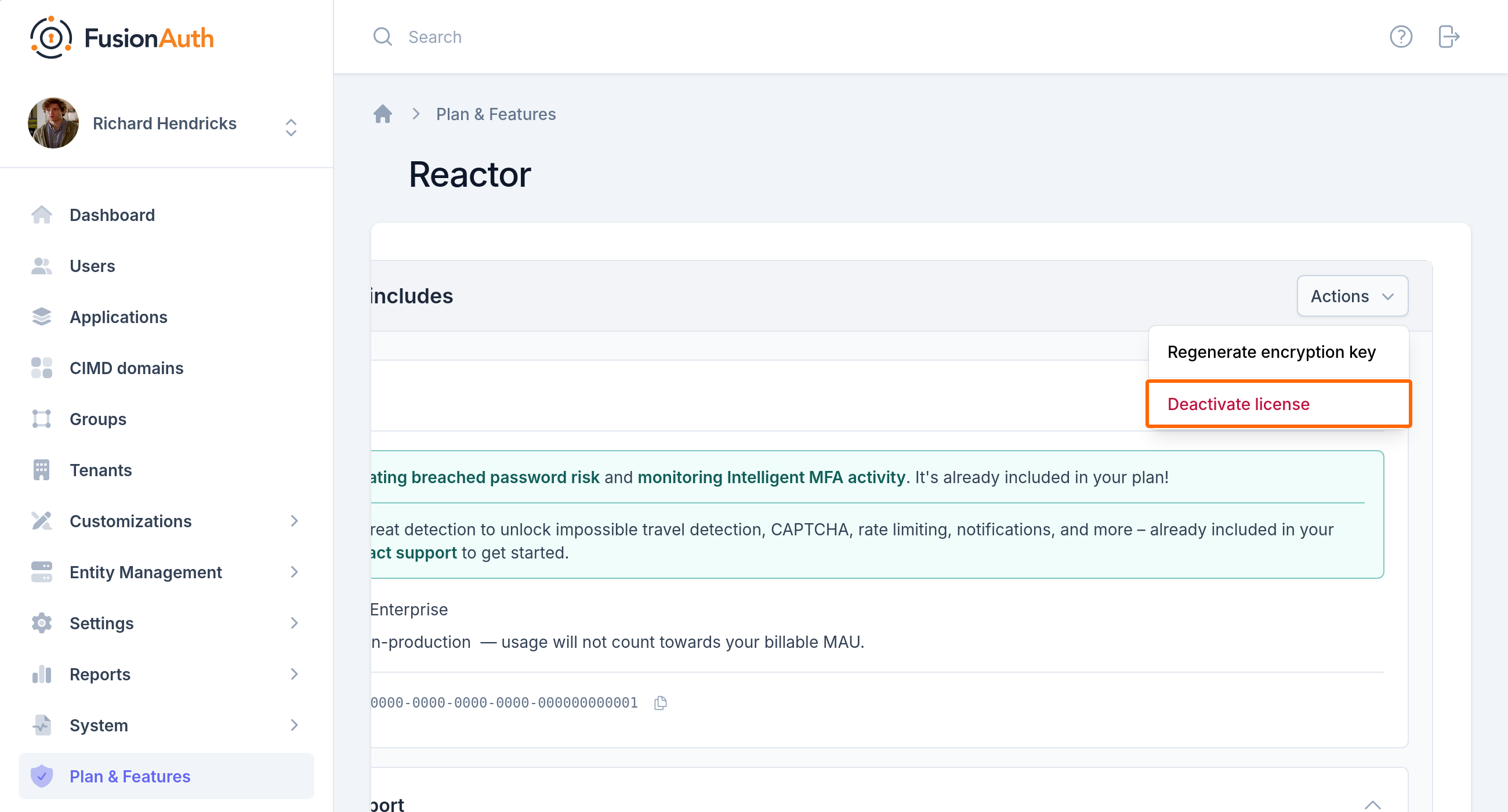
You may need to deactivate your license, such as when you rotate your license key or change your plan. To deactivate your license:
- In the Admin UI of your instance, navigate to Plan & Features .
- Click Actions -> Deactivate license .
- On the confirmation page, type
DECOMMISSIONin the Confirm field and click Save .
Deactivating your license disables premium functionality for the associated instance. This includes both using and managing that functionality. Any saved configurations aren't removed when the license is deactivated.
Deactivating a license affects only the specific instance. For example, you're running two instances of FusionAuth with the same license, one in Frankfurt, Germany and another in Iowa, USA. When you deactivate the instance in Frankfurt, the one in Iowa continues running with premium functionality.
For example, you enable SMS Multi-Factor Authentication (MFA) after activating the license for your tenant. Then, several users add MFA to their accounts. After deactivating your license:
- Users can't enable SMS MFA on their accounts.
- When logging in, users aren't prompted for a texted code.
- Administrators can't activate additional premium MFA methods.
Reactivating your license restores the ability of users to add MFA, the MFA check at login, and the ability of administrators to add other premium methods.
Activate, Deactivate, or Check License Status with the License API#
You can use the Reactor API to activate or deactivate your license.
You can also retrieve data on the license status of your instance, including whether specific features are enabled or disabled.
Kickstart#
You can set your license key using KickstartA file of API requests that FusionAuth runs on first startup to configure a new instance.. Doing so allows you to use features requiring a license in your development environment and continuous integration systems. To do this, use the non-production license key in your Kickstart files.
If you would like to set this value during Kickstart, set the value in a top level field called licenseId.
In this example there is a license key of eb7244dc-5d8e-40cd-a005-70b116fbda31.
{
  "licenseId": "eb7244dc-5d8e-40cd-a005-70b116fbda31"
}
Learn more about setting up Kickstart.
Air-gapped License#
You can run FusionAuth with limited or no network access with an air-gapped license. For more information, contact sales.
Active User Count#
Any user who logs in during the time period. It doesn't matter if they log in once or one thousand times. Learn more about what counts as a login here.
Other questions about licensing, MAU overages and certifications can be found in the License FAQ.