Plan a User Migration to FusionAuth
On this page
Plan the migration and set up FusionAuth before you move any users. The steps on this page apply to bulk, segment-by-segment, and slow migrations. For the differences between the migration types, see Migration Types.
Learn the FusionAuth Model#
FusionAuth names its objects differently from many systems. Learn the names first, so documentation searches and API code go faster. The following objects matter most for a migration:
- A TenantA logical container for Users, Applications, and settings that is isolated from other Tenants. contains users, applications, and groups.
- An Application has roles. Users authenticate to Applications and get authorized for Applications.
- A Group contains users and can grant roles.
- A Registration connects a user to an Application. You can create Registrations at the same time as the user.
Every object has a UUID Id. You can choose the Id when you create the object, as long as the Id is a valid UUID. To keep an old Id that isn't a UUID, store the old Id in user.data.
For more information, see How FusionAuth Works.
Evaluate FusionAuth#
Confirm that FusionAuth works with your applications before you plan the data migration. Install FusionAuth and build a prototype. The prototype answers the following questions:
- Which login method fits your applications.
- How to theme the hosted login pages to match your applications.
- Whether your applications read roles correctly. FusionAuth puts a user's roles in API responses and in the
rolesclaim of the JWT. - How your applications connect to FusionAuth's SAML, OAuth, and OIDC endpoints. The QuickStarts show integrations for many languages, and the client libraries wrap the APIs.
- Whether the FusionAuth registration form captures the data you need, when users register themselves.
- Whether social and enterprise Identity Providers, such as Google or SAML, work with your applications.
Inventory Your Data#
List the following for each data source:
- Where the data lives, and how to connect to the data.
- Who uses the data.
- Whether your applications can work while the authentication system is read-only.
- What the user and account data looks like.
- Special cases, such as SAML configuration. For more information, see Special Considerations.
- Which migration type fits.
Look for edge cases. Compare the required and optional fields of the old system with FusionAuth. FusionAuth needs little data: an email address, a username, or a phone number. A password is optional.
Map User Data#
The old system's fields rarely map one to one onto the FusionAuth User and Registration objects. Plan time to compare the old data with FusionAuth's fields. A spreadsheet helps.
Store fields without a FusionAuth equivalent in the data field of the User or the Registration. data holds arbitrary key-value data. Consider storing every original field in user.data. The original data then helps you find mistranslated fields after the migration, without access to the old system.
Decide what happens to unexpected data. You can set the record aside for review, drop the record as malformed, or skip only the unexpected fields. The right choice depends on your business and on the value of each account.
Plan for data tied to users, such as groups, application access, roles, and history. Find the source of each kind of data, decide whether to move the data, and decide where the data goes. FusionAuth can store this data, but another datastore sometimes fits better.
When you merge users from several systems, map the fields from every system.
Preserve User Ids#
Other systems often reference user Ids for auditing, analytics, and other purposes. Keep the Ids in one of the following ways:
- When the old Ids are valid UUIDs, set the same Id on each user that you import.
- Otherwise, store the old Id in
user.data, under a key such asoriginal_user_id. You can then search for a user by the old Id.
Plan for Passwords#
The migration type decides how passwords move:
- For a bulk or segment-by-segment migration, import the password hashes. When FusionAuth doesn't support the old hashing scheme, write a plugin. For more information, see Password Hashing Algorithms and Custom Password Hashing.
- For a slow migration, FusionAuth receives each password at the user's first login and hashes the password with the Tenant's scheme.
- When you have plaintext passwords, FusionAuth hashes the passwords during the import.
Example of a Data Mapping#
An old system stores the following user fields, in addition to an email address and a password:
fname: stringlname: stringdatebirth: stringphone_num: stringrole: string
The FusionAuth User has the following matching fields:
firstName: stringlastName: stringbirthDate: an ISO-8601 date stringmobilePhone: string
The mapping needs the following changes:
- Rename
fnametofirstNameandlnametolastName. - Parse
datebirthinto an ISO-8601 string forbirthDate. Use a date parsing library to handle edge cases in messy data. - Put
phone_numinmobilePhonewhen every number is a mobile number. Otherwise, store the number inuser.data, such as inuser.data.phone_num. - Put
roleon a Registration. FusionAuth stores roles on Registrations, because roles belong to Applications. Create the Registration with the user, and add the roles to the Registration.
Store data that stays the same across Applications on the User, such as the user's name and phone number. The following example shows a User request body:
{
  "user": {
    "active": true,
    "birthDate": "1976-05-30",
    "data": {
      "displayName": "Johnny Boy",
      "favoriteColors": [
        "Red",
        "Blue"
      ]
    },
    "email": "example@fusionauth.io",
    "encryptionScheme": "salted-sha256",
    "factor": 24000,
    "expiry": 1571786483322,
    "firstName": "John",
    "fullName": "John Doe",
    "imageUrl": "http://65.media.tumblr.com/tumblr_l7dbl0MHbU1qz50x3o1_500.png",
    "lastName": "Doe",
    "middleName": "William",
    "mobilePhone": "303-555-1234",
    "passwordChangeRequired": false,
    "preferredLanguages": [
      "en",
      "fr"
    ],
    "timezone": "America/Denver",
    "twoFactor": {
      "methods": [
        {
          "authenticator": {
            "algorithm": "HmacSHA1",
            "codeLength": 6,
            "timeStep": 30
          },
          "secret": "aGVsbG8Kd29ybGQKaGVsbG8gaGVsbG8=",
          "method": "authenticator"
        },
        {
          "method": "sms",
          "mobilePhone": "555-555-5555"
        },
        {
          "method": "email",
          "email": "example@fusionauth.io"
        }
      ]
    },
    "usernameStatus": "ACTIVE",
    "username": "johnny123"
  }
}
For the full list of fields, see the Users API.
Store data that belongs to the user's use of one Application on the Registration, such as roles or application-specific profile data. The following example shows a Registration request body:
{
  "registration": {
    "applicationId": "10000000-0000-0002-0000-000000000001",
    "data": {
      "displayName": "Johnny",
      "favoriteSports": [
        "Football",
        "Basketball"
      ]
    },
    "id": "00000000-0000-0002-0000-000000000000",
    "preferredLanguages": [
      "en",
      "fr"
    ],
    "roles": [
      "user",
      "community_helper"
    ],
    "timezone": "America/Chicago",
    "username": "johnny123"
  }
}
For the full list of fields, see the Registrations API.
Set Up FusionAuth#
After the evaluation, set up a production-ready instance. Decide where to host FusionAuth: self-host in any data center or cloud provider, or use FusionAuth Cloud. Also decide whether you need a support plan with guaranteed response times, or paid plan features.
Decide how to manage configuration changes, so later changes stay measured and reviewable. You can manage configuration with the FusionAuth Terraform provider, or script changes with a client library.
The exact configuration depends on your applications. To prepare FusionAuth for your users:
-
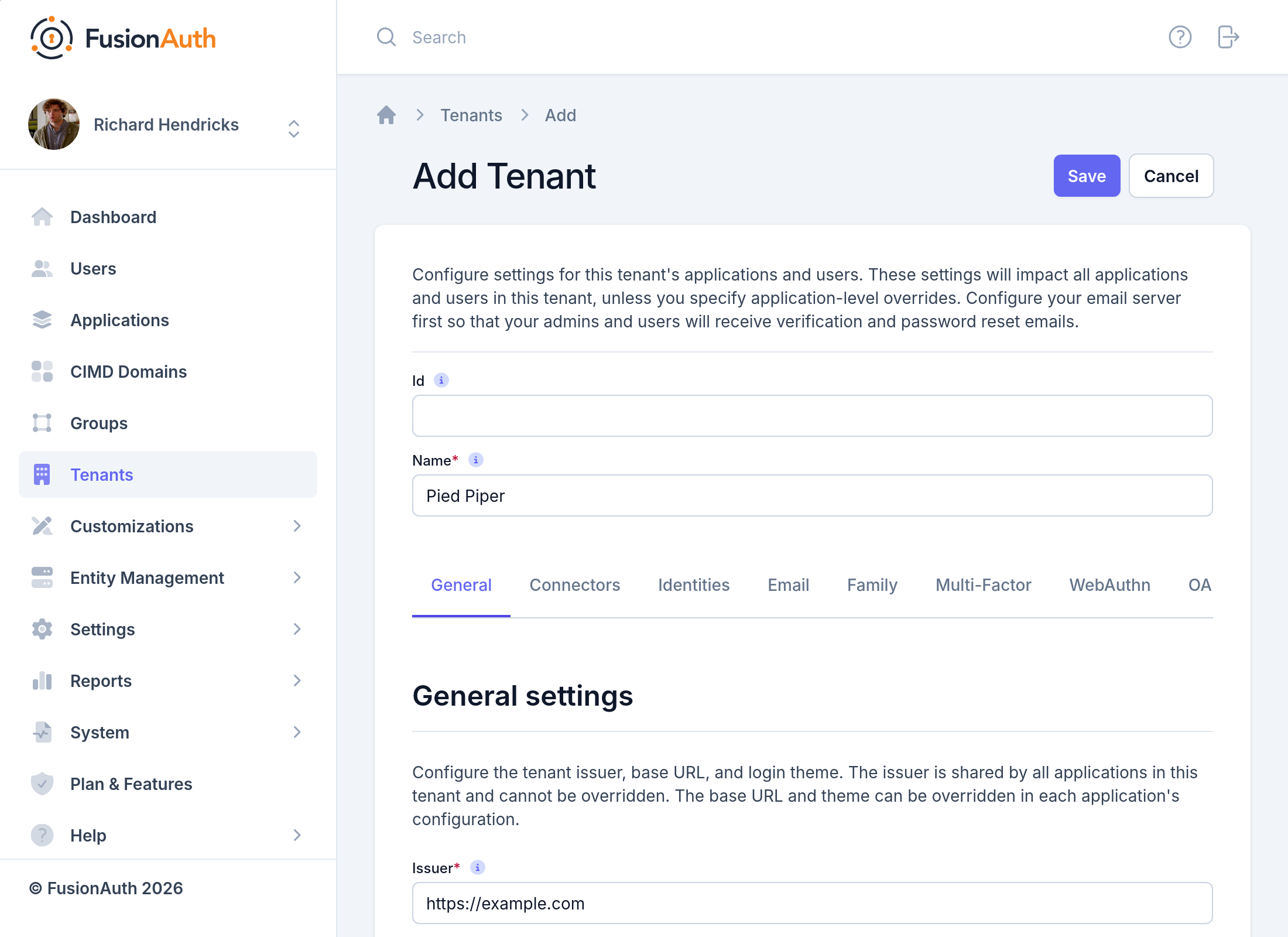
Create one or more Tenants. Separate Tenants let the same email address have different passwords, and let groups of users have different settings, such as themes or password rules. In the Admin UI, navigate to Tenants and click .
-
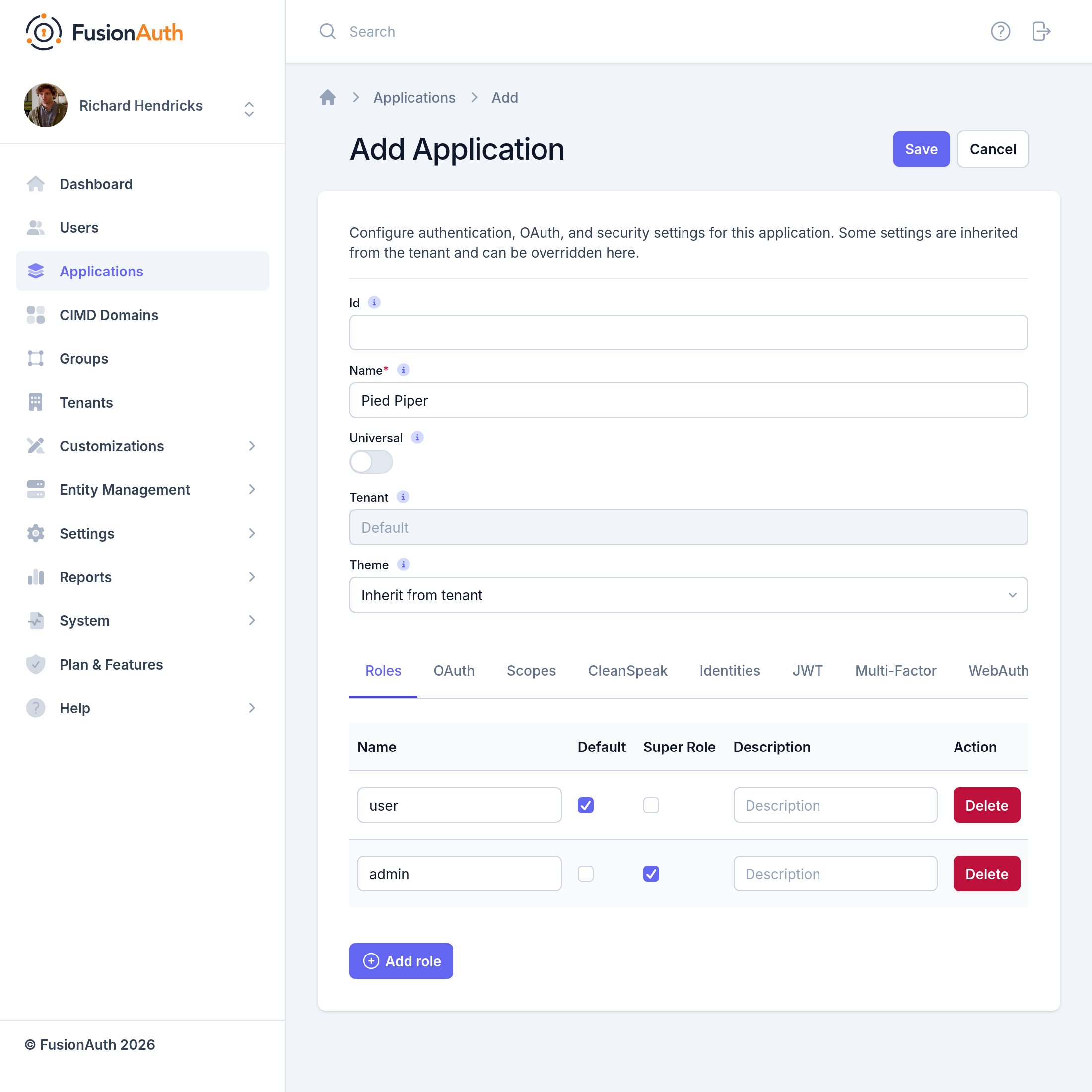
Create an Application for each application whose users you move, and add the roles that each Application needs. An Application is anything a user logs in to, such as an API, a commercial product, or a custom web application. In the Admin UI, navigate to Applications and click .
-
Map user attributes to the User and Registration objects, as described in Map User Data.
You can do every step with the APIs instead of the Admin UI. The APIs need an API key with the right permissions. For more information, see Managing API Keys.
When FusionAuth is ready, continue with Bulk Migration or Slow Migration.
Related
Learn how to import every user into FusionAuth at once with the Import Users API, including password hashes, social logins, and MFA.
Learn how to migrate users and password hashes from a custom authentication system to FusionAuth.
Learn how to import users into FusionAuth, move between FusionAuth Cloud and a self-hosted instance, and export data from FusionAuth.
API documentation for the FusionAuth Import Users API.