Migrate Users to FusionAuth Gradually With Connectors
On this page
This feature requires at least a Starter plan.
A slow migration moves each user into FusionAuth at the user's first login. FusionAuth passes the login to the old system through a Connector, and creates the user from the old system's response. To decide whether a slow migration fits, see Migration Types.
Before you start, complete the following:
- Plan the migration and set up FusionAuth. For more information, see Plan a Migration.
- Switch FusionAuth to the Elasticsearch search engine. The progress query on this page searches
user.data, and the database search engine can't searchuser.data. For more information, see Switch Search Engines.
Set a Finish Line#
A slow migration rarely moves every user. Some users log in rarely, and others abandoned their accounts. However long the migration runs, some users won't log in, so decide in advance what "done" means. Consider the following questions:
- How often do users log in?
- Does a long tail of users visit less often than the average user?
- Do seasons or holidays change how many users log in?
- What happens when a user can't log in? Consider business, compliance, legal, and security concerns.
- Is a lost login an annoyance or a disaster?
- How will you handle the users who haven't moved when the migration ends?
- How hard is running FusionAuth and the old system at the same time?
- How valuable is a user who hasn't logged in for six months? A year? Three years?
From the answers, set a goal for the share of migrated users, the length of the migration, or both. Without a goal, you can't tell when to stop. Decide how often you'll compare the count of migrated users with the goal.
Migration Timeline#
Share a migration timeline with everyone the migration affects.
You can calculate a timeline by knowing the following:
- How frequently the average user logs in
- What the distribution of your users' login behavior is
- What your migration goal is
Determining these values precisely is beyond the scope of this guide. However, a good rule of thumb is to determine how often your average user logs in to your application. Then you can use this formula to find out when a certain percentage of users have migrated: S = [(1 - (1 - P)^D)*100]%.
Breaking that equation down, you have:
Pis the probability of any single user authenticating in a given day. So if your users log in once a week on a business day, it is 0.2 (one out of five days). If they log in once a year, it is 0.0027 (one out of 365 days).Dis the number of days of the migration period.Sis the percentage of users who have migrated.
For P = 0.2 and D = 10, S = 89%. Therefore, if your users log in one out of every five days, in ten days almost nine out of ten will be migrated to FusionAuth.
For P = 0.0027 and D = 370, S = 63.7%; if your users log in once a year on average, in about a year, almost two thirds of accounts will be migrated to FusionAuth.
Using the above calculations should help you estimate the duration of a migration.
Connect to the Original System#
FusionAuth contacts the old system whenever a user that FusionAuth doesn't know logs in. The connection is an LDAP call or an HTTP request:
- When the old user store is an LDAP directory, such as Active Directory or OpenLDAP, use an LDAP Connector. FusionAuth talks to LDAP servers directly.
- Otherwise, build an HTTP API for a Generic Connector, in any language that returns JSON.
A Generic Connector's API receives a login request and authenticates the user against the old user store. The request looks like the following:
{
  "applicationId": "10000000-0000-0002-0000-000000000001",
  "eventInfo": {
    "ipAddress": "127.0.0.1"
  },
  "loginId": "example@fusionauth.io",
  "loginIdTypes": [
    "email"
  ],
  "newDevice": false,
  "noJWT": false,
  "password": "password"
}
When the credentials match, the API returns a FusionAuth User object with a 200 status code. When the user doesn't exist or the credentials don't match, the API returns a 404 status code. The following example shows a full response:
{
  "user": {
    "active": true,
    "birthDate": "1976-05-30",
    "data": {
      "displayName": "Johnny Boy",
      "migrated": true,
      "favoriteColors": [
        "Red",
        "Blue"
      ]
    },
    "email": "example@fusionauth.io",
    "expiry": 1571786483322,
    "firstName": "John",
    "fullName": "John Doe",
    "id": "00000000-0000-0001-0000-000000000000",
    "imageUrl": "http://65.media.tumblr.com/tumblr_l7dbl0MHbU1qz50x3o1_500.png",
    "lastLoginInstant": 1471786483322,
    "lastName": "Doe",
    "middleName": "William",
    "mobilePhone": "303-555-1234",
    "passwordChangeRequired": false,
    "passwordLastUpdateInstant": 1471786483322,
    "preferredLanguages": [
      "en",
      "fr"
    ],
    "registrations": [
      {
        "applicationId": "10000000-0000-0002-0000-000000000001",
        "data": {
          "displayName": "Johnny",
          "favoriteSports": [
            "Football",
            "Basketball"
          ]
        },
        "id": "00000000-0000-0002-0000-000000000000",
        "insertInstant": 1446064706250,
        "lastLoginInstant": 1456064601291,
        "preferredLanguages": [
          "en",
          "fr"
        ],
        "roles": [
          "user",
          "community_helper"
        ],
        "username": "johnny123",
        "usernameStatus": "ACTIVE",
        "verified": true,
        "verifiedInstant": 1698772159415
      }
    ],
    "timezone": "America/Denver",
    "tenantId": "f24aca2b-ce4a-4dad-951a-c9d690e71415",
    "twoFactor": {
      "methods": [
        {
          "authenticator": {
            "algorithm": "HmacSHA1",
            "codeLength": 6,
            "timeStep": 30
          },
          "id": "35VW",
          "method": "authenticator"
        },
        {
          "id": "V7SH",
          "method": "sms",
          "mobilePhone": "555-555-5555"
        },
        {
          "email": "example@fusionauth.io",
          "id": "7K2G",
          "method": "email"
        }
      ]
    },
    "usernameStatus": "ACTIVE",
    "username": "johnny123",
    "verified": true,
    "verifiedInstant": 1698772159415
  }
}
The response can leave out most fields. A migrated user needs a UUID in user.id, plus user.email, user.username, or user.phoneNumber. Leave out the password. FusionAuth hashes the password from the login with the Tenant's password settings.
Set user.data.migrated to true, as in the example. The flag marks the user as migrated, so you can count migrated users later.
For more information, see Generic Connector.
Configure the Connector#
In the Admin UI, navigate to Settings -> Connectors and add a Connector. To configure Connectors with the API instead, see the Connectors API.
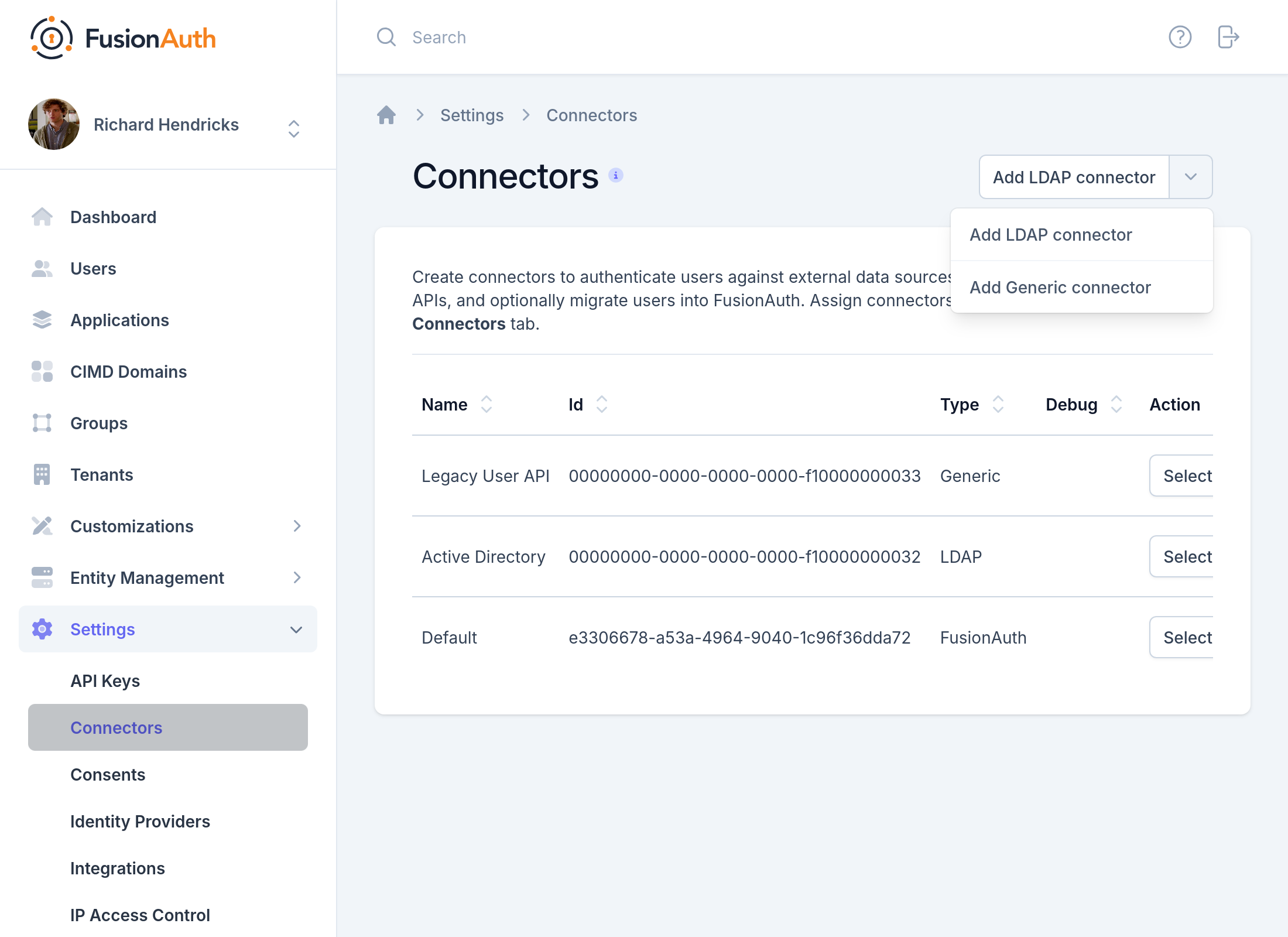
The configuration depends on the Connector type.
LDAP Connector#
Configure the server URL, the connection security, such as LDAPS or STARTTLS, and a system account that can query every account in the directory or in the part of the directory you migrate. List the user attributes to query and return.
Map each LDAP attribute to the FusionAuth User with an LDAP Connector Reconcile lambda:
// maps OpenLDAP attributes to the user and LDAP groups to application roles
var applicationId = 'replace-with-your-application-id';
var rolesByGroup = {
  'cn=engineering,ou=groups,dc=example,dc=com': 'user',
  'cn=admins,ou=groups,dc=example,dc=com': 'admin'
};

function reconcile(user, userAttributes, context) {
  // entryUUID is an operational attribute, so add it to the requested attributes
  user.id = userAttributes.entryUUID;
  user.active = true;
  user.username = userAttributes.uid;
  user.email = userAttributes.mail;
  user.fullName = userAttributes.cn;

  // uncomment to tag users while migrating
  // user.data = { migrated: true };

  // one value arrives as a string, several as an array
  var groups = [].concat(userAttributes.memberOf || []);
  var roles = [];
  groups.forEach(function (dn) {
    var role = rolesByGroup[dn.toLowerCase()];
    if (role && roles.indexOf(role) === -1) {
      roles.push(role);
    }
  });
  user.registrations = [{ applicationId: applicationId, roles: roles }];
}
Uncomment the lines that set user.data.migrated to true, so you can count migrated users later. For more information, see LDAP Connector.
Generic Connector#
Configure the URL of your API and the security settings. A Generic Connector has no lambda. Your API maps the old data to the FusionAuth User instead.
Protect the API with TLS and other security measures, because FusionAuth sends plaintext passwords to the API. For more information, see Generic Connector.
Test the Connector#
Log in as test users from the old system. To automate the test with the Login API, do the following for each test user:
- Confirm that the user doesn't exist in FusionAuth.
- Log the user in.
- Confirm that the user now exists in FusionAuth with the expected values, including
user.data.migrated.
Add the Connector Policy#
A Connector policy sends logins in a Tenant to a Connector. To add a policy:
-
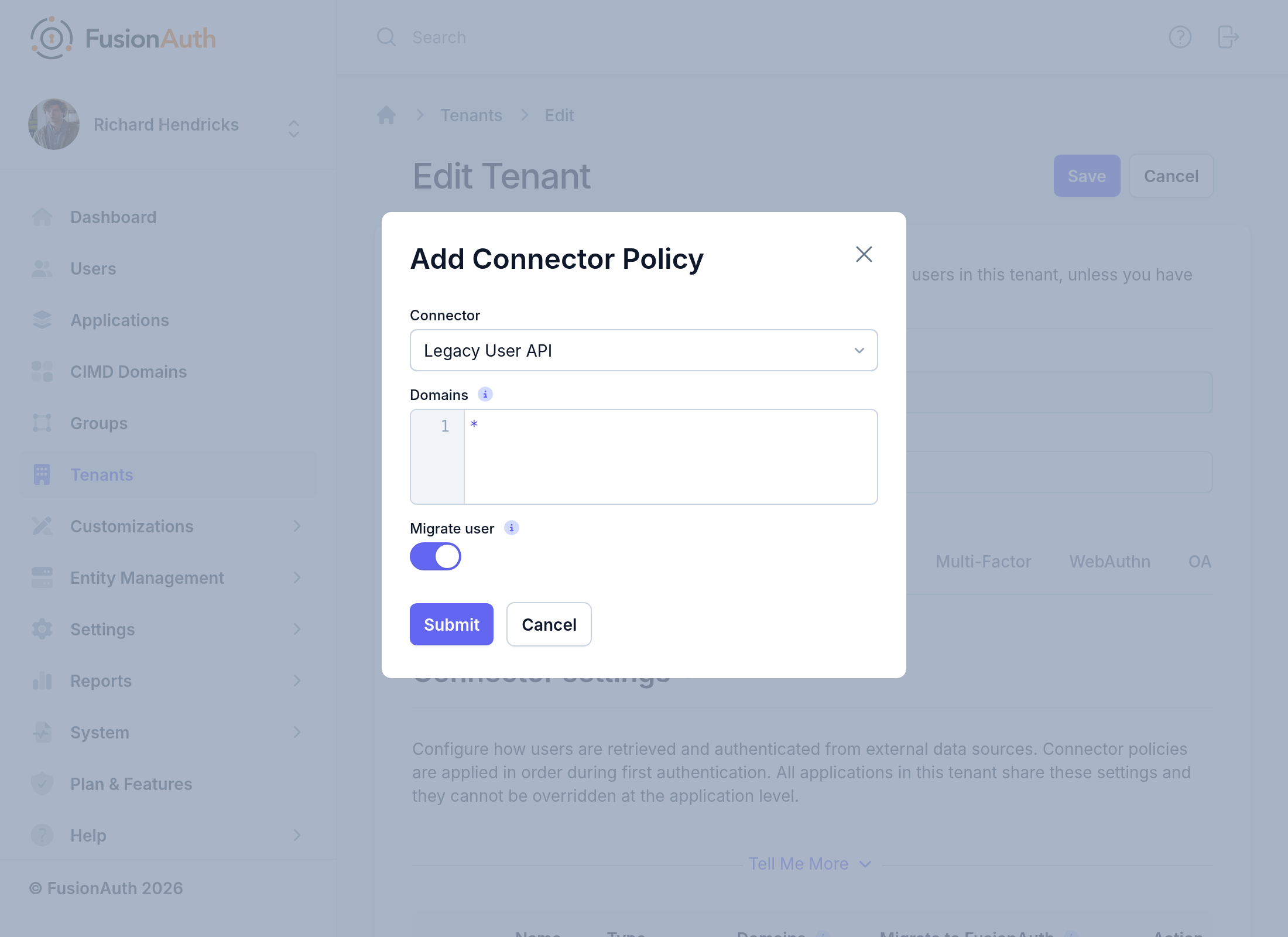
In the Admin UI, navigate to Tenants -> Your Tenant -> Connectors .
-
Add a Connector policy, and select your Connector.
-
Turn on Migrate user.
-
Save the Tenant.
FusionAuth then authenticates each user against the old system at the user's first login, and copies the user's data into FusionAuth. Later logins authenticate against FusionAuth. For more information, see Connector Policies.
Update Your Applications#
A slow migration has no long outage. After you configure and test the Connector, release the changes that send users to FusionAuth for authentication. Record the number of accounts in the old system just before the cutover.
Users then move into FusionAuth as they log in.
To roll back, revert the application changes. When users changed profile data in FusionAuth, copy the changes back to the old system. A script that uses the Users API is a starting point.
Monitor Progress#
Compare the number of migrated users in FusionAuth with the number of accounts in the old system at the cutover. The ratio tells you when to end the migration. To count migrated users, search for user.data.migrated:
API_KEY=...
FA_HOST=...
curl -H "Authorization: $API_KEY" "$FA_HOST/api/user/search?queryString=data.migrated%3Atrue&accurateTotal=true"
The total field of the response holds the count:
{"total":629,"users": [ ... ] }
End the Migration#
When the migration reaches the goal, remove the Connector policy from the Tenant. All later logins authenticate against FusionAuth only.
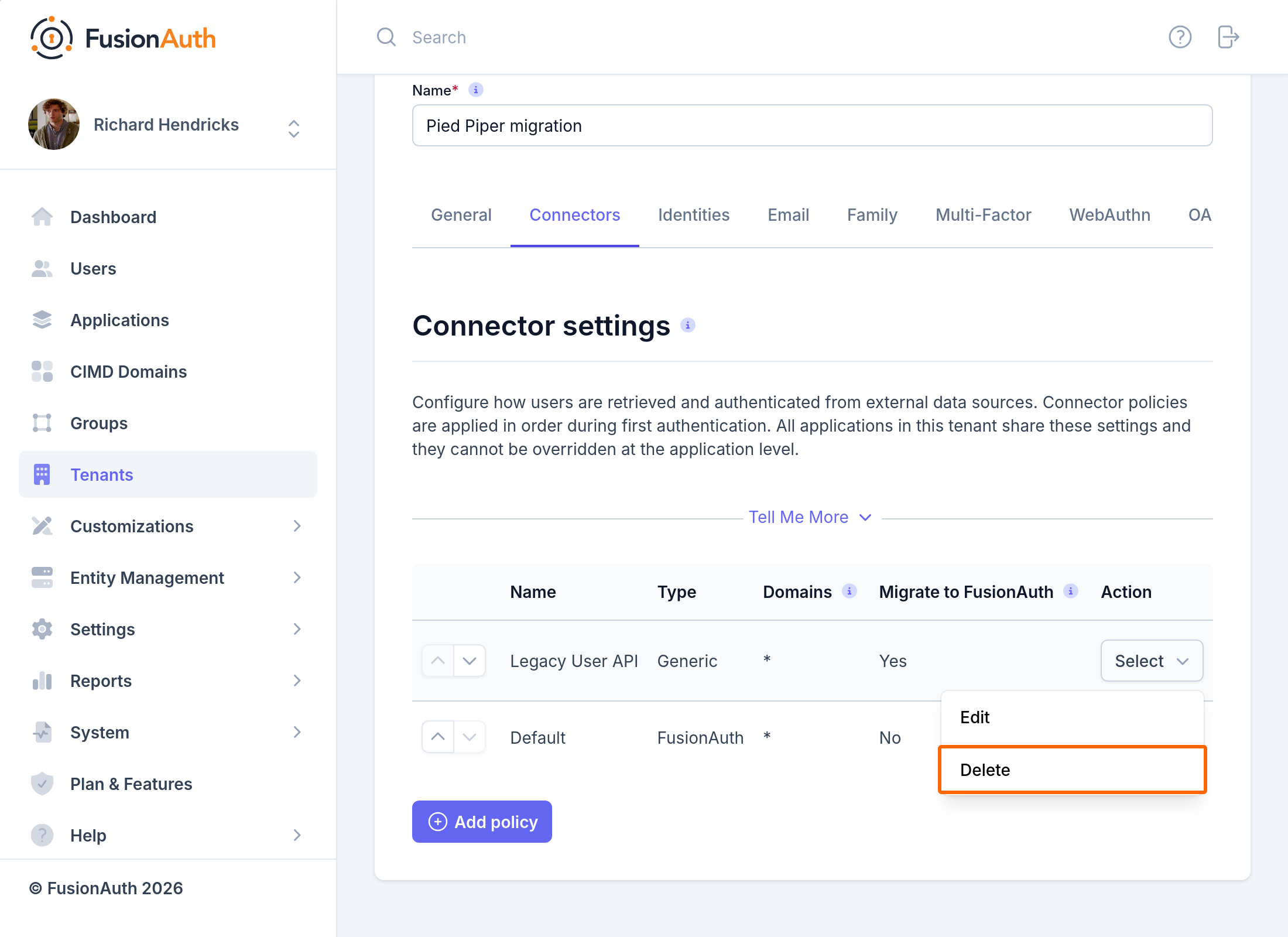
You can also delete the Connector.
Handle Unmigrated Users#
To find the users who didn't move, subtract the migrated users from the old system's users. Alternatively, query the old system for users who haven't logged in since the migration started.
Choose how to handle these users. You can combine the following options:
-
Ask the users to log in before a deadline, with a message such as the following:
If you don't log in by DATE, your account will be deleted. -
Archive or delete the accounts and their data. A user who returns later has no account, must register again, and loses the old data.
-
Move the remaining users with a bulk migration.
-
Set a new goal, and keep the slow migration running.
For example, you could move every paying customer with a bulk migration, and archive the free accounts. Free users may have only tried your application, and may have forgotten the account.
Forgot Password During a Slow Migration#
A user who forgets a password during a slow migration may or may not exist in FusionAuth yet. FusionAuth can't tell an unmigrated user from a user that doesn't exist. To prevent account enumeration, FusionAuth shows the same message either way, and doesn't reveal whether an account exists:
We have sent a message to you@example.com containing a link that will allow you to reset your password. Once you receive the message follow the instructions to change your password.
FusionAuth sends the message only to a migrated user. An unmigrated user never gets the message.
To help unmigrated users, change the message to point users to customer service. Change forgot-password-message-sent in your theme's messages. For more information, see Localization. For example:
We have sent a message to %s containing a link that will allow you to reset your password. If you don't receive the message, check your spam folder or contact customer service.
Give users a link to a form, a phone number, or another way to reach customer service. A customer service representative can check whether the user has moved:
-
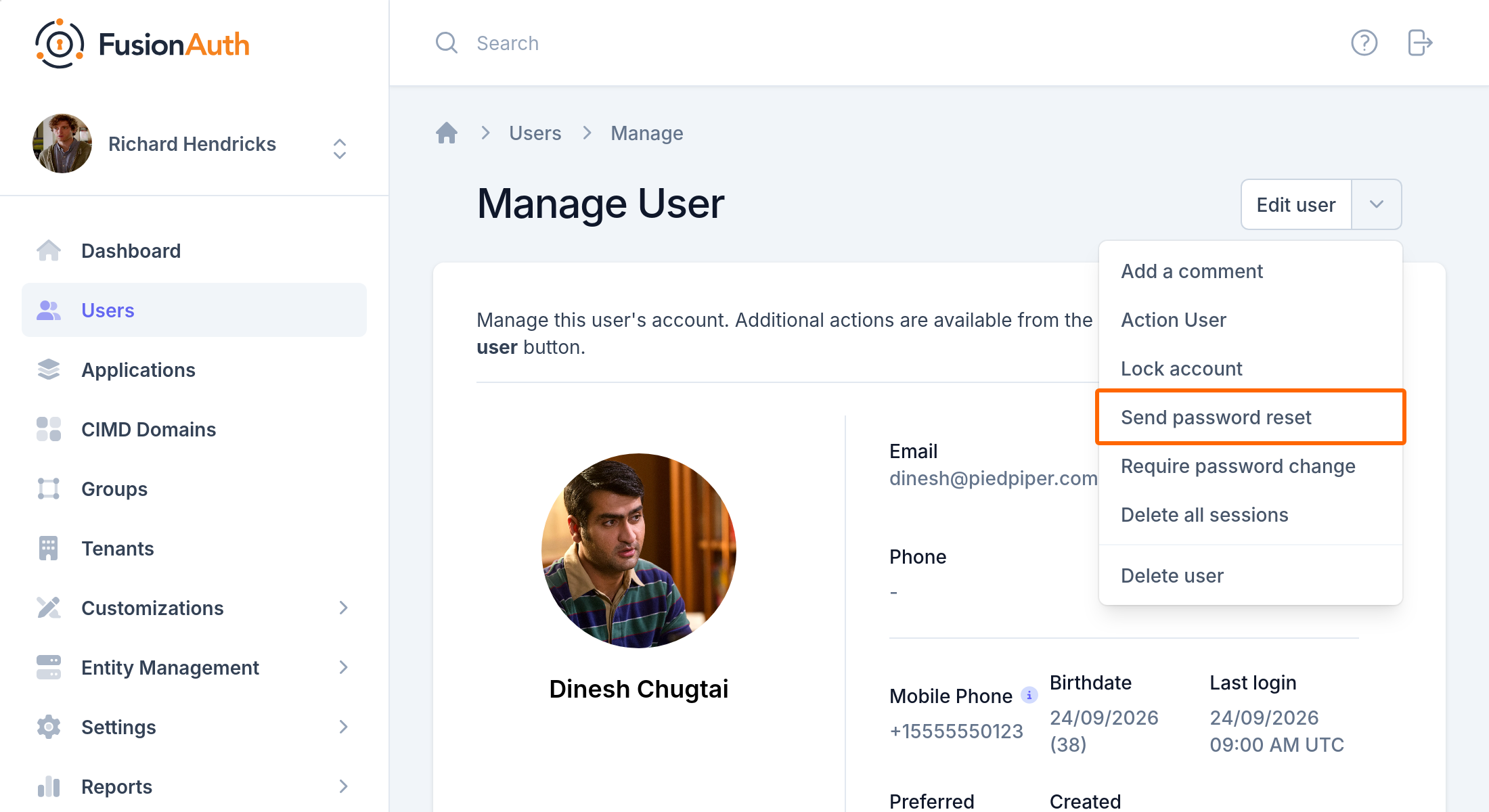
For a migrated user, send a password reset from the user's page in the Admin UI.
-
For an unmigrated user, reset the password in the old system.
To discuss improvements to this experience, see the open GitHub issue.
Migrate Users From the Forgot Password Page#
Alternatively, migrate users when they request a password reset:
- Add JavaScript to the forgot password page in a custom theme. When the user submits the form, the JavaScript sends the user's email address to an API endpoint that you write.
- In the endpoint, look up the user in the old system. When the user exists there, check whether the user exists in FusionAuth.
- When the user exists only in the old system, create the user with the Create a User API, and set
sendSetPasswordEmailtotrue.
Registration During a Slow Migration#
A user who registers during a slow migration may already have an account. When the user exists in FusionAuth, FusionAuth shows an error that tells the user to log in. When the user exists only in the old system, FusionAuth doesn't know about the user, and creates a new, separate account.
To block these registrations, fail the user creation with a webhook:
- Write a webhook that receives the
user.createevent, which FusionAuth sends whenever FusionAuth creates a user. - In the webhook, look up the user in the old system. When the user exists in the old system, return a status code outside
200to299. Otherwise, return200. - In the Tenant, turn on the
user.createevent, and set the transaction type so that at least one webhook must succeed. In the API, the value isAny. For more information, see Events.
When the webhook fails, FusionAuth doesn't create the user. To tell these users to log in instead, change [WebhookTransactionException] in your theme's messages. For more information, see Localization.
Migrate Without a Connector#
When the old system's profile data doesn't change, or you can lose the changes, you can run a forked slow migration without a Connector. A custom proxy sits in front of both systems:
- The proxy receives each login and checks the credentials with the FusionAuth Login API.
- When the user doesn't exist in FusionAuth, the proxy checks the credentials with the old system, and creates the user in FusionAuth.
- The proxy returns the token from the Login API to the client.
Use TLS for all traffic to protect passwords. If possible, keep the traffic on an internal network.
With the proxy in place, run a bulk migration whenever you choose. Then change the proxy to call only FusionAuth, or remove the proxy.
A forked slow migration has the following drawbacks:
- The proxy adds complexity and ties you to the Login API. You can't use the hosted login pagesThe login, registration, password recovery, and multi-factor authentication pages that FusionAuth serves. A Theme controls the look of the pages. and their workflows.
- The old system must accept a username and password over HTTP.
- MFA settings and social account links don't move.
- Profile data may split between the systems more than with a Connector.
A forked slow migration can work when you expect many new users and want new users in FusionAuth while the old system serves existing users.
Related
Learn about bulk, segment-by-segment, and slow user migrations, and how to choose between them.
FusionAuth Connectors allow you to authenticate users against external data sources and optionally migrate them.
Learn how to import users into FusionAuth, move between FusionAuth Cloud and a self-hosted instance, and export data from FusionAuth.
Learn about the APIs for creating, retrieving, updating and deleting identity providers.