Air-gapping
On this page
This feature requires an Enterprise plan.
Air-gapping allows you to run FusionAuth in environments with custom networking or compliance requirements. These include:
- high-security environments with extreme exfiltration risks
- industrial control systems with limited networking bandwidth
- malware analysis
- regulatory or compliance requirements, such as PCI-DSS
This document covers the differences in configuring and running an air-gapped instance of FusionAuth. You can also use a license with network access.
To run FusionAuth air-gapped requires an Enterprise license.
Adding a License to Your Instance#
To add a license to an air-gapped instance, do these tasks:
- Buy a license
- Retrieve the license
- Lock down the network around your instance
- Install the license on your instance
Buy A License#
The air-gapped license is available for purchase only by contacting the sales team.
Once a license is purchased, you need to get the license key and text.
Retrieve A License#
To retrieve a license, log into your Account. Navigate to the Plan tab.
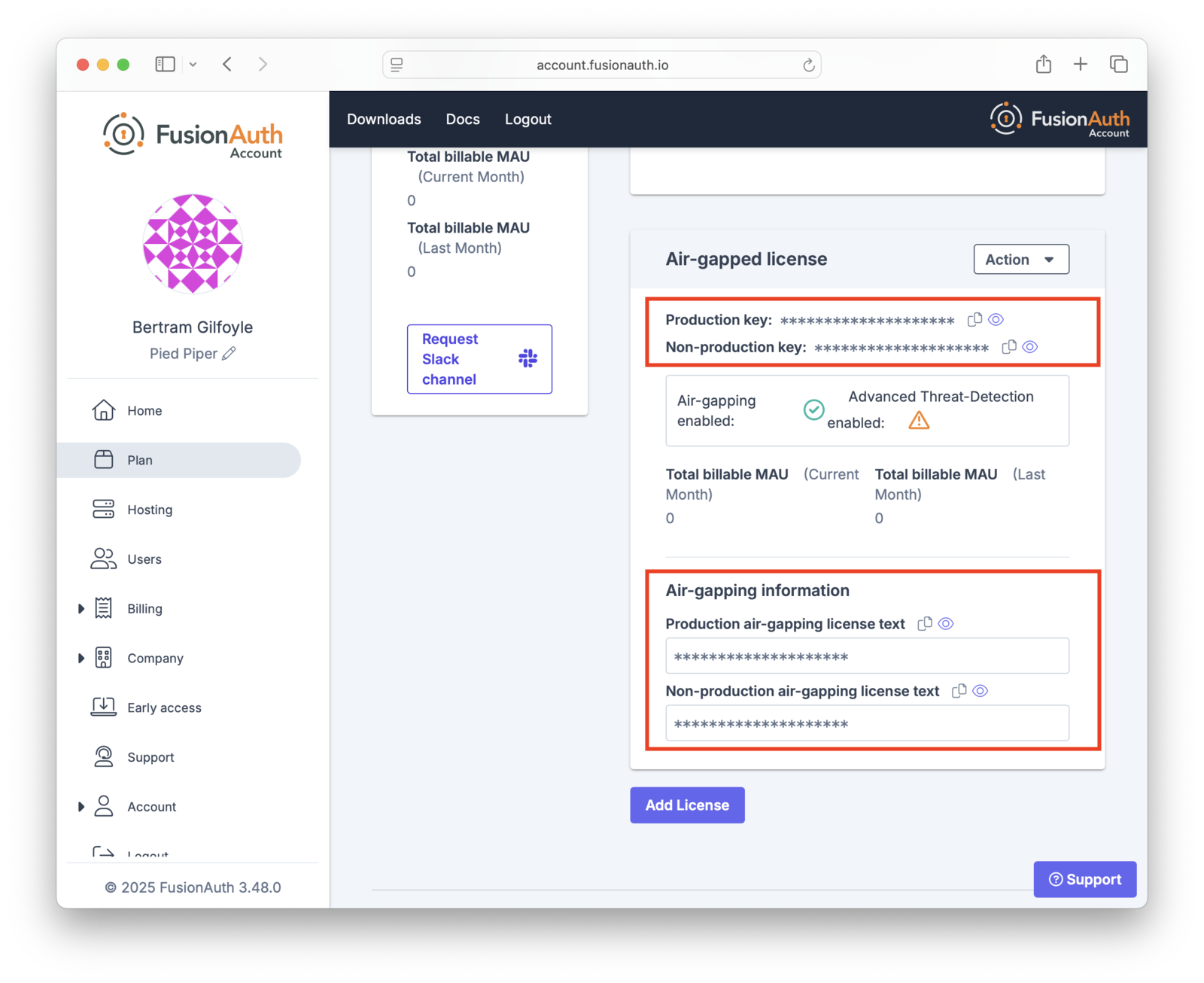
Copy the appropriate license key and text. Use the "Production" license for your production server. The other license is suitable for non-production environments, such as user acceptance testing or development.
If you need your license key and text later, log in to your Account and then navigate to the Plan tab. You might need to do this if you are installing the license on a new instance.
Preparing Your Instance#
An instance of FusionAuth requires the air-gapped license text as it can't use the licensing server. However, it will still attempt to communicate with the license server. It may also originate other outbound traffic for metrics reporting and other purposes. Block the following hostnames to stop any calls to FusionAuth servers:
https://reactor.fusionauth.iohttps://metrics.fusionauth.iohttps://license.fusionauth.io
You can also turn off FusionAuth collecting usage data. To do this, see the section on disabling data collection in Collected Metrics.
Your method of blocking outbound traffic depends on your installation and environment.
For example, if you're running FusionAuth in AWS, you can block outbound requests using a security group rule. If you're running Kubernetes on-premises, you can use a network policy.
Installing The License#
After you have your license key and text, log in to the Admin UI of your FusionAuth instance. To view the Plan & Features page, you need the admin or reactor_manager role in the FusionAuth application. The Admin UI credentials have no connection to the credentials for your account portal.
Navigate to Plan & Features and enter your license key in the License key field. Click More options , check I have an air-gap license, and paste the license text into the License text field. Then click Activate license .
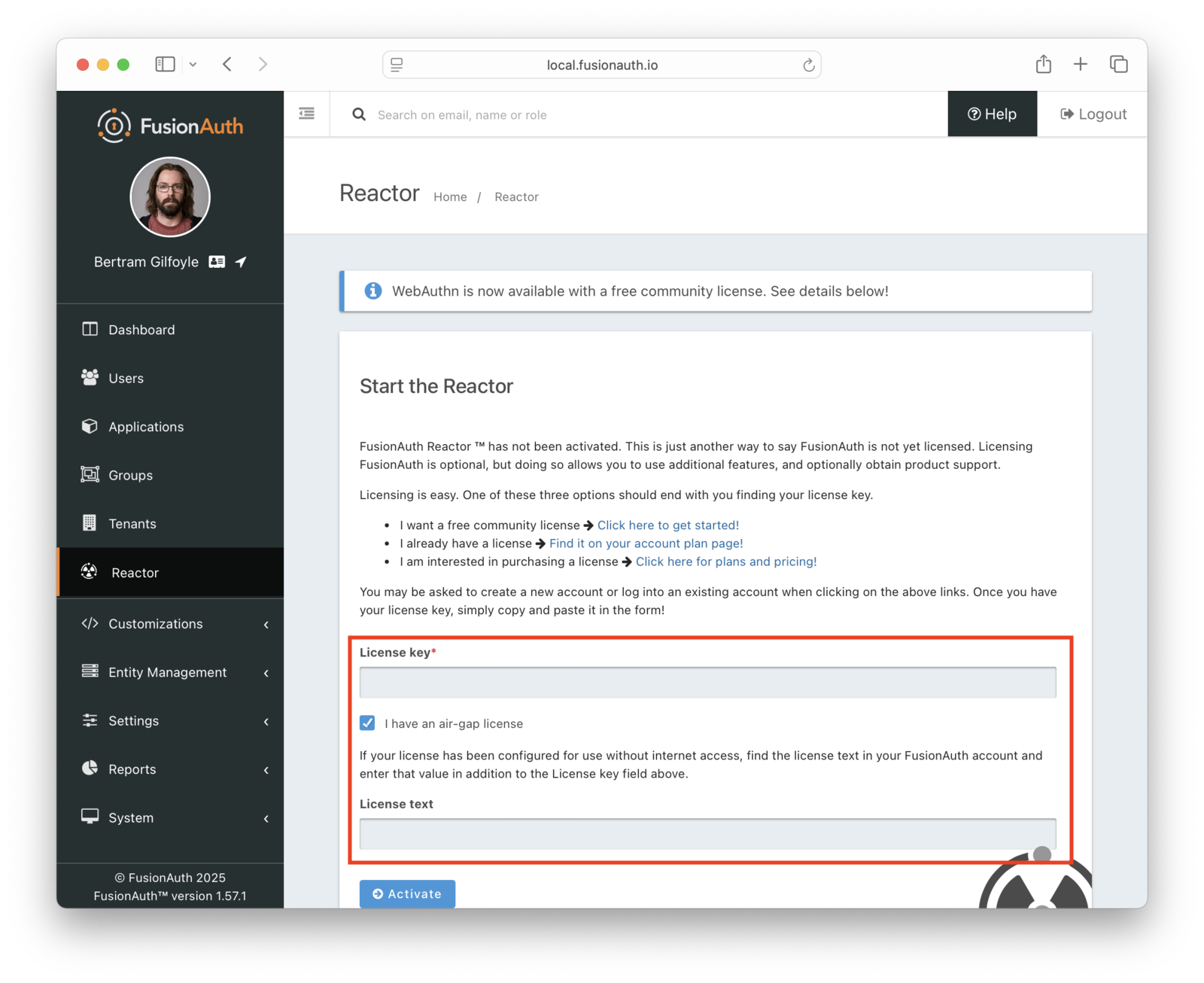
Immediately after activating, FusionAuth validates the license. It may take a minute or two to complete activation. No network access is required for activation.
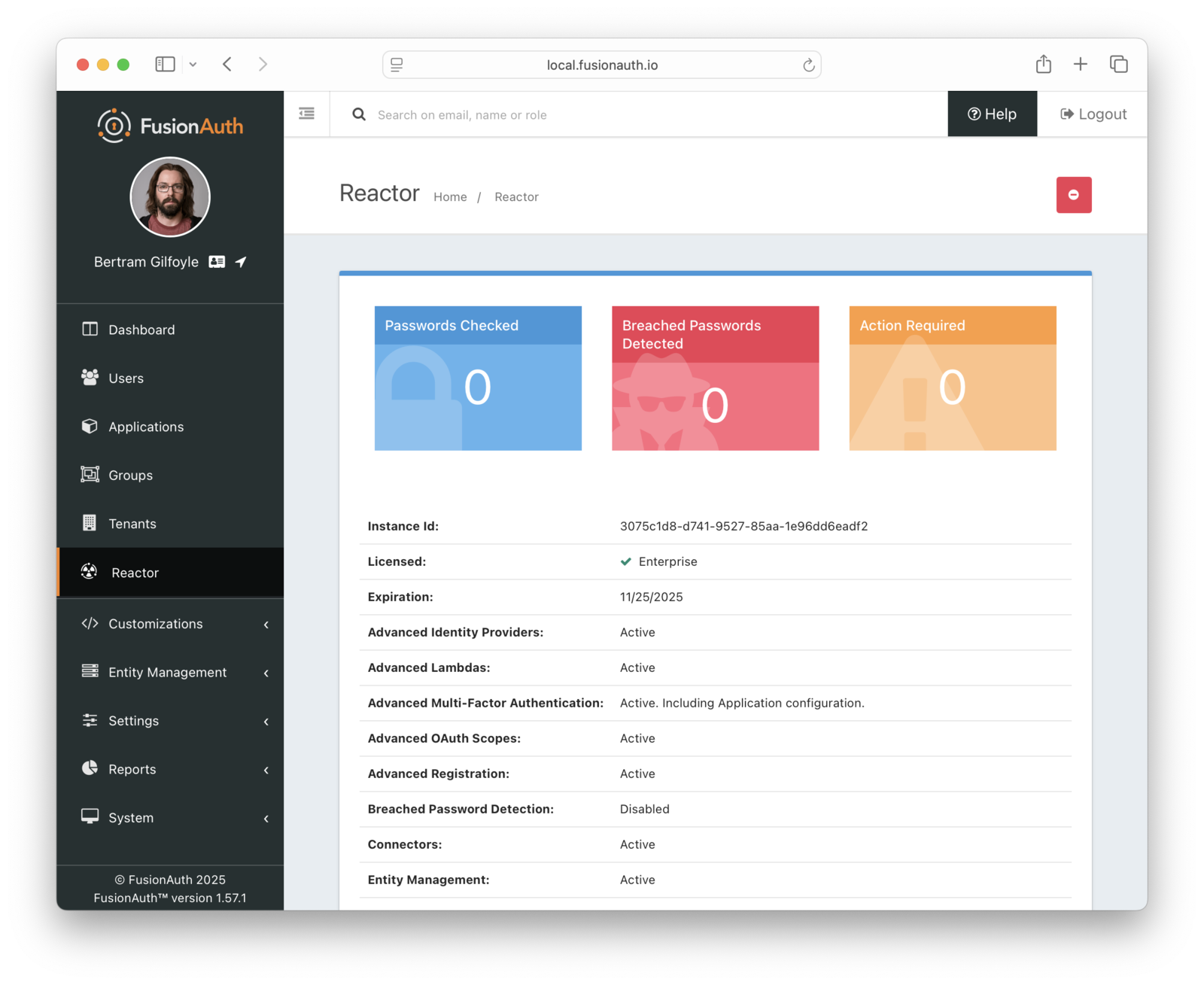
When activation finishes, Current plan on the Plan & Features page shows your plan with a green checkmark. You may need to refresh the page. The page also lists your features and the expiration date of the license.
Regenerating Your License#
You may want to regenerate your license for any number of reasons.
- The process may be part of a regular secrets rotation plan.
- You may have inadvertently exposed your license.
- A personnel change may require rotation of licenses.
You can regenerate the license via the Plan tab. To do so, log into your Account. Then navigate to the Plan tab. Then click the Action button to display the dropdown.
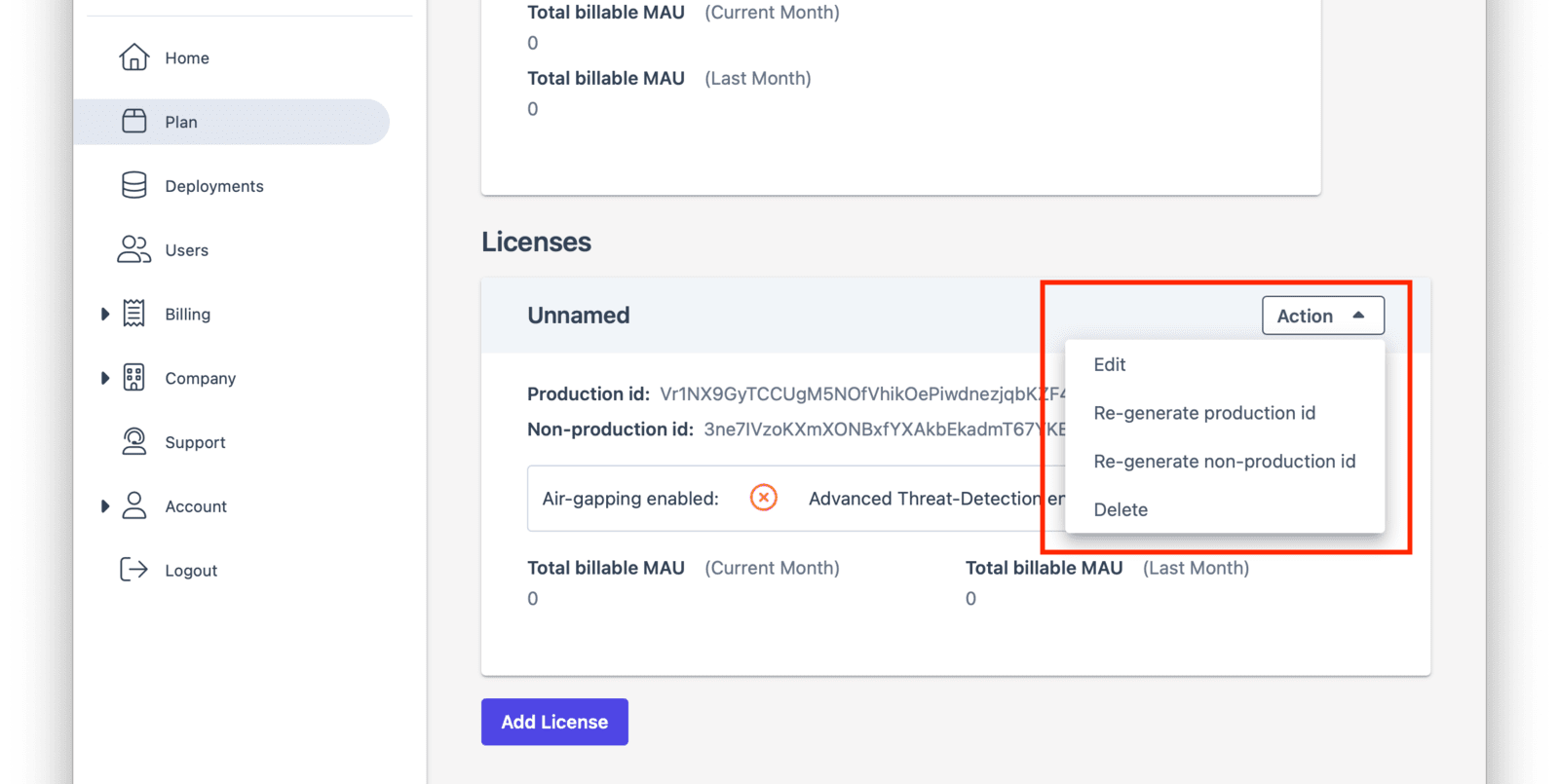
After you choose which license to regenerate, you'll be prompted to confirm your choice.
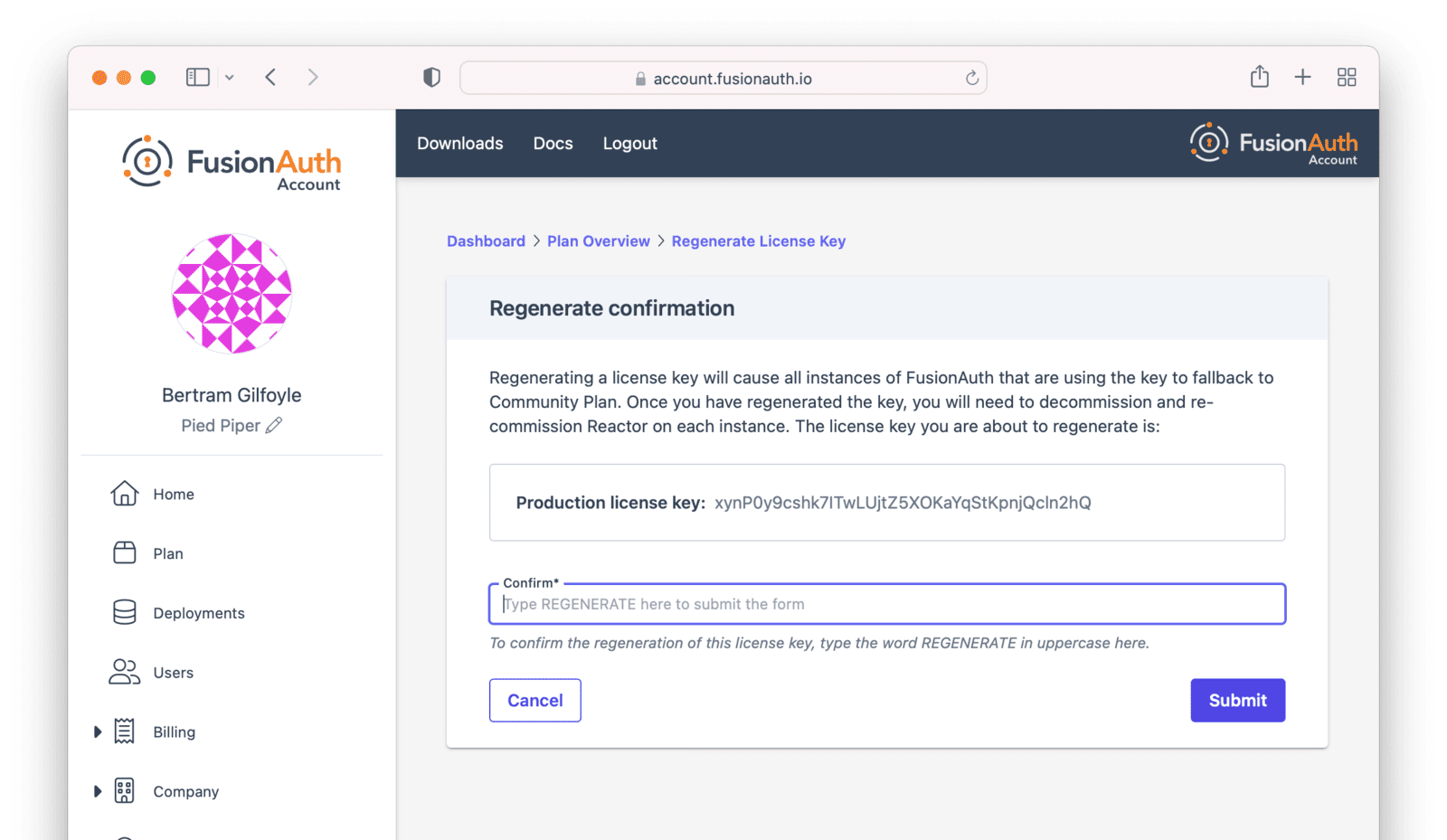
Then, view your license to retrieve both the license key and text.
Once you have that, you can update your license on your instance by using the Reactor API or by deactivating and then reactivating the license on the Plan & Features page of the Admin UI.
Deactivating Your Instance#
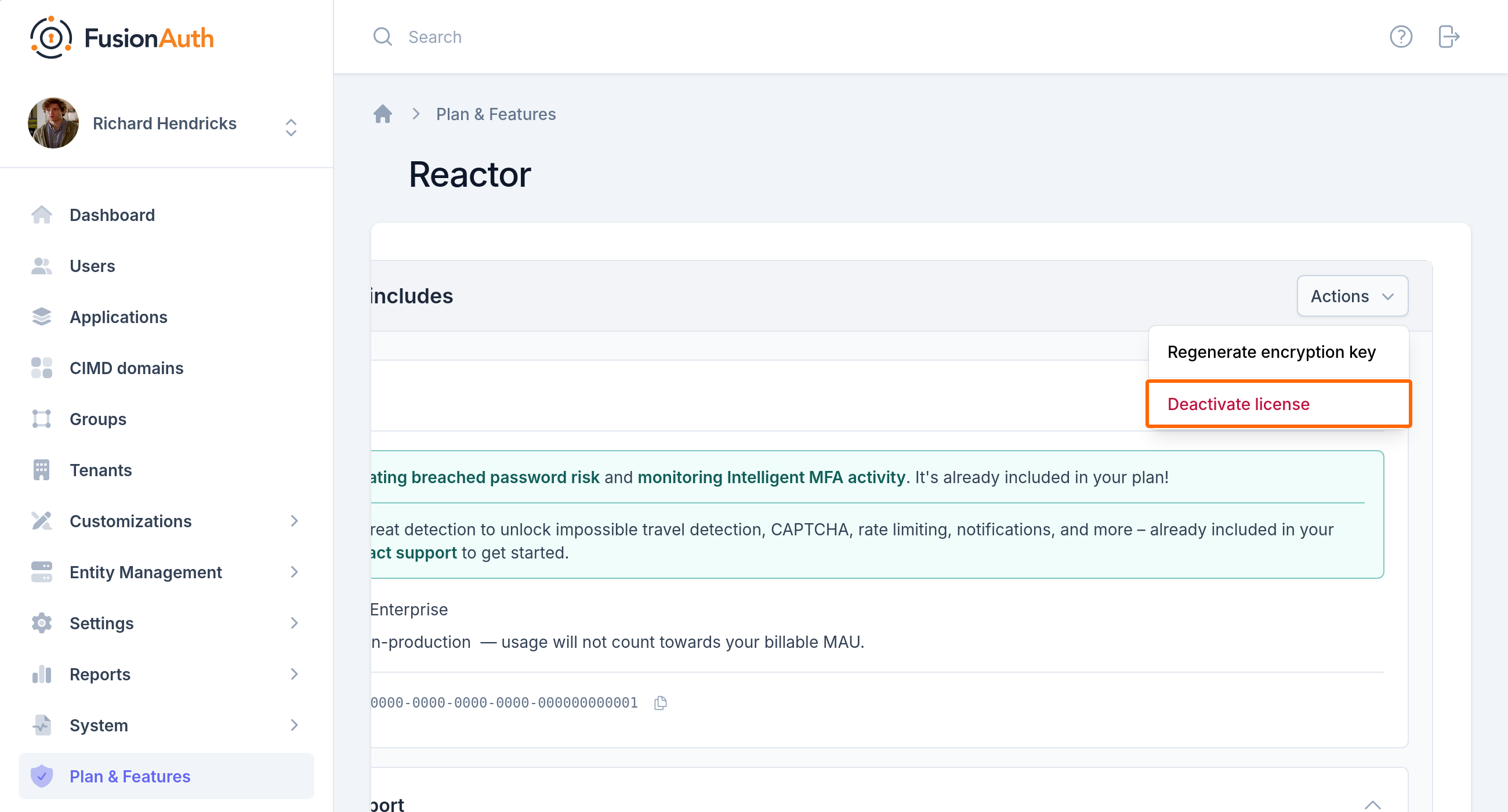
You may need to deactivate your license, such as when you rotate your license key or change your plan. To deactivate your license:
- In the Admin UI of your instance, navigate to Plan & Features .
- Click Actions -> Deactivate license .
- On the confirmation page, type
DECOMMISSIONin the Confirm field and click Save .
Deactivating your license disables premium functionality for the associated instance. This includes both using and managing that functionality. Any saved configurations aren't removed when the license is deactivated.
Deactivating a license affects only the specific instance. For example, you're running two instances of FusionAuth with the same license, one in Frankfurt, Germany and another in Iowa, USA. When you deactivate the instance in Frankfurt, the one in Iowa continues running with premium functionality.
For example, you enable SMS Multi-Factor Authentication (MFA) after activating the license for your tenant. Then, several users add MFA to their accounts. After deactivating your license:
- Users can't enable SMS MFA on their accounts.
- When logging in, users aren't prompted for a texted code.
- Administrators can't activate additional premium MFA methods.
Reactivating your license restores the ability of users to add MFA, the MFA check at login, and the ability of administrators to add other premium methods.
License Expiration#
Your license is deactivated when it expires. This results in a loss of functionality until the license is renewed.
Find out when the license expires by using the Reactor API or viewing the expiration date on the Plan & Features page of the Admin UI.
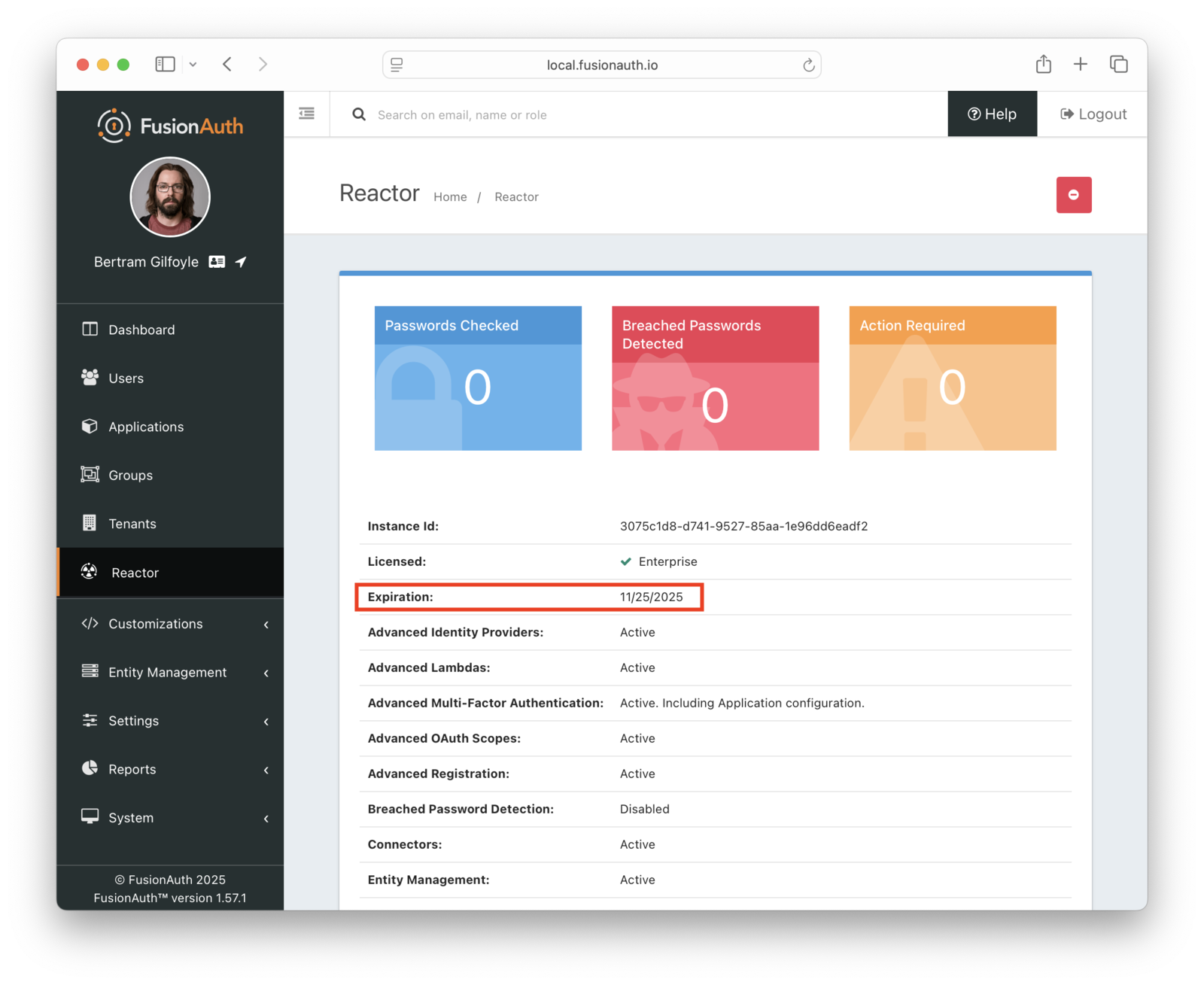
Please contact support to obtain your new air-gapped license.
Then update your instance with the new license by adding it to your instance before the license expiration date.
There is no grace period, so make sure you update your license before it expires to avoid loss of functionality.
Licensing and Kickstart#
You can use Kickstart to configure a FusionAuth instance to a known configuration using any API, and this includes setting up an instance with an air-gapped license. See the Kickstart documentation to learn how to provide your license key and text.
One common use case for KickstartA file of API requests that FusionAuth runs on first startup to configure a new instance. is to configure the FusionAuth component of an air-gapped software package before delivering it to your customers. In this scenario, use the production license key and text.
Limits#
Running air-gapped limits certain features in FusionAuth, including:
- breached password detectionA FusionAuth feature that checks passwords against lists of passwords exposed in data breaches.
- advanced threat detection
Both of these features depend on downloading data over a network.
Air-gapping is not available when running in FusionAuth Cloud.