Connect claude.ai And chatgpt.com To A FusionAuth-Protected MCP Server
On this page
This feature requires an Enterprise plan.
1.70.0
This guide shows how to let users connect claude.ai and ChatGPT to an MCP server that uses FusionAuth for authorization. Both apps identify themselves with a Client ID Metadata Document (CIMD), so you don't create an Application for each one. Instead, you create a CIMD domain for each app's origin, and FusionAuth registers the app the first time a user connects it.
The claude.ai and ChatGPT steps on this page reflect those apps as of October 2026. Their settings screens change often, so check each vendor's documentation if a menu has moved.
Prerequisites#
You need:
- FusionAuth
1.70.0or later, with an Enterprise license. - A FusionAuth instance reachable from the public internet over HTTPS, such as
https://auth.example.com. The user's browser and the vendor's servers both need to reach it. - An MCP server reachable from the public internet over HTTPS, such as
https://mcp.example.com/mcp, that validates FusionAuth access tokens. Control MCP Server Access walks through building one, and its remote deployment section covers hosting it over HTTPS. - A FusionAuth user to log in with.
How The Connection Works#
When a user adds your MCP server to claude.ai or ChatGPT, the app:
- Calls the MCP server, gets a
401, and reads the server's protected resource metadata to find FusionAuth. - Reads FusionAuth's discovery document and sees that FusionAuth supports CIMD.
- Sends the user to FusionAuth to log in, using the URL of its own metadata document as the
client_idand the MCP server URL as theresource. - Receives an access token whose
audclaim contains the app'sclient_idURL and the MCP server URL, and sends that token on every MCP request.
FusionAuth handles the app's redirect URIs and client authentication on its own, using the app's metadata document. Your job is to tell FusionAuth which origins to trust and which MCP server they may access.
Configure FusionAuth#
-
Find the Id of the Tenant your users log in to. Navigate to Tenants and copy the Id of the Tenant. This guide uses
<tenantId>for that value. -
Set the Tenant's Issuer to the URL MCP clients will use to find FusionAuth. Navigate to Tenants , edit the Tenant, and on the General tab, set Issuer to
https://auth.example.com/<tenantId>. Use the same value forauthorization_serverswhen you configure the MCP server.CautionChanging the Issuer changes the
issclaim of every token the Tenant issues. Applications that validateissagainst the old value reject new tokens until you update them. -
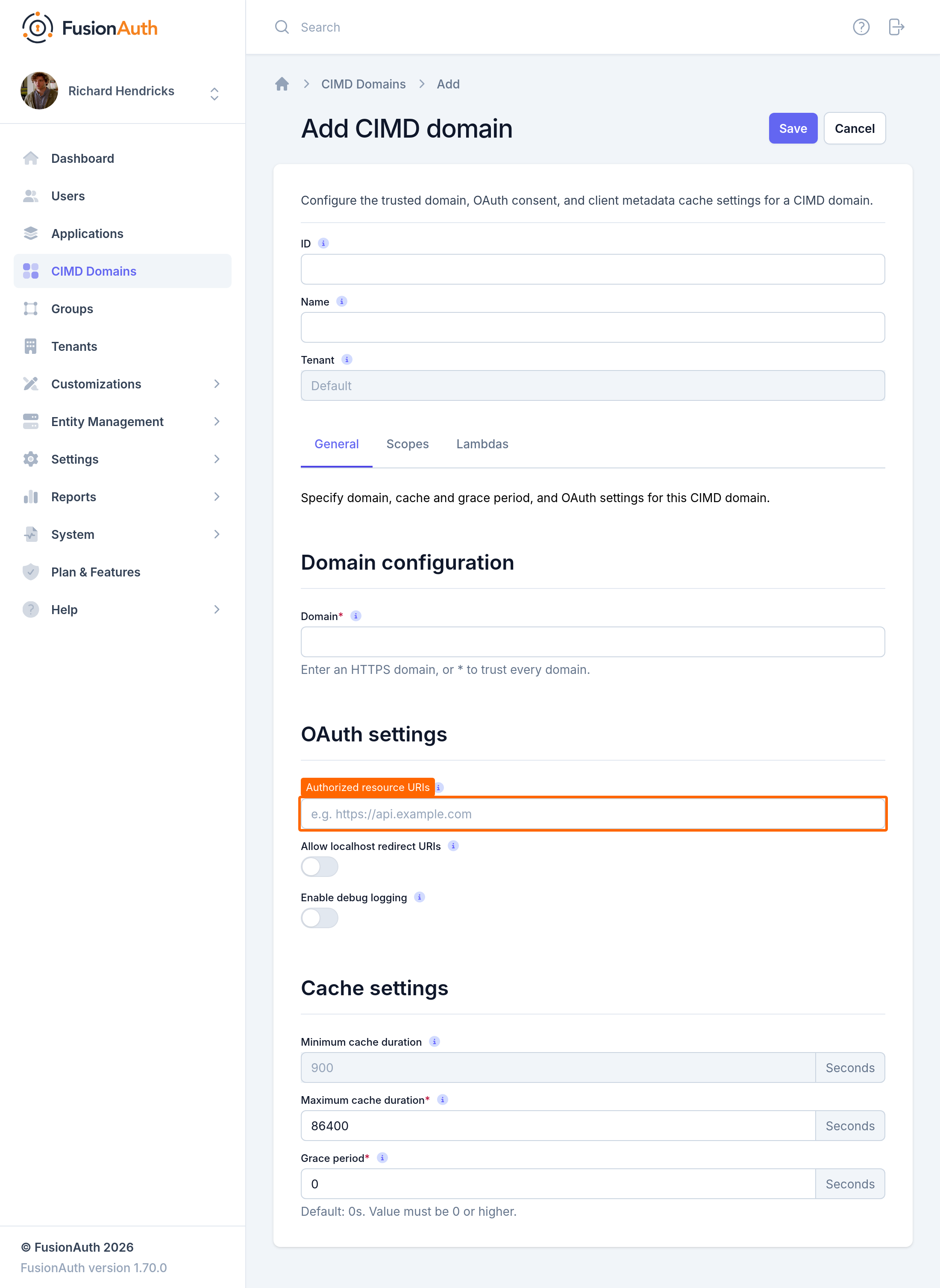
Create a CIMD domain for claude.ai. Navigate to CIMD Domains and click the button. Fill in the form:
- Set Name to
Claude. - Set Tenant to the Tenant from the first step.
- On the General tab, set Domain to
https://claude.ai. - Add your MCP server URL to Authorized resource URIs, exactly as MCP clients send it, such as
https://mcp.example.com/mcp. A difference in the path or a trailing slash counts as a mismatch. Without at least one authorized resource URI, no client on this domain can log in.
- Set Name to
-
On the Scopes tab, choose a Consent mode.
Always promptasks the user to consent on every login.Remember decisionasks once, then remembers the choice for the duration the Tenant allows. Under Provided scopes, disable any standard scopes your MCP server doesn't need. -
Click Save .
-
Add the custom scopes your MCP server requires. On the CIMD Domains list, click the action for the domain, then click the button and enter the scope Name, such as
get_name. Repeat for each scope. MCP clients usually request the scopes listed in the server'sscopes_supportedmetadata, and FusionAuth rejects a request for any scope that isn't enabled on the domain. -
Repeat these steps for ChatGPT, with Name set to
ChatGPTand Domain set tohttps://chatgpt.com. Use the same authorized resource URIs and scopes. -
Check that FusionAuth advertises CIMD support for the Tenant:
$ curl https://auth.example.com/.well-known/openid-configuration/<tenantId>The response should contain
"client_id_metadata_document_supported": true, and theauthorization_endpointandtoken_endpointvalues should end with/<tenantId>. If the value isfalse, either the license doesn't include CIMD or the Tenant has no CIMD domains.
To accept any MCP client instead of only claude.ai and ChatGPT, create a single CIMD domain with Domain set to *. Use a registration lambda to filter which clients may register.
Configure The MCP Server#
-
Set
authorization_serversin the MCP server's protected resource metadata tohttps://auth.example.com/<tenantId>.FusionAuth serves discovery at
/.well-known/openid-configuration/<tenantId>, which is where MCP clients look for an authorization server URL that has a path. FusionAuth doesn't serve/.well-known/oauth-authorization-server, so clients fall back to OpenID Connect discovery. Every CIMD request must identify the Tenant, and the endpoints in the Tenant's discovery document already include the Tenant Id. -
Set
resourcein the protected resource metadata to the MCP server URL you added to Authorized resource URIs. MCP clients send this value as theresourceparameter, and FusionAuth rejects it withinvalid_targetunless it matches an authorized resource URI exactly. -
List the scopes the server requires in
scopes_supported, matching the custom scopes on the CIMD domains. -
When validating an access token, check that its
audclaim contains the MCP server URL. For CIMD clients,audalways has two values: the client'sclient_idURL and theresource.
Connect claude.ai#
-
In claude.ai, navigate to Settings -> Connectors and click Add custom connector .
-
Enter a name for the connector and your MCP server URL, such as
https://mcp.example.com/mcp. Leave the OAuth client Id and client secret fields under advanced settings empty, so claude.ai uses its metadata document. -
Click Add , then click Connect . claude.ai opens the FusionAuth login page.
-
Log in, review the requested scopes on the consent screen, and approve them. The consent screen shows claude.ai's name and home page from its metadata document.
-
Start a new chat, enable the connector, and ask Claude to use one of your MCP server's tools.
Connect ChatGPT#
-
In ChatGPT, navigate to Settings -> Apps & Connectors . If you don't see an option to create a connector, enable developer mode under Advanced settings .
-
Click Create . Enter a name for the connector and your MCP server URL, such as
https://mcp.example.com/mcp, and chooseOAuthfor authentication. -
Save the connector. ChatGPT opens the FusionAuth login page.
-
Log in, review the requested scopes on the consent screen, and approve them.
-
Start a new chat, add the connector, and ask ChatGPT to use one of your MCP server's tools.
Troubleshooting#
When FusionAuth rejects a request before it can safely redirect back to the app, it shows an error page with a JSON body. Match the error_description to the causes below. When a CIMD registration fails, FusionAuth writes an Error Event Log entry. Rate limiting also writes an Information Event Log entry. The error page and the app's own error message can help troubleshoot request validation errors.
| Error description | Cause and fix |
|---|---|
client_id: <url> is not valid. |
The app's client_id URL doesn't match any CIMD domain in the Tenant. Create a CIMD domain for the origin of the URL in the message. |
The request is missing a required parameter: tenantId |
The app used endpoints without a Tenant Id. Point authorization_servers at https://auth.example.com/<tenantId>. |
A CIMD client requires exactly one resource parameter. |
The app didn't send a resource, or sent more than one. Check that the MCP server's protected resource metadata includes resource. |
Invalid resource [<url>]. The requested resource is not on the list of authorized resource URIs for this application. |
The resource doesn't exactly match an Authorized resource URI on the CIMD domain. Add the URL from the message, including any path and trailing slash. |
Invalid scope. The scopes [<scopes>] are unknown. |
The app requested a scope that isn't enabled on the CIMD domain. Add it as a custom scope, or enable it under Provided scopes. |
The CIMD client registration could not be established. |
FusionAuth couldn't fetch or validate the app's metadata document. This is usually a problem on the vendor's side; try again later. |
The CIMD registration lambda denied this resource or revoked the client. |
The domain's registration lambda rejected the app. |
The CIMD client registration request was rate limited. |
The user registered too many new CIMD clients in a short time. See the CIMD client registration action in the Tenant's rate limit settings. |
Client ID Metadata Document clients are only supported with a valid license. |
The FusionAuth license doesn't include CIMD. |
If the app reports that the authorization server doesn't support client registration, check the discovery document from the last step of Configure FusionAuth. When client_id_metadata_document_supported is false, the app may try Dynamic Client Registration instead, which FusionAuth doesn't support.
To force an app to log in again, for example after changing scopes, the user can disconnect and reconnect the connector in the app's settings. To cut off an app entirely, see Removing A CIMD Client.
Related
Learn how to protect Model Context Protocol (MCP) servers with OAuth authentication using FusionAuth.
Learn how to use the FusionAuth Docs MCP Server.
Learn how to use the FusionAuth API MCP Server.
Learn how FusionAuth registers OAuth clients, either ahead of time as Applications or just-in-time from a Client ID Metadata Document.