Identity Providers enable third-party login. This includes social options such as Facebook and Google, and enterprise options such as OIDC and SAML.
Find the FusionAuth Identity Providers in the Admin UI by navigating to Settings -> Identity Providers or use the Identity Providers APIs.
Add an Identity Provider#
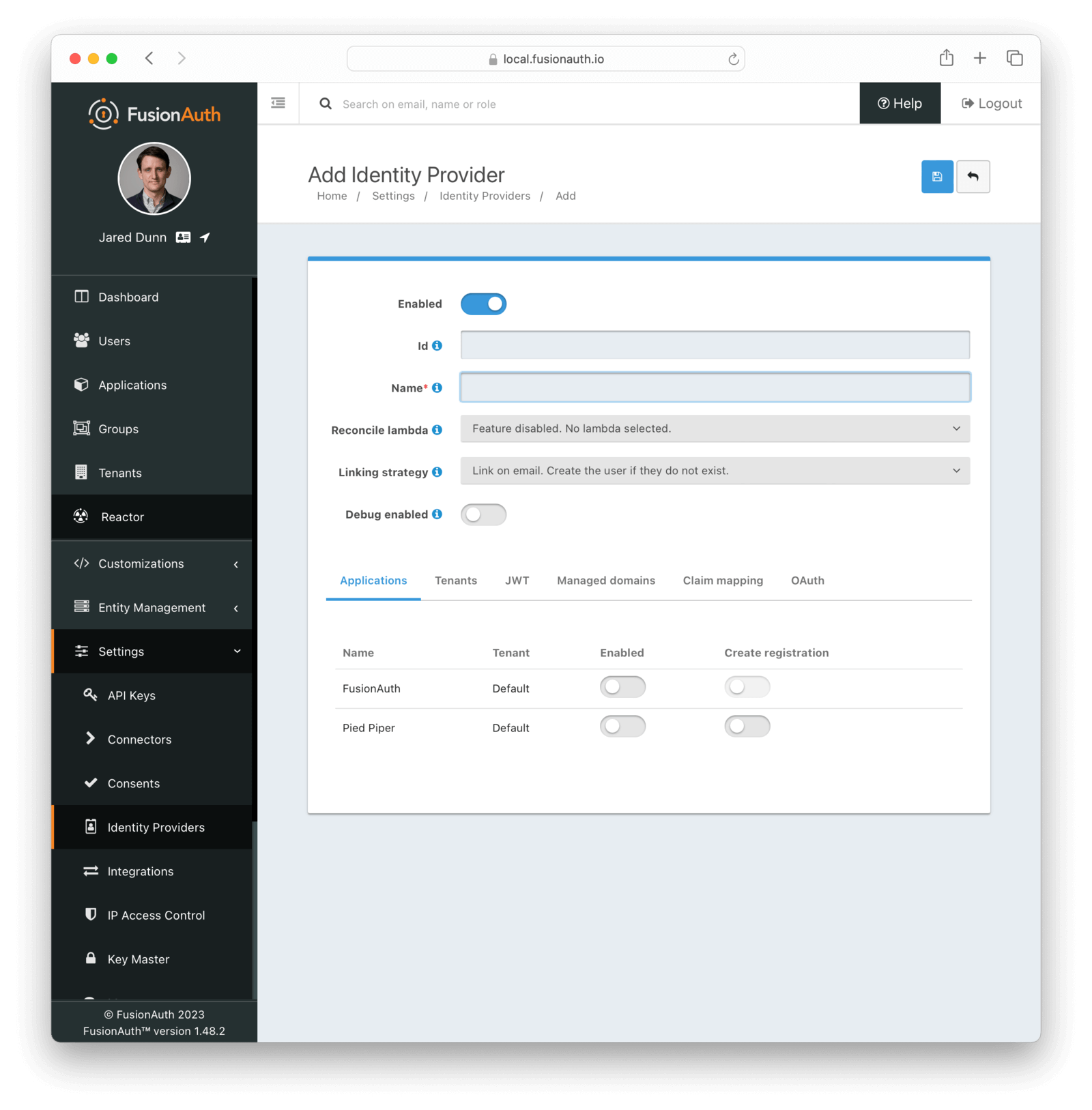
To enable an Identity Provider for an Application:
-
Navigate to Settings -> Identity Providers .
-
Click the Add provider dropdown and select your Identity Provider. This will take you to the Add Identity Provider screen.
- Fill out the required fields; your identity provider can provide most of these values. For more information about the fields required for each identity provider, see the documentation for your provider.
-
In the Applications configuration section at the bottom of this panel, find your application name.
-
To dynamically create FusionAuth user accounts (with default roles) for all users who successfully authenticate using this provider, select Create registration . If you disable this option, only an administrator with registration permissions can create new users.
- You should now see the Sign in with <Provider> button on the login page for the Pied Piper application.
Social Identity Providers#
FusionAuth supports the following social identity providers:
- Apple
- Epic Games - requires a paid plan.
- HYPR
- Nintendo - requires a paid plan.
- Sony - requires a paid plan.
- Steam - requires a paid plan.
- Twitch - requires a paid plan.
- Xbox - requires a paid plan.
If you're looking for a provider that is not listed here, review the open feature requests in GitHub. Vote or comment on an existing feature, or open a new feature request if you do not find an request for your provider.
Enterprise Identity Providers#
FusionAuth supports the following enterprise identity providers:
- External JWT
- OpenID Connect
- SAML v2
- SAML v2 IdP Initiated - requires a paid plan.
- Tenant Manager - tenant administrators can configure OIDC and SAML v2 providers in Tenant Manager.
If you're looking for a provider that is not listed here, review the open feature requests in GitHub. Vote or comment on an existing feature, or open a new feature request if you do not find an request for your provider.
Identity Provider Scope#
Tenant-scoped identity providers require version 1.62.0 or later.
A tenant-scoped identity provider is only usable in authentication workflows for the specified tenant. This can be useful to scope a particular identity provider configuration to users within a specific tenant.
An identity provider instance that is not scoped to a specific tenant is global and available to all tenants. All identity provider instances created prior to version 1.62.0 are global.
Global Identity Providers and Tenant-scoped API Keys#
A tenant-scoped API key can only alter objects scoped to its associated tenant. Because global identity providers span all tenants, you cannot use a tenant-scoped API key with a global identity provider via the Identity Provider API. You can, however, use a tenant-scoped API key to interact with things like identity provider links, as these are confined to a user within a tenant.
Configure an Identity Provider as Tenant-scoped#
Once created, you cannot modify the scope of an identity provider. Choose a scope during identity provider creation. When using the API, set identityProvider.tenantId to the desired tenant ID. In the admin app, select a specific tenant from the dropdown on the Add Identity Provider view.
Configure an Identity Provider as Global#
Omitting the identityProvider.tenantId parameter from the API request to create an identity provider or selecting Global identity provider from the dropdown on the Add Identity Provider view in the admin app will create a global identity provider.
Identity Providers and Tenants#
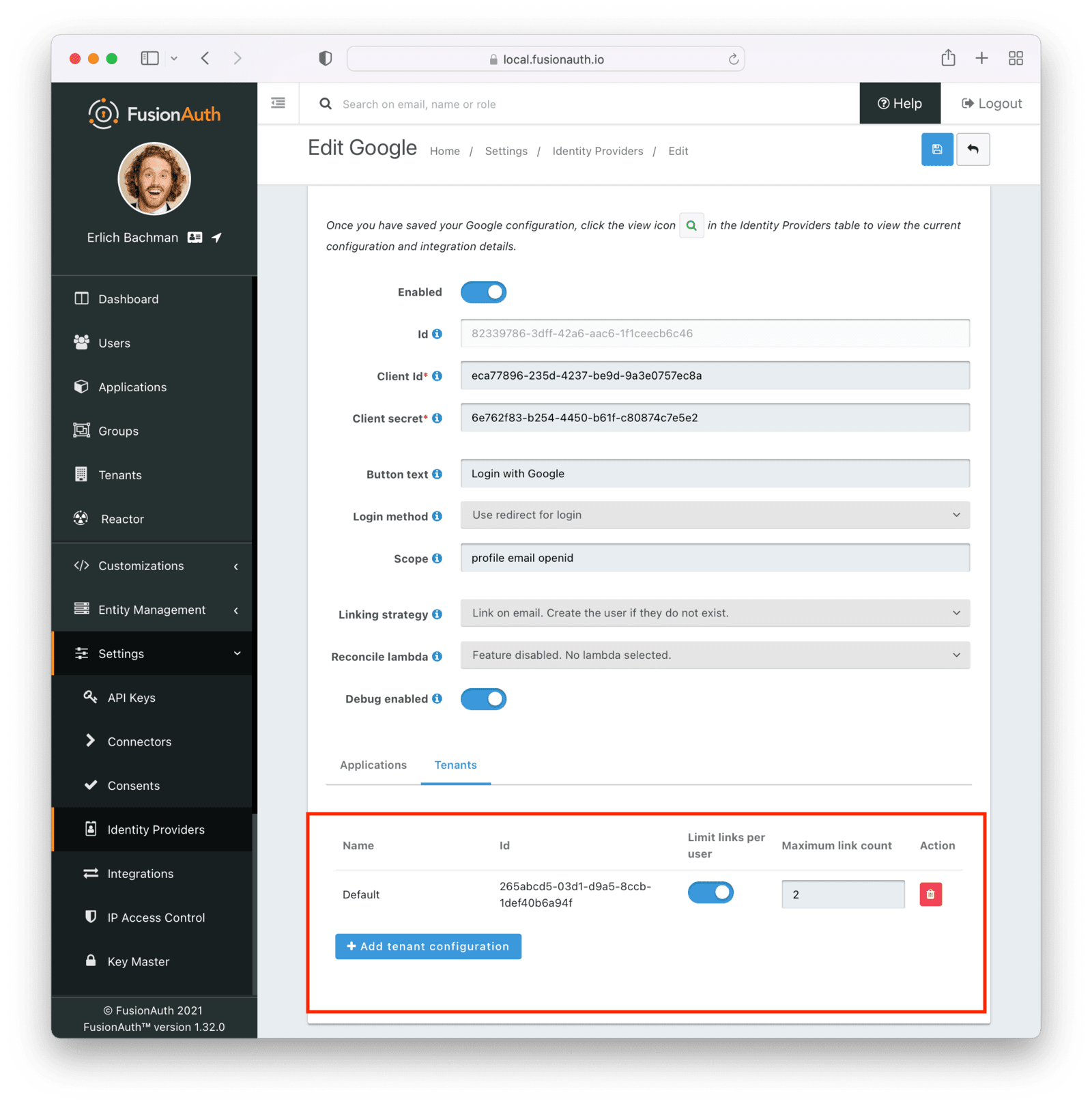
Identity providers can be configured to set a limit on the number of links that may be established on a per tenant basis.
In the following, we have enabled Limit links per user on the Default tenant and set a Maximum link count of 2. With this configuration, a user will only be able to establish at most two links for this IdP specifically.
Identity Providers and Applications#
Saving an identity provider in Tenant Manager reapplies Tenant Manager-managed values. This replaces attributeMappings and applicationConfiguration with Tenant Manager-managed values by design. See Tenant Manager Identity Provider Restrictions.
Identity providers can be enabled or disabled on a per application basis.
In the following screenshot you will see that we have enabled this login provider for the Pied Piper application and enabled Create registration. Enabling Create registration means that a user does not need to be manually registered for the application prior to using this login provider.
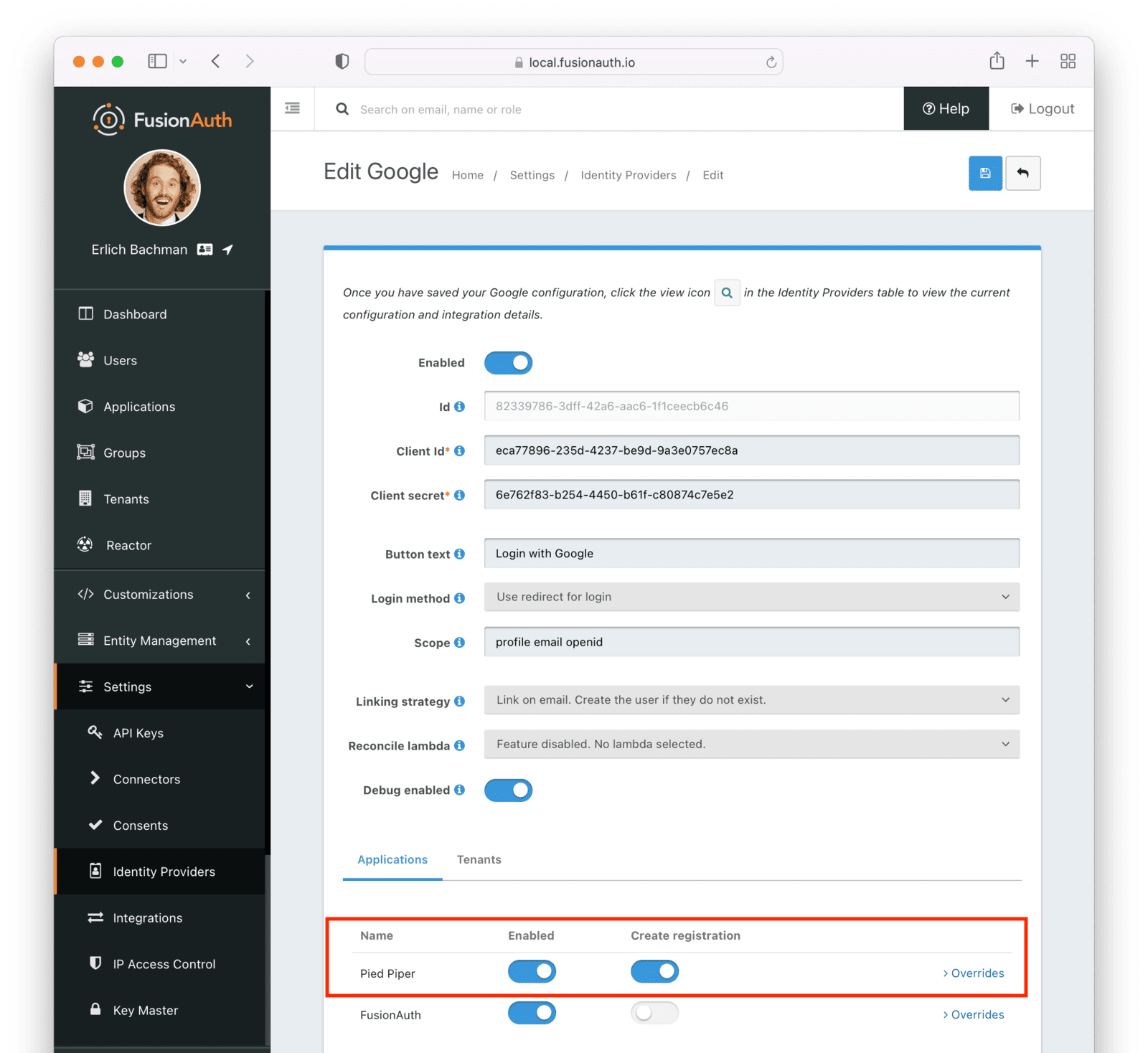
For example, when a new user attempts to log into Pied Piper using Google, if their user does not exist in FusionAuth it will be created dynamically, and if the Create registration toggle has been enabled, the user will also be registered for Pied Piper and assigned any default roles assigned by the application.
If you do not wish to automatically provision a user for this Application when logging in with Google, leave Create registration off and you will need to manually register a user for this application before they may complete login with Google and be authorized for the Pied Piper Application.
Regardless of whether you enable Create registration or not, a user may be created within FusionAuth when a person signs in with the identity provider. What happens depends on the configured linking strategy. This setting controls whether a user is registered and therefore authorized for this application.
When you enable an identity provider you're indicating that this external provider is an additional SoR (Source of Record). When the user successfully logs into this provider such as Google, Google has told FusionAuth the user exists and their credentials are valid. In return FusionAuth accepts this source of record and creates link and/or user, depending on the linking strategy. Next we identify if the configuration allows us to automatically register (that is, provide authorization) for the requested application, based on the Create registration setting.
Overrides#
In version 1.61.0 and later FusionAuth supports creating multiple instances of all Identity Provider types, giving you the option to create a second instance of the Identity Provider type rather than using application overrides.
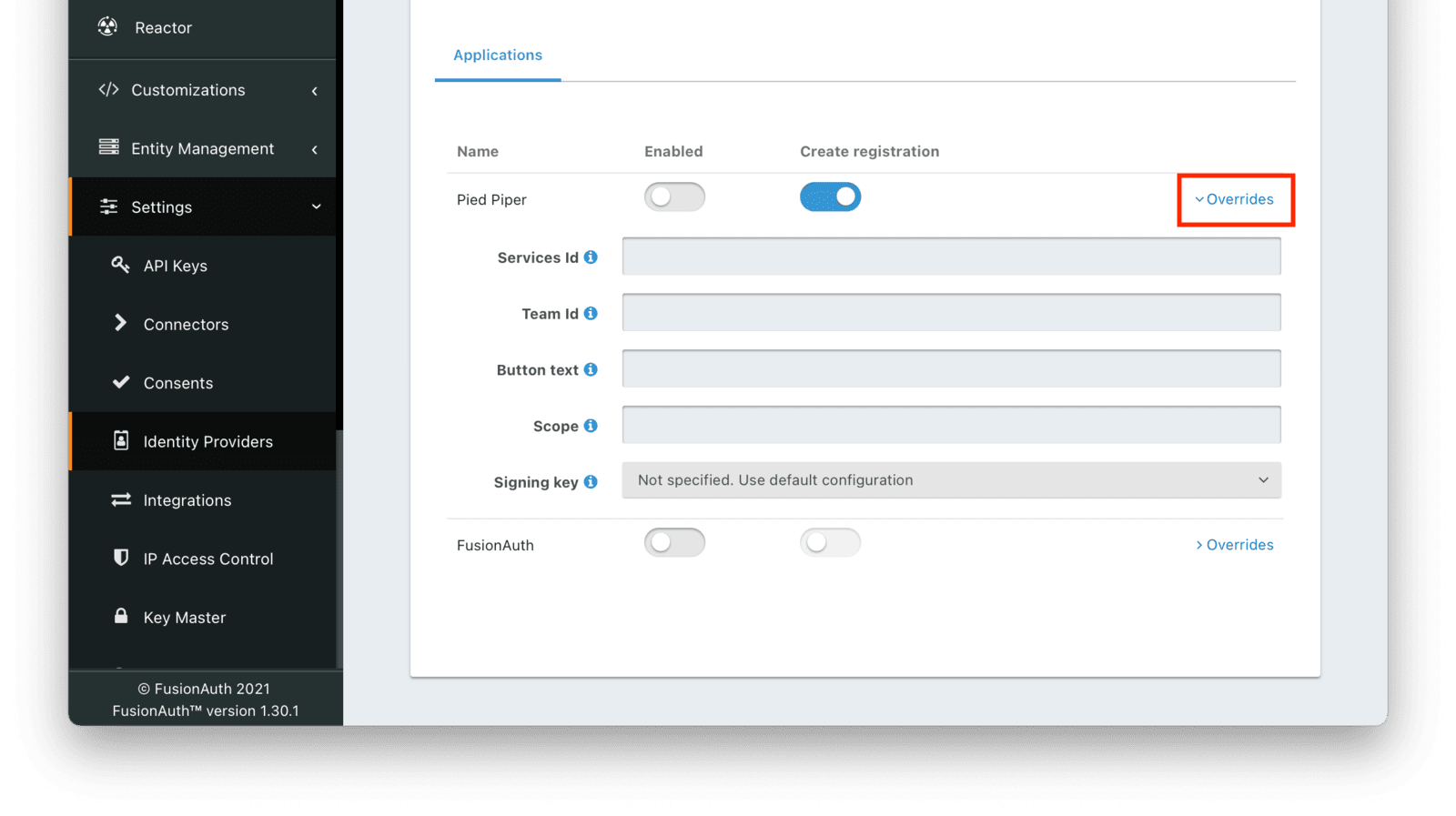
You can have different identity provider configurations for different applications. Suppose you had two different applications that were both using the Apple Identity Provider. But for one, you wanted to request the email name scope and for the other you wanted to request the email scope only. To make this work, create the Apple Identity provider with the scope email name and assign it to the first application. Then, for the second, override the Scope field with the email value.
You can override none, some or all of the available configuration values by expanding the Overrides element for the application's identity provider setting. You may also modify the identityProvider.applicationConfiguration values using the API.
The External JWT Identity Provider type does not offer override settings since you can create more than one.
In some cases, you need to use two different Applications to achieve your desired configuration. For example, if you need two sets of attributes for an Identity Provider, but the attributes don't exist in the Overrides options. An example of such an attribute is Linking Strategy.
Hints#
When you are using the FusionAuth hosted login pages, you can bypass the login page and go directly to a third party Identity Provider based upon the user's email address or an Identity Provider Id.
Hints currently work with most Identity Providers with the exception of HYPR and the SAML v2 Identity Provider Initiated type Identity Provider.
An Identity Provider Id is appended to the Login URL for an application using the idp_hint request parameter. For example, to send a user directly to a login page for an OIDC identity provider with the id 44449786-3dff-42a6-aac6-1f1ceecb6c46, you'd append &idp_hint=44449786-3dff-42a6-aac6-1f1ceecb6c46.
An email address or domain may be provided in the login_hint request parameter. For example, to send a user directly to the login page of an OIDC IdP configured with a domain of example.com, you'd append &login_hint=example.com to the application's Login URL. The use of this parameter is up to the Identity Provider, so adding this parameter may or may not be supported by the Identity Provider you are using.
You can read more about the login_hint and idp_hint parameters in the OAuth Endpoints documentation.
Managed Domains#
For SAML v2 or OIDC identity providers, you can optionally enable managed domains. This feature is not available for any other types of identity providers.
If users share a common email domain, such as @example.com, you can use managed domains to streamline their login process. Here's how it works:
- On the login page, users are prompted to enter their email address.
- If the email domain matches a managed domain defined in the identity provider settings, the user is automatically redirected to the configured identity provider for authentication.
- If the email domain does not match, the user proceeds to the standard email/password login flow.
Multiple email address domains can be managed by the same identity provider. Multiple identity providers can be configured with managed domains.
Each email domain can be managed by at most one identity provider in the context of a given tenant. A particular email domain can be managed in a FusionAuth instance by either:
- A single global identity provider
- Any number of tenant-scoped identity providers
Configuring managed domains on an identity provider and then configuring the identity provider to be enabled for an application changes the login page experience for all users logging into this application. Every user viewing the application login page will be required to enter their email address first.
To configure managed domains, open Settings -> Identity Providers and edit a SAML v2 or OIDC identity provider. Navigate to the Managed domains tab and specify one domain on each line.
Account Security#
When you configure an Identity Provider, you are explicitly trusting this federated identity system to authenticate users. MFA requirements and configuration, roles and groups, email or phone verification, and account identifiers are controlled by the provider.
Be careful who you allow to set up an Identity Provider. Your security is only as strong as the security of the platform to which you federate.
A malicious identity provider can negatively impact your system. For instance, it could create accounts with email addresses already in FusionAuth. This could lead to account takeover; the malicious user could log in to the identity provider, return to FusionAuth, and access user data.
To mitigate these attacks, consider the following strategies:
- Do not set up an Identity Provider.
- Limit the applications or tenants for which an Identity Provider is configured.
- Use a reconcile lambda to ensure that the email address or identifier provided by the Identity Provider is expected.
- Use a
Disabledlinking strategy for an Identity Provider and manage links via the Links API; this allows business logic to execute before or during linking. Examples include disallowing any links to a certain domain or calling into another API for additional validation before creating a link. - Use the Login Validation lambda to block the login if needed.
- Use the MFA Requirement lambda to issue an MFA challenge as needed.
Attribute Mappings#
Available since 1.65.0.
Saving an identity provider in Tenant Manager reapplies Tenant Manager-managed values. This replaces attributeMappings and applicationConfiguration with Tenant Manager-managed values by design. See Tenant Manager Identity Provider Restrictions.
Attribute mappings allow you to map claims from an Identity Provider response directly to FusionAuth user and registration fields. They are a declarative alternative to reconciliation lambdas. Attribute mappings are key value pairs that can be configured via the Identity Provider API or the Tenant Manager.
Attribute mapping keys represent fields on a FusionAuth user or registration and must begin with user. or registration.. Some example keys are:
user.email- The user's email address. This could be used for linking the user according to the configuring linking strategy.registration.data.subscription- Custom registration data with information on the user's subscription.
Attribute mapping values represent fields or claims from the Identity Provider response. The shape of the response matches the parameter available in the corresponding reconcile lambda type.
The OpenID Connect reconcile lambda has two parameters, jwt and id_token, attribute mapping values must include one of these as a prefix in order to indicate which parameter they are referencing.
The values can be specified using dot or JSON pointer notation. To refer to a field that contains . or /, use JSON pointer notation. JSON pointers require escaping a couple of characters:
- Escape a literal
~using~0 - Escape a literal
/using~1
Some example attribute mapping values are:
id_token.preferred_username- thepreferred_usernameclaim on the OIDC ID token using dot notation/jwt/https:~1~1example.com~1favorite_color- a custom claimhttps://example.com/favorite_coloron the OIDC access token using JSON pointer notationassertion.attributes.email.0- The first email attribute value on a SAML response using dot notation. All SAML attributes are arrays, so accessing a single value requires providing an index. Note: the attribute mapping does not include thesamlResponselambda parameter name in its value. Only OIDC requires specifying the parameter name./assertion/attributes/email/0- the first email attribute value on a SAML response using JSON pointer notation
During reconciliation, FusionAuth reads claim values using the attribute mapping values declared in the Identity Provider response. FusionAuth assigns the retrieved values to the corresponding key on the FusionAuth user or registration. All attribute mappings are optional; if FusionAuth cannot retrieve a claim value or set a key, it omits the mapping, but still continues reconciliation.
Reconcile lambdas and attribute mappings are mutually exclusive. You cannot configure both on a single Identity Provider.
Linking Strategies#

The linking strategy is used when creating the link between the Identity Provider and the user account in FusionAuth.
Choose a linking strategy when you configure an identity provider.
Beginning in version 1.65.0, you can only change the linking strategy value when the identity provider is disabled. To change the linking strategy for an identity provider that is already enabled, disable the provider, change the value, and then re-enable the provider.
The following table shows the differences between these linking strategies:
| Strategy | User must exist | User linked on | Use when the identity provider... |
|---|---|---|---|
| Create a Pending Link | Depends on application, see note below | User chooses account manually | ...shares a different email or username than an existing FusionAuth identity and users know enough to link them. |
| Disabled | – | – | ...identities will be linked using the API. Use this when you want to manage linking explicitly using the Link API. Added in version 1.37.0. |
| Anonymous Link | No | IdP id | ...exposes neither username nor email. |
| Link On Email. Create the user if they do not exist. | No | Email address | ...shares the user's email and users that do not exist in the identity provider can have access. |
| Link On Email. Do not create the user if they do not exist. | Yes | Email address | ...shares the user's email and you don't want users that do not exist in FusionAuth to have access. Such users must be provisioned beforehand. |
| Link On Username. Create the user if they do not exist. | No | Username | ...shares the user's username and users that do not exist in the identity provider can have access. |
| Link On Username. Do not create the user if they do not exist. | Yes | Username | ...shares the user's username and you don't want users that do not exist in FusionAuth to have access. Such users must be provisioned beforehand. |
Some identity providers don't provide a username and/or email. In those instances, consider using a pending link or creating an anonymous link. Both of these options enable you to link the user without an email or username in the response from the identity provider.
All identity providers can use reconciliation lambdas except Anonymous Link , which has no information to pass to a lambda.
Linking and Create Registration#
The Linking strategy and Create registration configurations are related to each other, but distinct. The Linking strategy controls how a User is created in FusionAuth based on information returned from the remote identity provider. Create registration controls if the User created in FusionAuth is registered for a given Application.
Linking Strategy Examples#
Here are some walkthroughs of linking scenarios. A user, Richard, is trying to access an app, such as Pied Piper. Richard uses an Identity Provider to login. It doesn't matter if the Identity Provider is a social provider like Facebook or an enterprise provider like an OIDC or SAML compatible identity server, the behavior is the same.
The FusionAuth hosted login pages are being used. Similar behavior is available via the Identity Provider API.
Disabled#
Available since 1.37.0.
This is useful when you do not want to link automatically, and you wish to control all linking manually via the Link API. This provides you the greatest level of control of which users become linked from the identity provider to FusionAuth.
However, this strategy may not work if you do not have access to the identityProviderUserId, which is the immutable Id of the user in the upstream identity provider. See the Link API for more.
Pending Link#
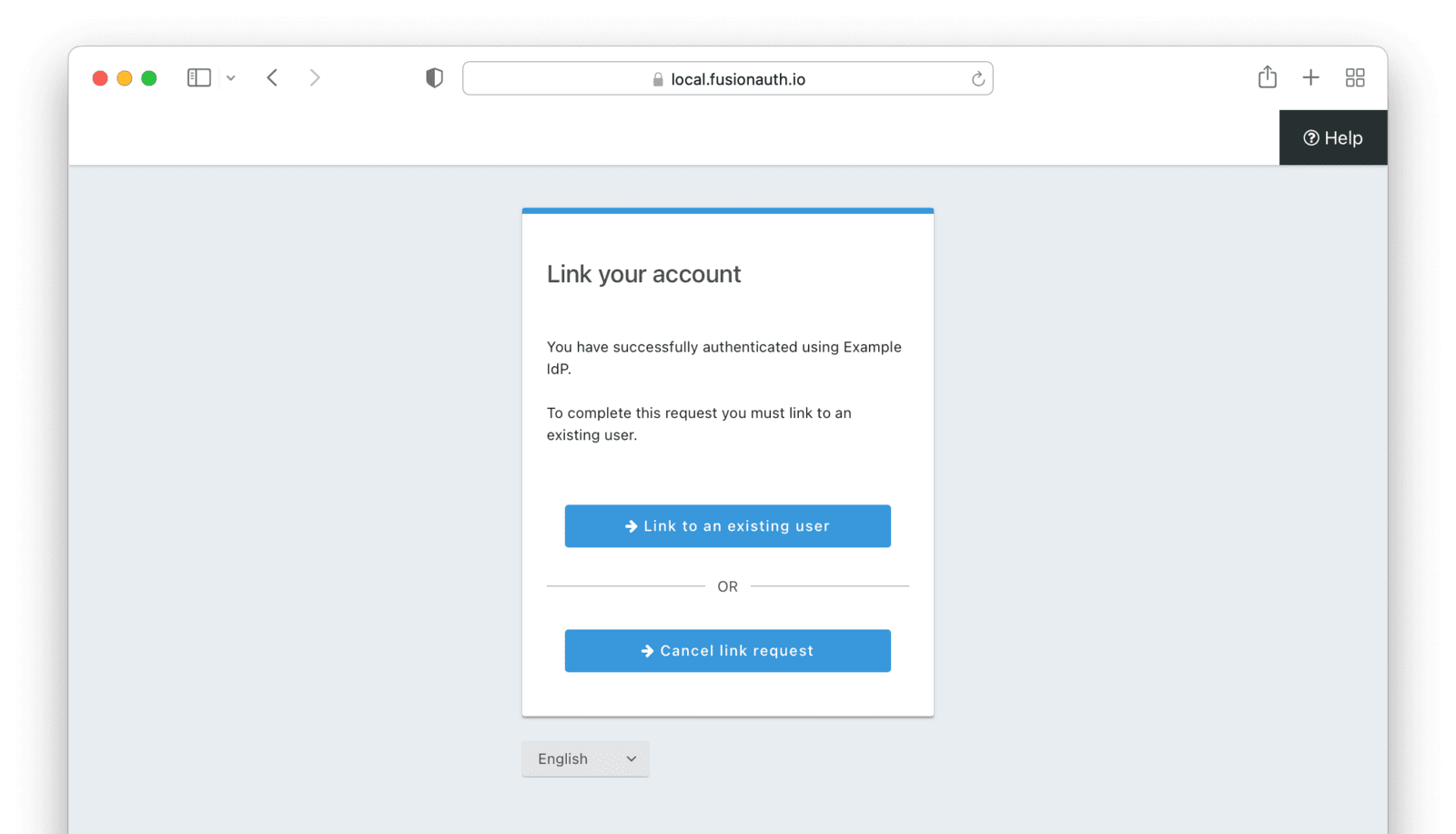
This is useful when the user has a different email or username in the remote identity provider than an existing FusionAuth identity. The user must know enough to link them. That is, they must remember the account they have in FusionAuth. This uses the linking strategy Create a Pending Link.
If the application configuration allows for self service registration, the user can register for an account in FusionAuth when a pending link strategy is chosen. Otherwise the user must exist in FusionAuth.
Richard is logging into Pied Piper. He has an account in FusionAuth with the email address richard@piedpiper.com. He also has an account at Hooli with the email address richard@hooli.com.
- Richard clicks on the 'Login With Hooli' button on the login screen.
- He logs in to Hooli with
richard@hooli.com, his account at Hooli. - He is redirected to FusionAuth.
- He is prompted to log in to FusionAuth with his Pied Piper email and password.
- He logs in with
richard@piedpiper.com. - The FusionAuth account with the email
richard@piedpiper.comis linked to the Hoolirichard@hooli.comaccount.
Anonymous Link#
This is a useful option if you don't want to create a full user account in FusionAuth. But see the Anonymous Account Limitations below. This uses the linking strategy Anonymous Link .
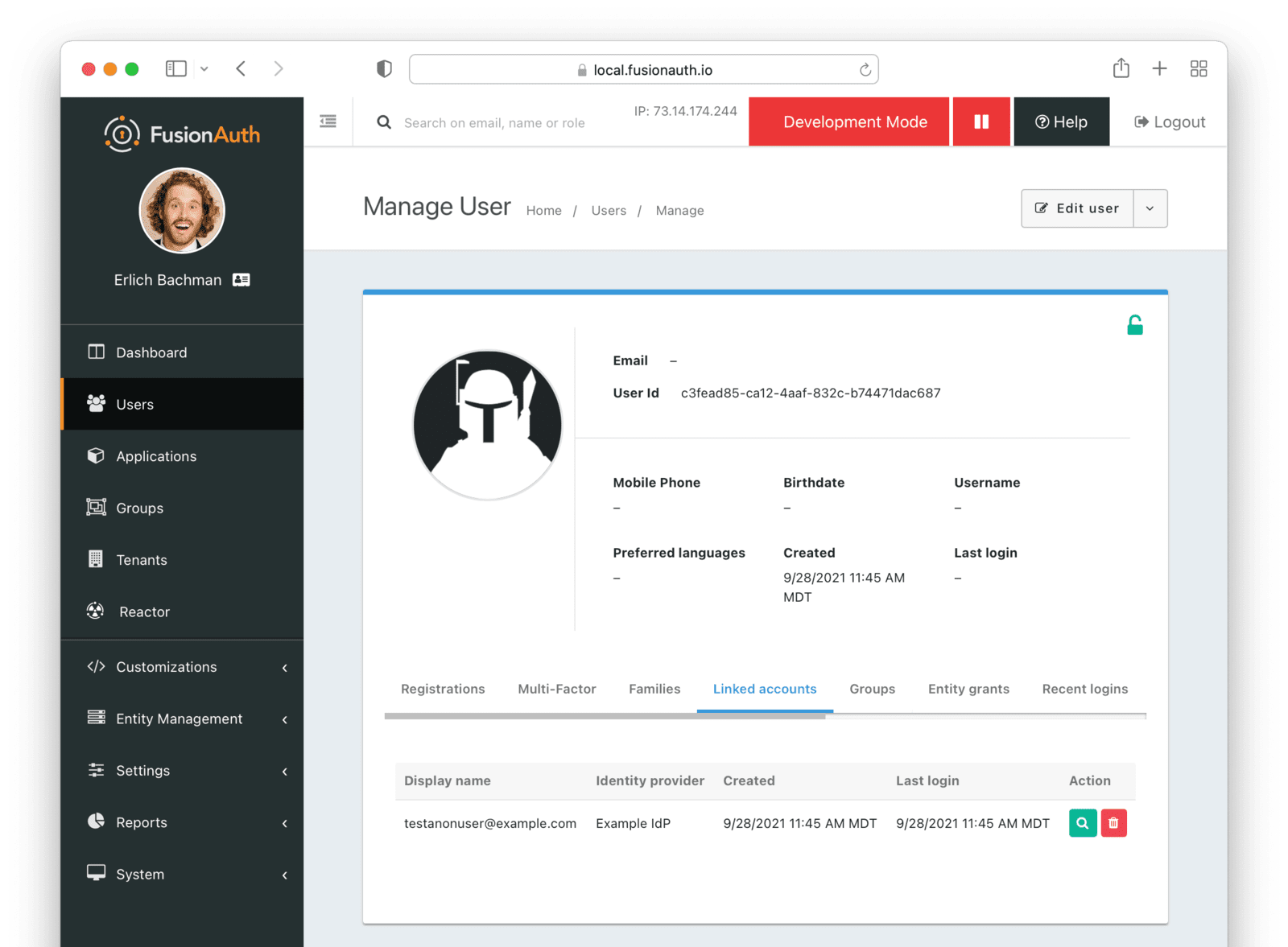
Anonymous Link, IdP Provides Email#
Richard is logging into Pied Piper. He doesn't have an account in FusionAuth.
- Richard clicks on the 'Login With Hooli' button on the login screen.
- He logs in to Hooli with
richard@hooli.com, his account at Hooli. - He is redirected to FusionAuth.
- There is an account created in FusionAuth with no username or email address. It is not a full account.
- Richard can interact with Pied Piper (a JWT is issued, etc), but cannot use FusionAuth workflows like 'forgot password'.
Anonymous Link, No Email Or Username Returned By The IdP#
Richard is logging into Pied Piper. He doesn't have an account in FusionAuth. The identity provider is the Hooli XYZ server. This identity provider does not return a username or password in its response.
- Richard clicks on the 'Login With Hooli XYZ' button on the login screen.
- He logs in with
richard@hoolixyz.com. - He is redirected to FusionAuth.
- There is an account created in FusionAuth with no username or email address. It is not a full account.
- Richard can interact with Pied Piper (a JWT is issued, etc), but cannot use FusionAuth workflows like 'forgot password'.
Anonymous Account Limitations#
Users with an anonymous account may log in to applications using their IdP-provided credentials.
They won't have an email address, so can't use any of the email based FusionAuth workflows like 'forgot password'.
You also can't modify the user using any FusionAuth APIs. If you try to modify the user using these, you must provide a username or email.
Because this linking strategy provides no information about the user, Anonymous Link cannot call a reconciliation lambda.
Link On Email#
The following strategies link using an email address.
Link On Email. Create the user if they do not exist.creates a user if no matching account exists in FusionAuth.Link On Email. Do not create the user if they do not exist.does not create a user if no matching account exists and treats such a login as an error. If a matching account exists, the login succeeds.
Link On Email, Matching Account Must Exist and Does#
This uses the linking strategy Link On Email. Do not create the user if they do not exist..
Here, Richard is logging into Pied Piper. He has an account in FusionAuth with the email address richard@piedpiper.com.
- Richard clicks on the 'Login With Hooli' button on the login screen.
- He logs in to Hooli with the
richard@piedpiper.comaccount. - He is redirected to FusionAuth and logs in successfully. Access is allowed.
- The FusionAuth account with the email
richard@piedpiper.comis linked to the Hoolirichard@piedpiper.comaccount.
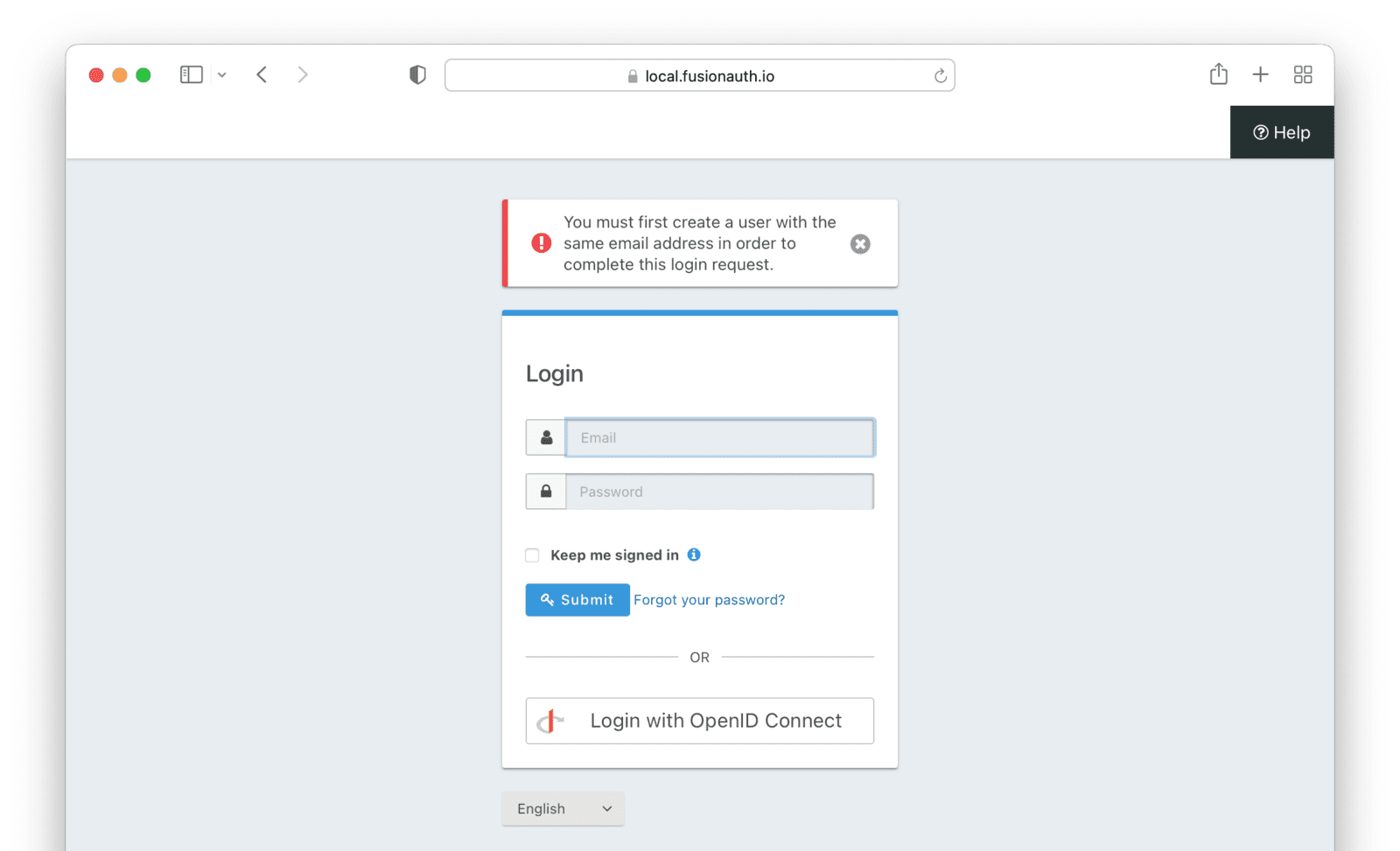
Link On Email, Matching Account Must Exist But Doesn't#
This uses the linking strategy Link On Email. Do not create the user if they do not exist..
Richard is logging into Pied Piper. He doesn't have an account in FusionAuth.
- Richard clicks on the 'Login With Hooli' button on the login screen.
- He logs in to Hooli with the
richard@piedpiper.comaccount. - He is redirected to FusionAuth but sees an error. No access is allowed.
Here's an example of the error page:
Link On Email, User Account Is Created If Needed#
This uses the linking strategy Link On Email. Create the user if they do not exist..
Richard is logging into Pied Piper. He doesn't have an account in FusionAuth.
- Richard clicks on the 'Login With Hooli' button on the login screen.
- He logs in to Hooli with the
richard@piedpiper.comaccount. - He is redirected to FusionAuth.
- A new account is created in FusionAuth with the email
richard@piedpiper.com. - The new FusionAuth account with the email
richard@piedpiper.comis linked to the Hoolirichard@piedpiper.comaccount.
Link On Username#
The following linking strategies link using an email address:
Link On Username. Create the user if they do not exist.creates a user if no matching account exists in FusionAuth.Link On Username. Do not create the user if they do not exist.does not create a user if no matching account exists and treats such a login as an error. If a matching account exists, the login succeeds.
Link On Username, Matching Account Must Exist And Does#
This uses the linking strategy Link On Username. Do not create the user if they do not exist..
Richard is logging into Pied Piper. He has an account in FusionAuth with the username richard.
- Richard clicks on the 'Login With Hooli' button on the login screen.
- He logs in to Hooli with the
richardaccount. - He is redirected to FusionAuth and logs in successfully. Access is allowed.
- The FusionAuth account with the username
richardis linked to the Hoolirichardaccount.
Link On Username, Matching Account Must Exist But Doesn't#
This uses the linking strategy Link On Username. Do not create the user if they do not exist..
Richard is logging into Pied Piper. He doesn't have an account in FusionAuth.
- Richard clicks on the 'Login With Hooli' button on the login screen.
- He logs in to Hooli with the
richardaccount. - He is redirected to FusionAuth but sees an error. No access is allowed.
Link On Username, User Account Is Created If Needed#
This uses the linking strategy Link On Username. Create the user if they do not exist..
Richard is logging into Pied Piper. He doesn't have an account in FusionAuth.
- Richard clicks on the 'Login With Hooli' button on the login screen.
- He logs in to Hooli with the
richardaccount. - He is redirected to FusionAuth.
- A new account is created in FusionAuth with the username
richard. - The new FusionAuth account with the username
richardis linked to the Hoolirichardaccount.
OAuth Scope Parameter#
If you would like to request OAuth scopes on the access token from FusionAuth, provide those in the scope parameter on the authorization request to FusionAuth.
In contrast, the scope parameter for the request to the identity provider is configured via the Scope value, if available.
Limitations#
Some Identity Providers, such as the Google and OIDC Identity Providers, request access tokens from a configured remote URL. Remote servers must respond within a certain time frame or the login workflow will fail. The limit is currently 10 seconds. It is not configurable.
Managed domains can only be used with OIDC and SAMLv2 Identity Providers.
FusionAuth's hosted login pages only support a single Google identity provider configuration using Google's GSI client at a time, which provides a more modern experience and One Tap support. See Google identity provider limitations for more information.