Configure Passkeys
On this page
1.52.0
To use WebAuthn, you have two options. The first option is the FusionAuth hosted login pages interface. FusionAuth's hosted login pages are customizable via themes to make each of the web pages look like your application. The other option is using the WebAuthn API. Both approaches are covered in the sections below.
In either case, you should:
-
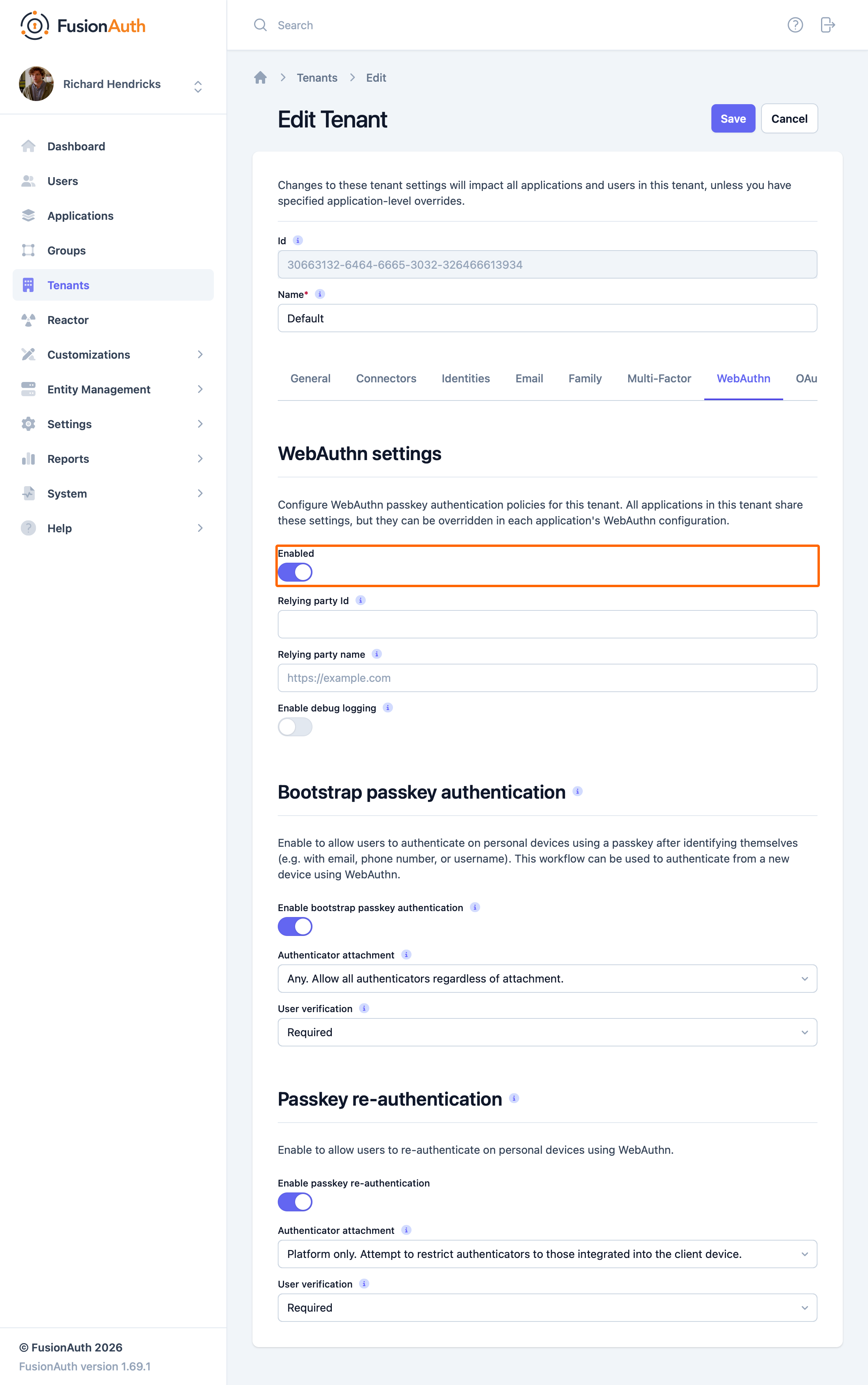
Enable WebAuthn by navigating to Tenant -> Edit -> WebAuthn and toggling the Enable option to the active state:
-
Enable one or more WebAuthn workflows on the tenant configuration:
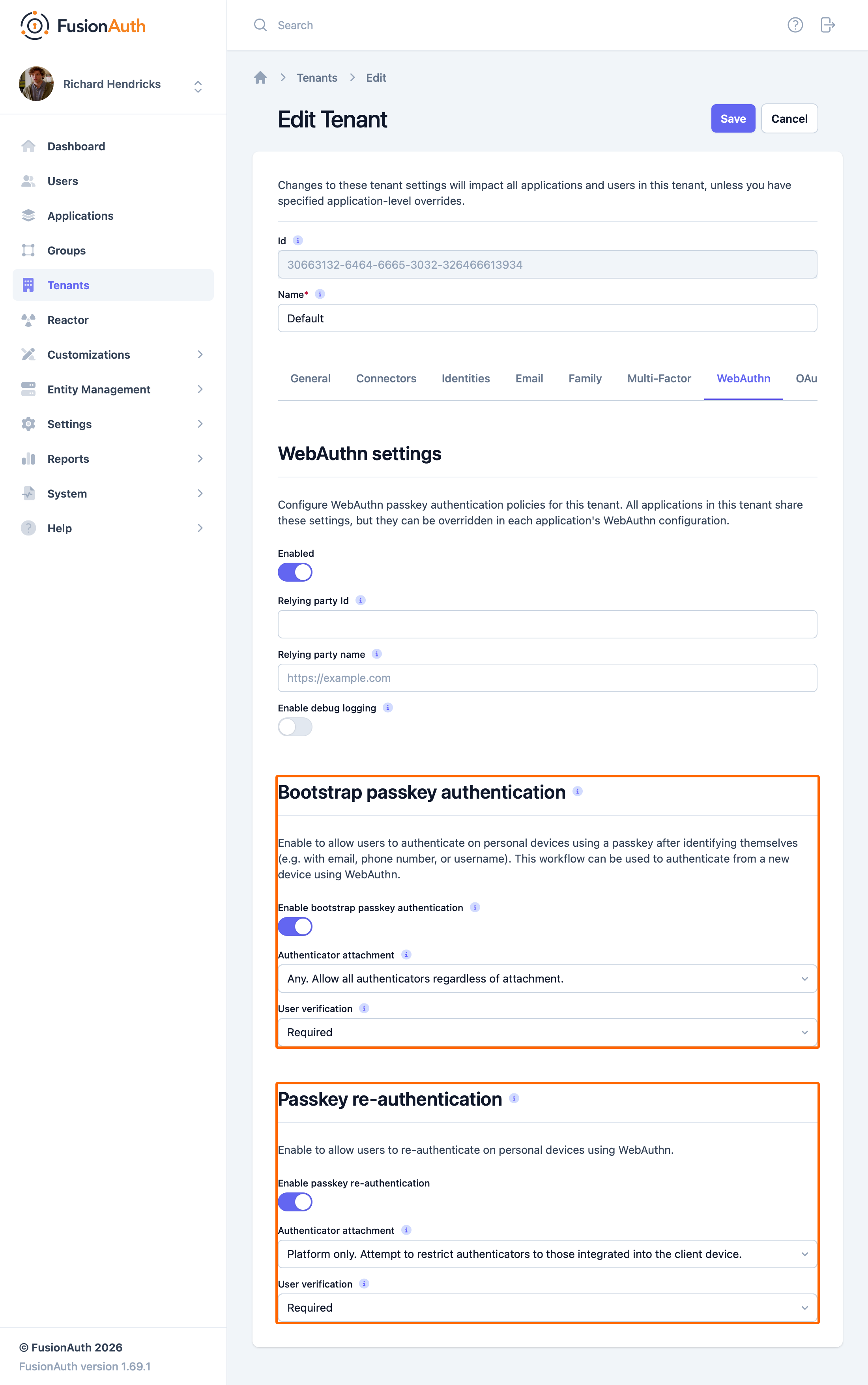
The WebAuthn Admin Guide has more information on the tenant configuration options and overriding workflow availability per application.
Using the FusionAuth Hosted Login Pages#
Using the FusionAuth hosted login pages will handle the client-side portion of WebAuthn ceremonies for you. This includes necessary data conversions between the FusionAuth APIs and the WebAuthn JavaScript API as well as the WebAuthn API call itself. There is no additional configuration required for this approach.
FusionAuth supports two WebAuthn workflows: re-authentication and bootstrap authentication.
Re-authentication#
The re-authentication workflow is used to provide a streamlined user experience for repeated logins from the same device. FusionAuth will automatically prompt users to opt in to this workflow when it detects a compatible device. The next time the user is prompted to sign in, they will be redirected to a WebAuthn re-authentication page that lists available passkeys. The user can sign in by clicking a passkey in the list and completing the WebAuthn authentication ceremony.
Registration#
After a successful login, users will automatically be redirected to prompt them to register or select a WebAuthn passkey for re-authentication if:
- The re-authentication workflow is enabled
- FusionAuth detects a device suitable for re-authentication using the isUserVerifyingPlatformAuthenticatorAvailable() JavaScript method
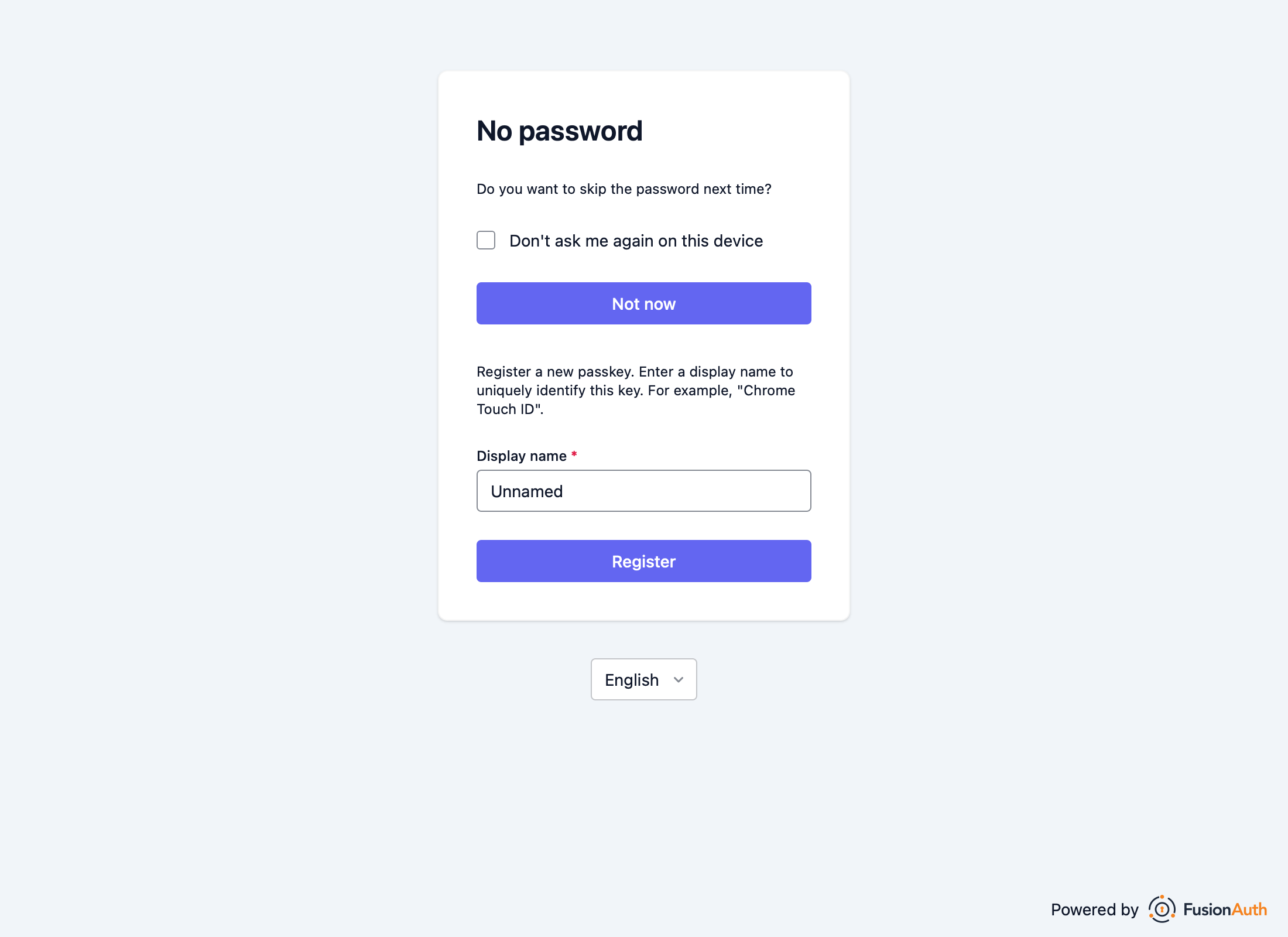
The re-authentication prompt page lists a user's WebAuthn passkeys that meet the attachment and user verification requirements for the tenant configuration. It also has a section to register a new passkey for re-authentication.
There are a few important notes about this page:
- The listed passkeys may have been registered with an authenticator that is not currently available (e.g. a removable security key)
- The listed passkeys may have been registered in another browser. Typically passkeys registered with a platform authenticator in one browser will not work in a different browser
- If the user tries to register a new passkey using the same authenticator as another of their passkeys, the registration ceremony will fail
The user is also presented with the option to skip selecting a re-authentication passkey. Choosing the "Don't ask me again on this device" and then clicking the Not now button will skip the prompt to sign in with a passkey in the future.
The user can select a passkey from the list to complete a WebAuthn authentication ceremony and mark that passkey for re-authentication. Otherwise, they can enter a display name and complete a WebAuthn registration ceremony to generate a new passkey that will be marked for re-authentication. In either case, FusionAuth will redirect to the WebAuthn re-authentication page the next time a login page would be presented.
Authentication#
When a user visits the hosted login pages and begins an authentication, FusionAuth will check to see if the user has previously set up a passkey for this device. If this can be determined, the user will be redirected to the WebAuthn re-authentication page.
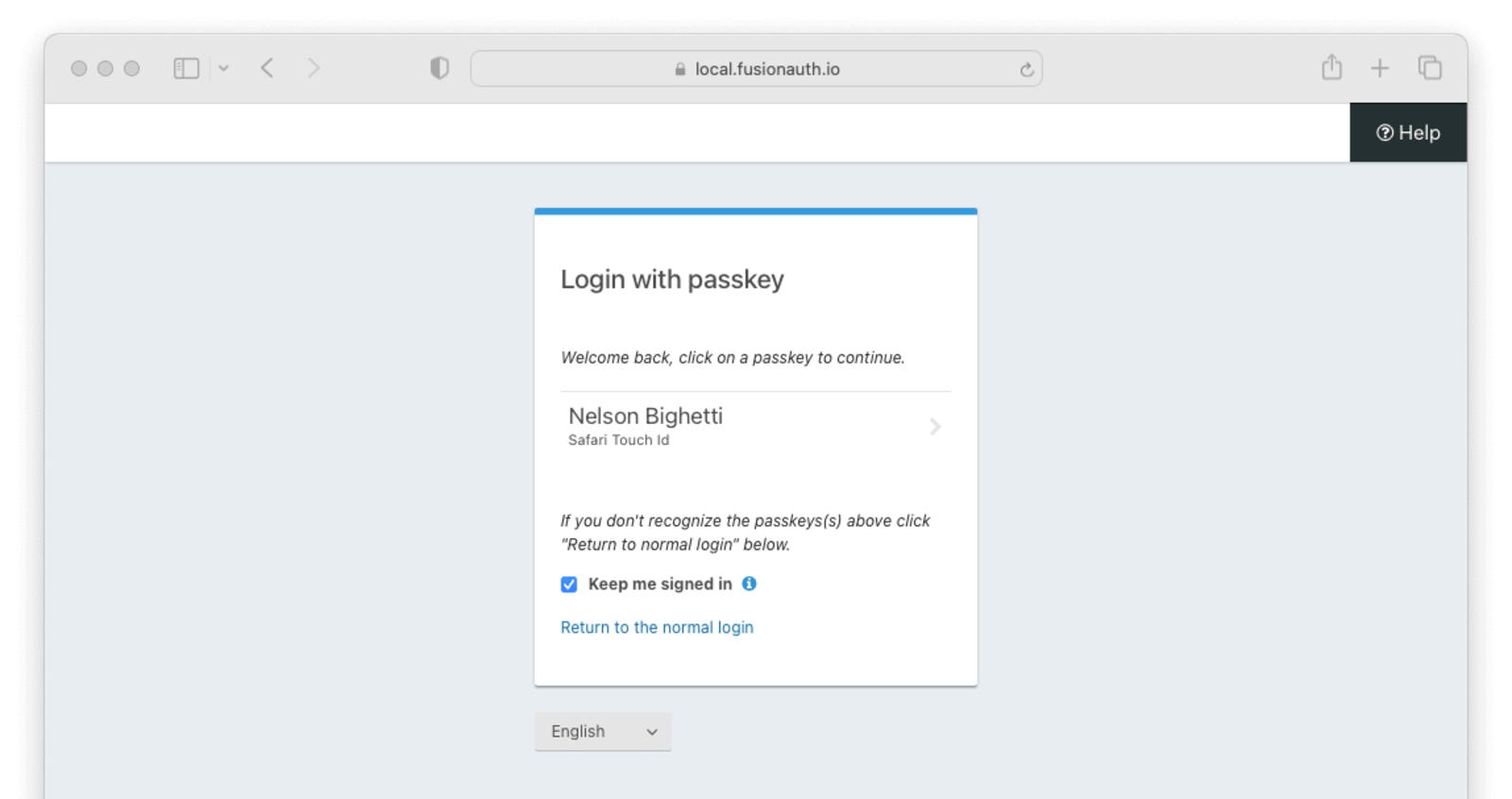
WebAuthn passkeys determined to be present will be listed. A user can select which passkey and, by extension, account they would like to use for re-authentication. Clicking a passkey on the list will start the WebAuthn authentication ceremony. Only the selected passkey will be eligible to complete the re-authentication. Once the WebAuthn authentication ceremony has been completed successfully, the user will be authenticated.
The user also has the option to return to the normal login page by clicking the Return to the normal login link.
These pages can be modified by the themes just as any other hosted login page.
Bootstrap Authentication#
The bootstrap workflow requires that the user "bootstrap" the WebAuthn authentication ceremony by providing identifying information such as a username or email address. You could think of this as a "manual" WebAuthn login as opposed to the re-authentication workflow where users are automatically prompted. Users can use any of their passkeys whose authenticator meets the attachment and user verification requirements to complete this authentication process.
Registration#
If the re-authentication workflow is disabled for the tenant, users need another way to register passkeys for WebAuthn bootstrap authentication because they won't be prompted to add a passkey during authentication. Users can register and manage their own passkeys through Self Service Account Management.
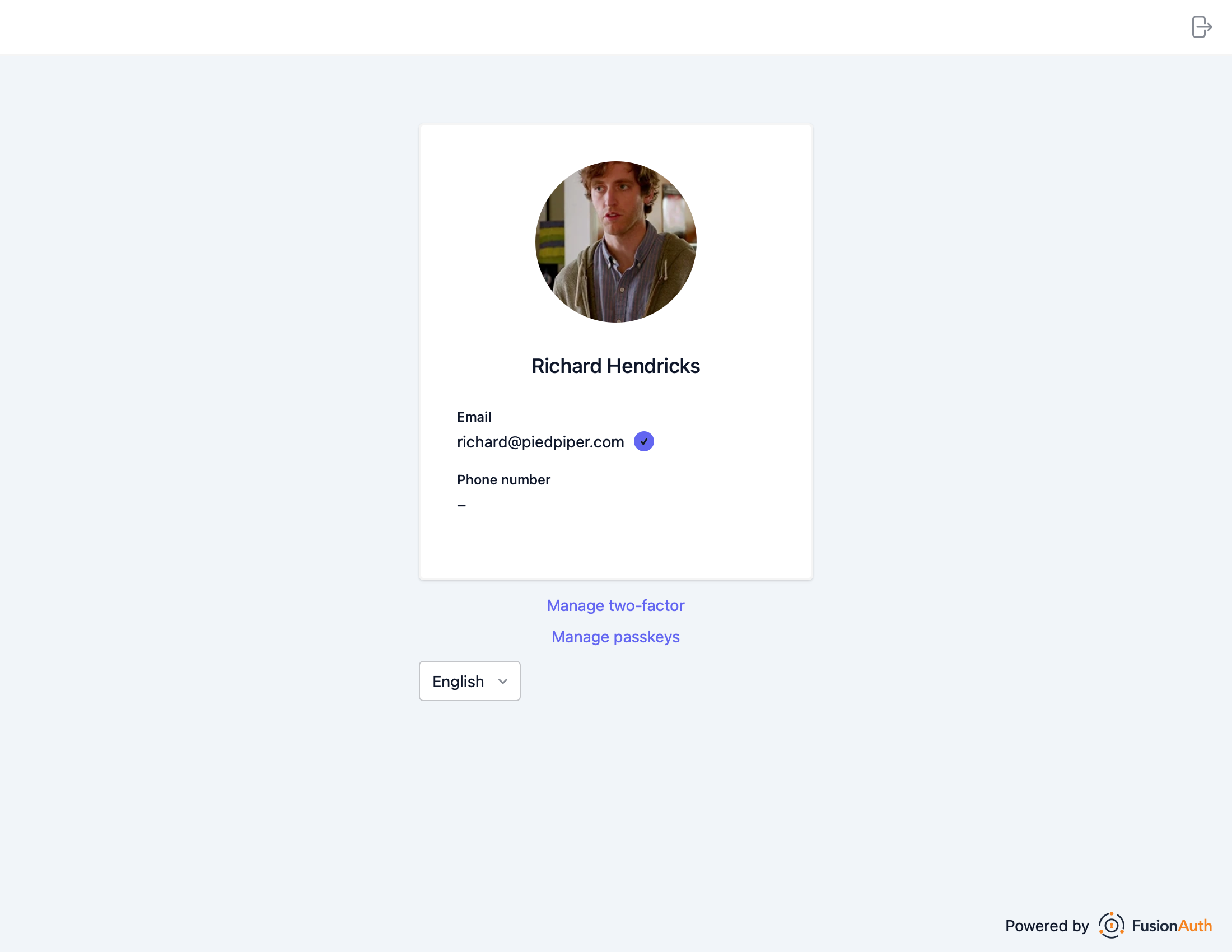
Users can see a list of passkeys along with a button to delete each one. Below the list of registered passkeys is a button to add a new passkey. Passkey registration on this page will use authenticator attachment and user verification requirements designed to cover the broadest set of use cases. Depending on the tenant configuration, passkeys registered here may not be usable with all enabled WebAuthn workflows. For instance, if passkey ABC is cross-platform, but the tenant is only configured to accept platform authenticators, passkey ABC won't work even though it shows up in this list.
Authentication#
If the bootstrap workflow is enabled, users will see a button to authenticate with "Fingerprint, device or key" on the initial FusionAuth login page.
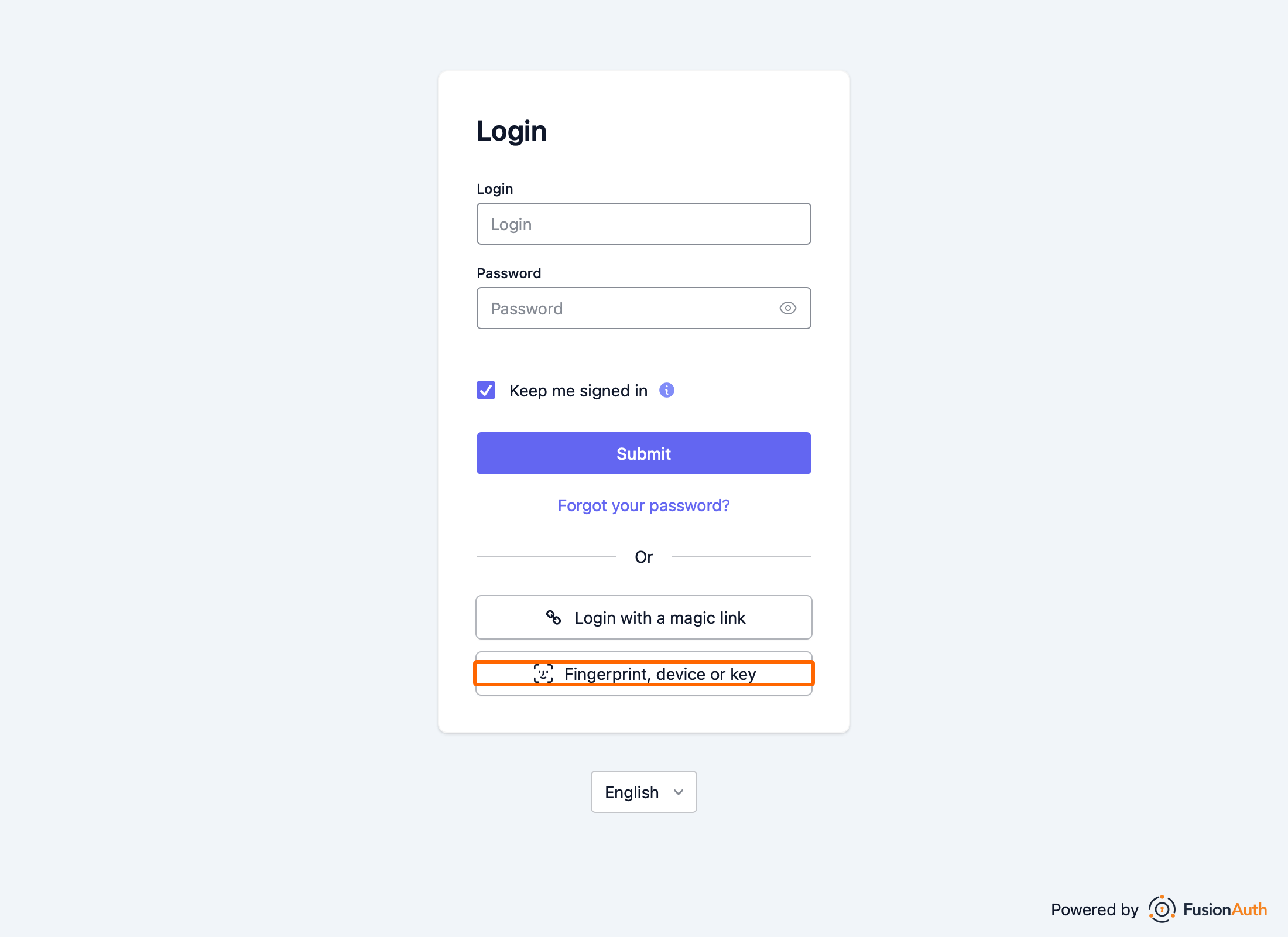
When a re-authentication passkey has been registered in this browser, users will see a link just above the alternative login methods sections with the text "Return to passkey authentication." This link will take the user back to the re-authentication page.
Clicking the Fingerprint, device or key button will take the user to the WebAuthn bootstrap login page.
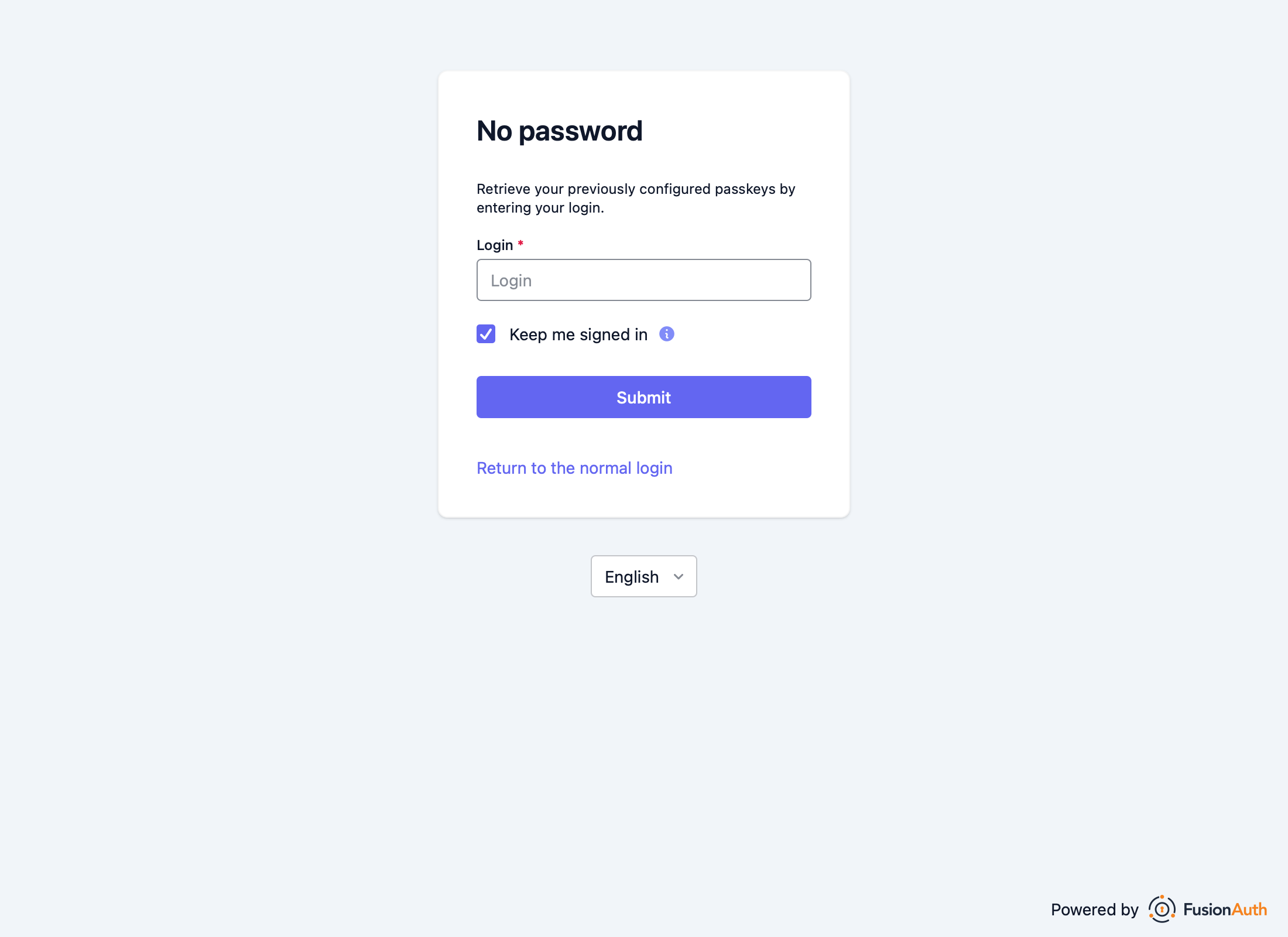
The user must identify themselves with their username, email address, or phone number, then click the Submit button to begin the WebAuthn authentication ceremony. They can use any of their registered passkeys whose authenticator meets the configured attachment and user verification requirements for the bootstrap workflow.
Once the WebAuthn authentication ceremony has been completed successfully, the user will be authenticated.
These pages can be modified by the themes just as any other hosted login page.
Using the API Directly#
While using the FusionAuth's hosted login pages works for many, you may need more control. You can use the WebAuthn API to register new passkeys and authenticate a user with a passkey. The WebAuthn API reference docs cover each of the API calls, but this guide will walk you through an implementation.
There are a couple of reasons you might choose this method of integration.
- You can customize every part of the user login experience
- You can use a different method to track re-authentication passkey availability
When using this option, you must set up an API key with the appropriate permissions. The minimum level of privilege required is the POST permission to the /api/webauthn/start and /api/webauthn/register/start endpoints.
The WebAuthn registration and authentication ceremonies both have a similar set of steps.
- Start the WebAuthn ceremony via an API call to FusionAuth
- Transform the API response containing the options for the ceremony
- Invoke the WebAuthn JavaScript API in the browser using the transformed options
- Transform the authenticator response to prevent issues during network transport
- Include the transformed response in an API call to FusionAuth to complete the ceremony
The registration and authentication ceremonies are covered in their own sections below.
Registration#
Use the WebAuthn registration ceremony to create a new passkey for a user.
Starting the Registration#
You start a WebAuthn registration by calling the /api/webauthn/register/start endpoint.
API_KEY=...
REQUEST_PAYLOAD='{...}'
curl  -H "Content-type: application/json" -H "Authorization: $API_KEY" https://local.fusionauth.io/api/webauthn/register/start -d $REQUEST_PAYLOAD
Here's an example request payload:
{
  "displayName": "Chrome Touch ID",
  "userId": "703fe2d2-2d39-4cb7-b76d-0b9918ed2457",
  "workflow": "reauthentication"
}
The call to /api/webauthn/register/start begins the registration ceremony and returns a response with options for the WebAuthn JavaScript API, including a one-time challenge specific to this ceremony:
{
  "options": {
    "attestation": "none",
    "authenticatorSelection": {
      "authenticatorAttachment": "platform",
      "userVerification": "required"
    },
    "challenge": "fdnW2u1_Nk9_FY2SprU4mPs0NgBTbo9tOO5Q9EvO1Oc",
    "excludeCredentials": [
      {
        "id": "MBU0eBsaNAt4VEh4Lbn2sQ==",
        "transports": [
          "internal"
        ],
        "type": "public-key"
      }
    ],
    "extensions": {
      "credProps": true
    },
    "pubKeyCredParams": [
      {
        "alg": -36,
        "type": "public-key"
      },
      {
        "alg": -35,
        "type": "public-key"
      },
      {
        "alg": -7,
        "type": "public-key"
      },
      {
        "alg": -39,
        "type": "public-key"
      },
      {
        "alg": -38,
        "type": "public-key"
      },
      {
        "alg": -37,
        "type": "public-key"
      },
      {
        "alg": -259,
        "type": "public-key"
      },
      {
        "alg": -258,
        "type": "public-key"
      },
      {
        "alg": -257,
        "type": "public-key"
      }
    ],
    "rp": {
      "id": "piedpiper.com",
      "name": "Pied Piper"
    },
    "timeout": 180000,
    "user": {
      "displayName": "Chrome Touch ID",
      "id": "NzAzZmUyZDItMmQzOS00Y2I3LWI3NmQtMGI5OTE4ZWQyNDU3",
      "name": "richard@fusionauth.io"
    }
  }
}
Transform the Options Response#
Certain fields on the /api/webauthn/register/start response are returned as base64url-encoded strings. These have to be translated to JavaScript ArrayBufferss before being passed to the WebAuthn JavaScript API. The response should be left as-is other than the transformations for these particular fields.
The following response fields need to be converted to ArrayBuffers if they are present:
- options.challenge
- options.excludeCredentials[x].id
- options.user.id
See the /api/webauthn/register/start response body section for more details.
You can use the following JavaScript function to perform the conversion:
function base64URLToBuffer(base64URL) {
  const base64 = base64URL.replace(/-/g, '+').replace(/_/g, '/');
  const padLen = (4 - (base64.length % 4)) % 4;
  return Uint8Array.from(atob(base64.padEnd(base64.length + padLen, '=')), c => c.charCodeAt(0));
}
The following is an ES6 JavaScript snippet to convert the API response to the object that is passed to the WebAuthn JavaScript API. In the following example options is the value of the options field on the /api/webauthn/register/start API response, and creationOptions is the object that is passed to the WebAuthn JavaScript API's navigator.credentials.create() function.
const creationOptions = {
  // publicKey indicates this is for WebAuthn
  publicKey: {
    ...options,
    challenge: base64URLToBuffer(options.challenge),
    excludeCredentials: options.excludeCredentials?.map(c => {
      return {
        ...c,
        id: base64URLToBuffer(c.id)
      }
    }) ?? [],
    user: {
      ...options.user,
      id: base64URLToBuffer(options.user.id)
    }
  }
};
Invoke the WebAuthn JavaScript API#
Invoke navigator.credentials.create() on the WebAuthn JavaScript API, passing the transformed FusionAuth API response (creationOptions in the snippet above) as a parameter.
The function returns a Promise that resolves with a PublicKeyCredential. Reference MDN documentation or the WebAuthn specification for details.
Transform the Authenticator Response#
Certain fields on the PublicKeyCredential response from the navigator.credentials.create() WebAuthn JavaScript API call need to be transformed from ArrayBuffers to base64url-encoded strings for transport over the network.
The following response fields need to be converted from ArrayBuffers to base64url-encoded strings if they are present where credential refers to the PublicKeyCredential returned by the navigator.credentials.create() call:
- credential.response.attestationObject
- credential.response.clientDataJSON
See the /api/webauthn/register/complete request body section for more details.
You can use the following JavaScript function to perform the conversion:
function bufferToBase64URL(buffer) {
  const bytes = new Uint8Array(buffer);
  let string = '';
  bytes.forEach(b => string += String.fromCharCode(b));

  const base64 = btoa(string);
  return base64.replace(/\+/g, '-').replace(/\//g, '_').replace(/=/g, '');
}
You should also use convenience methods on the PublicKeyCredential and its response field to extract information on transports supported by the authenticator and any requested client extension results. The response field contains an AuthenticatorAttestationResponse object after a successful call to navigator.credentials.create(). The following is an ES6 JavaScript snippet to convert the PublicKeyCredential to a suitable format for the FusionAuth /api/webauthn/register/complete API call. In the following example, credential is the PublicKeyCredential object returned by the WebAuthn JavaScript API's navigator.credentials.create() function, and transformedCredential is the object that will be included in the credential on the FusionAuth /api/webauthn/register/complete API request.
const transformedCredential = {
  id: credential.id,
  response: {
    attestationObject: bufferToBase64URL(credential.response.attestationObject),
    clientDataJSON: bufferToBase64URL(credential.response.clientDataJSON)
  },
  type: credential.type,
  clientExtensionResults: credential.getClientExtensionResults(),
  transports: typeof credential.response.getTransports === 'undefined' ? [] : credential.response.getTransports()
};
Completing the Registration#
You complete a WebAuthn registration by calling the /api/webauthn/register/complete endpoint.
REQUEST_PAYLOAD='{...}'
curl  -H "Content-type: application/json" https://local.fusionauth.io/api/webauthn/register/complete -d $REQUEST_PAYLOAD
Here's an example request payload where credential is the transformedCredential from the snippet above:
{
  "credential": {
    "clientExtensionResults": {
      "credProps": {
        "rk": true
      }
    },
    "id": "HdN9wqP9mqOonacmiM2gIjASFYg",
    "response": {
      "attestationObject": "v2dhdHRTdG109mhhdXRoRGF0YViemPsv4VW-wth0V9gzsxWRFn-1SyC9gM4-QC4ptMFDNhVFAAAAFmhGAxjmXUwbl-q5EoJkWH0AELmJieDlA5kNXEtcIgWnp1a_YTMmYTECYi0xAWItMlggTmZZ1aeY0PP8-Ebdufqcg9TWEs_mJaFJmJ57uRyQ1BxiLTNYIQCzqsN1dkCeZKpWGKEVP0-eqBlkKGNCjfcdg5221SRZX_9jZm10ZG5vbmX_",
      "clientDataJSON": "eyJjaGFsbGVuZ2UiOiJ2dHk0WG1ES01EMmxTc2dVOEpsOFlIVEtBcGZlWXpMdkRVUksxTXpGd1JvIiwiY3Jvc3NPcmlnaW4iOmZhbHNlLCJvcmlnaW4iOiJodHRwczovL2Z1c2lvbmF1dGguaW8iLCJ0eXBlIjoid2ViYXV0aG4uY3JlYXRlIn0="
    },
    "transports": [
      "internal"
    ],
    "type": "public-key"
  },
  "origin": "https://auth.piedpiper.com",
  "rpId": "piedpiper.com",
  "userId": "703fe2d2-2d39-4cb7-b76d-0b9918ed2457"
}
The call to /api/webauthn/register/complete completes the registration ceremony by validating the request against the WebAuthn specification, extracting the public key, and associating the new passkey with the user. This API returns the new WebAuthn passkey registered for the user.
{
  "credential": {
    "algorithm": -7,
    "attestationType": "none",
    "authenticatorSupportsUserVerification": true,
    "credentialId": "HdN9wqP9mqOonacmiM2gIjASFYg",
    "data": {},
    "displayName": "Chrome Touch ID",
    "name": "richard@fusionauth.io",
    "id": "c664318a-2384-4c35-9475-9a200e1d3b72",
    "insertInstant": 1668011701792,
    "discoverable": false,
    "lastUseInstant": 1668021630599,
    "publicKey": "-----BEGIN PUBLIC KEY-----\nMFkwEwYHKoZIzj0CAQYIKoZIzj0DAQcDQgAEz9DI9AQfZn1aDJG5sw3Ckl7SoQ7E\nLPElDoJMijphvVigTcNMTc8H9Xptl8B20QHMOXGTzaUxLGNY1c8yhw9VVA==\n-----END PUBLIC KEY-----",
    "relyingPartyId": "piedpiper.com",
    "signCount": 41,
    "tenantId": "30663132-6464-6665-3032-326466613934",
    "transports": [
      "internal"
    ],
    "userId": "703fe2d2-2d39-4cb7-b76d-0b9918ed2457"
  }
}Authentication#
Use the WebAuthn authentication ceremony to authenticate a user with a passkey. There is also a separate FusionAuth API to complete the assertion, which will validate the authenticator response without logging the user in.
Starting the Authentication#
You start a WebAuthn authentication ceremony by calling the /api/webauthn/start endpoint.
API_KEY=...
REQUEST_PAYLOAD='{...}'
curl  -H "Content-type: application/json" -H "Authorization: $API_KEY" https://local.fusionauth.io/api/webauthn/start -d $REQUEST_PAYLOAD
Here's an example request payload:
{
  "applicationId": "82b24314-95f6-4393-b3da-72c341185244",
  "userId": "703fe2d2-2d39-4cb7-b76d-0b9918ed2457",
  "workflow": "reauthentication"
}
The call to /api/webauthn/start begins the authentication ceremony and returns a response with options for the WebAuthn JavaScript API, including a one-time challenge specific to this ceremony:
{
  "options": {
    "allowCredentials": [
      {
        "id": "HdN9wqP9mqOonacmiM2gIjASFYg",
        "transports": [
          "internal"
        ],
        "type": "public-key"
      }
    ],
    "challenge": "fdnW2u1_Nk9_FY2SprU4mPs0NgBTbo9tOO5Q9EvO1Oc",
    "rpId": "piedpiper.com",
    "timeout": 180000,
    "userVerification": "required"
  }
}
Transform the Options Response#
Certain fields on the /api/webauthn/start response are returned as base64url-encoded strings. These have to be translated to JavaScript ArrayBuffers before being passed to the WebAuthn JavaScript API. The response should be left as-is other than the transformations for these particular fields.
The following response fields need to be converted to ArrayBuffers if they are present:
- options.challenge
- options.allowCredentials[x].id
See the /api/webauthn/start response body section for more details.
You can use the following JavaScript function to perform the conversion:
function base64URLToBuffer(base64URL) {
  const base64 = base64URL.replace(/-/g, '+').replace(/_/g, '/');
  const padLen = (4 - (base64.length % 4)) % 4;
  return Uint8Array.from(atob(base64.padEnd(base64.length + padLen, '=')), c => c.charCodeAt(0));
}
The following is an ES6 JavaScript snippet to convert the API response to the object that is passed to the WebAuthn JavaScript API. In the following example options is the value of the options field on the /api/webauthn/start API response, and requestOptions is the object that is passed to the WebAuthn JavaScript API's navigator.credentials.get() function.
const requestOptions = {
  // publicKey indicates this is for WebAuthn
  publicKey: {
    ...options,
    challenge: base64URLToBuffer(options.challenge),
    allowCredentials: options.allowCredentials.map(c => {
      return {
        ...c,
        id: base64URLToBuffer(c.id)
      }
    })
  }
};
Invoke the WebAuthn JavaScript API#
Invoke navigator.credentials.get() on the WebAuthn JavaScript API, passing the transformed FusionAuth API response (requestOptions in the snippet above) as a parameter.
The function returns a Promise that resolves with a PublicKeyCredential. Reference MDN documentation or the WebAuthn specification for details.
Transform the Authenticator Response#
Certain fields on the PublicKeyCredential response from the navigator.credentials.get() WebAuthn JavaScript API call need to be transformed from ArrayBuffers to base64url-encoded strings for transport over the network.
The following response fields need to be converted from ArrayBuffers to base64url-encoded strings if they are present where credential refers to the PublicKeyCredential returned by the navigator.credentials.get() call:
- credential.response.authenticatorData
- credential.response.clientDataJSON
- credential.response.signature
- credential.response.userHandle
See the /api/webauthn/login or /api/webauthn/assert request body sections for more details.
You can use the following JavaScript function to perform the conversion:
function bufferToBase64URL(buffer) {
  const bytes = new Uint8Array(buffer);
  let string = '';
  bytes.forEach(b => string += String.fromCharCode(b));

  const base64 = btoa(string);
  return base64.replace(/\+/g, '-').replace(/\//g, '_').replace(/=/g, '');
}
You should also use convenience methods on the PublicKeyCredential to extract information on any requested client extension results. The response field contains an AuthenticatorAssertionResponse object after a successful call to navigator.credentials.get(). The following is an ES6 JavaScript snippet to convert the PublicKeyCredential to a suitable format for the FusionAuth /api/webauthn/login or /api/webauthn/assert API call. In the following example, credential is the PublicKeyCredential object returned by the WebAuthn JavaScript API's navigator.credentials.get() function, and transformedCredential is the object that will be included in the credential field on the FusionAuth API request.
let userHandle = undefined;
if (credential.response.userHandle) {
  userHandle = bufferToBase64URL(credential.response.userHandle);
}
const transformedCredential = {
  id: credential.id,
  response: {
    authenticatorData: bufferToBase64URL(credential.response.authenticatorData),
    clientDataJSON: bufferToBase64URL(credential.response.clientDataJSON),
    signature: bufferToBase64URL(credential.response.signature),
    userHandle
  },
  type: credential.type,
  clientExtensionResults: credential.getClientExtensionResults()
};
Completing the Authentication#
You complete a WebAuthn authentication by calling the /api/webauthn/login endpoint.
REQUEST_PAYLOAD='{...}'
curl  -H "Content-type: application/json" https://local.fusionauth.io/api/webauthn/login -d $REQUEST_PAYLOAD
Here's an example request payload where credential is the transformedCredential from the snippet above:
{
  "credential": {
    "id": "HdN9wqP9mqOonacmiM2gIjASFYg",
    "response": {
      "authenticatorData": "mPsv4VW-wth0V9gzsxWRFn-1SyC9gM4-QC4ptMFDNhUFAAAAKQ==",
      "clientDataJSON": "eyJjaGFsbGVuZ2UiOiJTeTYzQldla285blFsYzVOQmVWcE1BWjFtQ0hvdzBXUXVFeDRJU2xuQzR3IiwiY3Jvc3NPcmlnaW4iOmZhbHNlLCJvcmlnaW4iOiJodHRwczovL2Z1c2lvbmF1dGguaW8iLCJ0eXBlIjoid2ViYXV0aG4uZ2V0In0=",
      "signature": "MEUCIQDUwlDp9aNcYQmvpVGLJ35H8lRWjWsfjVsfPf_5HhY3GwIgahBhISBxv82ZS4ll8TZiJp5bIN2CGx_-VjUymfzKqGA=",
      "userHandle": "NzAzZmUyZDItMmQzOS00Y2I3LWI3NmQtMGI5OTE4ZWQyNDU3"
    },
    "type": "public-key"
  },
  "origin": "https://auth.piedpiper.com",
  "rpId": "piedpiper.com"
}
The call to /api/webauthn/login completes the authentication ceremony by validating the request against the WebAuthn specification, verifying the signature, and authenticating the user. This API returns the user object for the authenticated user along with access tokens for the successful authentication.
{
  "token": "eyJhbGciOiJIUzI1NiIsInR5cCI6IkpXVCJ9.eyJleHAiOjE0ODUxNDA5ODQsImlhdCI6MTQ4NTEzNzM4NCwiaXNzIjoiYWNtZS5jb20iLCJzdWIiOiIyOWFjMGMxOC0wYjRhLTQyY2YtODJmYy0wM2Q1NzAzMThhMWQiLCJhcHBsaWNhdGlvbklkIjoiNzkxMDM3MzQtOTdhYi00ZDFhLWFmMzctZTAwNmQwNWQyOTUyIiwicm9sZXMiOltdfQ.Mp0Pcwsz5VECK11Kf2ZZNF_SMKu5CgBeLN9ZOP04kZo",
  "user": {
    "active": true,
    "birthDate": "1976-05-30",
    "breachedPasswordLastCheckedInstant": 1471786483322,
    "breachedPasswordStatus": "None",
    "connectorId": "e3306678-a53a-4964-9040-1c96f36dda72",
    "data": {
      "displayName": "Johnny Boy",
      "favoriteColors": [
        "Red",
        "Blue"
      ]
    },
    "email": "example@fusionauth.io",
    "expiry": 1571786483322,
    "firstName": "John",
    "fullName": "John Doe",
    "id": "00000000-0000-0001-0000-000000000000",
    "identities": [
      {
        "insertInstant": 1742936980069,
        "lastLoginInstant": 1742936980069,
        "lastUpdateInstant": 1742936980069,
        "primary": true,
        "type": "email",
        "value": "example@fusionauth.io",
        "verified": false,
        "verifiedReason": "Disabled"
      },
      {
        "insertInstant": 1742936980069,
        "lastLoginInstant": 1742936980069,
        "lastUpdateInstant": 1742936980069,
        "primary": true,
        "type": "phoneNumber",
        "value": "+13035551212",
        "verified": false,
        "verifiedReason": "Disabled"
      },
      {
        "displayValue": "johnny123",
        "insertInstant": 1742936980069,
        "lastLoginInstant": 1742936980069,
        "lastUpdateInstant": 1742936980069,
        "moderationStatus": "ACTIVE",
        "primary": true,
        "type": "username",
        "value": "johnny123",
        "verified": false,
        "verifiedReason": "Unverifiable"
      }
    ],
    "imageUrl": "http://65.media.tumblr.com/tumblr_l7dbl0MHbU1qz50x3o1_500.png",
    "insertInstant": 1742936980069,
    "lastLoginInstant": 1742936980069,
    "lastName": "Doe",
    "middleName": "William",
    "mobilePhone": "303-555-1234",
    "passwordChangeRequired": false,
    "passwordLastUpdateInstant": 1742936980069,
    "phoneNumber": "+13035551212",
    "preferredLanguages": [
      "en",
      "fr"
    ],
    "registrations": [
      {
        "applicationId": "10000000-0000-0002-0000-000000000001",
        "data": {
          "displayName": "Johnny",
          "favoriteSports": [
            "Football",
            "Basketball"
          ]
        },
        "id": "00000000-0000-0002-0000-000000000000",
        "insertInstant": 1742936980069,
        "lastLoginInstant": 1742936980069,
        "preferredLanguages": [
          "en",
          "fr"
        ],
        "roles": [
          "user",
          "community_helper"
        ],
        "username": "johnny123",
        "usernameStatus": "ACTIVE",
        "verified": true,
        "verifiedInstant": 1742936980069
      }
    ],
    "timezone": "America/Denver",
    "tenantId": "f24aca2b-ce4a-4dad-951a-c9d690e71415",
    "twoFactor": {
      "methods": [
        {
          "authenticator": {
            "algorithm": "HmacSHA1",
            "codeLength": 6,
            "timeStep": 30
          },
          "id": "35VW",
          "method": "authenticator"
        },
        {
          "id": "V7SH",
          "method": "sms",
          "mobilePhone": "555-555-5555"
        },
        {
          "email": "example@fusionauth.io",
          "id": "7K2G",
          "method": "email"
        }
      ]
    },
    "usernameStatus": "ACTIVE",
    "username": "johnny123",
    "verified": true,
    "verifiedInstant": 1742936980069
  }
}
Completing the Assertion#
You can also complete a WebAuthn authentication ceremony by calling the /api/webauthn/assert endpoint. This endpoint performs the same request validation and signature verification as /api/webauthn/login, but it does not authenticate the user. It may be useful to validate that a user has access to passkey without authenticating them.
REQUEST_PAYLOAD='{...}'
curl  -H "Content-type: application/json" https://local.fusionauth.io/api/webauthn/assert -d $REQUEST_PAYLOAD
Here's an example request payload where credential is the transformedCredential from the snippet above:
{
  "credential": {
    "id": "HdN9wqP9mqOonacmiM2gIjASFYg",
    "response": {
      "authenticatorData": "mPsv4VW-wth0V9gzsxWRFn-1SyC9gM4-QC4ptMFDNhUFAAAAKQ==",
      "clientDataJSON": "eyJjaGFsbGVuZ2UiOiJTeTYzQldla285blFsYzVOQmVWcE1BWjFtQ0hvdzBXUXVFeDRJU2xuQzR3IiwiY3Jvc3NPcmlnaW4iOmZhbHNlLCJvcmlnaW4iOiJodHRwczovL2Z1c2lvbmF1dGguaW8iLCJ0eXBlIjoid2ViYXV0aG4uZ2V0In0=",
      "signature": "MEUCIQDUwlDp9aNcYQmvpVGLJ35H8lRWjWsfjVsfPf_5HhY3GwIgahBhISBxv82ZS4ll8TZiJp5bIN2CGx_-VjUymfzKqGA=",
      "userHandle": "NzAzZmUyZDItMmQzOS00Y2I3LWI3NmQtMGI5OTE4ZWQyNDU3"
    },
    "type": "public-key"
  },
  "origin": "https://auth.piedpiper.com",
  "rpId": "piedpiper.com"
}
The call to /api/webauthn/assert completes the authentication ceremony by validating the request against the WebAuthn specification and verifying the signature, but it does not authenticate the user. This API returns the WebAuthn passkey that was used to complete the assertion.
{
  "credential": {
    "algorithm": -7,
    "attestationType": "none",
    "authenticatorSupportsUserVerification": true,
    "credentialId": "HdN9wqP9mqOonacmiM2gIjASFYg",
    "data": {},
    "displayName": "Chrome Touch ID",
    "name": "richard@fusionauth.io",
    "id": "c664318a-2384-4c35-9475-9a200e1d3b72",
    "insertInstant": 1668011701792,
    "discoverable": false,
    "lastUseInstant": 1668021630599,
    "publicKey": "-----BEGIN PUBLIC KEY-----\nMFkwEwYHKoZIzj0CAQYIKoZIzj0DAQcDQgAEz9DI9AQfZn1aDJG5sw3Ckl7SoQ7E\nLPElDoJMijphvVigTcNMTc8H9Xptl8B20QHMOXGTzaUxLGNY1c8yhw9VVA==\n-----END PUBLIC KEY-----",
    "relyingPartyId": "piedpiper.com",
    "signCount": 41,
    "tenantId": "30663132-6464-6665-3032-326466613934",
    "transports": [
      "internal"
    ],
    "userId": "703fe2d2-2d39-4cb7-b76d-0b9918ed2457"
  }
}
Related
An overview of the passwordless capabilities of FusionAuth.
Customize the passkey experience in your application.
API documentation for the FusionAuth Complete a WebAuthn Passkey Assertion API.
API documentation for the FusionAuth Complete a WebAuthn Passkey Authentication API.