Customize Docker Images
On this page
This page covers the full FusionAuth Docker Compose configuration, building your own FusionAuth image, and running FusionAuth in Docker with Kickstart, plugins, Kafka, and other services.
Full Docker Compose configuration#
The Docker install guide uses a minimal docker-compose.yml that runs FusionAuth, PostgreSQL, and OpenSearch. The fusionauth-containers repository has a full configuration that also defines optional services. Docker Compose starts an optional service only when you enable its profile:
| Profile | Services |
|---|---|
caddy |
Caddy reverse proxy |
mailcatcher |
Mailcatcher SMTP server for development and testing |
kafka |
Kafka and Zookeeper, for sending webhook events to Kafka |
cleanspeak |
CleanSpeak profanity filtering (requires a CleanSpeak license) |
opentelemetry |
OpenTelemetry collector |
prometheus |
Prometheus monitoring |
alertmanager |
Prometheus Alertmanager |
To use the full configuration, download docker-compose.yml and .env, then start FusionAuth with any profiles you need:
$ curl -o docker-compose.yml https://raw.githubusercontent.com/FusionAuth/fusionauth-containers/main/docker/fusionauth/docker-compose.yml
$ curl -o .env https://raw.githubusercontent.com/FusionAuth/fusionauth-containers/main/docker/fusionauth/.env
$ docker compose --profile mailcatcher --profile kafka up -d
The caddy, opentelemetry, prometheus, and alertmanager profiles also read configuration files from the repository, such as Caddyfile and the files in monitoring/. To use those profiles, clone the repository and run docker compose from its docker/fusionauth directory.
services:
  #
  # Required services (database and FusionAuth)
  #

  # Postgresql is the default database. You can swap this out for MySQL if you prefer.
  db:
    image: postgres:16.0-bookworm
    environment:
      PGDATA: /var/lib/postgresql/data/pgdata
      POSTGRES_USER: ${POSTGRES_USER}
      POSTGRES_PASSWORD: ${POSTGRES_PASSWORD}
    healthcheck:
      test: [ "CMD-SHELL", "pg_isready -U postgres" ]
      interval: 5s
      timeout: 5s
      retries: 5
    restart: unless-stopped
    volumes:
      - db_data:/var/lib/postgresql/data

  # This is the main FusionAuth application.
  fusionauth:
    image: fusionauth/fusionauth-app:latest
    depends_on:
      db:
        condition: service_healthy
      search:
        condition: service_healthy
    environment:
      DATABASE_URL: jdbc:postgresql://db:5432/fusionauth
      DATABASE_ROOT_USERNAME: ${POSTGRES_USER}
      DATABASE_ROOT_PASSWORD: ${POSTGRES_PASSWORD}
      DATABASE_USERNAME: ${DATABASE_USER}
      DATABASE_PASSWORD: ${DATABASE_PASSWORD}
      FUSIONAUTH_APP_KICKSTART_FILE: ${FUSIONAUTH_APP_KICKSTART_FILE}
      FUSIONAUTH_APP_MEMORY: ${FUSIONAUTH_APP_MEMORY}
      FUSIONAUTH_APP_RUNTIME_MODE: ${FUSIONAUTH_APP_RUNTIME_MODE}
      FUSIONAUTH_APP_URL: http://fusionauth:9011
      SEARCH_SERVERS: http://search:9200
      SEARCH_TYPE: ${FUSIONAUTH_SEARCH_TYPE}
      FUSIONAUTH_APP_INSTALLATION_SOURCE: fusionauth-containers
    healthcheck:
      test: curl --silent --fail http://localhost:9011/api/status -o /dev/null -w "%{http_code}"
      interval: 5s
      timeout: 5s
      retries: 5
    restart: unless-stopped
    ports:
      - 9011:9011
    volumes:
      - fusionauth_config:/usr/local/fusionauth/config
      - ${FUSIONAUTH_LOCAL_KICKSTART_DIRECTORY}:/usr/local/fusionauth/kickstart
      - ${FUSIONAUTH_LOCAL_PLUGIN_DIRECTORY}:/usr/local/fusionauth/plugins

  # Open Search isn't technically required, but the `fusionauth` service currently depends on it, so we start it here.
  # You can change the search engine backend to `database` in the `.env` file if you would prefer to use that.
  # Then you can remove the search dependency above and disable this service.
  search:
    image: opensearchproject/opensearch:2.11.0
    environment:
      cluster.name: fusionauth
      discovery.type: single-node
      node.name: search
      plugins.security.disabled: "true"
      bootstrap.memory_lock: "true"
      OPENSEARCH_JAVA_OPTS: ${OPENSEARCH_JAVA_OPTS}
    healthcheck:
      interval: 10s
      retries: 80
      test: curl --write-out 'HTTP %{http_code}' --fail --silent --output /dev/null http://localhost:9200/
    restart: unless-stopped
    ulimits:
      memlock:
        soft: -1
        hard: -1
      nofile:
        soft: 65536
        hard: 65536
    ports:
      - 9200:9200 # REST API
      - 9600:9600 # Performance Analyzer
    volumes:
      - search_data:/usr/share/opensearch/data

  #
  # Optional services
  #

  # Caddy can be used as a proxy to FusionAuth.
  caddy:
    image: caddy
    profiles:
      - caddy
    depends_on:
      - fusionauth
    restart: unless-stopped
    ports:
      - "80:80"
      - "443:443"
    volumes:
      - ./Caddyfile:/etc/caddy/Caddyfile
      - caddy_data:/data
      - caddy_config:/config

  # Mailcatcher is a nice SMTP server that can be used for development and testing. You'll need to configure FusionAuth
  # to use Mailcatcher (or use a Kickstart file that points the SMTP configuration to localhost:1025).
  mailcatcher:
    image: sj26/mailcatcher
    profiles:
      - mailcatcher
    ports:
      - "1025:1025"
      - "1080:1080"
    healthcheck:
      interval: 10s
      retries: 80
      test: wget -q -O /dev/null http://mailcatcher:1080/

  # Zookeeper is needed for Kafka
  zookeeper:
    image: confluentinc/cp-zookeeper:latest
    profiles:
      - kafka
    environment:
      ZOOKEEPER_CLIENT_PORT: 2181
      ZOOKEEPER_TICK_TIME: 2000
    ports:
      - 2181:2181

  # Kafka can be used for Webhooks rather than HTTP. You'll need to configure FusionAuth to use Kafka (or use a
  # Kickstart file that enables Kafka).
  kafka:
    image: confluentinc/cp-kafka:latest
    profiles:
      - kafka
    depends_on:
      - zookeeper
    ports:
      - 9092:9092
    environment:
      KAFKA_BROKER_ID: 1
      KAFKA_ZOOKEEPER_CONNECT: zookeeper:2181
      KAFKA_ADVERTISED_LISTENERS: PLAINTEXT://kafka:9092
      KAFKA_LISTENER_SECURITY_PROTOCOL_MAP: PLAINTEXT:PLAINTEXT
      KAFKA_INTER_BROKER_LISTENER_NAME: PLAINTEXT
      KAFKA_OFFSETS_TOPIC_REPLICATION_FACTOR: 1

  # Cleanspeak provides filtering of usernames and profile data to prevent profanity and other unwanted content. You'll
  # need a Cleanspeak license to enable this service.
  cleanspeak:
    image: cleanspeak/cleanspeak-app:latest
    profiles:
      - cleanspeak
    depends_on:
      db:
        condition: service_healthy
      search:
        condition: service_healthy
    environment:
      DATABASE_URL: jdbc:postgresql://db:5432/cleanspeak
      DATABASE_ROOT_USERNAME: ${POSTGRES_USER}
      DATABASE_ROOT_PASSWORD: ${POSTGRES_PASSWORD}
      DATABASE_USERNAME: ${DATABASE_USER}
      DATABASE_PASSWORD: ${DATABASE_PASSWORD}
      CLEANSPEAK_APP_MEMORY: ${CLEANSPEAK_APP_MEMORY}
      LICENSE_ID: ${CLEANSPEAK_LICENSE_ID}
      SEARCH_SERVERS: http://search:9200
    restart: unless-stopped
    ports:
      - 8001:8001
    volumes:
      - cs_config:/usr/local/cleanspeak/config

  # OpenTelemetry can be used to collect metrics from FusionAuth and push them to Prometheus or other systems. You might need
  # to configure OpenTelemetry by editing the opentelementy-collector-config.yml file.
  opentelemetry:
    image: otel/opentelemetry-collector
    profiles:
      - opentelemetry
    depends_on:
      - fusionauth
    ports:
      - 8889:8889
      - 4318:4318
    volumes:
      - ${OPENTELEMETRY_COLLECTOR_CONFIG_FILE}:/etc/opentelemetry/collector-config.yml
    command: [ "--config=/etc/opentelemetry/collector-config.yml" ]

  # Prometheus can be used to monitor FusionAuth and can be used with OpenTelemetry or directly. Depending on the way you want to
  # use Prometheus, you might need to change the PROMETHEUS_CONFIG_FILE variable to point to a different configuration file or
  # edit the configuration files as needed.
  prometheus:
    image: prom/prometheus
    profiles:
      - prometheus
    depends_on:
      - fusionauth
    ports:
      - 9090:9090
    volumes:
      - ${PROMETHEUS_CONFIG_FILE}:/etc/prometheus/prometheus.yml
      - ${PROMETHEUS_RULES_FILE}:/etc/prometheus/rules.yml
      - prometheus_data:/prometheus

  # Alertmanager can be used in conjunction with Prometheus to handle errors that are collected.
  alertmanager:
    image: prom/alertmanager:v0.28.1
    profiles:
      - alertmanager
    depends_on:
      - prometheus
    ports:
      - 9093:9093
    volumes:
      - ${ALERTMANAGER_CONFIG_FILE}:/etc/alertmanager/alertmanager-config.yml

volumes:
  caddy_config:
  caddy_data:
  cs_config:
  db_data:
  fusionauth_config:
  prometheus_data:
search_data:ALERTMANAGER_CONFIG_FILE=./monitoring/alertmanager-config.yml
CLEANSPEAK_APP_MEMORY=512M
CLEANSPEAK_LICENSE_ID=insert-license-id-here
DATABASE_USER=fusionauth
DATABASE_PASSWORD=hkaLBM3RVnyYeYeqE3WI1w2e4Avpy0Wd5O3s3
FUSIONAUTH_APP_KICKSTART_FILE=/usr/local/fusionauth/kickstart/kickstart.json
FUSIONAUTH_APP_MEMORY=512M
FUSIONAUTH_APP_RUNTIME_MODE=development
FUSIONAUTH_LOCAL_KICKSTART_DIRECTORY=./kickstart
FUSIONAUTH_LOCAL_PLUGIN_DIRECTORY=./plugins
FUSIONAUTH_SEARCH_TYPE=elasticsearch
OPENSEARCH_JAVA_OPTS="-Xms512m -Xmx512m"
OPENTELEMETRY_COLLECTOR_CONFIG_FILE=./monitoring/opentelemetry-collector-config.yml
POSTGRES_USER=postgres
POSTGRES_PASSWORD=postgres
PROMETHEUS_CONFIG_FILE=./monitoring/prometheus-config.yml
PROMETHEUS_RULES_FILE=./monitoring/prometheus-rules.ymlBuild a custom image#
If you want to build your own image starting with our base image, start with the fusionauth/fusionauth-app image. Just as the FusionAuth Docker image is based on an Ubuntu container image, you can build a Docker file which is based on the fusionauth/fusionauth-app:latest image. This can be useful if you want to permanently add a password hashing plugin, configuration file, or other customization to the image.
Here's a Dockerfile which extends the latest FusionAuth image:
FROM maven AS build
WORKDIR /app
RUN git init . &&\
git remote add -t \* -f origin https://github.com/FusionAuth/fusionauth-example-password-encryptor.git &&\
git checkout master &&\
mvn compile package
FROM fusionauth/fusionauth-app:latest
COPY /app/target/fusionauth-example-password-encryptor*.jar /usr/local/fusionauth/plugins/Here's an example docker compose YAML file which uses this new image:
version: '3'

services:
  db:
    image: postgres:16.0-bookworm
    environment:
      PGDATA: /var/lib/postgresql/data/pgdata
      POSTGRES_USER: ${POSTGRES_USER}
      POSTGRES_PASSWORD: ${POSTGRES_PASSWORD}
    healthcheck:
      test: [ "CMD-SHELL", "pg_isready -U postgres" ]
      interval: 5s
      timeout: 5s
      retries: 5
    networks:
      - db_net
    restart: unless-stopped
    volumes:
      - db_data:/var/lib/postgresql/data

  search:
    image: opensearchproject/opensearch:2.11.0
    environment:
      cluster.name: fusionauth
      discovery.type: single-node
      node.name: search
      plugins.security.disabled: true
      bootstrap.memory_lock: true
      OPENSEARCH_JAVA_OPTS: ${OPENSEARCH_JAVA_OPTS}
    healthcheck:
      interval: 10s
      retries: 80
      test: curl --write-out 'HTTP %{http_code}' --fail --silent --output /dev/null http://localhost:9200/
    restart: unless-stopped
    ulimits:
      memlock:
        soft: -1
        hard: -1
      nofile:
        soft: 65536
        hard: 65536
    ports:
      - 9200:9200 # REST API
      - 9600:9600 # Performance Analyzer
    volumes:
      - search_data:/usr/share/opensearch/data
    networks:
      - search_net

  fusionauth:
    #image: fusionauth/fusionauth-app:latest
    build: ./fusionauth-app
    depends_on:
      db:
        condition: service_healthy
      search:
        condition: service_healthy
    environment:
      DATABASE_URL: jdbc:postgresql://db:5432/fusionauth
      DATABASE_ROOT_USERNAME: ${POSTGRES_USER}
      DATABASE_ROOT_PASSWORD: ${POSTGRES_PASSWORD}
      DATABASE_USERNAME: ${DATABASE_USERNAME}
      DATABASE_PASSWORD: ${DATABASE_PASSWORD}
      FUSIONAUTH_APP_MEMORY: ${FUSIONAUTH_APP_MEMORY}
      FUSIONAUTH_APP_RUNTIME_MODE: ${FUSIONAUTH_APP_RUNTIME_MODE}
      FUSIONAUTH_APP_URL: http://fusionauth:9011
      SEARCH_SERVERS: http://search:9200
      SEARCH_TYPE: elasticsearch
      FUSIONAUTH_APP_KICKSTART_FILE: ${FUSIONAUTH_APP_KICKSTART_FILE}
      FUSIONAUTH_APP_INSTALLATION_SOURCE: fusionauth-example-docker-compose
    networks:
      - db_net
      - search_net
    restart: unless-stopped
    ports:
      - 9011:9011
    volumes:
      - fusionauth_config:/usr/local/fusionauth/config
      - ./kickstart:/usr/local/fusionauth/kickstart

networks:
  db_net:
    driver: bridge
  search_net:
    driver: bridge

volumes:
  db_data:
  fusionauth_config:
  search_data:
With this example, you can use docker compose build to only run the build steps in the referenced Dockerfile. This will create you a custom Docker image which is consequentially used in the creation of the container in Docker Compose when running docker compose up -d. Alternatively you can run only docker compose up -d which will automatically take care of the build as well if not present.
By default the build process will cache a lot of the steps, to force a fresh build you can run docker compose build --pull --no-cache instead.
Here's the FusionAuth application Dockerfile as a reference which builds the fusionauth/fusionauth-app base image.
#
# FusionAuth App Dockerfile
#
# Build:
# > docker pull ubuntu:noble
# > docker buildx build --platform=linux/arm64 -t fusionauth/fusionauth-app:1.70.0 .
# > docker buildx build --platform=linux/arm64 -t fusionauth/fusionauth-app:latest .
#
# Note: Substitute your target platform architecture. The above example is targetting a 64-bit ARM platform.
# To target an Intel based platform use --platform=linux/amd64.
# By default, the build will fetch the fusionauth artifact from the public download location. If you have a local copy of the artifact,
# place it in the same directory as this Dockerfile and name it fusionauth-app-<version>.zip. The build will detect the local file and
# use it instead of downloading it.
#
# Run:
# > docker run -p 9011:9011 -it fusionauth/fusionauth-app
#
# Publish:
# > docker push fusionauth/fusionauth-app:1.70.0
# > docker push fusionauth/fusionauth-app:latest
#
###### Setup the java and fusionauth-app base #####################################################
FROM ubuntu:noble AS build
ARG BUILDARCH
ARG BUILDPLATFORM
ARG FUSIONAUTH_VERSION=1.70.0
ARG TARGETPLATFORM
ARG TARGETARCH
RUN printf "Building on ${BUILDPLATFORM} for ${TARGETPLATFORM} (${TARGETARCH})."
RUN apt-get update \
&& apt-get install -y curl jq unzip \
&& JAVA_VERSION="$(jq -r '.version' /ctx/java.json)" \
&& JAVA_MAJOR=$(echo "${JAVA_VERSION}" | cut -d. -f1) \
# Filter out comment lines and comma delimit our modules \
&& JDK_MODULES="$(sed '/^#/d' /ctx/jlink-include.txt | xargs printf "%s,")" \
&& echo "Using Java version ${JAVA_VERSION}" \
&& JAVA_VERSION_URL="jdk-$(echo "${JAVA_VERSION}" | sed 's/_/%2B/g')" \
&& BUILD_JAVA_SUM="$(jq -r '.checksums.jdk["'"${BUILDARCH}"'"]' /ctx/java.json)" \
&& BUILD_JAVA_URL="https://github.com/adoptium/temurin${JAVA_MAJOR}-binaries/releases/download/${JAVA_VERSION_URL}/OpenJDK${JAVA_MAJOR}U-jdk_$(echo "${BUILDPLATFORM}" | sed 's|linux/||;s|arm64|aarch64|;s|amd64|x64|')_linux_hotspot_${JAVA_VERSION}.tar.gz" \
&& JMODS_URL="https://github.com/adoptium/temurin${JAVA_MAJOR}-binaries/releases/download/${JAVA_VERSION_URL}/OpenJDK${JAVA_MAJOR}U-jmods_$(echo "${TARGETARCH}" | sed 's|arm64|aarch64|;s|amd64|x64|')_linux_hotspot_${JAVA_VERSION}.tar.gz" \
&& JMODS_SUM="$(jq -r '.checksums.jmods["'"${TARGETARCH}"'"]' /ctx/java.json)" \
&& mkdir -p /tmp/target/jmods \
&& mkdir -p /tmp/build/openjdk \
&& curl -LfsSo /tmp/build/openjdk.tar.gz "${BUILD_JAVA_URL}" \
&& echo "${BUILD_JAVA_SUM} */tmp/build/openjdk.tar.gz" | sha256sum -c - \
&& curl -LfsSo /tmp/target/jmods/jmods.tar.gz "${JMODS_URL}" \
&& echo "${JMODS_SUM} */tmp/target/jmods/jmods.tar.gz" | sha256sum -c - \
&& cd /tmp/build/openjdk \
&& tar -xf /tmp/build/openjdk.tar.gz --strip-components=1 \
&& cd /tmp/target/jmods \
&& tar -xf /tmp/target/jmods/jmods.tar.gz --strip-components=1 \
&& /tmp/build/openjdk/bin/jlink --compress=2 \
--verbose \
--module-path /tmp/target/jmods/ \
--add-modules ${JDK_MODULES} \
--output /opt/openjdk \
&& if [ -f /ctx/fusionauth-app-${FUSIONAUTH_VERSION}.zip ]; then \
cp /ctx/fusionauth-app-${FUSIONAUTH_VERSION}.zip /tmp/fusionauth-app.zip; \
else \
curl -LfsSo /tmp/fusionauth-app.zip https://files.fusionauth.io/products/fusionauth/${FUSIONAUTH_VERSION}/fusionauth-app-${FUSIONAUTH_VERSION}.zip; \
fi \
&& mkdir -p /usr/local/fusionauth/fusionauth-app \
&& unzip -nq /tmp/fusionauth-app.zip -d /usr/local/fusionauth \
&& JAVA_DEB_VERSION="$(echo "${JAVA_VERSION}" | sed 's/_/+/')-99" \
&& DEB_TARGETARCH="${TARGETARCH}" \
&& if [ "${TARGETARCH}" = "ppc64le" ]; then DEB_TARGETARCH="ppc64el"; fi \
&& mkdir -p /tmp/jdk-shim/DEBIAN \
&& printf "Package: openjdk-${JAVA_MAJOR}-jdk\nSource: openjdk-${JAVA_MAJOR}\nVersion: ${JAVA_DEB_VERSION}\nArchitecture: ${DEB_TARGETARCH}\nMaintainer: Eclipse Adoptium <temurin@adoptium.net>\nDescription: Eclipse Temurin JDK ${JAVA_MAJOR} (security metadata shim)\n" \
> /tmp/jdk-shim/DEBIAN/control \
&& dpkg-deb --build /tmp/jdk-shim /tmp/jdk-shim.deb \
&& rm -rf /tmp/jdk-shim \
&& cat /ctx/blocked.certs >> /opt/openjdk/lib/security/blocked.certs
###### Use Ubuntu latest and only copy in what we need to reduce the layer size ###################
FROM ubuntu:noble
RUN apt-get update \
&& apt-get -y upgrade \
# Automatically apply security updates that are currently available. some security updates (e.g. libssl3t64) \
# will not apply after curl is installed \
&& apt-get -s dist-upgrade | grep "^Inst" | \
grep -i securi | awk -F " " {'print $2'} | \
xargs -r apt-get install -y \
# we want the lightest curl possible in the image \
&& apt-get -y install --no-install-recommends curl \
&& apt-get -y clean \
&& rm -rf /var/lib/apt/lists \
&& useradd --shell /usr/sbin/nologin -d /usr/local/fusionauth -U fusionauth
COPY /opt/openjdk /opt/openjdk
COPY /usr/local/fusionauth /usr/local/fusionauth
COPY /tmp/jdk-shim.deb /tmp/jdk-shim.deb
RUN mkdir -p /usr/local/fusionauth/logs \
&& chown fusionauth:fusionauth /usr/local/fusionauth/logs \
&& dpkg -i /tmp/jdk-shim.deb \
&& rm /tmp/jdk-shim.deb
###### Start FusionAuth App #######################################################################
LABEL description="Create an image running FusionAuth App. Installs FusionAuth App"
LABEL maintainer="FusionAuth <dev@fusionauth.io>"
EXPOSE 9011
USER fusionauth
ENV FUSIONAUTH_USE_GLOBAL_JAVA=1
ENV JAVA_HOME=/opt/openjdk
ENV PATH=$PATH:$JAVA_HOME/bin
CMD ["/usr/local/fusionauth/fusionauth-app/bin/start.sh"]For more FusionAuth Docker images, see fusionauth on Docker Hub. For an in-depth example, see the FusionAuth Docker Compose example repository. For OpenShift and other community-supported environments, see the FusionAuth Contrib GitHub repo.
Kickstart#
Using Docker with Kickstart is a powerful combination. Using these technologies together lets you:
- Configure and share development environments
- Create replicable bug reports
- Spin up auth instances with a well known, versioned set of data for continuous integration and testing
All the normal limitations of Kickstart apply (the Kickstart will not run if the database has already been set up with an API key, for example).
To use Kickstart, you'll need to tweak your Docker Compose files. Before you begin, you'll need a valid kickstart.json file (the kickstart.json name is just a convention). Check out the Kickstart documentation for more information on writing a kickstart.json.
Once you have a valid kickstart.json file, create a subdirectory in the location of your docker-compose.yml file. It can be named anything; this documentation will use a directory called kickstart. Next, you'll mount this directory and set the FUSIONAUTH_APP_KICKSTART_FILE variable in the docker-compose.yml file.
Here are the steps to do so:
- In the
volumes:section of thefusionauthservice, add- ./kickstart:/usr/local/fusionauth/kickstart. - Modify
.envand add the Kickstart configuration variable:FUSIONAUTH_APP_KICKSTART_FILE=/usr/local/fusionauth/kickstart/kickstart.json. This path should be what the Docker container expects, not the path on the host. - Configure
docker-compose.ymlto pass the environment variable set by.envto the container. Do this by addingFUSIONAUTH_APP_KICKSTART_FILE: ${FUSIONAUTH_APP_KICKSTART_FILE}to theenvironmentsection of thefusionauthservice. docker compose up -d
The following is an example docker-compose.yml file configuring FusionAuth to run the commands in a kickstart.json at startup.
version: '3'

services:
  db:
    image: postgres:16.0-bookworm
    environment:
      PGDATA: /var/lib/postgresql/data/pgdata
      POSTGRES_USER: ${POSTGRES_USER}
      POSTGRES_PASSWORD: ${POSTGRES_PASSWORD}
    healthcheck:
      test: [ "CMD-SHELL", "pg_isready -U postgres" ]
      interval: 5s
      timeout: 5s
      retries: 5
    networks:
      - db_net
    restart: unless-stopped
    volumes:
      - db_data:/var/lib/postgresql/data

  search:
    image: opensearchproject/opensearch:2.11.0
    environment:
      cluster.name: fusionauth
      discovery.type: single-node
      node.name: search
      plugins.security.disabled: true
      bootstrap.memory_lock: true
      OPENSEARCH_JAVA_OPTS: ${OPENSEARCH_JAVA_OPTS}
    healthcheck:
      interval: 10s
      retries: 80
      test: curl --write-out 'HTTP %{http_code}' --fail --silent --output /dev/null http://localhost:9200/
    restart: unless-stopped
    ulimits:
      memlock:
        soft: -1
        hard: -1
      nofile:
        soft: 65536
        hard: 65536
    ports:
      - 9200:9200 # REST API
      - 9600:9600 # Performance Analyzer
    volumes:
      - search_data:/usr/share/opensearch/data
    networks:
      - search_net

  fusionauth:
    image: fusionauth/fusionauth-app:latest
    depends_on:
      db:
        condition: service_healthy
      search:
        condition: service_healthy
    environment:
      DATABASE_URL: jdbc:postgresql://db:5432/fusionauth
      DATABASE_ROOT_USERNAME: ${POSTGRES_USER}
      DATABASE_ROOT_PASSWORD: ${POSTGRES_PASSWORD}
      DATABASE_USERNAME: ${DATABASE_USERNAME}
      DATABASE_PASSWORD: ${DATABASE_PASSWORD}
      FUSIONAUTH_APP_MEMORY: ${FUSIONAUTH_APP_MEMORY}
      FUSIONAUTH_APP_RUNTIME_MODE: ${FUSIONAUTH_APP_RUNTIME_MODE}
      FUSIONAUTH_APP_URL: http://fusionauth:9011
      SEARCH_SERVERS: http://search:9200
      SEARCH_TYPE: elasticsearch
      FUSIONAUTH_APP_KICKSTART_FILE: ${FUSIONAUTH_APP_KICKSTART_FILE}
      FUSIONAUTH_APP_INSTALLATION_SOURCE: fusionauth-example-docker-compose
    networks:
      - db_net
      - search_net
    restart: unless-stopped
    ports:
      - 9011:9011
    volumes:
      - fusionauth_config:/usr/local/fusionauth/config
      - ./kickstart:/usr/local/fusionauth/kickstart

networks:
  db_net:
    driver: bridge
  search_net:
    driver: bridge

volumes:
  db_data:
  fusionauth_config:
  search_data:
After running docker compose up -d you should see a line similar to the one below in the logs. These logs can be accessed using this command: docker compose logs -f fusionauth:
io.fusionauth.api.service.system.kickstart.KickstartRunner - Summary
This indicates that Kickstart completed and provides a summary of the configuration changes made by it.
You may also want to check out the Isolated Docker Setups if you want the ability to rapidly stand up different versions and configurations of FusionAuth.
If you want to test changes to your Kickstart file, you'll need to delete your volumes each time. Kickstart won't run except on a brand new install. If there is any data in the database, it won't proceed.
This will delete all data in your docker instance.
$ docker compose down -v
Plugins#
Instead of building a custom docker image, you can directly mount a directory containing a plugin to your Docker container.
Here are the steps to do so:
- In the
volumes:section of thefusionauthservice, add- ./plugins:/usr/local/fusionauth/plugins. - Copy your plugin jar file, created by following the instructions, to your
pluginsdirectory on the host. docker compose up -d
The following is an example docker-compose.yml file configuring FusionAuth to scan for plugins at startup.
version: '3'

services:
  db:
    image: postgres:16.0-bookworm
    environment:
      PGDATA: /var/lib/postgresql/data/pgdata
      POSTGRES_USER: ${POSTGRES_USER}
      POSTGRES_PASSWORD: ${POSTGRES_PASSWORD}
    healthcheck:
      test: [ "CMD-SHELL", "pg_isready -U postgres" ]
      interval: 5s
      timeout: 5s
      retries: 5
    networks:
      - db_net
    restart: unless-stopped
    volumes:
      - db_data:/var/lib/postgresql/data

  search:
    image: opensearchproject/opensearch:2.11.0
    environment:
      cluster.name: fusionauth
      discovery.type: single-node
      node.name: search
      plugins.security.disabled: true
      bootstrap.memory_lock: true
      OPENSEARCH_JAVA_OPTS: ${OPENSEARCH_JAVA_OPTS}
    healthcheck:
      interval: 10s
      retries: 80
      test: curl --write-out 'HTTP %{http_code}' --fail --silent --output /dev/null http://localhost:9200/
    restart: unless-stopped
    ulimits:
      memlock:
        soft: -1
        hard: -1
      nofile:
        soft: 65536
        hard: 65536
    ports:
      - 9200:9200 # REST API
      - 9600:9600 # Performance Analyzer
    volumes:
      - search_data:/usr/share/opensearch/data
    networks:
      - search_net

  fusionauth:
    image: fusionauth/fusionauth-app:latest
    depends_on:
      db:
        condition: service_healthy
      search:
        condition: service_healthy
      maven:
        condition: service_completed_successfully
    environment:
      DATABASE_URL: jdbc:postgresql://db:5432/fusionauth
      DATABASE_ROOT_USERNAME: ${POSTGRES_USER}
      DATABASE_ROOT_PASSWORD: ${POSTGRES_PASSWORD}
      DATABASE_USERNAME: ${DATABASE_USERNAME}
      DATABASE_PASSWORD: ${DATABASE_PASSWORD}
      FUSIONAUTH_APP_MEMORY: ${FUSIONAUTH_APP_MEMORY}
      FUSIONAUTH_APP_RUNTIME_MODE: ${FUSIONAUTH_APP_RUNTIME_MODE}
      FUSIONAUTH_APP_URL: http://fusionauth:9011
      SEARCH_SERVERS: http://search:9200
      SEARCH_TYPE: elasticsearch
      FUSIONAUTH_APP_KICKSTART_FILE: ${FUSIONAUTH_APP_KICKSTART_FILE}
      FUSIONAUTH_APP_INSTALLATION_SOURCE: fusionauth-example-docker-compose
    networks:
      - db_net
      - search_net
    restart: unless-stopped
    ports:
      - 9011:9011
    volumes:
      - fusionauth_config:/usr/local/fusionauth/config
      - ./kickstart:/usr/local/fusionauth/kickstart
      - ./plugins:/usr/local/fusionauth/plugins

  maven:
    image: maven
    command:
      - /bin/sh
      - -c
      - |
        git init .
        git remote add -t \* -f origin https://github.com/FusionAuth/fusionauth-example-password-encryptor.git
        git checkout master
        mvn compile package
        cp target/fusionauth-example-password-encryptor*.jar output/
        chown 1000:1000 output/*
    volumes:
      - maven_cache:/root/.m2
      - plugin_source:/app
      - ./plugins:/app/output
    working_dir: /app

networks:
  db_net:
    driver: bridge
  search_net:
    driver: bridge

volumes:
  db_data:
  fusionauth_config:
  search_data:
  maven_cache:
  plugin_source:
After running docker compose up -d you should see a line like this in the logs, which you can access using the command docker compose logs -f fusionauth:
INFO  io.fusionauth.api.plugin.guice.PluginModule - Installing plugin [com.mycompany.fusionauth.plugins.guice.MyExampleFusionAuthPluginModule]
INFO  io.fusionauth.api.plugin.guice.PluginModule - Plugin successfully installed
Such output indicates that the plugin has been installed and can be used.
Access the Host Machine#
The default FusionAuth Docker configuration sets up the network using the bridge configuration. This means that all the hosts defined by docker-compose.yml can access each other. However, it means that any applications running on your host machine cannot be accessed by FusionAuth using localhost.
This is typically only an issue when FusionAuth is accessing resources outside of the Docker network to, for example, send email or request a webhook. For example, if an application is running locally and you want FusionAuth, running in Docker, to send a webhook payload to it, configuring FusionAuth to send the webhook to localhost won't work. localhost in the Docker container refers to the Docker container itself, not the host machine.
In this situation, do one of the following:
-
Run a container with your application in Docker, and use the appropriate network domain name.
-
Install FusionAuth on the host machine and use
localhost. -
Use an alias address,
host.docker.internal, as the hostname instead oflocalhost.- For macOS and Windows hosts, you can use
host.docker.internalwithout any additional configuration. - For Linux hosts, add the following lines to your
docker-compose.yml:
docker-compose.yml extra_hosts: - "host.docker.internal:host-gateway" - For macOS and Windows hosts, you can use
Modifying the FusionAuth service in docker-compose.yml to use other Docker networking schemes such as host may work, but isn't fully tested or supported.
OpenSearch Production Deployment Configuration#
Production runtime requirements and configuration for OpenSearch will drastically differ from the Docker Compose examples as the examples are configured without any security or redundancy.
Please review the Installing OpenSearch documentation for further details around production deployment.
Elasticsearch Production Deployment Configuration#
Elasticsearch has a few runtime requirements that may not be met by default on your host platform. Please review the Elasticsearch Docker production mode guide for more information.
For example if startup is failing and you see the following in the logs, you will need to increase vm.max_map_count on your host VM.
2018-11-22T12:32:06.779828954Z Nov 22, 2018 12:32:06.779 PM ERROR c.inversoft.maintenance.search.ElasticsearchSilentConfigurationWorkflowTask
  - Silent configuration was unable to complete search configuration. Entering maintenance mode. State [SERVER_DOWN]

2018-11-22T13:00:05.346558595Z ERROR: [2] bootstrap checks failed
2018-11-22T13:00:05.346600195Z [1]: memory locking requested for elasticsearch process but memory is not locked
2018-11-22T13:00:05.346606495Z [2]: max virtual memory areas vm.max_map_count [65530] is too low, increase to at least [262144]
Mailcatcher#
In development environments, consider running MailCatcher, which provides a local SMTP server. This allows FusionAuth to send transactional emails for account verification, password reset, and more.
version: '3'

services:
  db:
    image: postgres:16.0-bookworm
    environment:
      PGDATA: /var/lib/postgresql/data/pgdata
      POSTGRES_USER: ${POSTGRES_USER}
      POSTGRES_PASSWORD: ${POSTGRES_PASSWORD}
    healthcheck:
      test: [ "CMD-SHELL", "pg_isready -U postgres" ]
      interval: 5s
      timeout: 5s
      retries: 5
    networks:
      - db_net
    restart: unless-stopped
    volumes:
      - db_data:/var/lib/postgresql/data

  search:
    image: opensearchproject/opensearch:2.11.0
    environment:
      cluster.name: fusionauth
      discovery.type: single-node
      node.name: search
      plugins.security.disabled: true
      bootstrap.memory_lock: true
      OPENSEARCH_JAVA_OPTS: ${OPENSEARCH_JAVA_OPTS}
    healthcheck:
      interval: 10s
      retries: 80
      test: curl --write-out 'HTTP %{http_code}' --fail --silent --output /dev/null http://localhost:9200/
    restart: unless-stopped
    ulimits:
      memlock:
        soft: -1
        hard: -1
      nofile:
        soft: 65536
        hard: 65536
    ports:
      - 9200:9200 # REST API
      - 9600:9600 # Performance Analyzer
    volumes:
      - search_data:/usr/share/opensearch/data
    networks:
      - search_net

  mailcatcher:
    image: sj26/mailcatcher
    ports:
      - "1025:1025"
      - "1080:1080"
    healthcheck:
      interval: 10s
      retries: 80
      test: wget -q -O /dev/null http://mailcatcher:1080/
    networks:
      - mailcatcher_net

  fusionauth:
    image: fusionauth/fusionauth-app:latest
    depends_on:
      db:
        condition: service_healthy
      search:
        condition: service_healthy
      mailcatcher:
        condition: service_healthy
    environment:
      DATABASE_URL: jdbc:postgresql://db:5432/fusionauth
      DATABASE_ROOT_USERNAME: ${POSTGRES_USER}
      DATABASE_ROOT_PASSWORD: ${POSTGRES_PASSWORD}
      DATABASE_USERNAME: ${DATABASE_USERNAME}
      DATABASE_PASSWORD: ${DATABASE_PASSWORD}
      FUSIONAUTH_APP_MEMORY: ${FUSIONAUTH_APP_MEMORY}
      FUSIONAUTH_APP_RUNTIME_MODE: ${FUSIONAUTH_APP_RUNTIME_MODE}
      FUSIONAUTH_APP_URL: http://fusionauth:9011
      SEARCH_SERVERS: http://search:9200
      SEARCH_TYPE: elasticsearch
      FUSIONAUTH_APP_KICKSTART_FILE: ${FUSIONAUTH_APP_KICKSTART_FILE}
      FUSIONAUTH_APP_INSTALLATION_SOURCE: fusionauth-example-docker-compose
    networks:
      - db_net
      - search_net
      - mailcatcher_net
    restart: unless-stopped
    ports:
      - 9011:9011
    volumes:
      - fusionauth_config:/usr/local/fusionauth/config
      - ./kickstart:/usr/local/fusionauth/kickstart

networks:
  db_net:
    driver: bridge
  search_net:
    driver: bridge
  mailcatcher_net:
    driver: bridge

volumes:
  db_data:
  fusionauth_config:
  search_data:
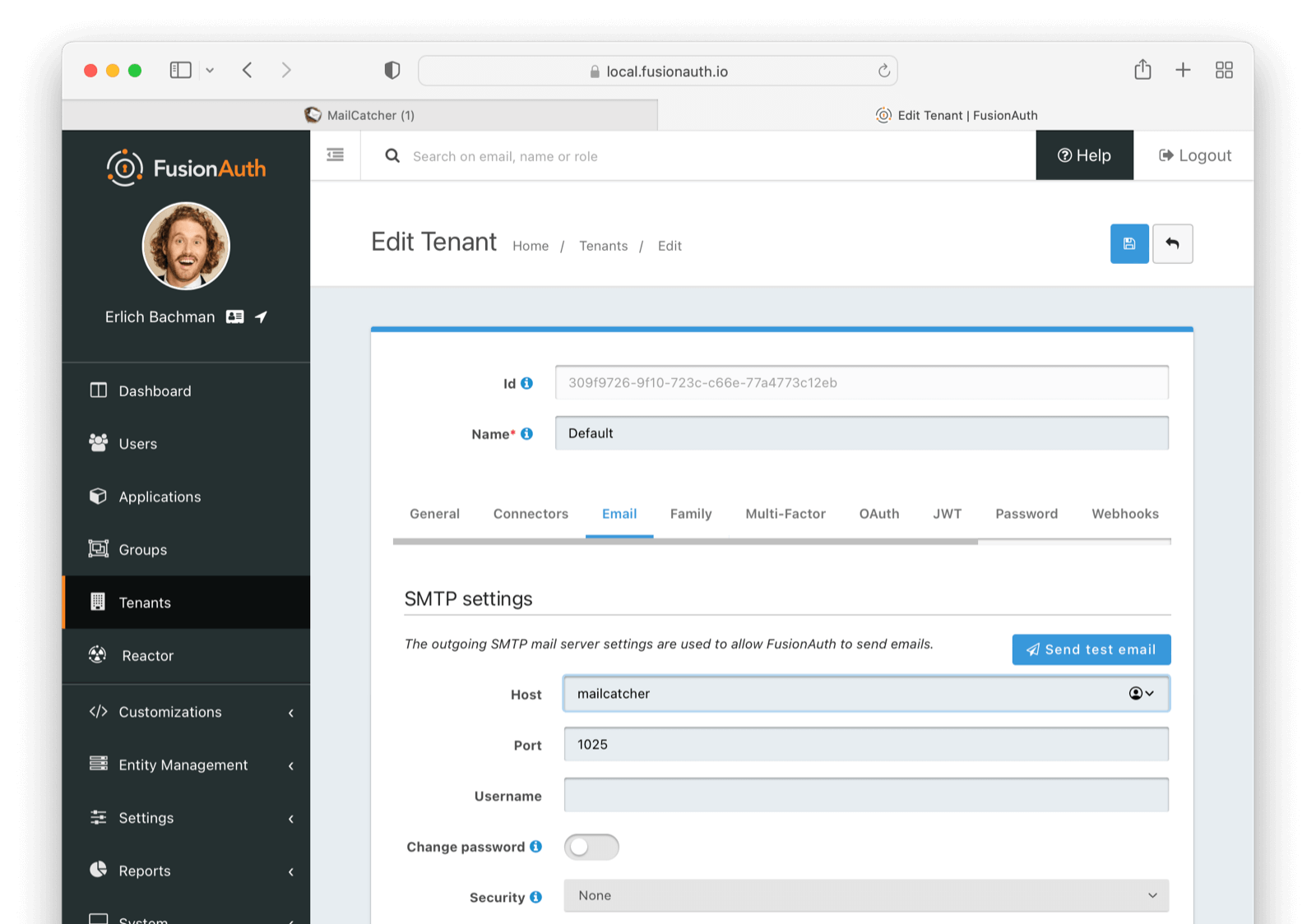
Below is a functional configuration on the tenant email tab based on the above configuration file:
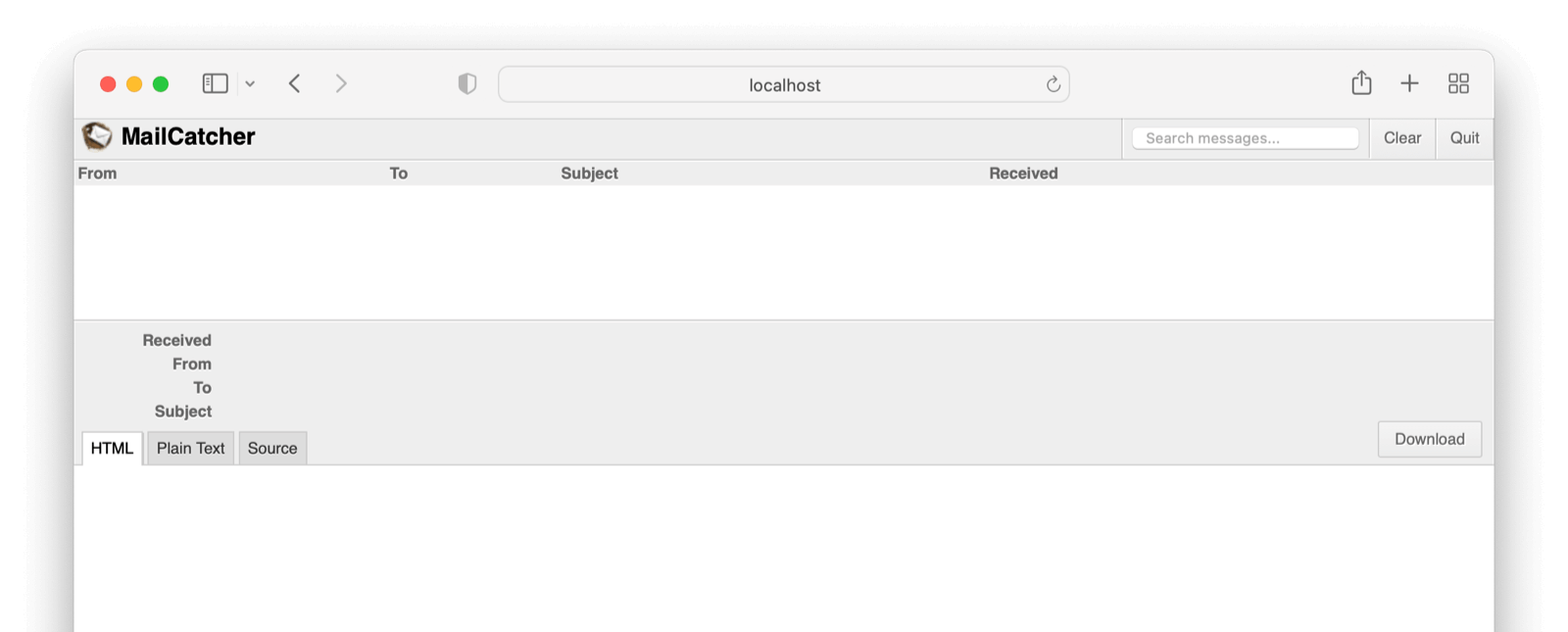
This a view of the Mailcatcher client.
Limitations#
Due to Oracle licensing restrictions, the docker images published on Docker Hub do not contain the necessary software to connect to a MySQL database.
If you wish to use MySQL, you'll need to build a custom container that includes the MySQL Connector JAR file. Here is an example container definition that uses the FusionAuth image as a base layer and adds the MySQL connector.
#
# FusionAuth App Dockerfile including the MySQL connector
#
# Note:
# -----------------------------------------------------------------------------
# The MySQL JDBC connector is not bundled with FusionAuth due to the GPL
# license terms under which Oracle publishes this software.
#
# Because of this restriction, you will need to build a docker image for your
# use that contains the MySQL JDBC connector in order to connect to a MySQL
# database at runtime.
# Source: https://github.com/mysql/mysql-connector-j
# License: https://github.com/mysql/mysql-connector-j/blob/release/8.0/LICENSE
# Homepage: https://dev.mysql.com/doc/connector-j/8.0/en/
#
# If you choose to build a Docker image containing this connector, ensure you
# are aware and in compliance with the license under which the MySQL JDBC connector
# is provided.
#
# This file is provided as an example only.
# -----------------------------------------------------------------------------
#
# Build:
# > docker build -t fusionauth/fusionauth-app-mysql:1.70.0 .
# > docker build -t fusionauth/fusionauth-app-mysql:latest .
#
# Run:
# > docker run -p 9011:9011 -it fusionauth/fusionauth-app-mysql
#
FROM fusionauth/fusionauth-app:1.70.0
ADD https://search.maven.org/remotecontent?filepath=com/mysql/mysql-connector-j/9.0.0/mysql-connector-j-9.0.0.jar /usr/local/fusionauth/fusionauth-app/lib